
 Промышленность
Похожие презентации:









FrankenSAM. ITEL Evo 1 Introduction
1. FrankenSAM
CUIFrankenSAM
ITEL Evo 1 Introduction
07 November 2023
DISTRIBUTION STATEMENT D: Distribution authorized to the Department of Defense
and U.S. DoD contractors only; Direct Military Support; 28 March 2023. Other requests
for this document shall be referred to Department of the Air Force, Headquarters 645th
Aeronautical Systems Group, Wright-Patterson Air Force Base, Ohio.
WARNING: This document contains technical data that is subject to the International
Traffic in Arms Regulations (ITAR) or Export Administration Regulations (EAR). The
export, re-export or transfer of this document to foreign persons without obtaining prior
approval from the U.S. government or as otherwise authorized by U.S. law and
regulations is prohibited. Violations of these export regulations are subject to civil and
criminal penalties.
DESTRUCTION NOTICE: Destroy in accordance with the procedures in DoDM 5200.1
Vol 3 DoD "Information Security Program: Protection of Classified Information" or
follow the procedures in DoD 5220.22-M "Industrial Security Manual.“
Controlled by: Department of the Air Force, Headquarters 645th Aeronautical
Systems Group
CUI Category: CUI Basic
Distribution/Dissemination Control: Distribution D
POC: SNC AIS Security Office, CENSecurity@sncorp.com
Use or disclosure of data contained on this sheet
is subject to the restrictions on the title page.
© 2023 Sierra Nevada Company, LLC
ISR, AVIATION & SECURITY (IAS)
CUI
1
2. Lesson Objectives
CUILesson Objectives
Terminal Objective:
o
Enabling Objectives:
o
o
o
o
o
o
o
o
o
o
TO 2 – To provide new crew members of the a thorough understanding of all MX-15D components,
indications, controls and functions, such that the crew members will be able to use operate the MX15D to execute mission tasks.
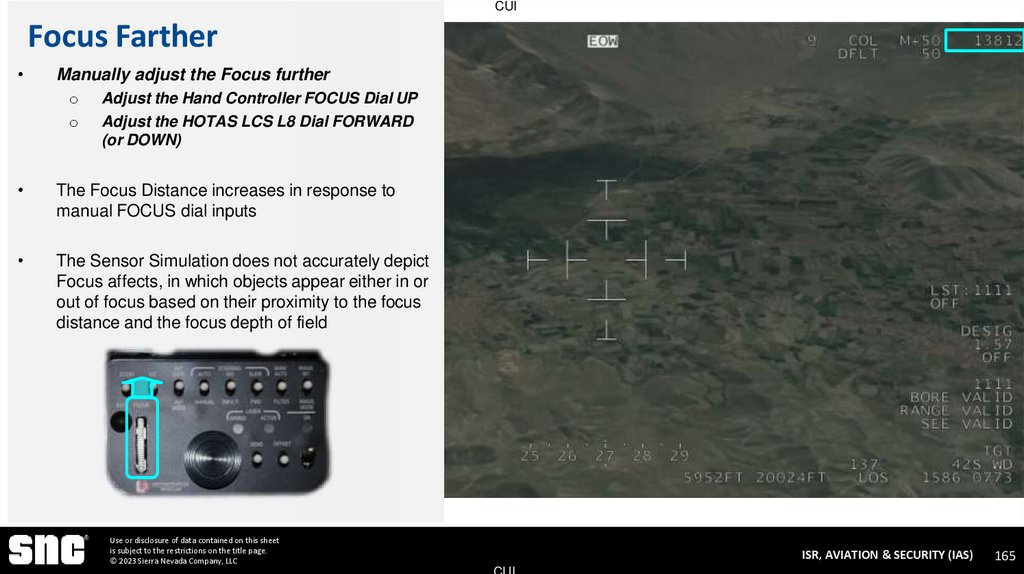
EO 2-1 – Recall System Hardware Components
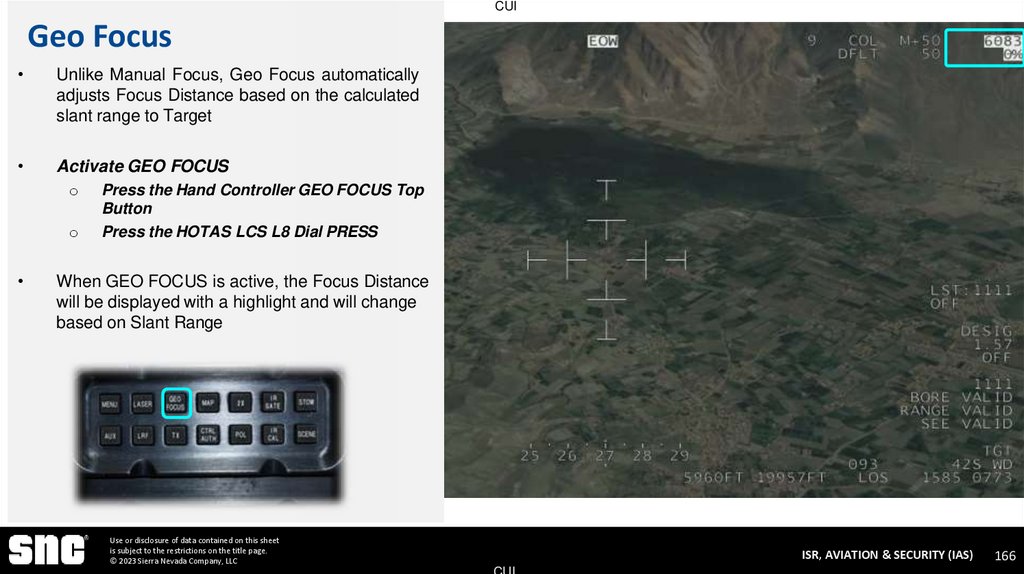
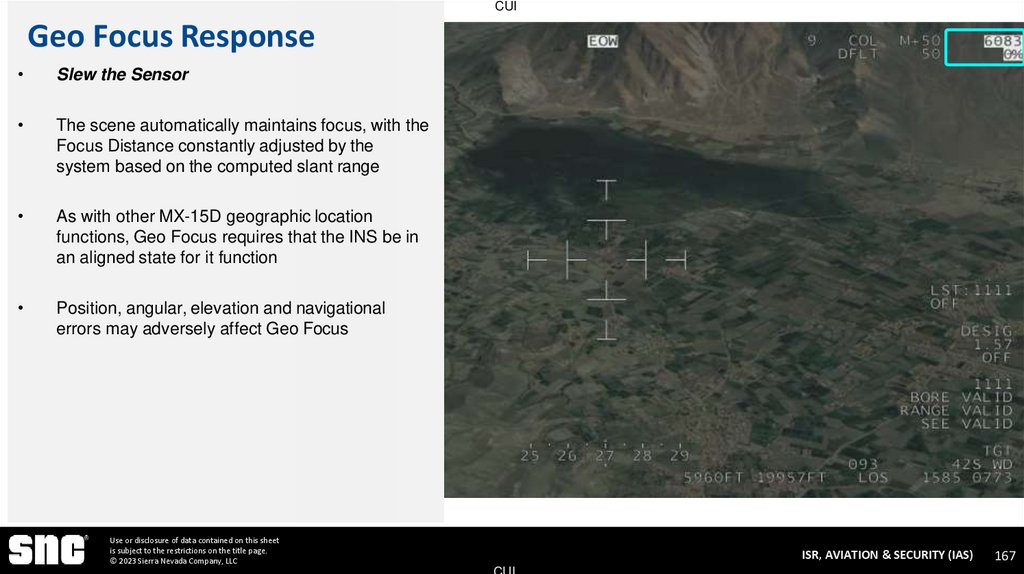
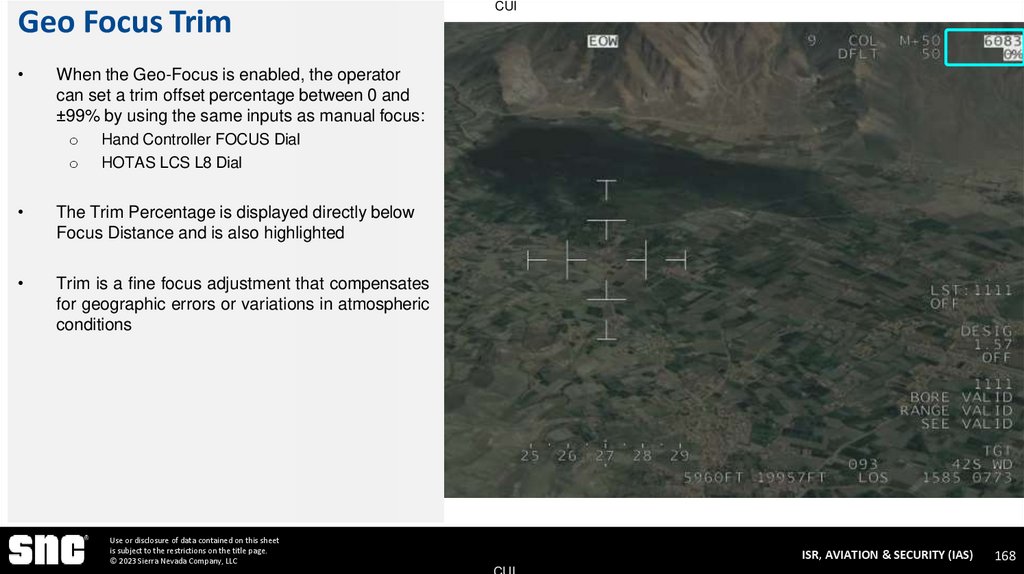
EO 2-2 – Recall Interconnects
EO 2-3 – Recall System Displays
EO 2-4 – Recall All Sensor Payloads and Controls
EO 2-5 – Recall Alignment and Geographic Location Functions
EO 2-6 – Recall All Steering Modes
EO 2-7 – Recall all Auto Video Tracking Modes and Controls
EO 2-8 – Recall all Focus Modes and Controls
EO 2-9 – Recall all Laser Payloads and Controls
EO 2-10 – Recall all System Menus
Audience:
o
HH+ Fire Control Officers
Use or disclosure of data contained on this sheet
is subject to the restrictions on the title page.
© 2023 Sierra Nevada Company, LLC
ISR, AVIATION & SECURITY (IAS)
CUI
2
3. Lesson Outline
CUILesson Outline
1.
2.
3.
4.
5.
6.
7.
8.
9.
10.
11.
12.
13.
14.
15.
16.
17.
Introduction
System Initialization
Basic Sensor Slew
Steering Modes
Sensor Stabilization
Status Graphics
System Status Menu
Menu Navigation
Mission Menu
Digital Overlays Menu
Zoom
Focus
EOW Camera Features
Temporal and Spatial Processing
EOW Filters
Exposure Gates
EO Sensitivity and Offset
18.
19.
20.
21.
22.
23.
24.
25.
26.
27.
28.
29.
30.
31.
32.
33.
Use or disclosure of data contained on this sheet
is subject to the restrictions on the title page.
© 2023 Sierra Nevada Company, LLC
Black Level
Scene Contrast
VIC and Sub-VIC
EON-DL Camera Features
EON-SW Camera Features
Infrared Camera Features
IR Calibration
Operator Payload Menu
Auto Video Tracking (AVT)
Image Fusion
Illuminator-N
Laser Designator Rangefinder (LDR)
Laser Spot Tracker (LST)
See Spot
Points of Interest
Profiles Menu
ISR, AVIATION & SECURITY (IAS)
CUI
3
4. MX-15D System Introduction
CUIMX-15D SYSTEM INTRODUCTION
EO 2-1 – Recall System Hardware Components
Use or disclosure of data contained on this sheet
is subject to the restrictions on the title page.
© 2023 Sierra Nevada Company, LLC
ISR, AVIATION & SECURITY (IAS)
CUI
4
5. Introduction
CUIIntroduction
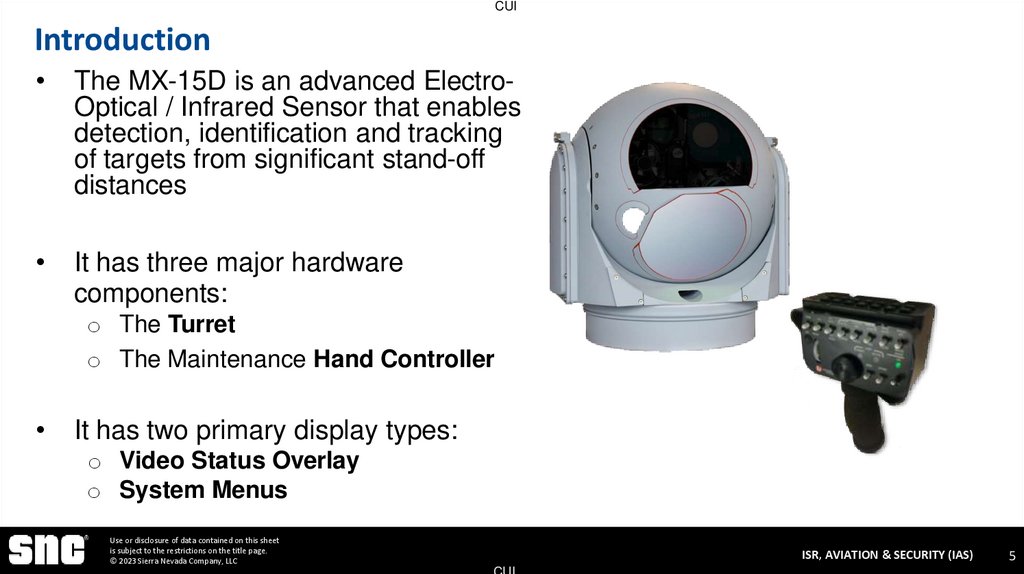
The MX-15D is an advanced ElectroOptical / Infrared Sensor that enables
detection, identification and tracking
of targets from significant stand-off
distances
It has three major hardware
components:
o The Turret
o The Maintenance Hand Controller
It has two primary display types:
o Video Status Overlay
o System Menus
Use or disclosure of data contained on this sheet
is subject to the restrictions on the title page.
© 2023 Sierra Nevada Company, LLC
ISR, AVIATION & SECURITY (IAS)
CUI
5
6. MX-15D Turret
CUI
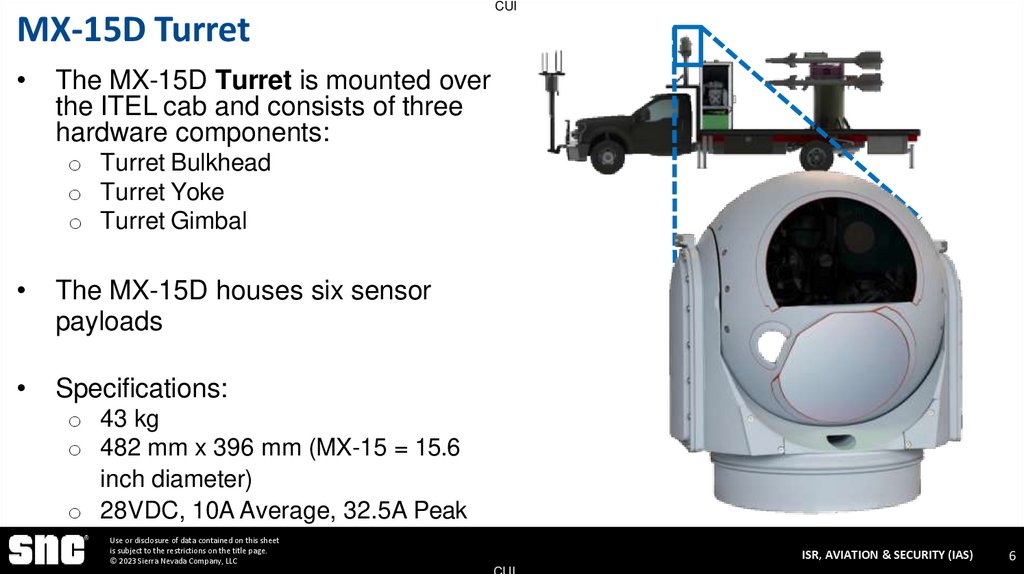
The MX-15D Turret is mounted over
the ITEL cab and consists of three
hardware components:
o Turret Bulkhead
o Turret Yoke
o Turret Gimbal
The MX-15D houses six sensor
payloads
Specifications:
o 43 kg
o 482 mm x 396 mm (MX-15 = 15.6
inch diameter)
o 28VDC, 10A Average, 32.5A Peak
Use or disclosure of data contained on this sheet
is subject to the restrictions on the title page.
© 2023 Sierra Nevada Company, LLC
ISR, AVIATION & SECURITY (IAS)
CUI
66
7. MX-15D Turret Bulkhead
CUIMX-15D Turret Bulkhead
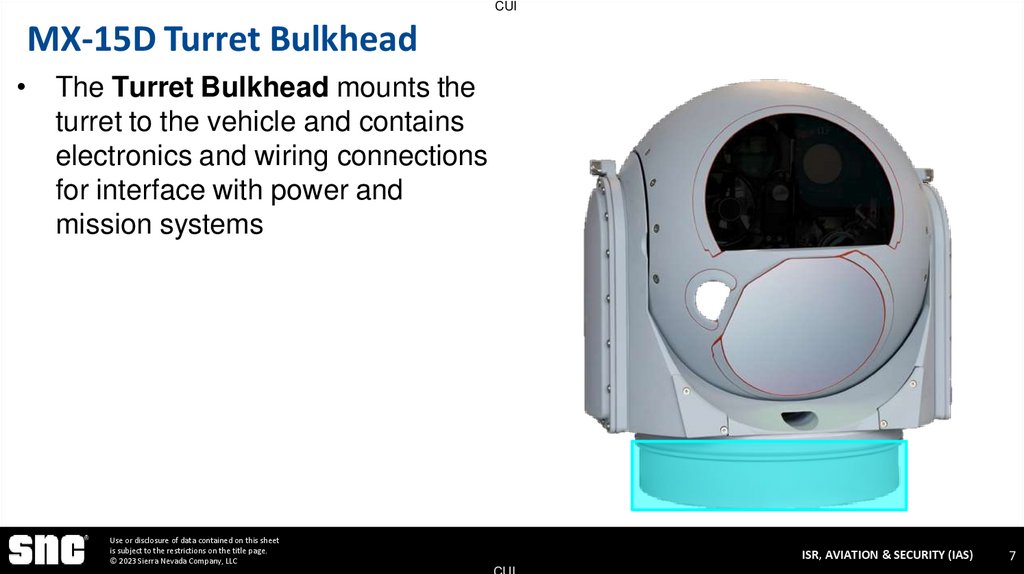
• The Turret Bulkhead mounts the
turret to the vehicle and contains
electronics and wiring connections
for interface with power and
mission systems
Use or disclosure of data contained on this sheet
is subject to the restrictions on the title page.
© 2023 Sierra Nevada Company, LLC
ISR, AVIATION & SECURITY (IAS)
CUI
77
8. MX-15D Integrated Electronics Processing
CUIMX-15D Integrated Electronics Processing
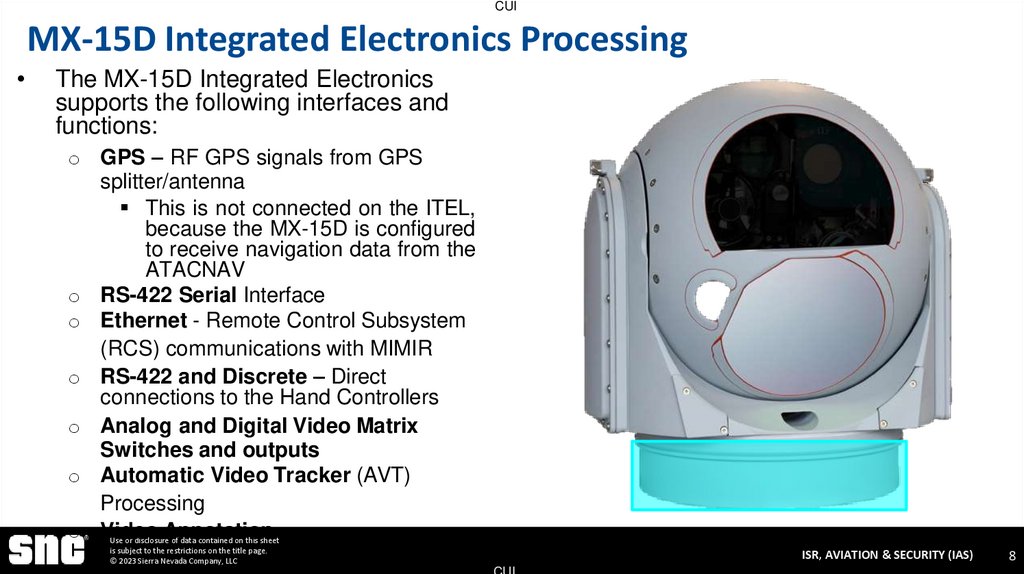
The MX-15D Integrated Electronics
supports the following interfaces and
functions:
o GPS – RF GPS signals from GPS
splitter/antenna
This is not connected on the ITEL,
because the MX-15D is configured
to receive navigation data from the
ATACNAV
o RS-422 Serial Interface
o Ethernet - Remote Control Subsystem
(RCS) communications with MIMIR
o RS-422 and Discrete – Direct
connections to the Hand Controllers
o Analog and Digital Video Matrix
Switches and outputs
o Automatic Video Tracker (AVT)
Processing
o Video Annotation
Use or disclosure of data contained on this sheet
is subject to the restrictions on the title page.
© 2023 Sierra Nevada Company, LLC
ISR, AVIATION & SECURITY (IAS)
CUI
88
9. MX-15D Turret Yoke
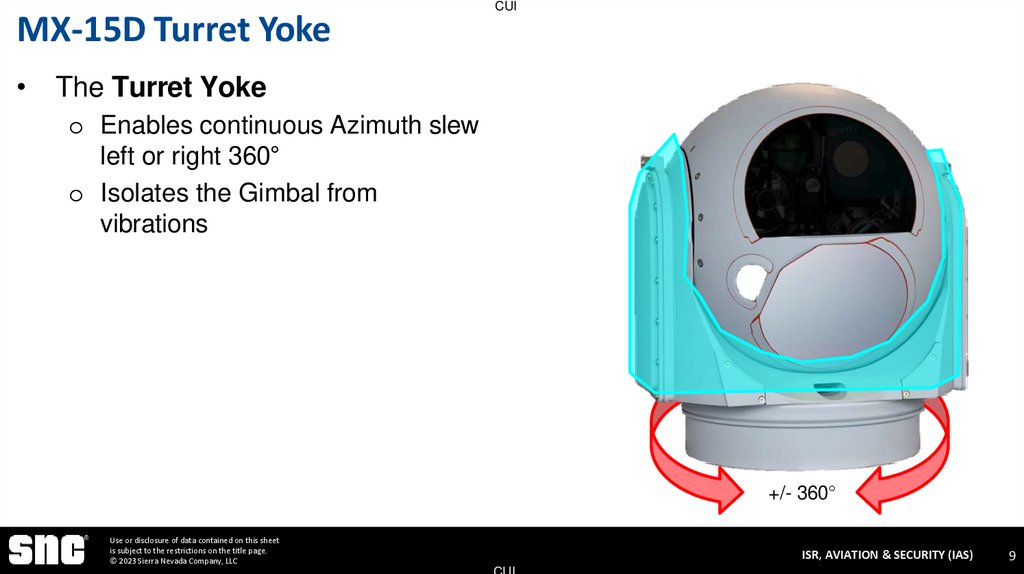
CUI• The Turret Yoke
o Enables continuous Azimuth slew
left or right 360°
o Isolates the Gimbal from
vibrations
+/- 360°
Use or disclosure of data contained on this sheet
is subject to the restrictions on the title page.
© 2023 Sierra Nevada Company, LLC
ISR, AVIATION & SECURITY (IAS)
CUI
99
10. MX-15D Turret
CUIMX-15D Turret
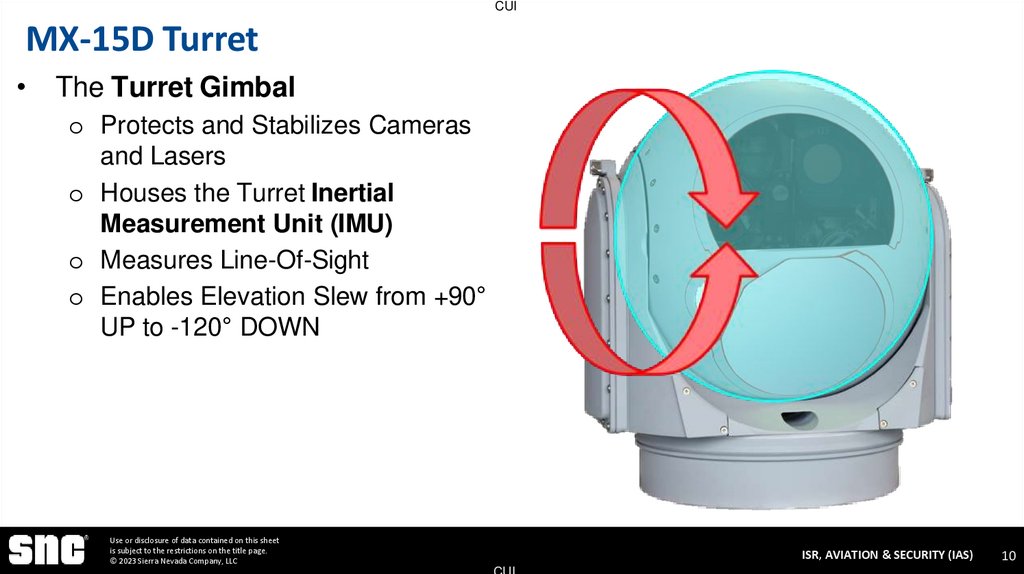
• The Turret Gimbal
o Protects and Stabilizes Cameras
and Lasers
o Houses the Turret Inertial
Measurement Unit (IMU)
o Measures Line-Of-Sight
o Enables Elevation Slew from +90°
UP to -120° DOWN
Use or disclosure of data contained on this sheet
is subject to the restrictions on the title page.
© 2023 Sierra Nevada Company, LLC
ISR, AVIATION & SECURITY (IAS)
CUI
10
11. MX-15D Turret Gimbal Payloads
CUIMX-15D Turret Gimbal Payloads
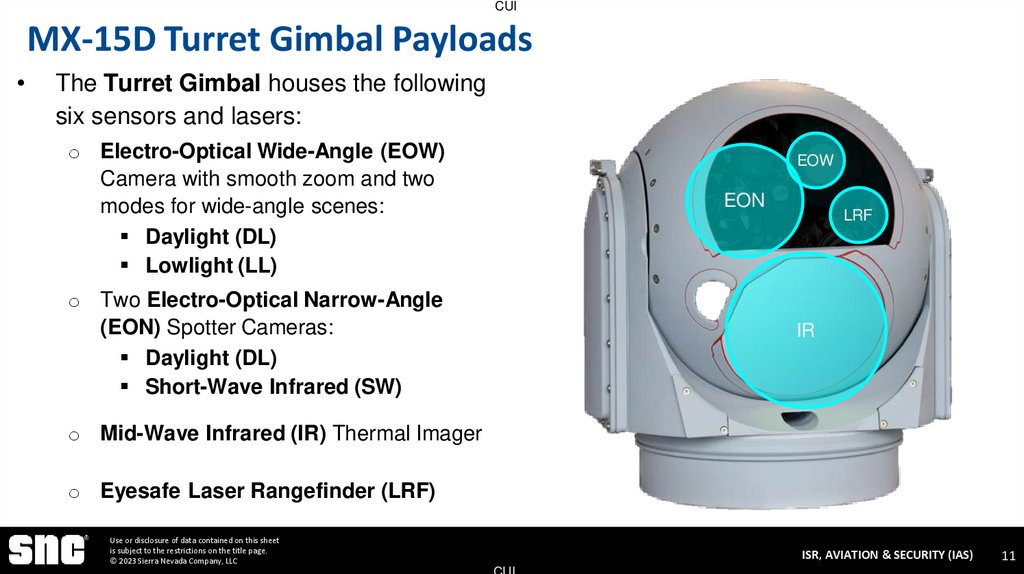
The Turret Gimbal houses the following
six sensors and lasers:
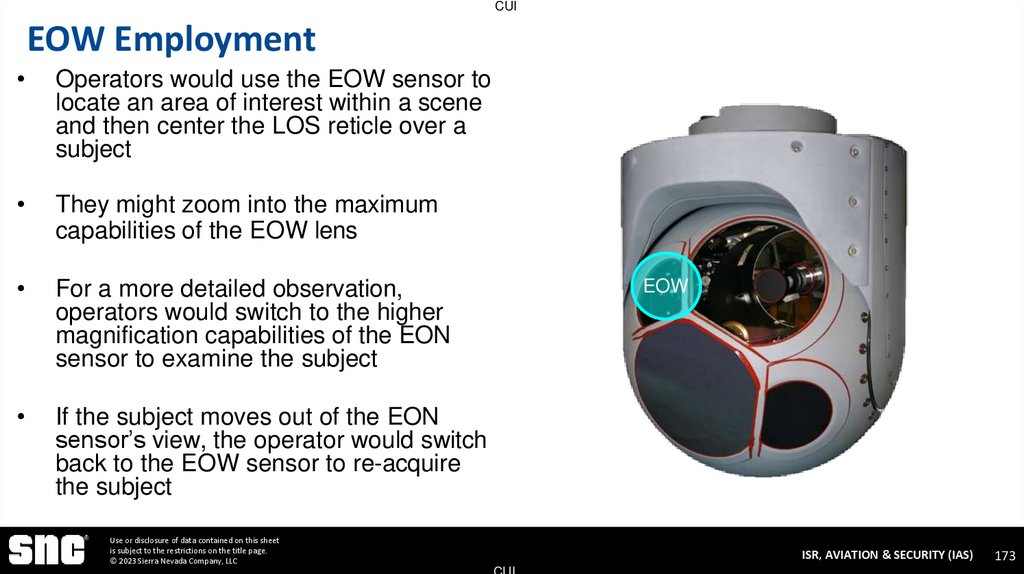
o Electro-Optical Wide-Angle (EOW)
Camera with smooth zoom and two
modes for wide-angle scenes:
Daylight (DL)
Lowlight (LL)
EOW
EON
o Two Electro-Optical Narrow-Angle
(EON) Spotter Cameras:
Daylight (DL)
Short-Wave Infrared (SW)
LRF
IR
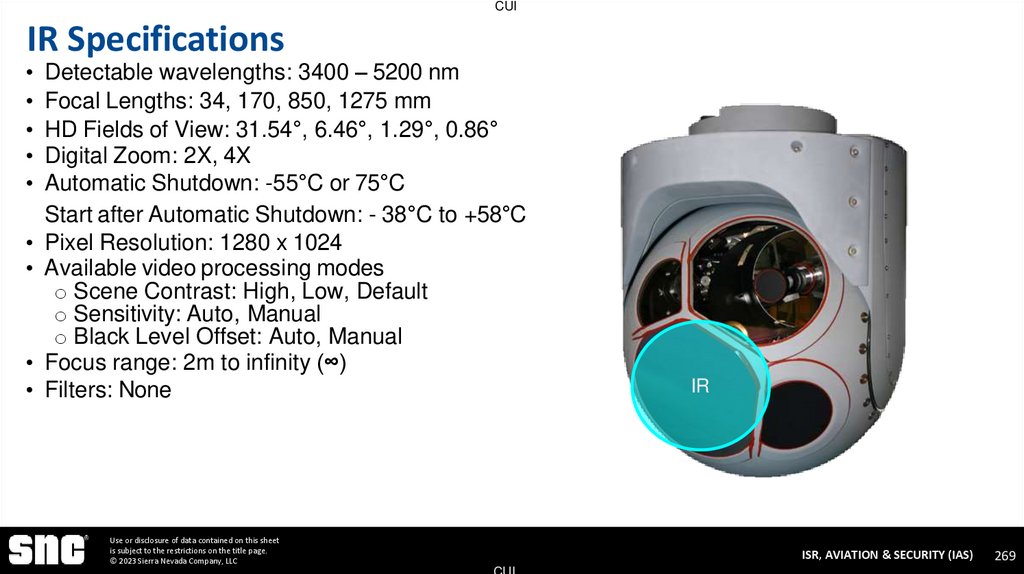
o Mid-Wave Infrared (IR) Thermal Imager
o Eyesafe Laser Rangefinder (LRF)
Use or disclosure of data contained on this sheet
is subject to the restrictions on the title page.
© 2023 Sierra Nevada Company, LLC
ISR, AVIATION & SECURITY (IAS)
CUI
11
12. MX-15D Electro-Optical Wide
CUIMX-15D Electro-Optical Wide
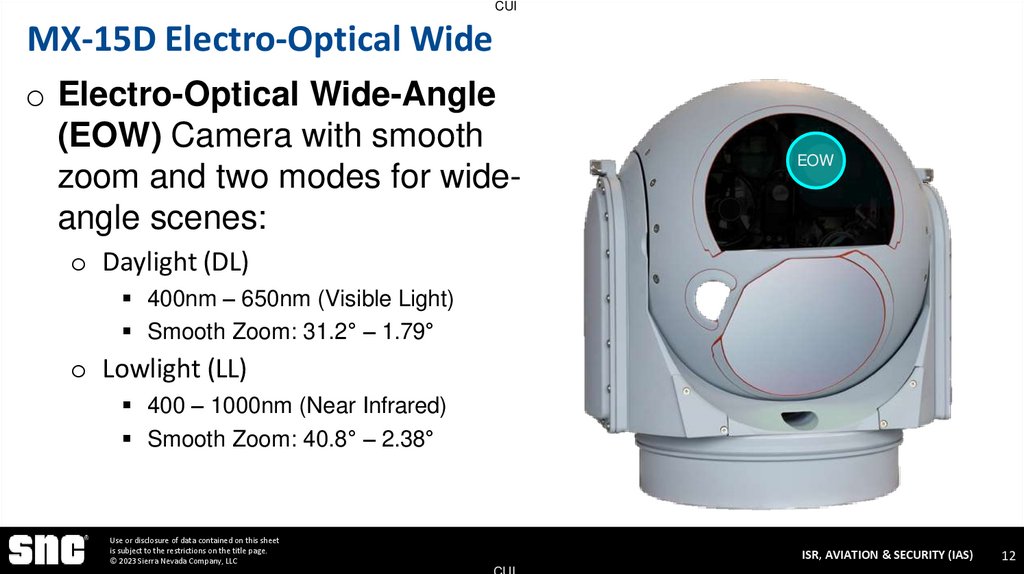
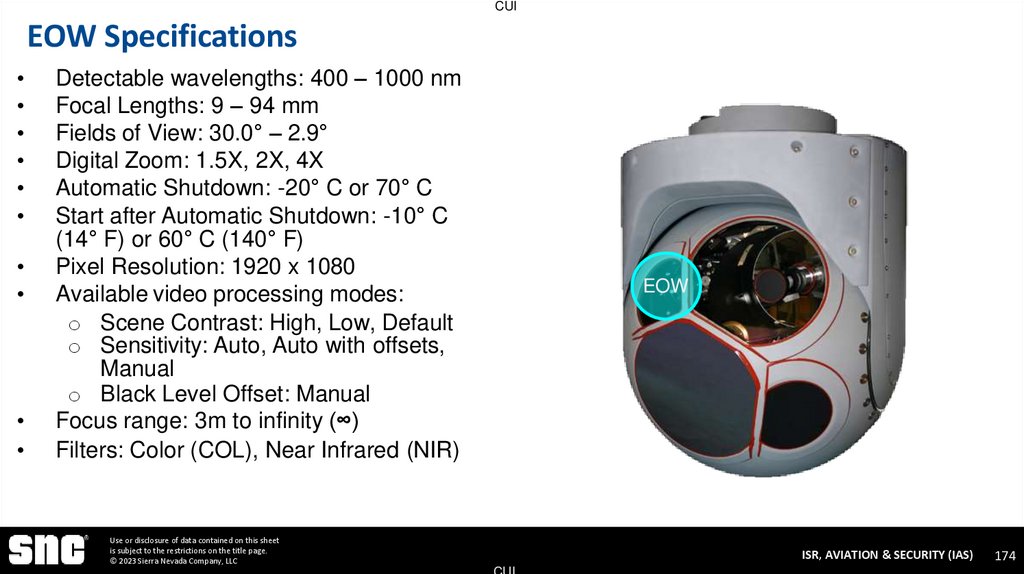
o Electro-Optical Wide-Angle
(EOW) Camera with smooth
zoom and two modes for wideangle scenes:
EOW
o Daylight (DL)
400nm – 650nm (Visible Light)
Smooth Zoom: 31.2° – 1.79°
o Lowlight (LL)
400 – 1000nm (Near Infrared)
Smooth Zoom: 40.8° – 2.38°
Use or disclosure of data contained on this sheet
is subject to the restrictions on the title page.
© 2023 Sierra Nevada Company, LLC
ISR, AVIATION & SECURITY (IAS)
CUI
12
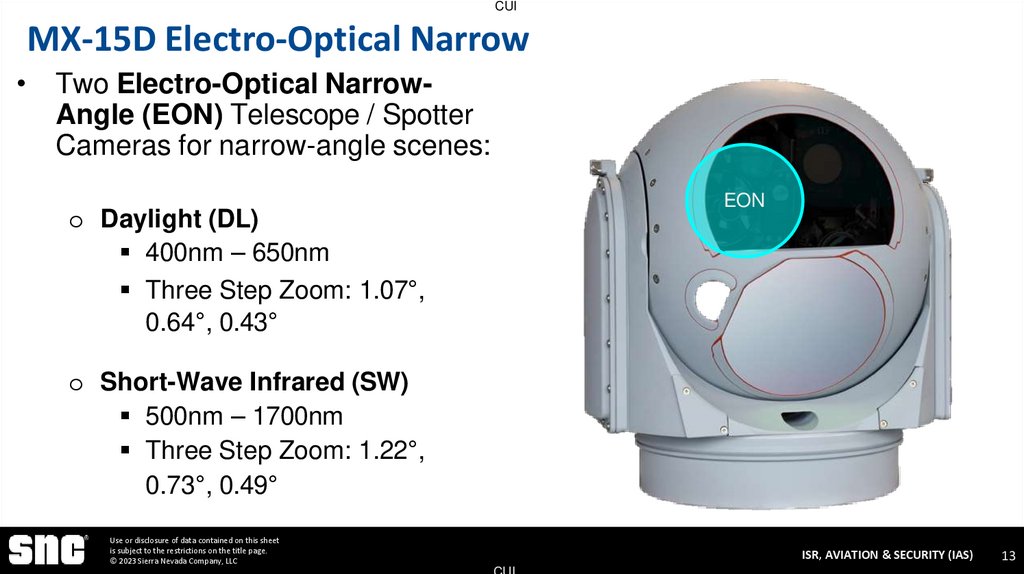
13. MX-15D Electro-Optical Narrow
CUIMX-15D Electro-Optical Narrow
• Two Electro-Optical NarrowAngle (EON) Telescope / Spotter
Cameras for narrow-angle scenes:
EON
o Daylight (DL)
400nm – 650nm
Three Step Zoom: 1.07°,
0.64°, 0.43°
o Short-Wave Infrared (SW)
500nm – 1700nm
Three Step Zoom: 1.22°,
0.73°, 0.49°
Use or disclosure of data contained on this sheet
is subject to the restrictions on the title page.
© 2023 Sierra Nevada Company, LLC
ISR, AVIATION & SECURITY (IAS)
CUI
13
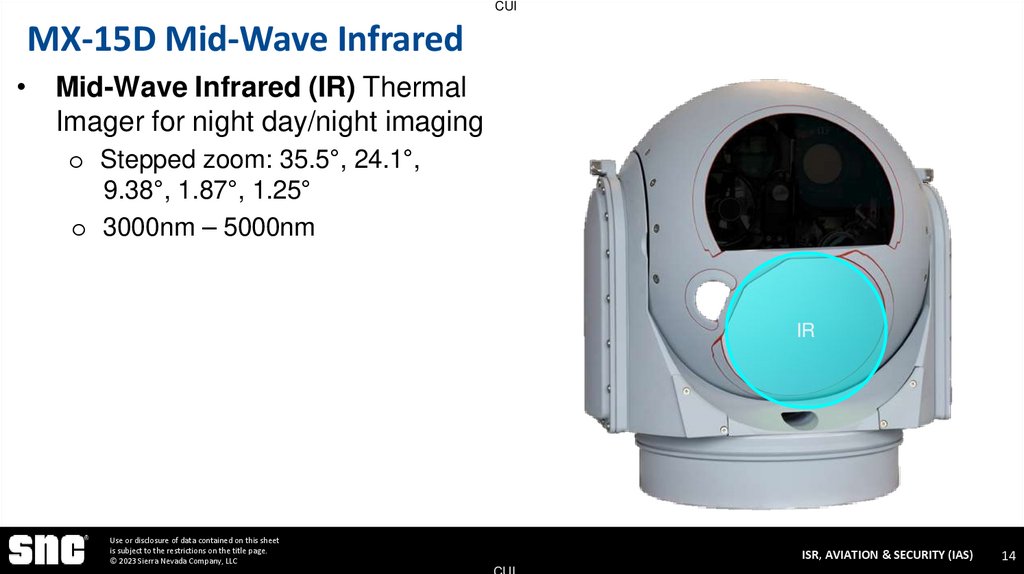
14. MX-15D Mid-Wave Infrared
CUIMX-15D Mid-Wave Infrared
• Mid-Wave Infrared (IR) Thermal
Imager for night day/night imaging
o Stepped zoom: 35.5°, 24.1°,
9.38°, 1.87°, 1.25°
o 3000nm – 5000nm
IR
Use or disclosure of data contained on this sheet
is subject to the restrictions on the title page.
© 2023 Sierra Nevada Company, LLC
ISR, AVIATION & SECURITY (IAS)
CUI
14
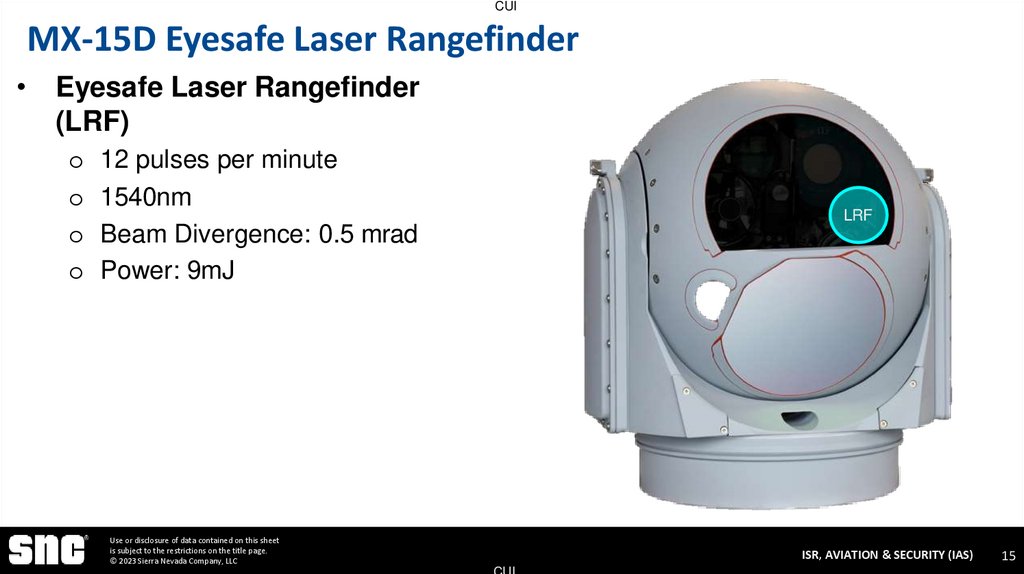
15. MX-15D Eyesafe Laser Rangefinder
CUIMX-15D Eyesafe Laser Rangefinder
• Eyesafe Laser Rangefinder
(LRF)
o 12 pulses per minute
o 1540nm
o Beam Divergence: 0.5 mrad
o Power: 9mJ
LRF
Use or disclosure of data contained on this sheet
is subject to the restrictions on the title page.
© 2023 Sierra Nevada Company, LLC
ISR, AVIATION & SECURITY (IAS)
CUI
15
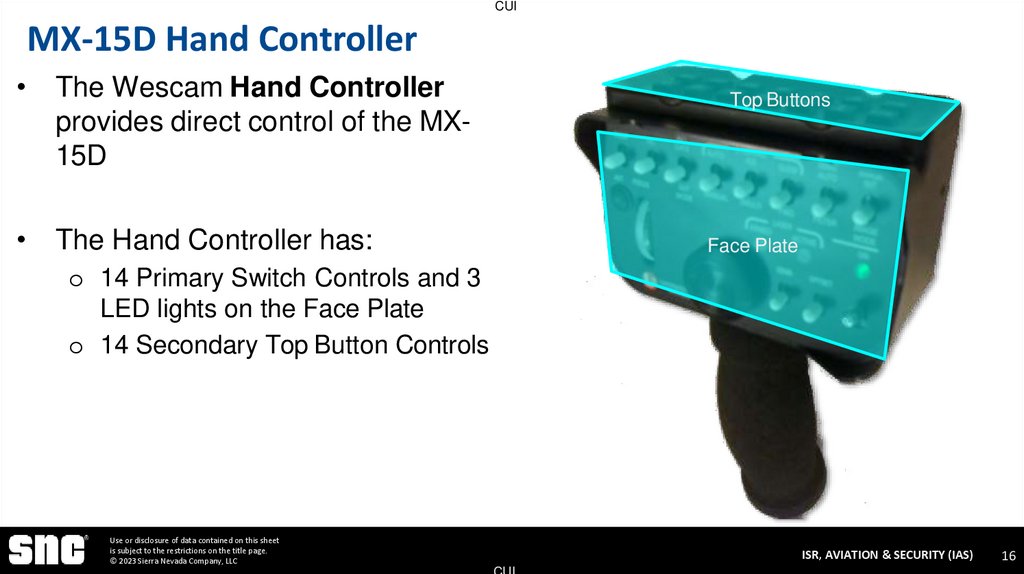
16. MX-15D Hand Controller
CUIMX-15D Hand Controller
• The Wescam Hand Controller
provides direct control of the MX15D
Top Buttons
• The Hand Controller has:
Face Plate
o 14 Primary Switch Controls and 3
LED lights on the Face Plate
o 14 Secondary Top Button Controls
Use or disclosure of data contained on this sheet
is subject to the restrictions on the title page.
© 2023 Sierra Nevada Company, LLC
ISR, AVIATION & SECURITY (IAS)
CUI
16
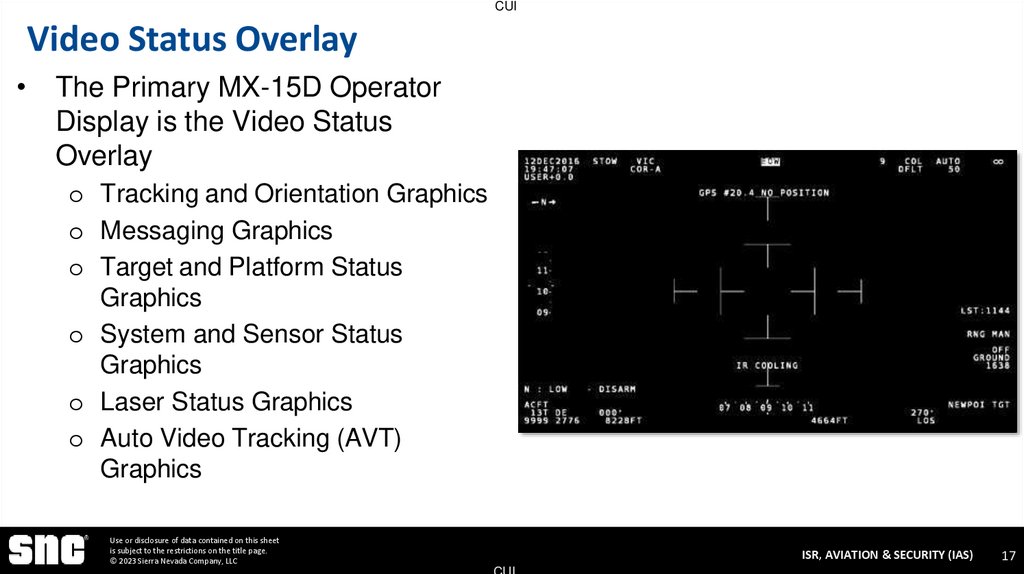
17. Video Status Overlay
CUIVideo Status Overlay
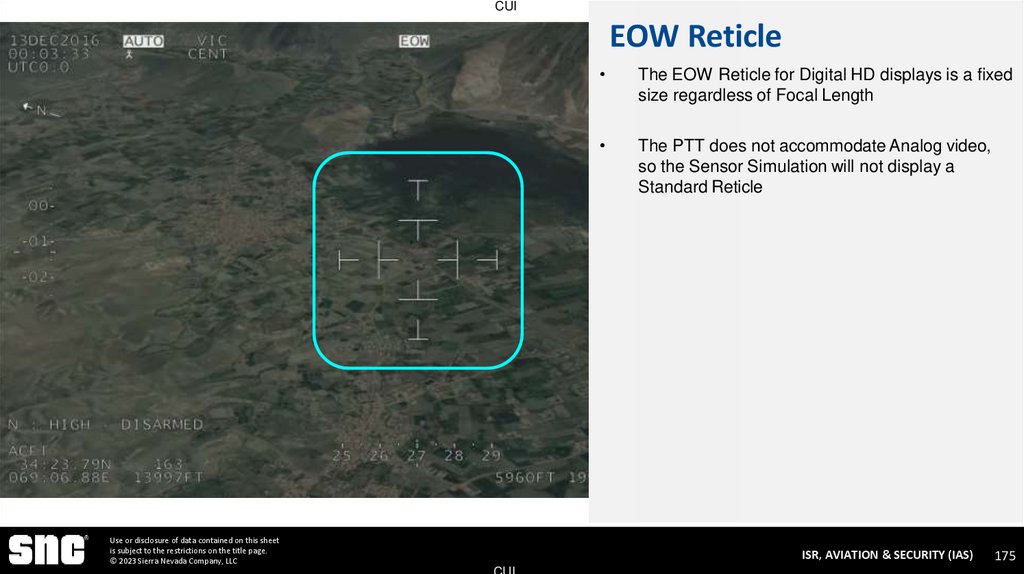
• The Primary MX-15D Operator
Display is the Video Status
Overlay
o Tracking and Orientation Graphics
o Messaging Graphics
o Target and Platform Status
Graphics
o System and Sensor Status
Graphics
o Laser Status Graphics
o Auto Video Tracking (AVT)
Graphics
Use or disclosure of data contained on this sheet
is subject to the restrictions on the title page.
© 2023 Sierra Nevada Company, LLC
ISR, AVIATION & SECURITY (IAS)
CUI
17
18. Menus
CUI
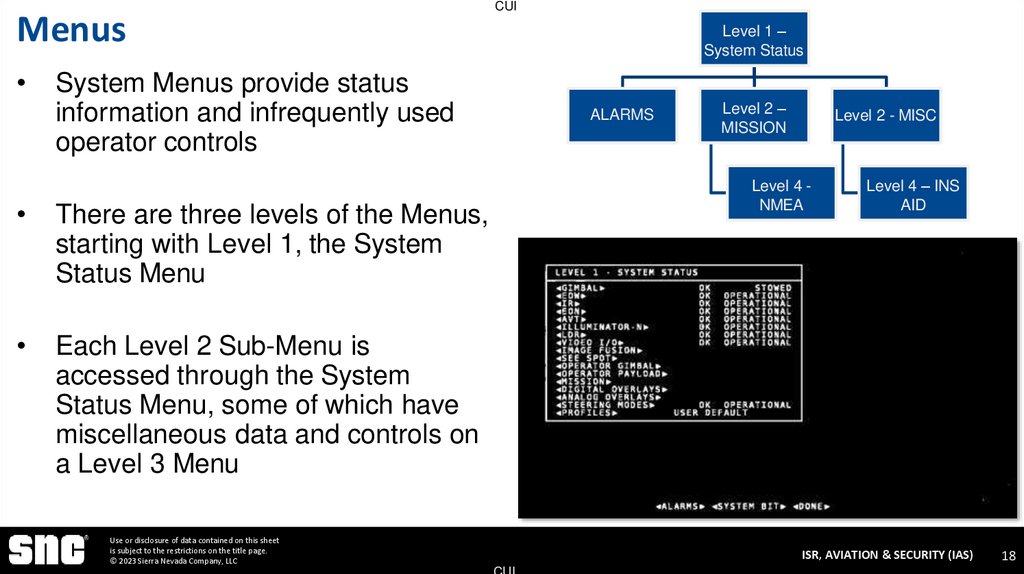
Level 1 –
System Status
System Menus provide status
information and infrequently used
operator controls
There are three levels of the Menus,
starting with Level 1, the System
Status Menu
Each Level 2 Sub-Menu is
accessed through the System
Status Menu, some of which have
miscellaneous data and controls on
a Level 3 Menu
ALARMS
Level 2 –
MISSION
Level 2 - MISC
Level 4 NMEA
Use or disclosure of data contained on this sheet
is subject to the restrictions on the title page.
© 2023 Sierra Nevada Company, LLC
Level 4 – INS
AID
ISR, AVIATION & SECURITY (IAS)
CUI
18
19. System Initialization
CUISYSTEM INITIALIZATION
EO 2-2 – Recall Interconnects EO 2-3 – Recall System Displays
Use or disclosure of data contained on this sheet
is subject to the restrictions on the title page.
© 2023 Sierra Nevada Company, LLC
ISR, AVIATION & SECURITY (IAS)
CUI
19
20. System Start
CUISYSTEM START
Use or disclosure of data contained on this sheet
is subject to the restrictions on the title page.
© 2023 Sierra Nevada Company, LLC
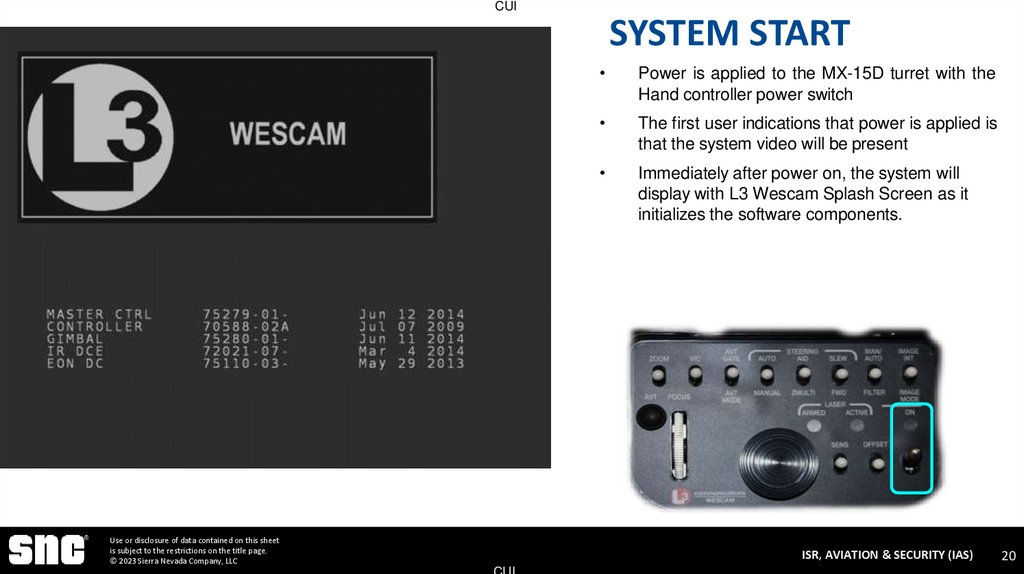
Power is applied to the MX-15D turret with the
Hand controller power switch
The first user indications that power is applied is
that the system video will be present
Immediately after power on, the system will
display with L3 Wescam Splash Screen as it
initializes the software components.
ISR, AVIATION & SECURITY (IAS)
CUI
20
21. SENSOR POWER
CUISENSOR POWER
Use or disclosure of data contained on this sheet
is subject to the restrictions on the title page.
© 2023 Sierra Nevada Company, LLC
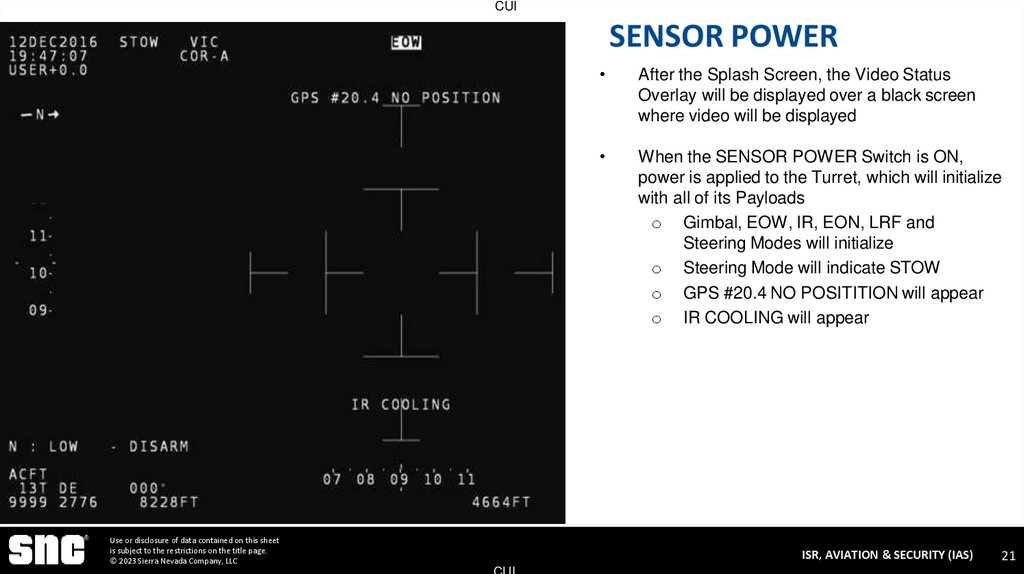
After the Splash Screen, the Video Status
Overlay will be displayed over a black screen
where video will be displayed
When the SENSOR POWER Switch is ON,
power is applied to the Turret, which will initialize
with all of its Payloads
o Gimbal, EOW, IR, EON, LRF and
Steering Modes will initialize
o Steering Mode will indicate STOW
o GPS #20.4 NO POSITITION will appear
o IR COOLING will appear
ISR, AVIATION & SECURITY (IAS)
CUI
21
22. Pop-Up Alarms
CUIPop-Up Alarms
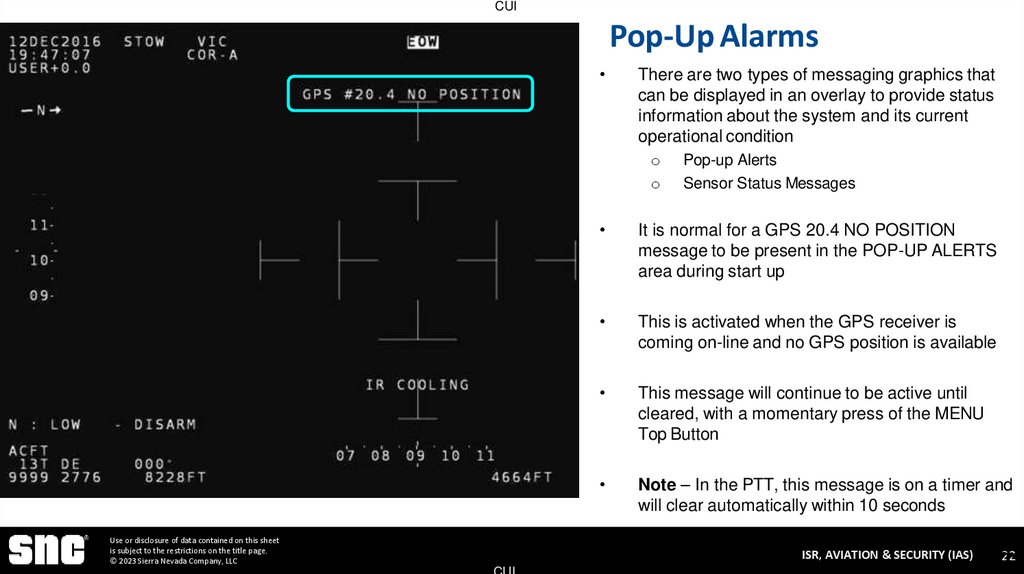
There are two types of messaging graphics that
can be displayed in an overlay to provide status
information about the system and its current
operational condition
o
o
Use or disclosure of data contained on this sheet
is subject to the restrictions on the title page.
© 2023 Sierra Nevada Company, LLC
Pop-up Alerts
Sensor Status Messages
It is normal for a GPS 20.4 NO POSITION
message to be present in the POP-UP ALERTS
area during start up
This is activated when the GPS receiver is
coming on-line and no GPS position is available
This message will continue to be active until
cleared, with a momentary press of the MENU
Top Button
Note – In the PTT, this message is on a timer and
will clear automatically within 10 seconds
ISR, AVIATION & SECURITY (IAS)
CUI
22
22
23. Clearing Alarms
CUIClearing Alarms
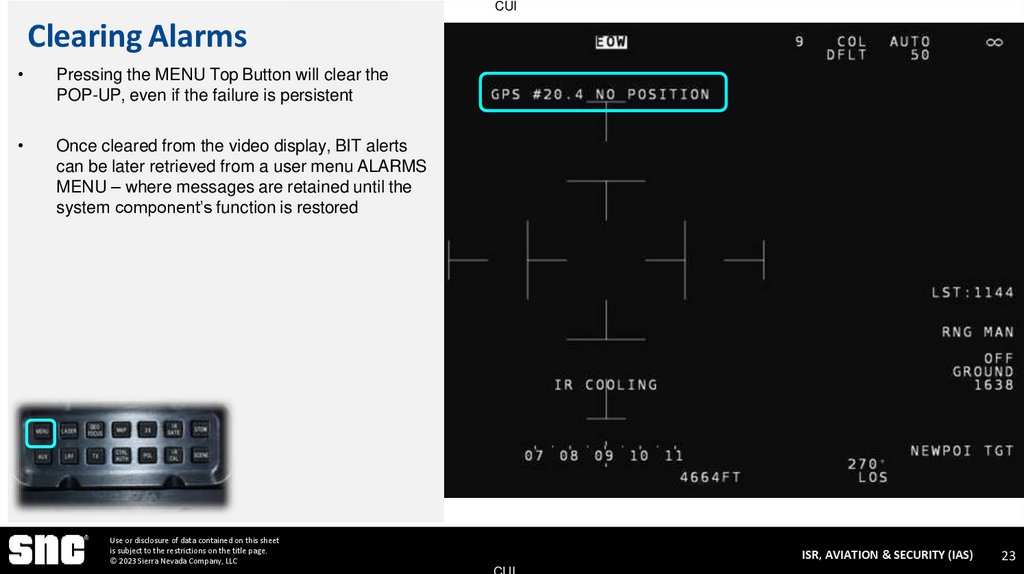
Pressing the MENU Top Button will clear the
POP-UP, even if the failure is persistent
Once cleared from the video display, BIT alerts
can be later retrieved from a user menu ALARMS
MENU – where messages are retained until the
system component’s function is restored
Use or disclosure of data contained on this sheet
is subject to the restrictions on the title page.
© 2023 Sierra Nevada Company, LLC
ISR, AVIATION & SECURITY (IAS)
CUI
23
24. System Status Menu
CUISystem Status Menu
Use or disclosure of data contained on this sheet
is subject to the restrictions on the title page.
© 2023 Sierra Nevada Company, LLC
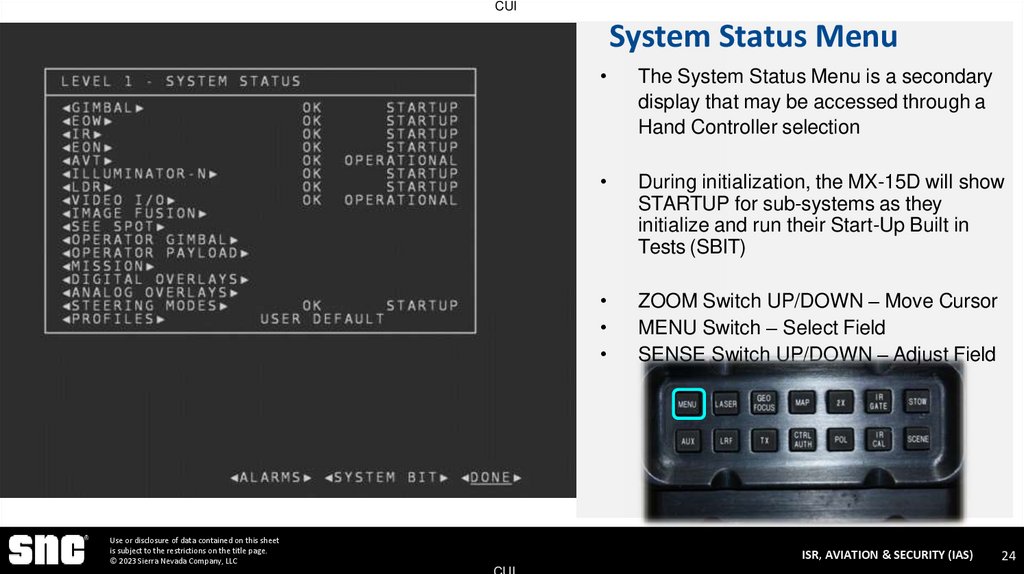
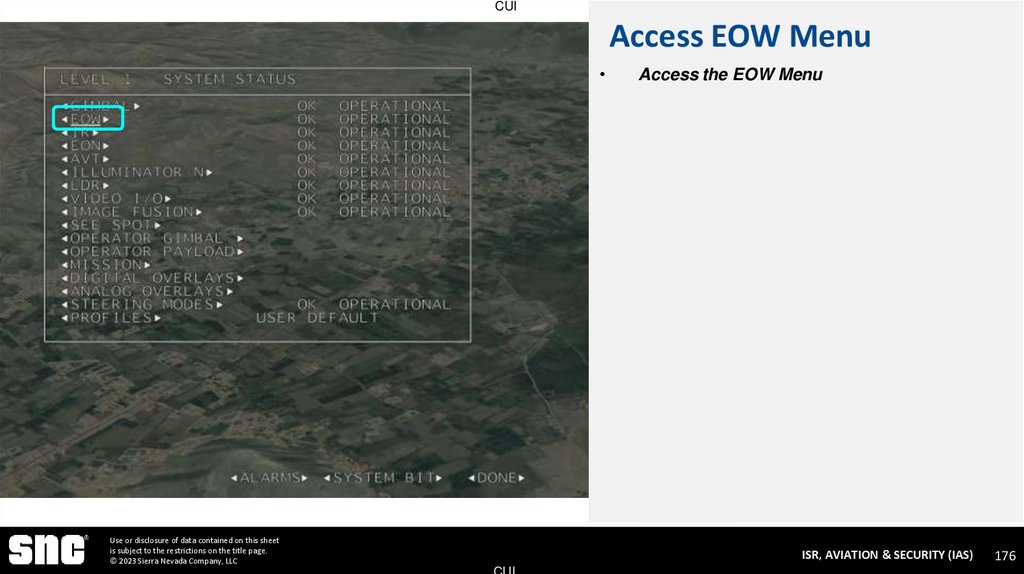
The System Status Menu is a secondary
display that may be accessed through a
Hand Controller selection
During initialization, the MX-15D will show
STARTUP for sub-systems as they
initialize and run their Start-Up Built in
Tests (SBIT)
ZOOM Switch UP/DOWN – Move Cursor
MENU Switch – Select Field
SENSE Switch UP/DOWN – Adjust Field
ISR, AVIATION & SECURITY (IAS)
CUI
24
25. ALARMS Menu
CUIALARMS Menu
Use or disclosure of data contained on this sheet
is subject to the restrictions on the title page.
© 2023 Sierra Nevada Company, LLC
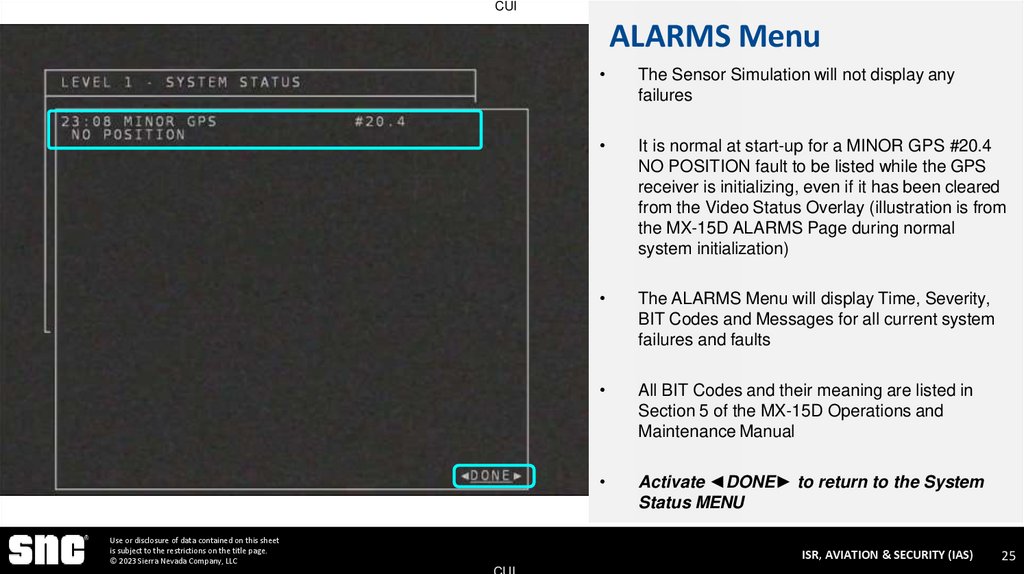
The Sensor Simulation will not display any
failures
It is normal at start-up for a MINOR GPS #20.4
NO POSITION fault to be listed while the GPS
receiver is initializing, even if it has been cleared
from the Video Status Overlay (illustration is from
the MX-15D ALARMS Page during normal
system initialization)
The ALARMS Menu will display Time, Severity,
BIT Codes and Messages for all current system
failures and faults
All BIT Codes and their meaning are listed in
Section 5 of the MX-15D Operations and
Maintenance Manual
Activate ◄DONE► to return to the System
Status MENU
ISR, AVIATION & SECURITY (IAS)
CUI
25
26. Sensor Status
CUISensor Status
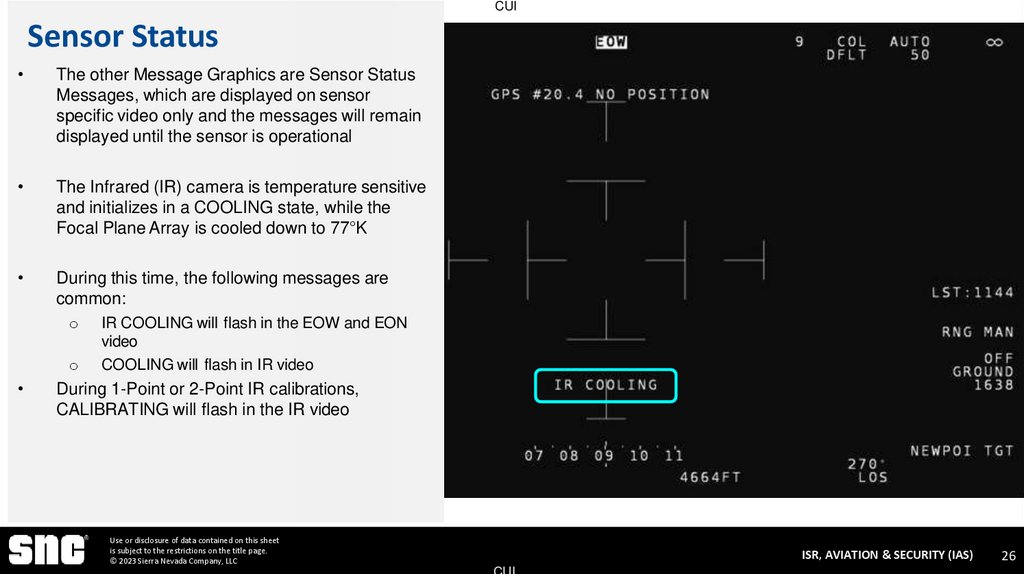
The other Message Graphics are Sensor Status
Messages, which are displayed on sensor
specific video only and the messages will remain
displayed until the sensor is operational
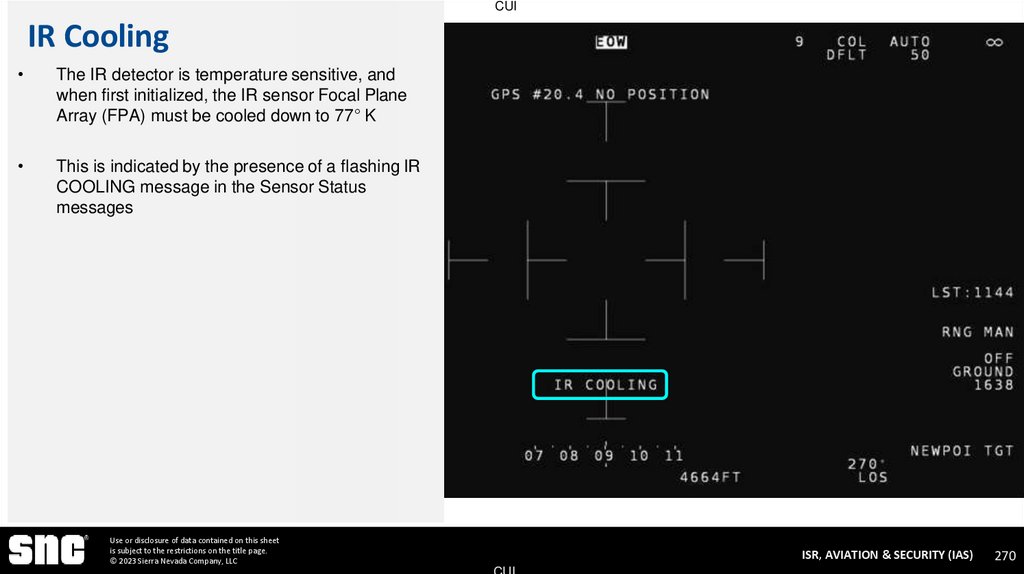
The Infrared (IR) camera is temperature sensitive
and initializes in a COOLING state, while the
Focal Plane Array is cooled down to 77°K
During this time, the following messages are
common:
o
o
IR COOLING will flash in the EOW and EON
video
COOLING will flash in IR video
During 1-Point or 2-Point IR calibrations,
CALIBRATING will flash in the IR video
Use or disclosure of data contained on this sheet
is subject to the restrictions on the title page.
© 2023 Sierra Nevada Company, LLC
ISR, AVIATION & SECURITY (IAS)
CUI
26
27. System Status Graphics
CUISystem Status Graphics
Use or disclosure of data contained on this sheet
is subject to the restrictions on the title page.
© 2023 Sierra Nevada Company, LLC
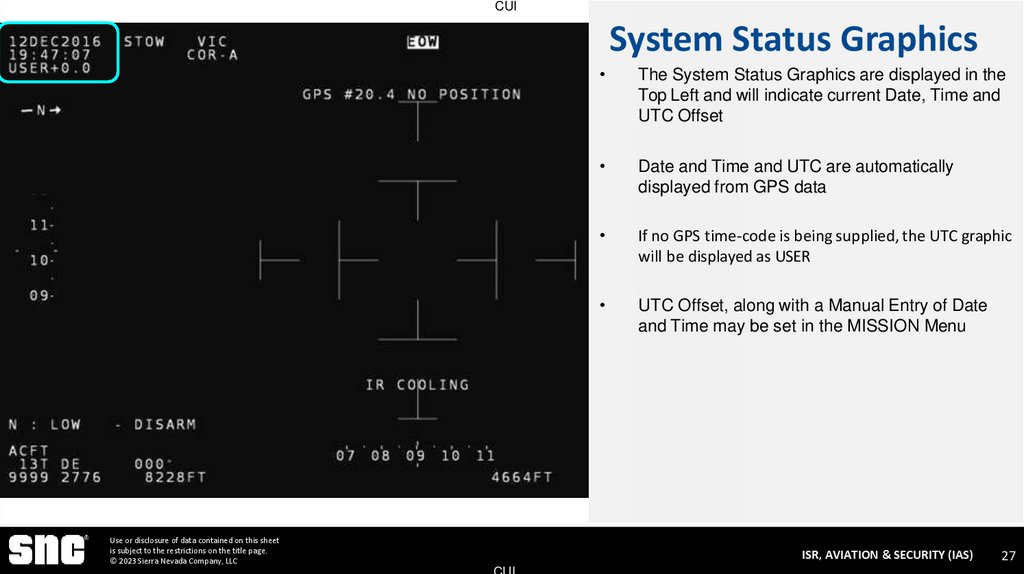
The System Status Graphics are displayed in the
Top Left and will indicate current Date, Time and
UTC Offset
Date and Time and UTC are automatically
displayed from GPS data
If no GPS time-code is being supplied, the UTC graphic
will be displayed as USER
UTC Offset, along with a Manual Entry of Date
and Time may be set in the MISSION Menu
ISR, AVIATION & SECURITY (IAS)
CUI
27
28. Steering Mode
CUISteering Mode
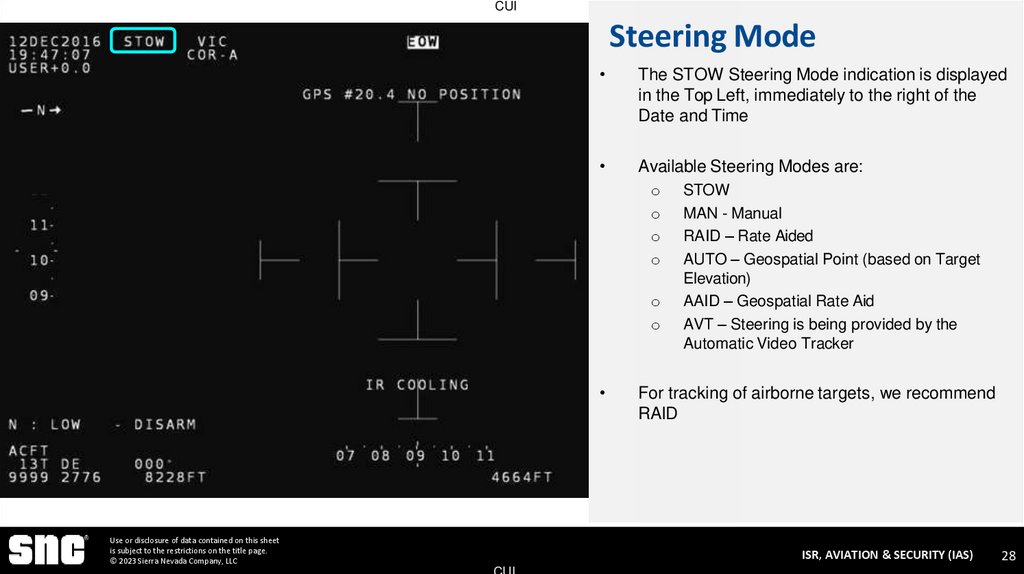
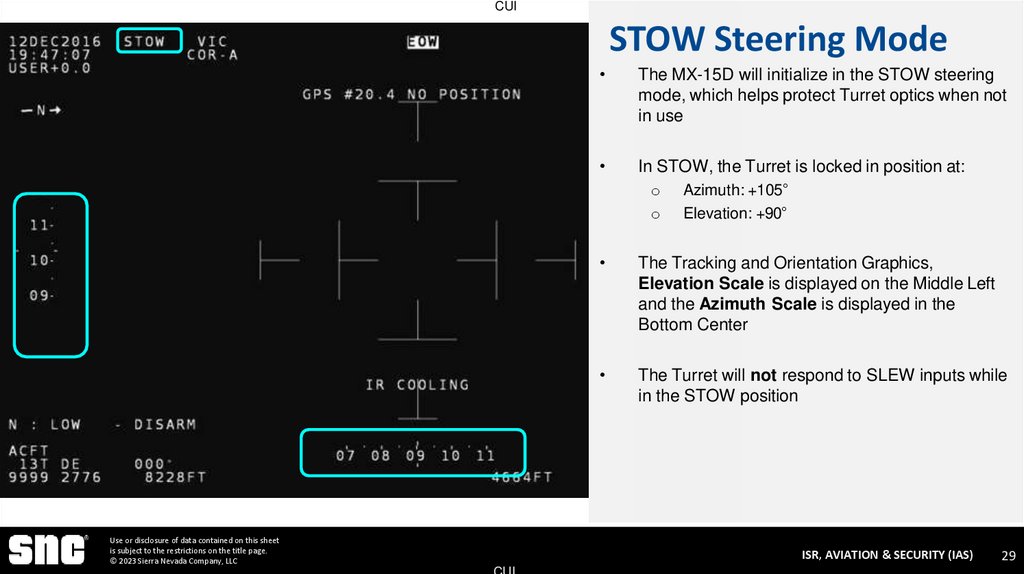
The STOW Steering Mode indication is displayed
in the Top Left, immediately to the right of the
Date and Time
Available Steering Modes are:
o
o
o
o
o
o
Use or disclosure of data contained on this sheet
is subject to the restrictions on the title page.
© 2023 Sierra Nevada Company, LLC
STOW
MAN - Manual
RAID – Rate Aided
AUTO – Geospatial Point (based on Target
Elevation)
AAID – Geospatial Rate Aid
AVT – Steering is being provided by the
Automatic Video Tracker
For tracking of airborne targets, we recommend
RAID
ISR, AVIATION & SECURITY (IAS)
CUI
28
29. STOW Steering Mode
CUISTOW Steering Mode
The MX-15D will initialize in the STOW steering
mode, which helps protect Turret optics when not
in use
In STOW, the Turret is locked in position at:
o
o
Use or disclosure of data contained on this sheet
is subject to the restrictions on the title page.
© 2023 Sierra Nevada Company, LLC
Azimuth: +105°
Elevation: +90°
The Tracking and Orientation Graphics,
Elevation Scale is displayed on the Middle Left
and the Azimuth Scale is displayed in the
Bottom Center
The Turret will not respond to SLEW inputs while
in the STOW position
ISR, AVIATION & SECURITY (IAS)
CUI
29
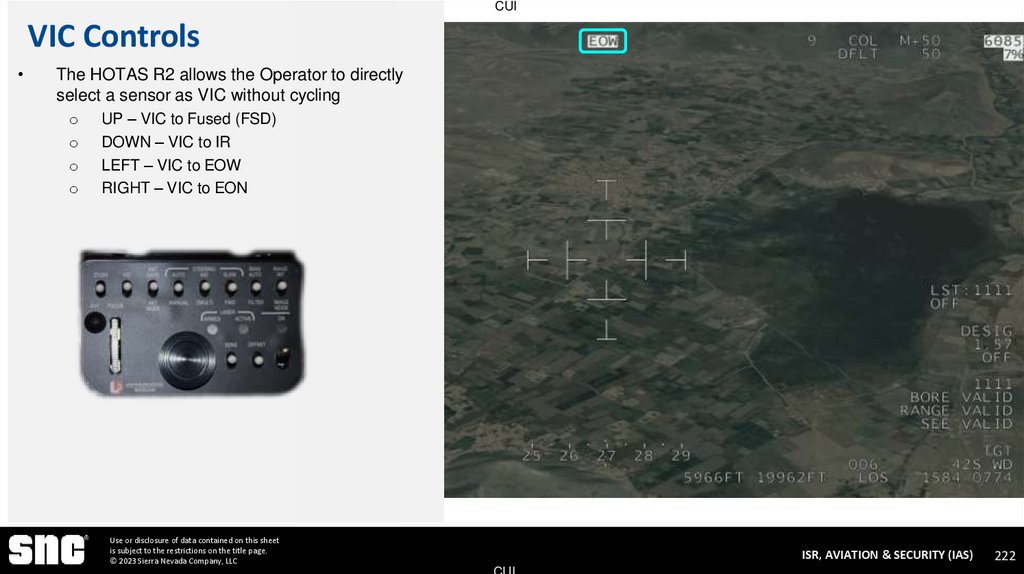
30. Video In Command
CUIVideo In Command
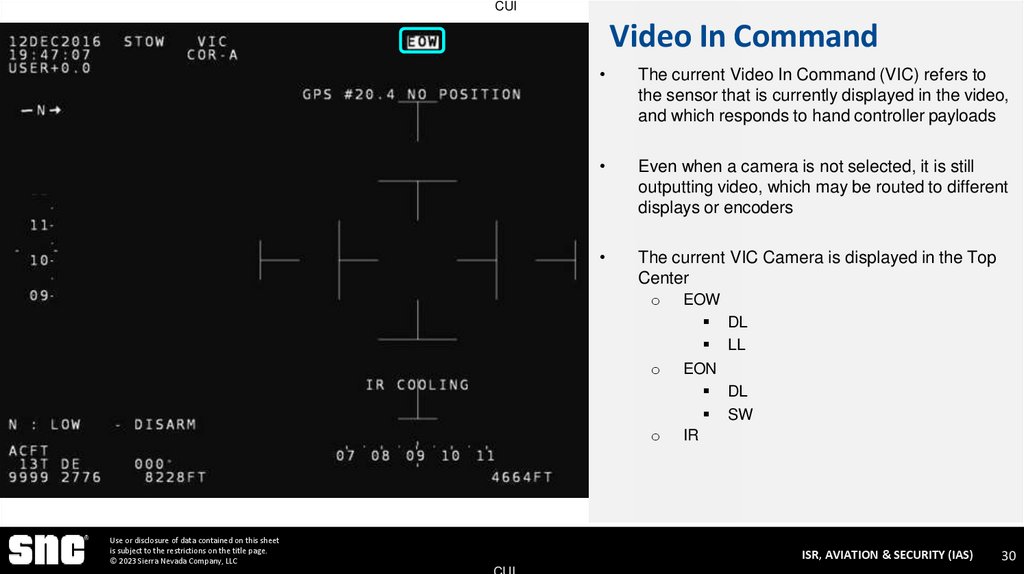
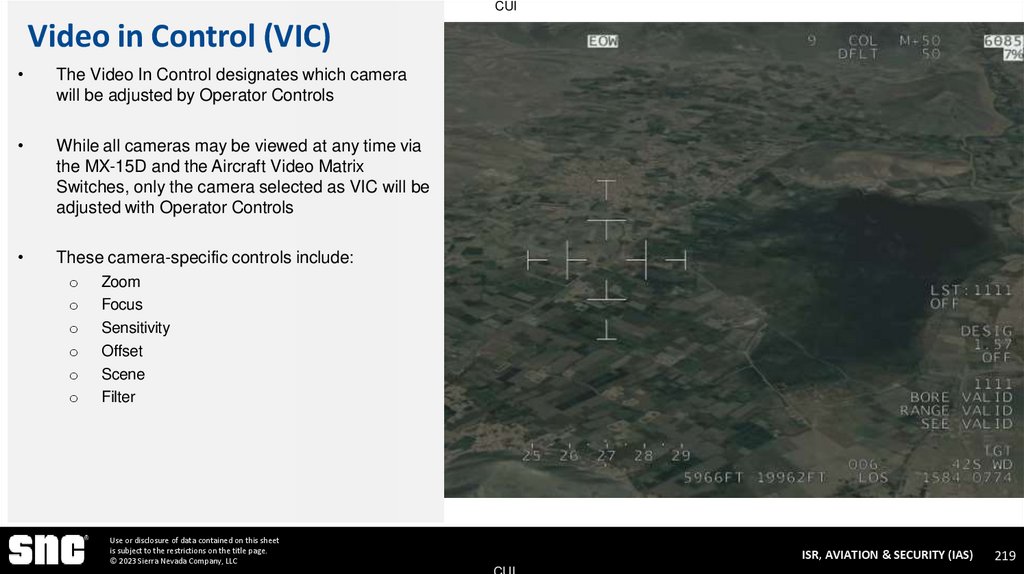
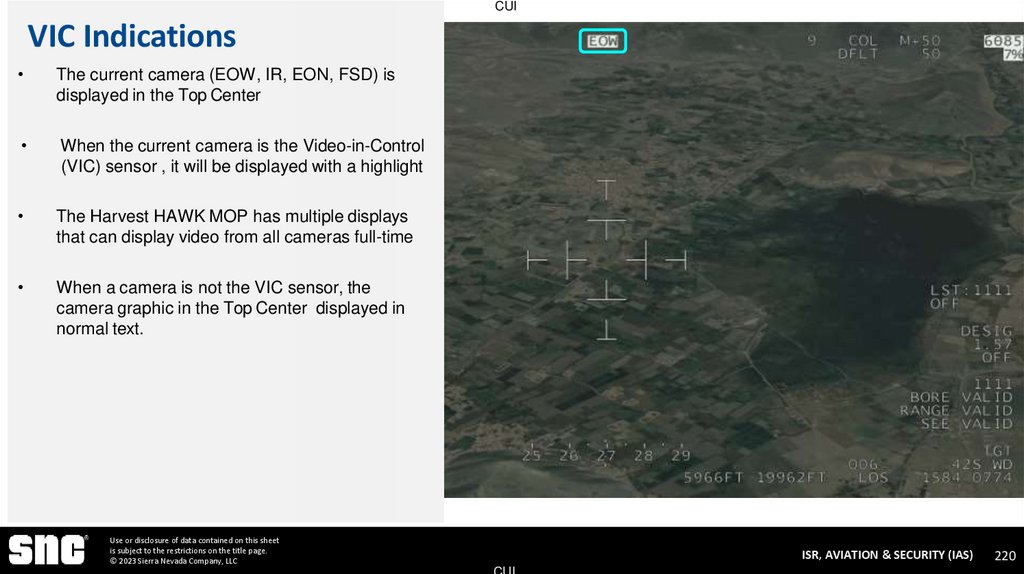
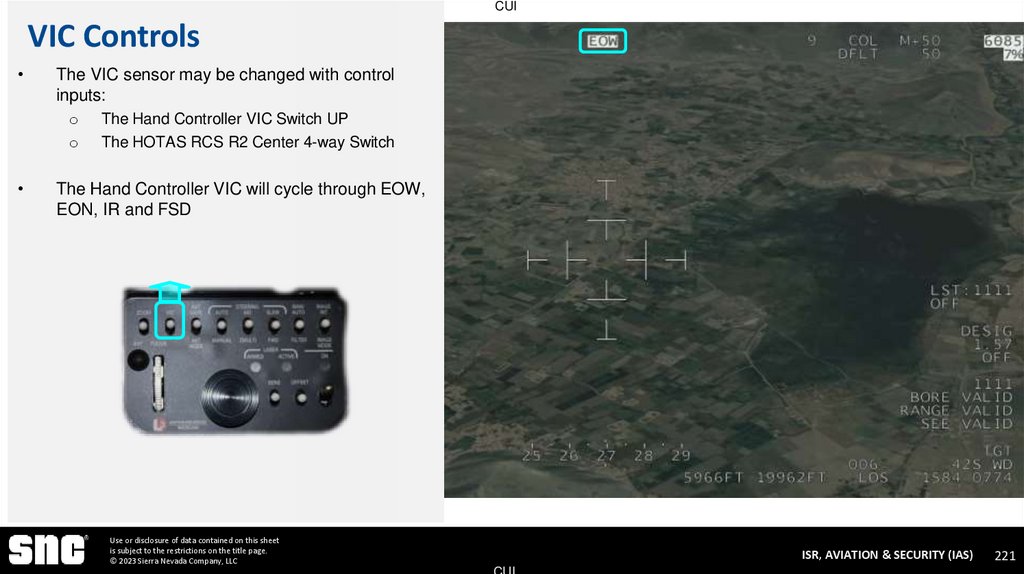
The current Video In Command (VIC) refers to
the sensor that is currently displayed in the video,
and which responds to hand controller payloads
Even when a camera is not selected, it is still
outputting video, which may be routed to different
displays or encoders
The current VIC Camera is displayed in the Top
Center
o
o
o
Use or disclosure of data contained on this sheet
is subject to the restrictions on the title page.
© 2023 Sierra Nevada Company, LLC
EOW
DL
LL
EON
DL
SW
IR
ISR, AVIATION & SECURITY (IAS)
CUI
30
31. FWD Steering Mode
CUIFWD Steering Mode
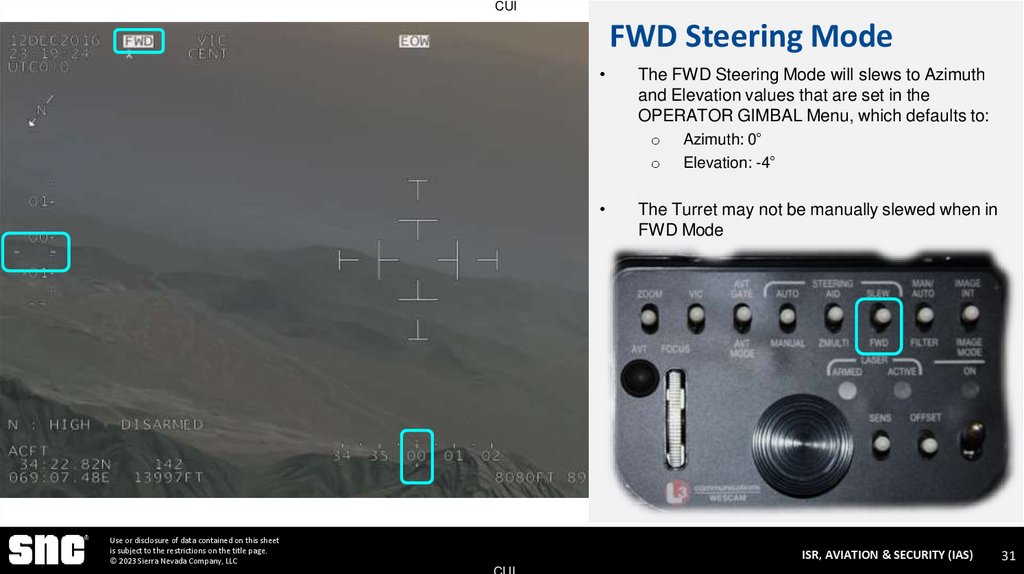
The FWD Steering Mode will slews to Azimuth
and Elevation values that are set in the
OPERATOR GIMBAL Menu, which defaults to:
o
o
Use or disclosure of data contained on this sheet
is subject to the restrictions on the title page.
© 2023 Sierra Nevada Company, LLC
Azimuth: 0°
Elevation: -4°
The Turret may not be manually slewed when in
FWD Mode
ISR, AVIATION & SECURITY (IAS)
CUI
31
32. Target and Platform Status Graphics EO 2-3 – Recall System Displays
CUITARGET AND PLATFORM STATUS
GRAPHICS
EO 2-3 – RECALL SYSTEM DISPLAYS
Use or disclosure of data contained on this sheet
is subject to the restrictions on the title page.
© 2023 Sierra Nevada Company, LLC
ISR, AVIATION & SECURITY (IAS)
CUI
32
33. Platform and Target Status
CUIPlatform and Target Status
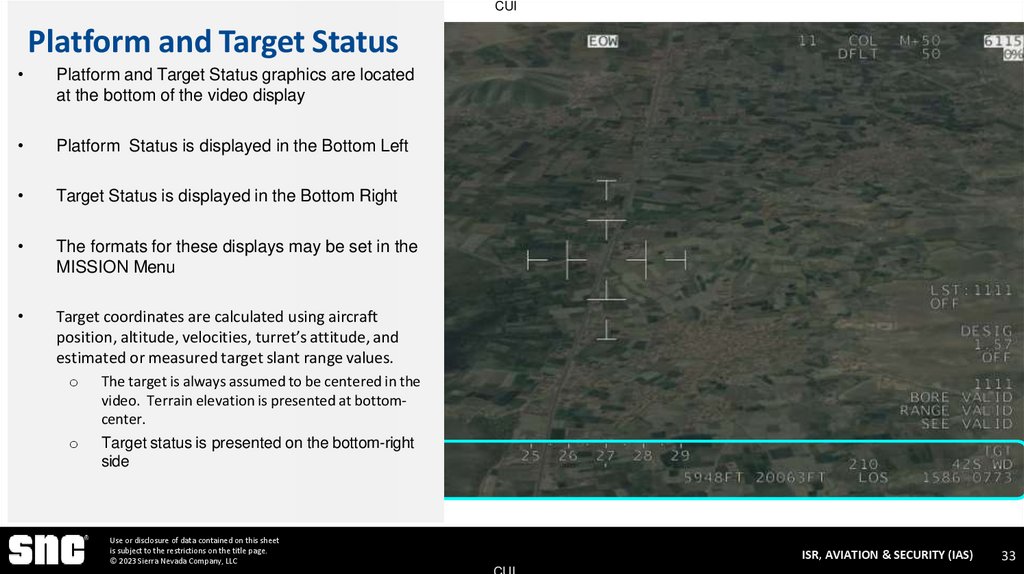
Platform and Target Status graphics are located
at the bottom of the video display
Platform Status is displayed in the Bottom Left
Target Status is displayed in the Bottom Right
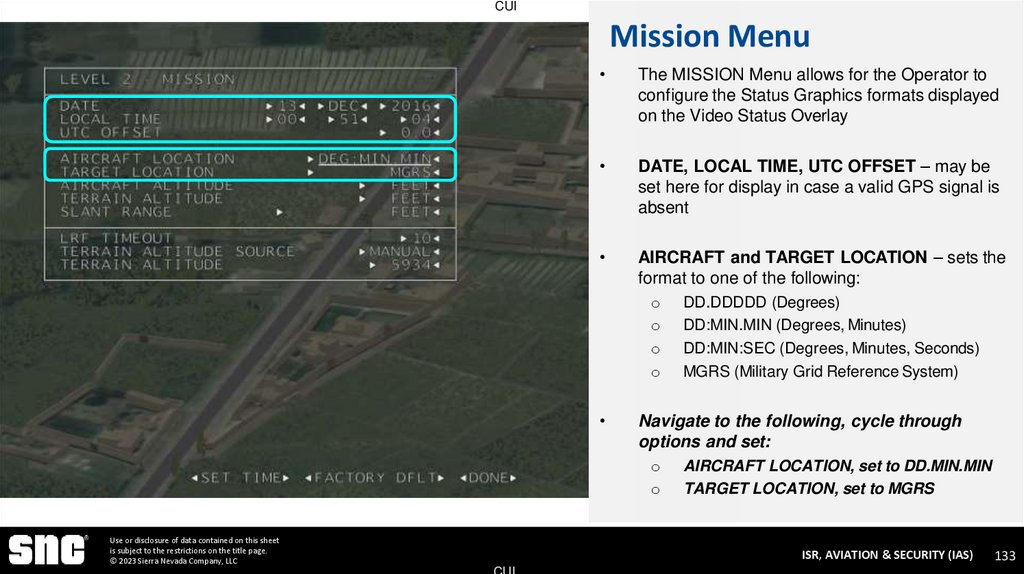
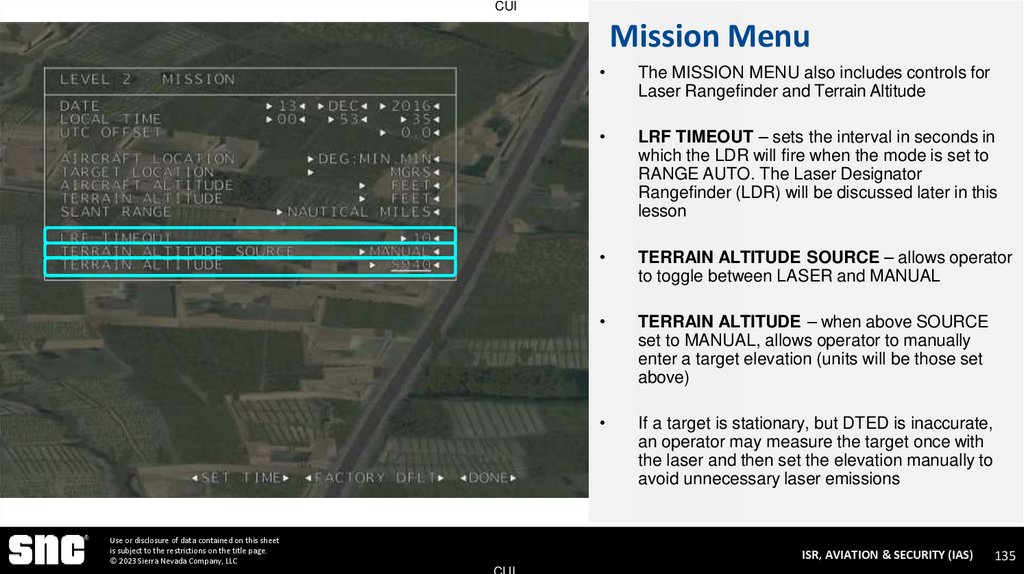
The formats for these displays may be set in the
MISSION Menu
Target coordinates are calculated using aircraft
position, altitude, velocities, turret’s attitude, and
estimated or measured target slant range values.
o
The target is always assumed to be centered in the
video. Terrain elevation is presented at bottomcenter.
o
Target status is presented on the bottom-right
side
Use or disclosure of data contained on this sheet
is subject to the restrictions on the title page.
© 2023 Sierra Nevada Company, LLC
ISR, AVIATION & SECURITY (IAS)
CUI
33
34. Platform Coordinates
CUIPlatform Coordinates
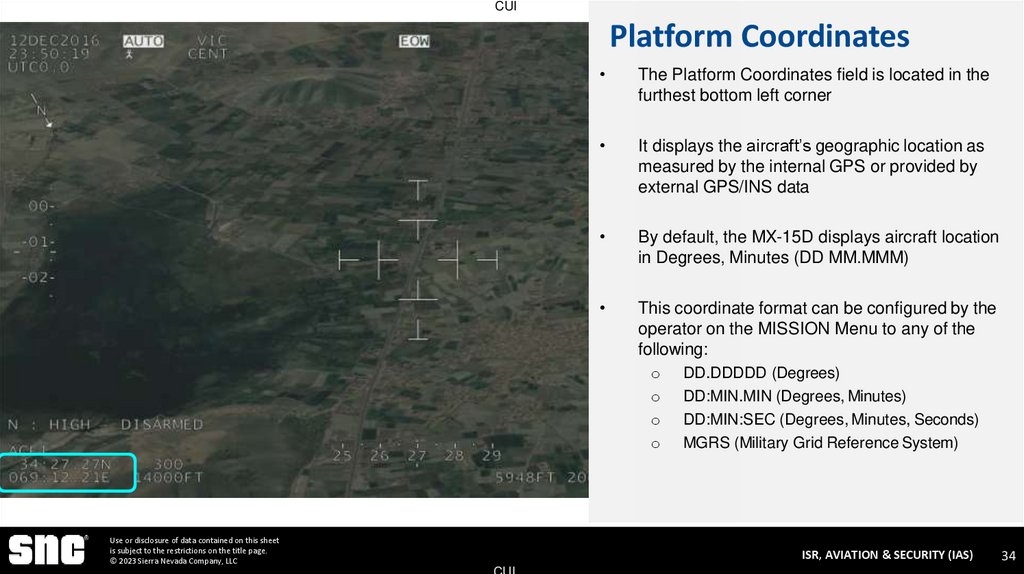
The Platform Coordinates field is located in the
furthest bottom left corner
It displays the aircraft’s geographic location as
measured by the internal GPS or provided by
external GPS/INS data
By default, the MX-15D displays aircraft location
in Degrees, Minutes (DD MM.MMM)
This coordinate format can be configured by the
operator on the MISSION Menu to any of the
following:
o
o
o
o
Use or disclosure of data contained on this sheet
is subject to the restrictions on the title page.
© 2023 Sierra Nevada Company, LLC
DD.DDDDD (Degrees)
DD:MIN.MIN (Degrees, Minutes)
DD:MIN:SEC (Degrees, Minutes, Seconds)
MGRS (Military Grid Reference System)
ISR, AVIATION & SECURITY (IAS)
CUI
34
35. Platform Heading
CUIPlatform Heading
Use or disclosure of data contained on this sheet
is subject to the restrictions on the title page.
© 2023 Sierra Nevada Company, LLC
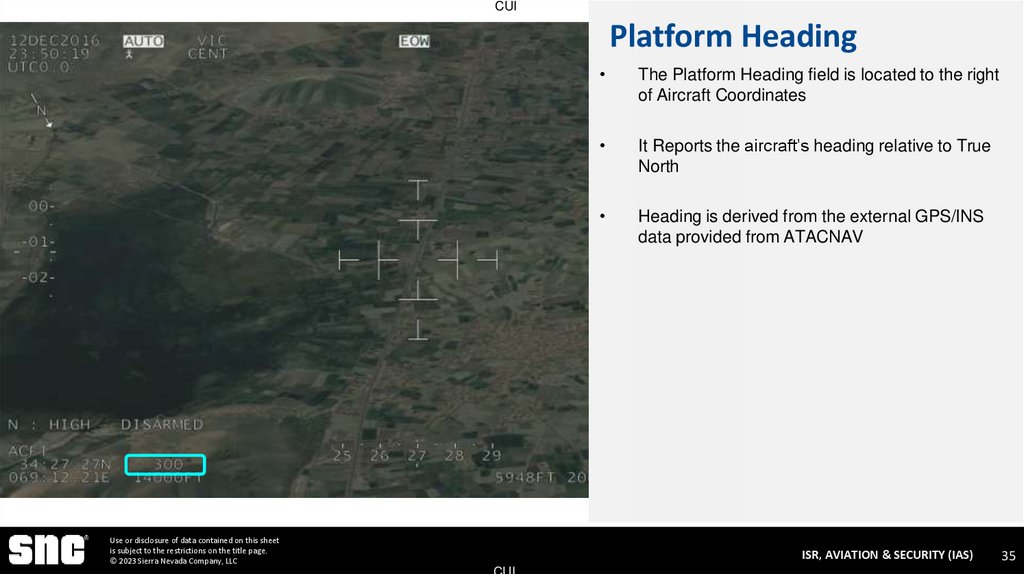
The Platform Heading field is located to the right
of Aircraft Coordinates
It Reports the aircraft’s heading relative to True
North
Heading is derived from the external GPS/INS
data provided from ATACNAV
ISR, AVIATION & SECURITY (IAS)
CUI
35
36. Platform Altitude
CUIPlatform Altitude
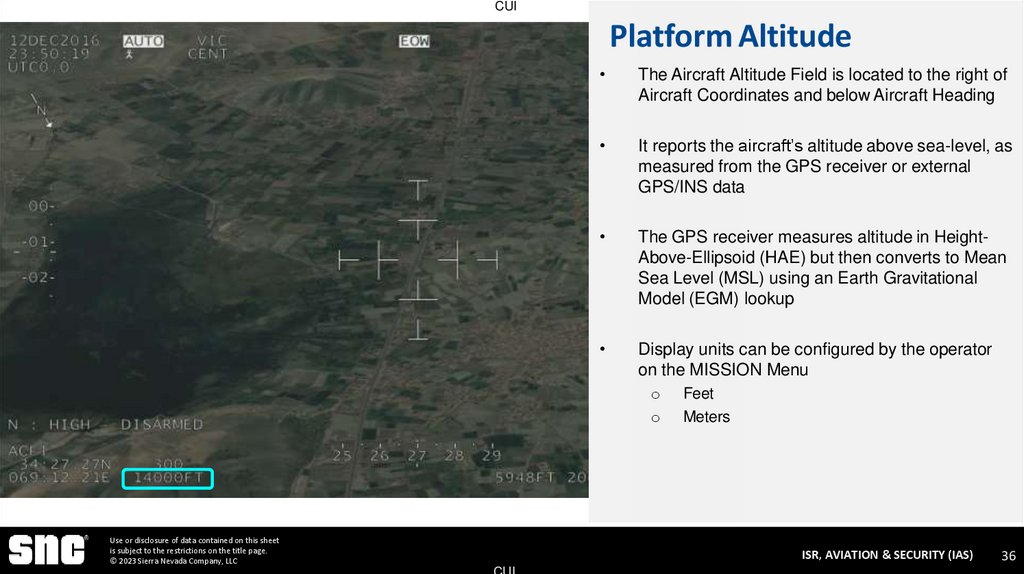
The Aircraft Altitude Field is located to the right of
Aircraft Coordinates and below Aircraft Heading
It reports the aircraft’s altitude above sea-level, as
measured from the GPS receiver or external
GPS/INS data
The GPS receiver measures altitude in HeightAbove-Ellipsoid (HAE) but then converts to Mean
Sea Level (MSL) using an Earth Gravitational
Model (EGM) lookup
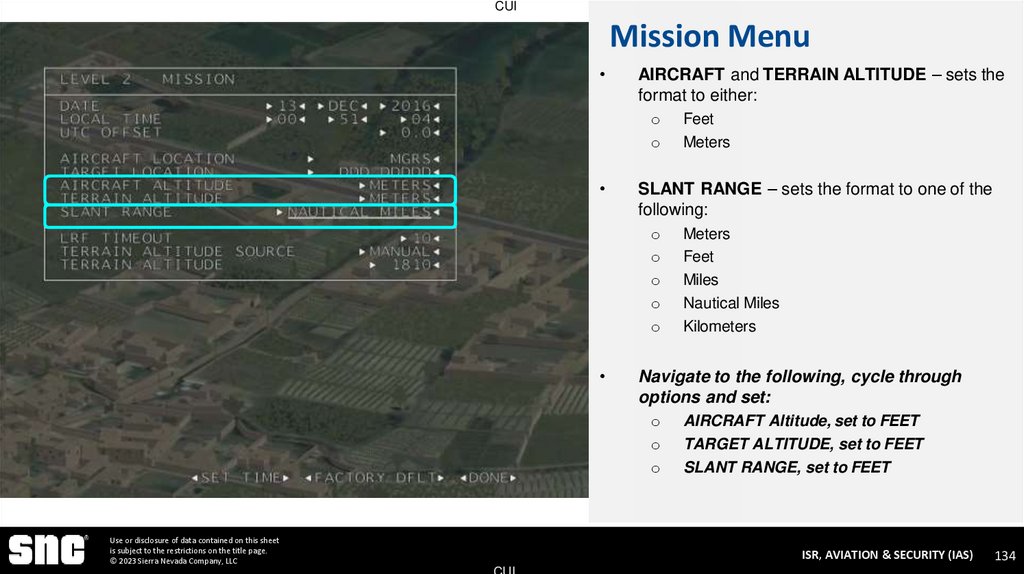
Display units can be configured by the operator
on the MISSION Menu
o
o
Use or disclosure of data contained on this sheet
is subject to the restrictions on the title page.
© 2023 Sierra Nevada Company, LLC
Feet
Meters
ISR, AVIATION & SECURITY (IAS)
CUI
36
37. Target Coordinates
CUITarget Coordinates
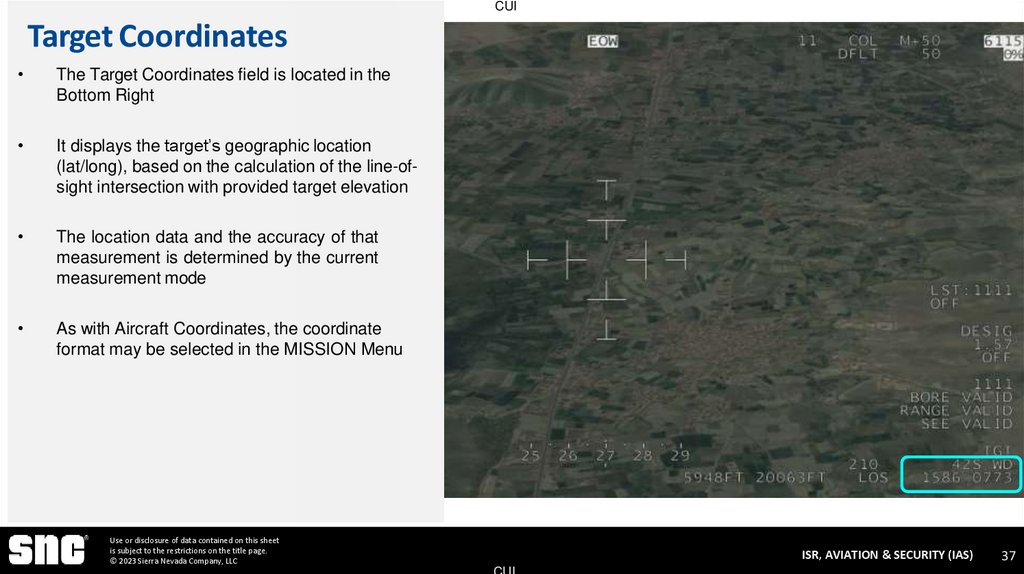
The Target Coordinates field is located in the
Bottom Right
It displays the target’s geographic location
(lat/long), based on the calculation of the line-ofsight intersection with provided target elevation
The location data and the accuracy of that
measurement is determined by the current
measurement mode
As with Aircraft Coordinates, the coordinate
format may be selected in the MISSION Menu
Use or disclosure of data contained on this sheet
is subject to the restrictions on the title page.
© 2023 Sierra Nevada Company, LLC
ISR, AVIATION & SECURITY (IAS)
CUI
37
38. Range Source
CUIRange Source
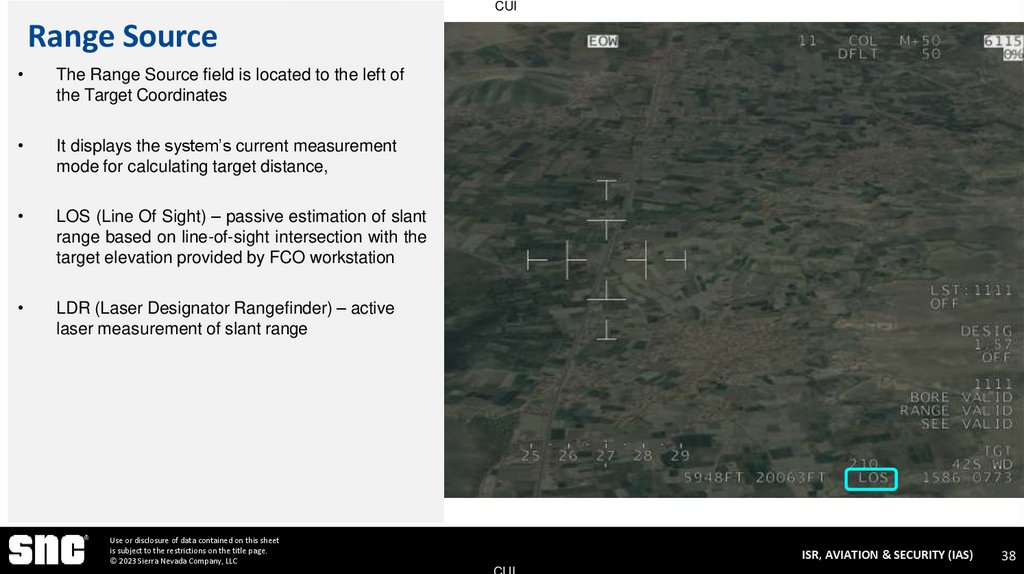
The Range Source field is located to the left of
the Target Coordinates
It displays the system’s current measurement
mode for calculating target distance,
LOS (Line Of Sight) – passive estimation of slant
range based on line-of-sight intersection with the
target elevation provided by FCO workstation
LDR (Laser Designator Rangefinder) – active
laser measurement of slant range
Use or disclosure of data contained on this sheet
is subject to the restrictions on the title page.
© 2023 Sierra Nevada Company, LLC
ISR, AVIATION & SECURITY (IAS)
CUI
38
39. Target Bearing
CUITarget Bearing
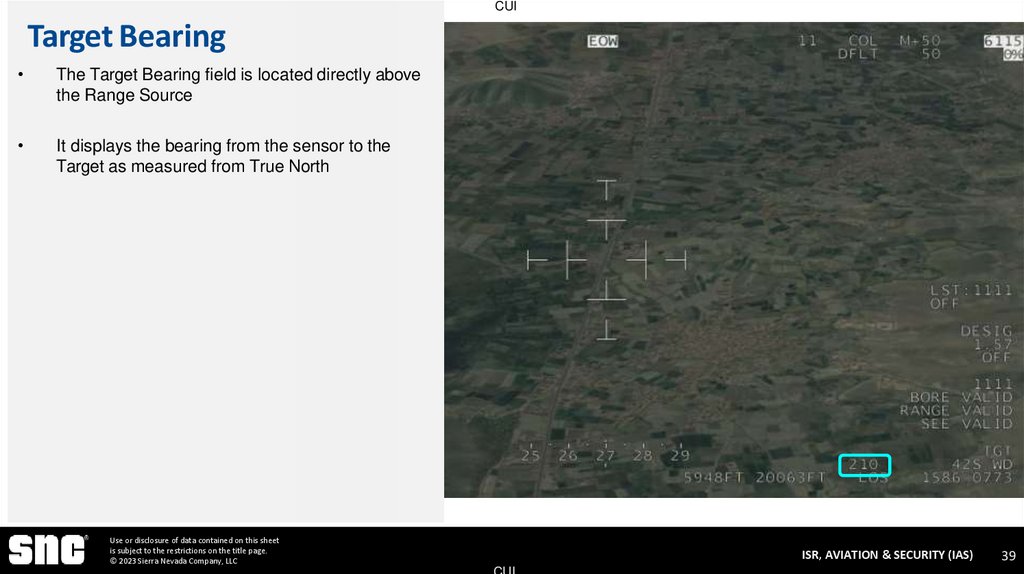
The Target Bearing field is located directly above
the Range Source
It displays the bearing from the sensor to the
Target as measured from True North
Use or disclosure of data contained on this sheet
is subject to the restrictions on the title page.
© 2023 Sierra Nevada Company, LLC
ISR, AVIATION & SECURITY (IAS)
CUI
39
40. Slant Range
CUISlant Range
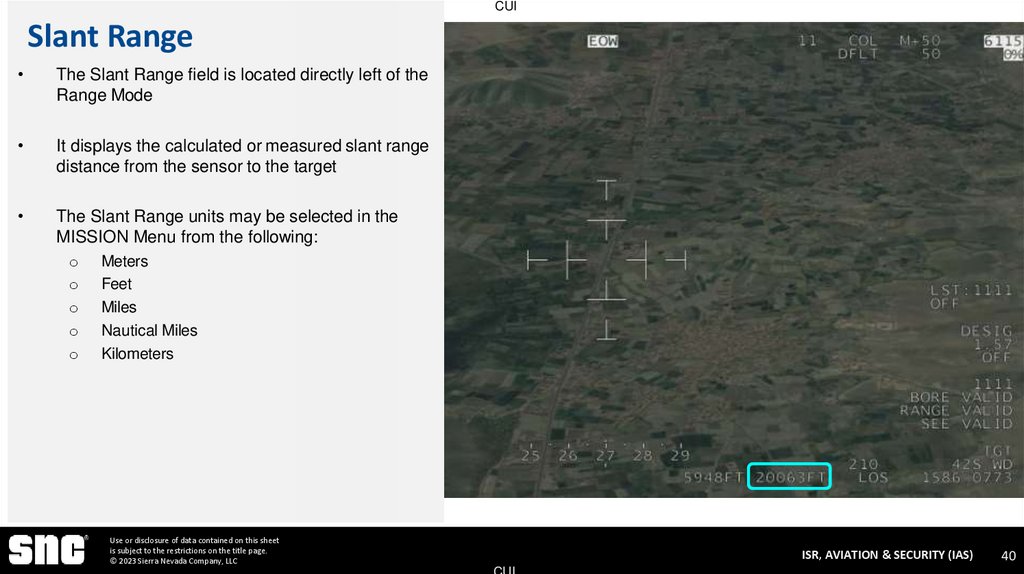
The Slant Range field is located directly left of the
Range Mode
It displays the calculated or measured slant range
distance from the sensor to the target
The Slant Range units may be selected in the
MISSION Menu from the following:
o
o
o
o
o
Meters
Feet
Miles
Nautical Miles
Kilometers
Use or disclosure of data contained on this sheet
is subject to the restrictions on the title page.
© 2023 Sierra Nevada Company, LLC
ISR, AVIATION & SECURITY (IAS)
CUI
40
41. Target Elevation
CUITarget Elevation
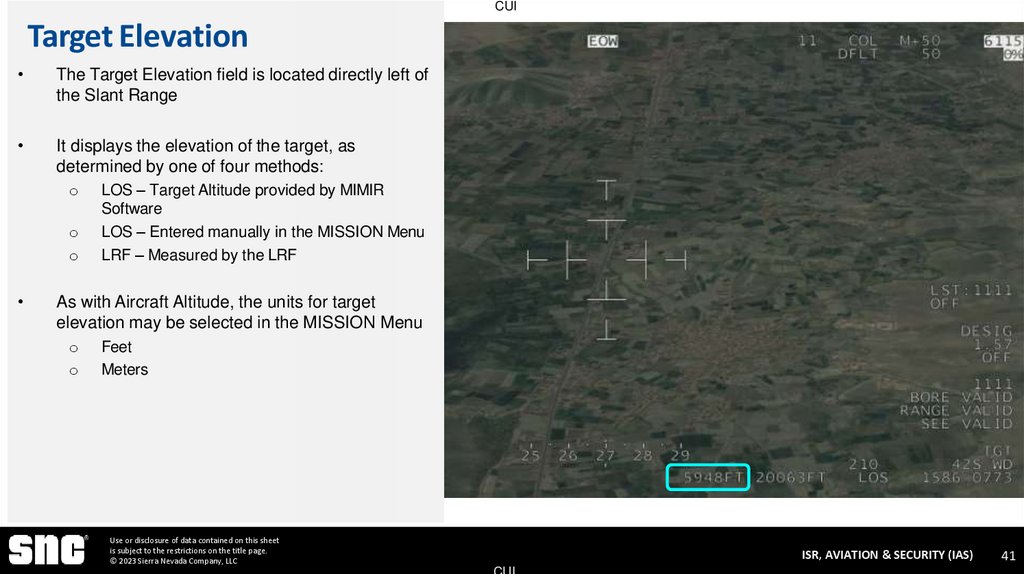
The Target Elevation field is located directly left of
the Slant Range
It displays the elevation of the target, as
determined by one of four methods:
o
o
o
LOS – Target Altitude provided by MIMIR
Software
LOS – Entered manually in the MISSION Menu
LRF – Measured by the LRF
As with Aircraft Altitude, the units for target
elevation may be selected in the MISSION Menu
o
o
Feet
Meters
Use or disclosure of data contained on this sheet
is subject to the restrictions on the title page.
© 2023 Sierra Nevada Company, LLC
ISR, AVIATION & SECURITY (IAS)
CUI
41
42. Sensor Slew EO 2-6 – Recall All Steering Modes
CUISENSOR SLEW
EO 2-6 – RECALL ALL STEERING MODES
Use or disclosure of data contained on this sheet
is subject to the restrictions on the title page.
© 2023 Sierra Nevada Company, LLC
ISR, AVIATION & SECURITY (IAS)
CUI
42
43. Slew Controls
CUISlew Controls
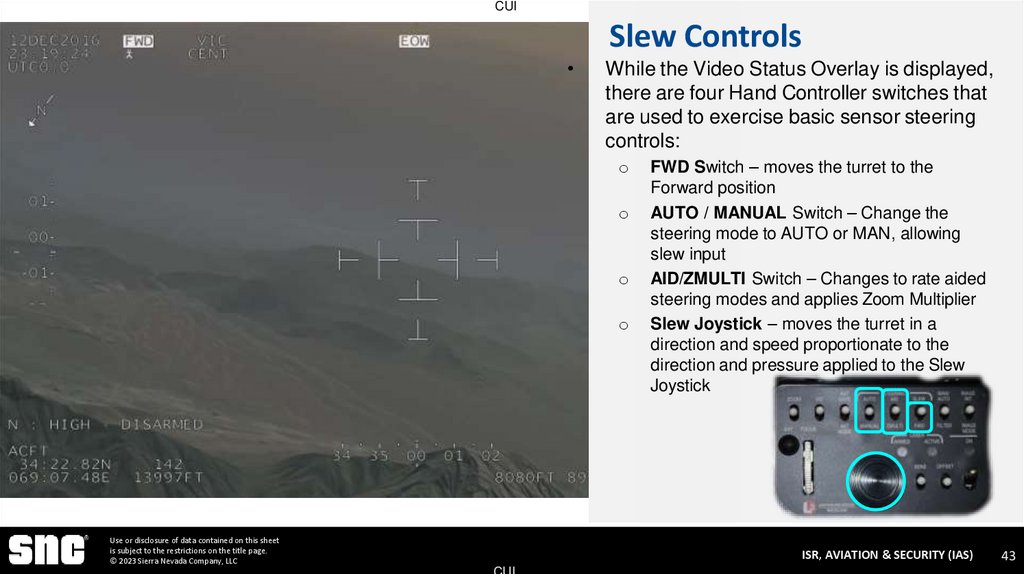
While the Video Status Overlay is displayed,
there are four Hand Controller switches that
are used to exercise basic sensor steering
controls:
o
o
o
o
Use or disclosure of data contained on this sheet
is subject to the restrictions on the title page.
© 2023 Sierra Nevada Company, LLC
FWD Switch – moves the turret to the
Forward position
AUTO / MANUAL Switch – Change the
steering mode to AUTO or MAN, allowing
slew input
AID/ZMULTI Switch – Changes to rate aided
steering modes and applies Zoom Multiplier
Slew Joystick – moves the turret in a
direction and speed proportionate to the
direction and pressure applied to the Slew
Joystick
ISR, AVIATION & SECURITY (IAS)
CUI
43
44. Tracking and Orientation
CUITracking and Orientation
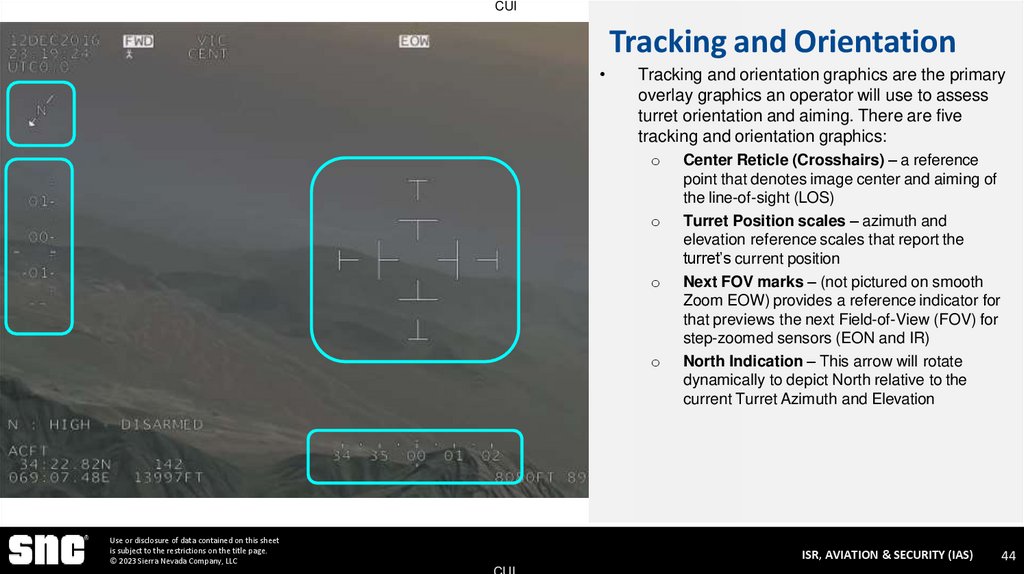
Tracking and orientation graphics are the primary
overlay graphics an operator will use to assess
turret orientation and aiming. There are five
tracking and orientation graphics:
o
o
o
o
Use or disclosure of data contained on this sheet
is subject to the restrictions on the title page.
© 2023 Sierra Nevada Company, LLC
Center Reticle (Crosshairs) – a reference
point that denotes image center and aiming of
the line-of-sight (LOS)
Turret Position scales – azimuth and
elevation reference scales that report the
turret’s current position
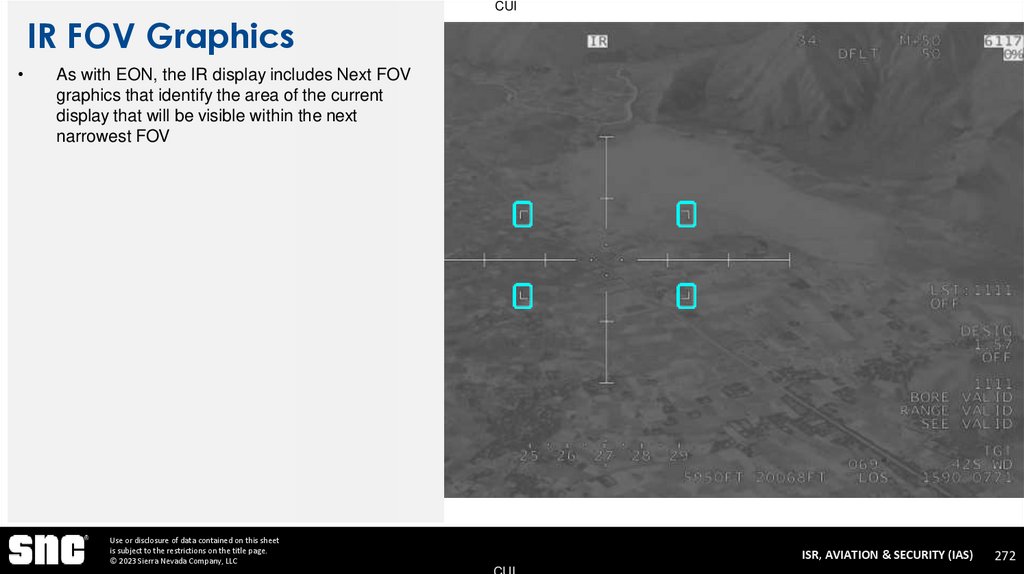
Next FOV marks – (not pictured on smooth
Zoom EOW) provides a reference indicator for
that previews the next Field-of-View (FOV) for
step-zoomed sensors (EON and IR)
North Indication – This arrow will rotate
dynamically to depict North relative to the
current Turret Azimuth and Elevation
ISR, AVIATION & SECURITY (IAS)
CUI
44
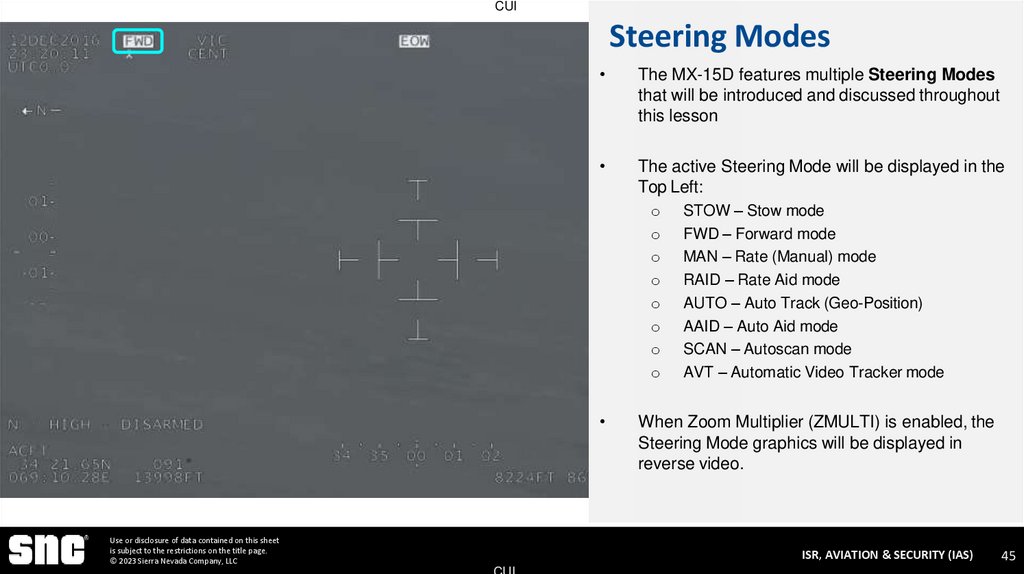
45. Steering Modes
CUISteering Modes
The MX-15D features multiple Steering Modes
that will be introduced and discussed throughout
this lesson
The active Steering Mode will be displayed in the
Top Left:
o
o
o
o
o
o
o
o
Use or disclosure of data contained on this sheet
is subject to the restrictions on the title page.
© 2023 Sierra Nevada Company, LLC
STOW – Stow mode
FWD – Forward mode
MAN – Rate (Manual) mode
RAID – Rate Aid mode
AUTO – Auto Track (Geo-Position)
AAID – Auto Aid mode
SCAN – Autoscan mode
AVT – Automatic Video Tracker mode
When Zoom Multiplier (ZMULTI) is enabled, the
Steering Mode graphics will be displayed in
reverse video.
ISR, AVIATION & SECURITY (IAS)
CUI
45
46. Manual (MAN)
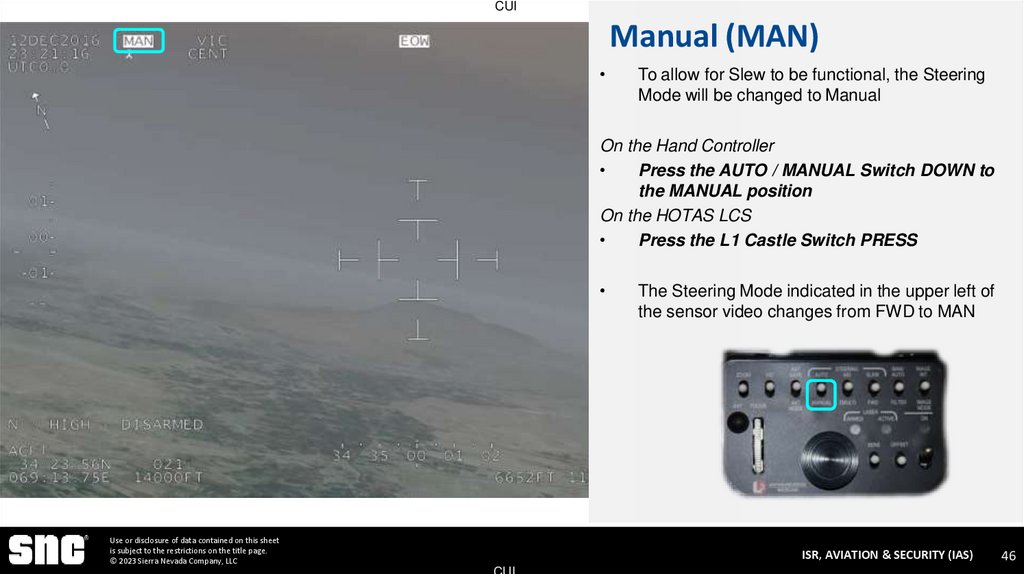
CUIManual (MAN)
To allow for Slew to be functional, the Steering
Mode will be changed to Manual
On the Hand Controller
Press the AUTO / MANUAL Switch DOWN to
the MANUAL position
On the HOTAS LCS
Press the L1 Castle Switch PRESS
Use or disclosure of data contained on this sheet
is subject to the restrictions on the title page.
© 2023 Sierra Nevada Company, LLC
The Steering Mode indicated in the upper left of
the sensor video changes from FWD to MAN
ISR, AVIATION & SECURITY (IAS)
CUI
46
47. Focus Distance
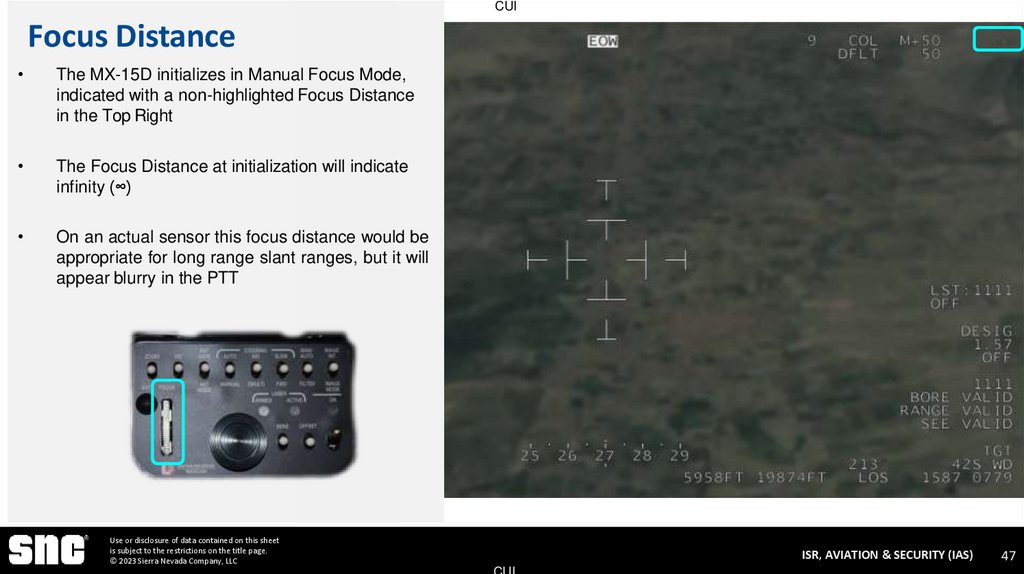
CUIFocus Distance
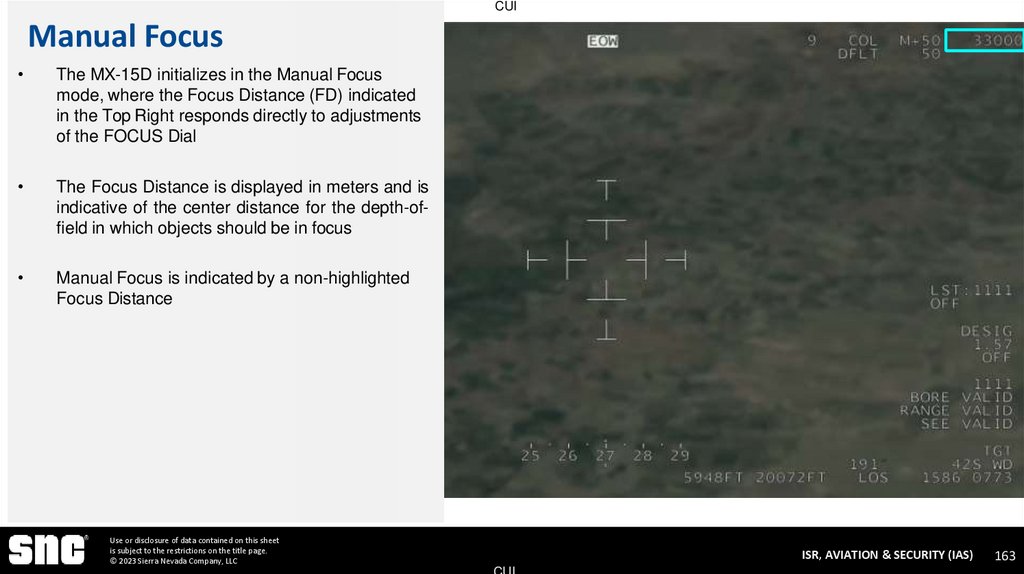
The MX-15D initializes in Manual Focus Mode,
indicated with a non-highlighted Focus Distance
in the Top Right
The Focus Distance at initialization will indicate
infinity (∞)
On an actual sensor this focus distance would be
appropriate for long range slant ranges, but it will
appear blurry in the PTT
Use or disclosure of data contained on this sheet
is subject to the restrictions on the title page.
© 2023 Sierra Nevada Company, LLC
ISR, AVIATION & SECURITY (IAS)
CUI
47
48. Focus Distance
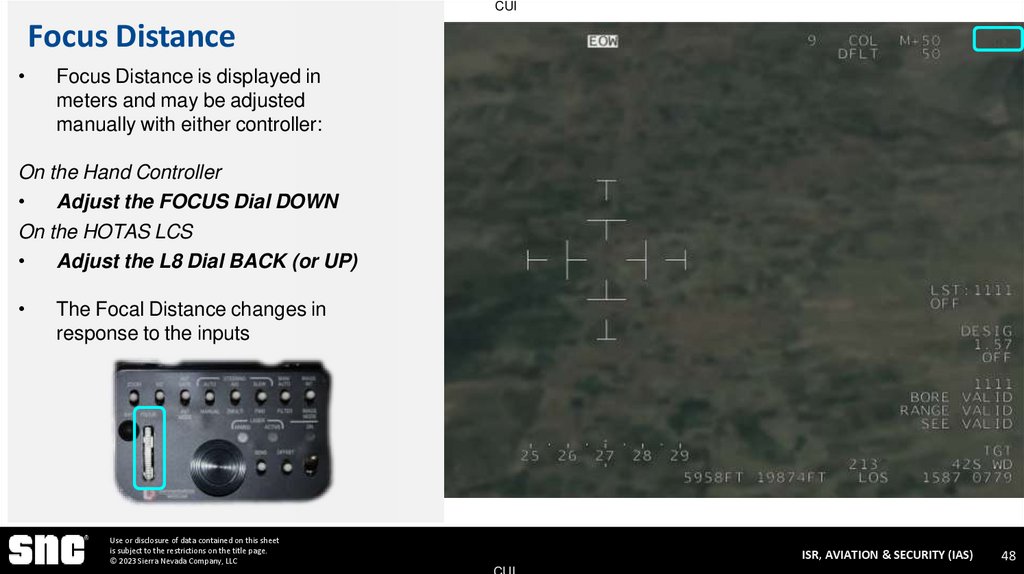
CUIFocus Distance
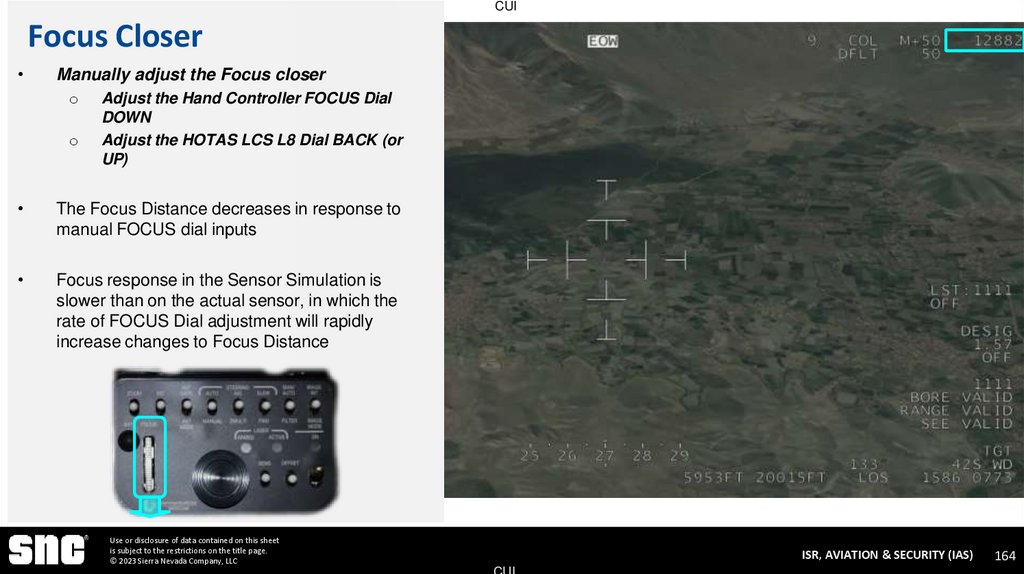
Focus Distance is displayed in
meters and may be adjusted
manually with either controller:
On the Hand Controller
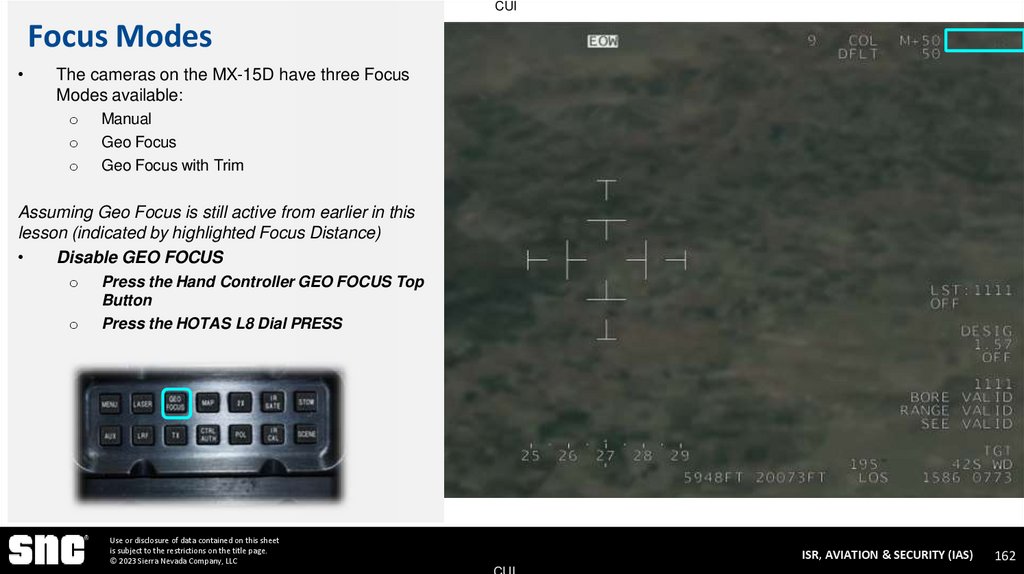
Adjust the FOCUS Dial DOWN
On the HOTAS LCS
Adjust the L8 Dial BACK (or UP)
The Focal Distance changes in
response to the inputs
Use or disclosure of data contained on this sheet
is subject to the restrictions on the title page.
© 2023 Sierra Nevada Company, LLC
ISR, AVIATION & SECURITY (IAS)
CUI
48
49. Geo Focus
CUIGeo Focus
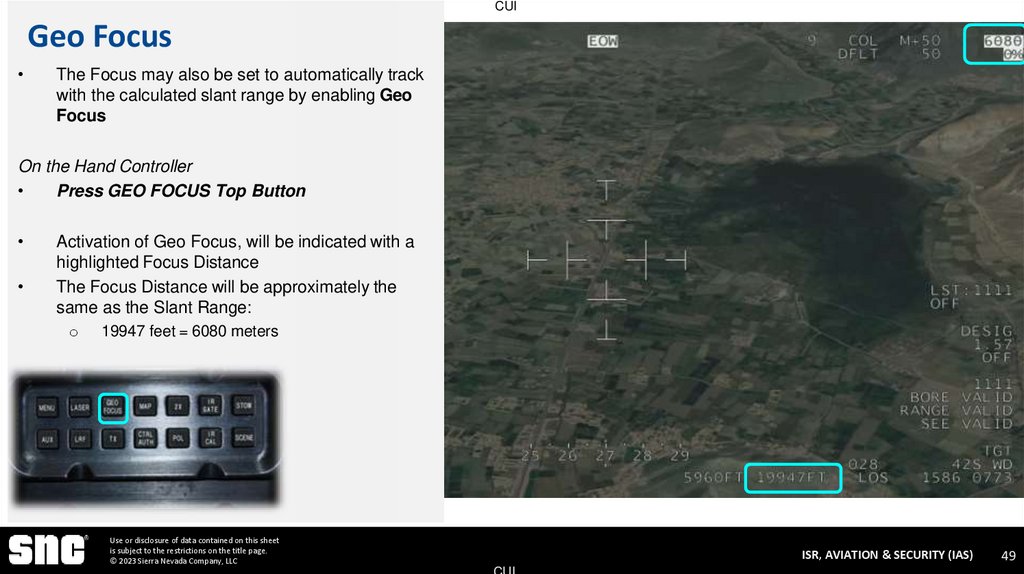
The Focus may also be set to automatically track
with the calculated slant range by enabling Geo
Focus
On the Hand Controller
Press GEO FOCUS Top Button
Activation of Geo Focus, will be indicated with a
highlighted Focus Distance
The Focus Distance will be approximately the
same as the Slant Range:
o
19947 feet = 6080 meters
Use or disclosure of data contained on this sheet
is subject to the restrictions on the title page.
© 2023 Sierra Nevada Company, LLC
ISR, AVIATION & SECURITY (IAS)
CUI
49
50. AVT Source
CUIAVT Source
Use or disclosure of data contained on this sheet
is subject to the restrictions on the title page.
© 2023 Sierra Nevada Company, LLC
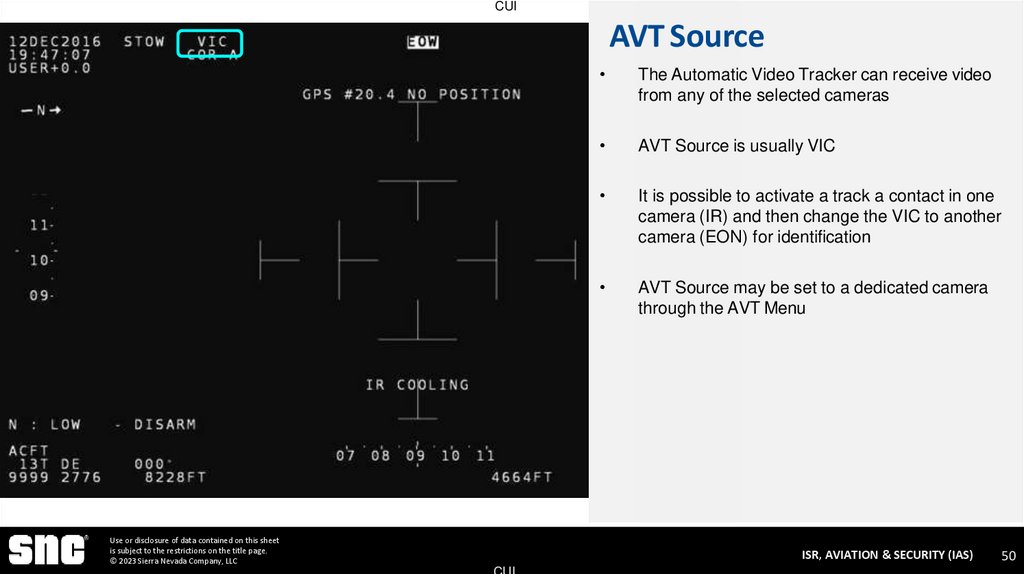
The Automatic Video Tracker can receive video
from any of the selected cameras
AVT Source is usually VIC
It is possible to activate a track a contact in one
camera (IR) and then change the VIC to another
camera (EON) for identification
AVT Source may be set to a dedicated camera
through the AVT Menu
ISR, AVIATION & SECURITY (IAS)
CUI
50
51. Camera Status
CUICamera Status
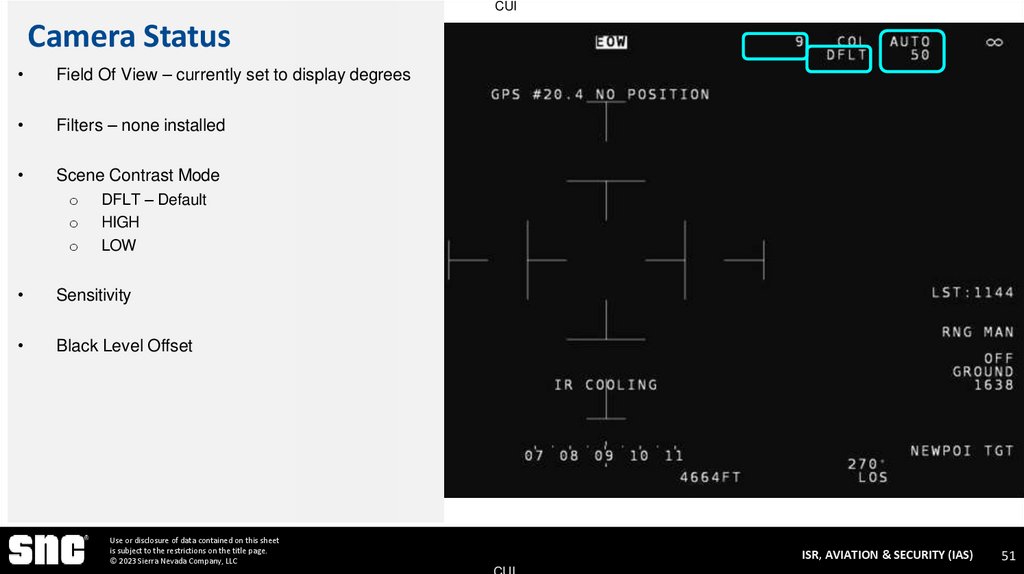
Field Of View – currently set to display degrees
Filters – none installed
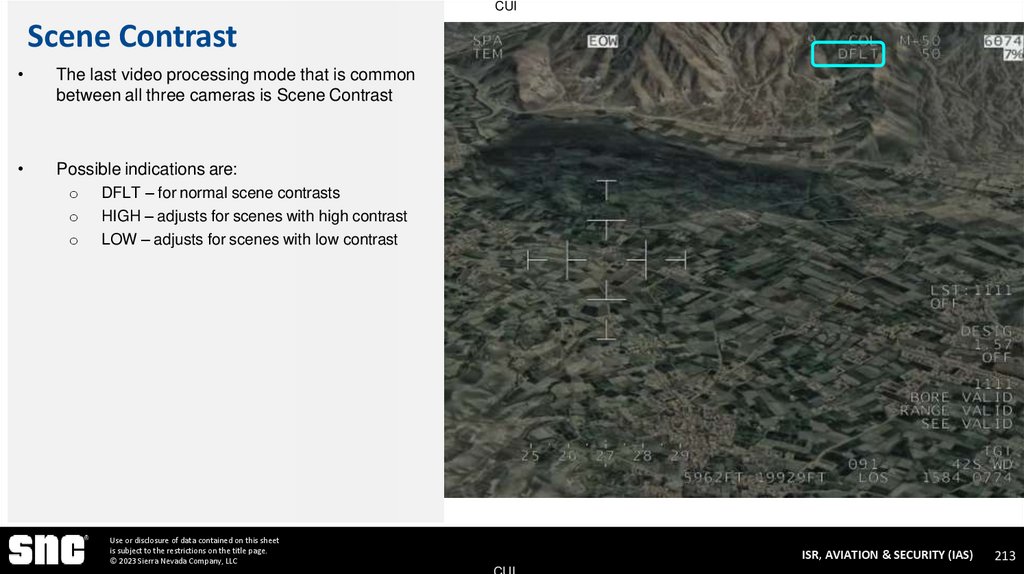
Scene Contrast Mode
o
o
o
DFLT – Default
HIGH
LOW
Sensitivity
Black Level Offset
Use or disclosure of data contained on this sheet
is subject to the restrictions on the title page.
© 2023 Sierra Nevada Company, LLC
ISR, AVIATION & SECURITY (IAS)
CUI
51
52. Camera Status
CUICamera Status
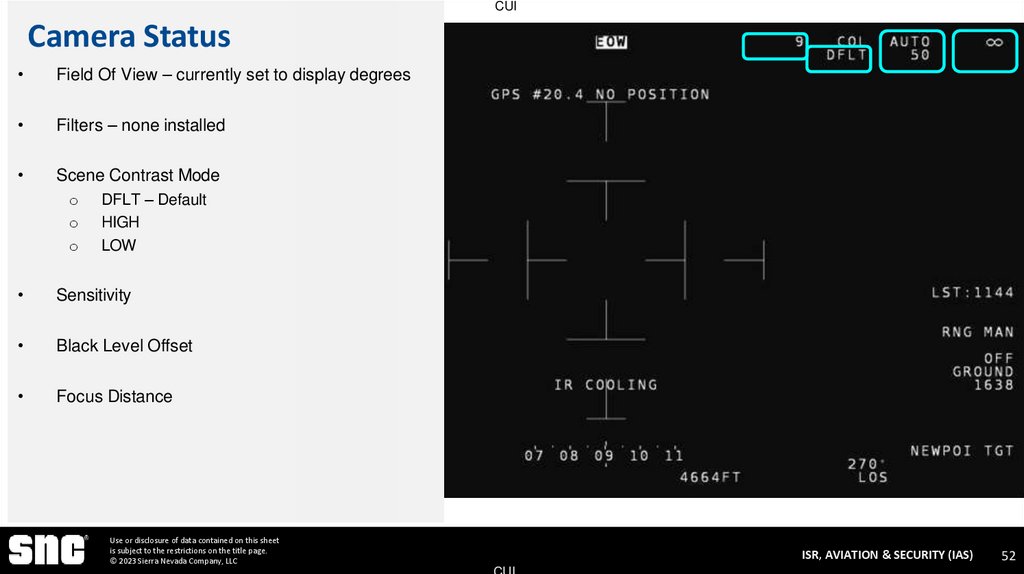
Field Of View – currently set to display degrees
Filters – none installed
Scene Contrast Mode
o
o
o
DFLT – Default
HIGH
LOW
Sensitivity
Black Level Offset
Focus Distance
Use or disclosure of data contained on this sheet
is subject to the restrictions on the title page.
© 2023 Sierra Nevada Company, LLC
ISR, AVIATION & SECURITY (IAS)
CUI
52
53. Sensor Stabilization EO 2-5 – Recall Alignment and Geographic Location Functions
CUISENSOR STABILIZATION
EO 2-5 – RECALL ALIGNMENT AND GEOGRAPHIC LOCATION
FUNCTIONS
Use or disclosure of data contained on this sheet
is subject to the restrictions on the title page.
© 2023 Sierra Nevada Company, LLC
ISR, AVIATION & SECURITY (IAS)
CUI
53
54. Active Stabilization
CUIActive Stabilization
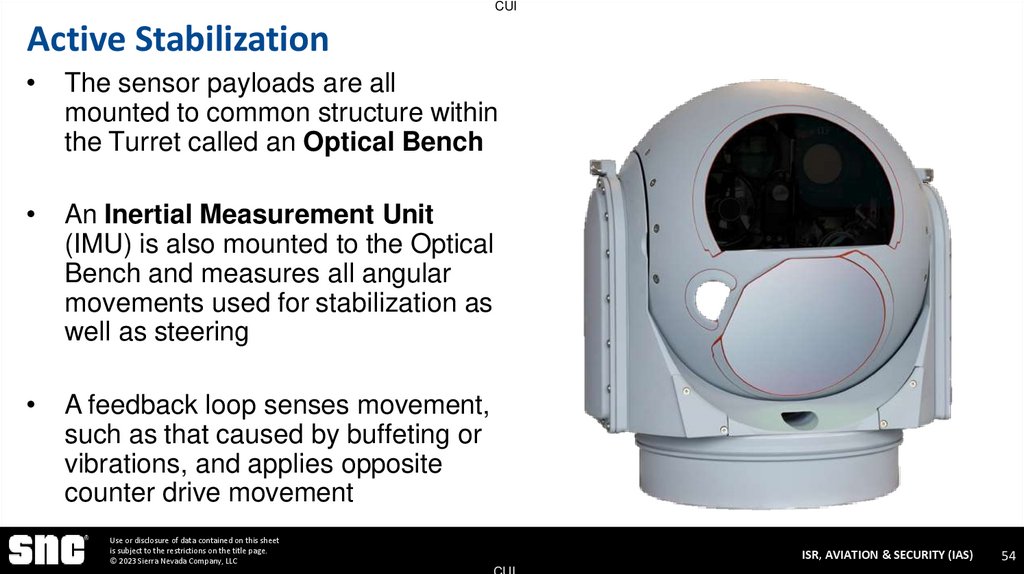
The sensor payloads are all
mounted to common structure within
the Turret called an Optical Bench
An Inertial Measurement Unit
(IMU) is also mounted to the Optical
Bench and measures all angular
movements used for stabilization as
well as steering
A feedback loop senses movement,
such as that caused by buffeting or
vibrations, and applies opposite
counter drive movement
Use or disclosure of data contained on this sheet
is subject to the restrictions on the title page.
© 2023 Sierra Nevada Company, LLC
ISR, AVIATION & SECURITY (IAS)
CUI
54
55. Sensor Stabilization
CUISensor Stabilization
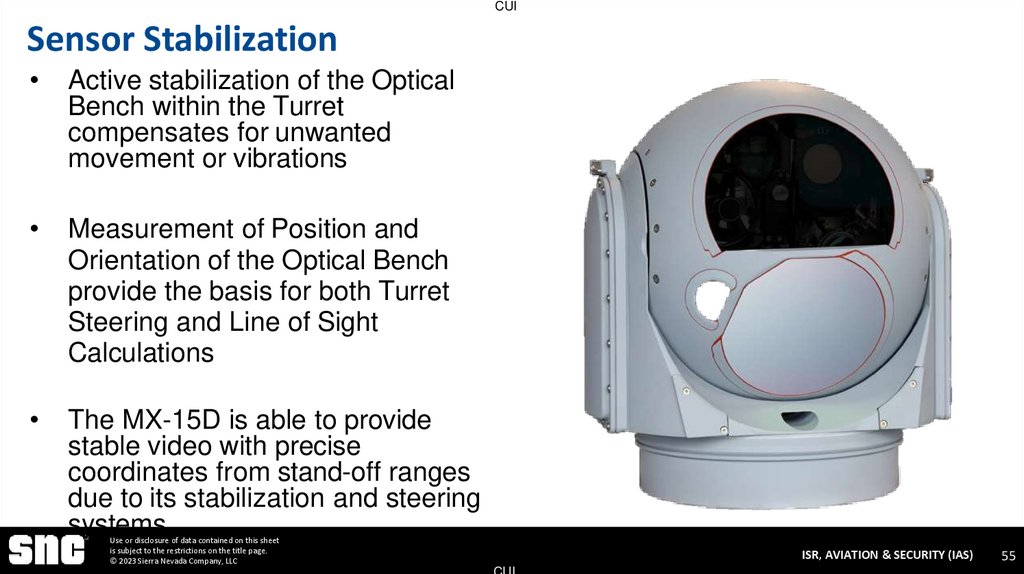
Active stabilization of the Optical
Bench within the Turret
compensates for unwanted
movement or vibrations
Measurement of Position and
Orientation of the Optical Bench
provide the basis for both Turret
Steering and Line of Sight
Calculations
The MX-15D is able to provide
stable video with precise
coordinates from stand-off ranges
due to its stabilization and steering
systems
Use or disclosure of data contained on this sheet
is subject to the restrictions on the title page.
© 2023 Sierra Nevada Company, LLC
ISR, AVIATION & SECURITY (IAS)
CUI
55
56. Line-of-Sight Measurement
CUILine-of-Sight Measurement
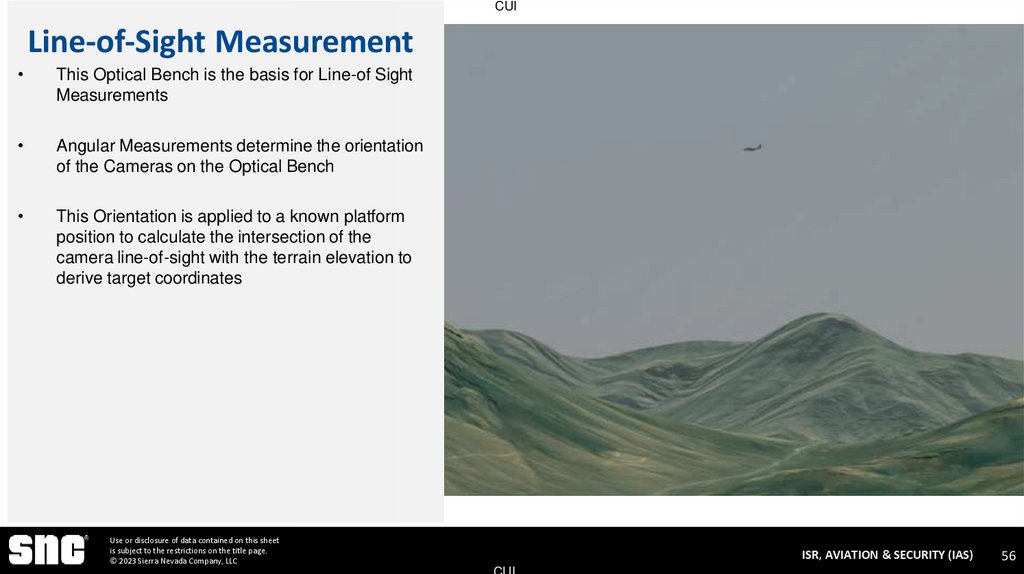
This Optical Bench is the basis for Line-of Sight
Measurements
Angular Measurements determine the orientation
of the Cameras on the Optical Bench
This Orientation is applied to a known platform
position to calculate the intersection of the
camera line-of-sight with the terrain elevation to
derive target coordinates
Use or disclosure of data contained on this sheet
is subject to the restrictions on the title page.
© 2023 Sierra Nevada Company, LLC
ISR, AVIATION & SECURITY (IAS)
CUI
56
57. Position Measurement
CUIPosition Measurement
The MX-15D can receive position location from
two sources, an internal GPS receiver or
GPS/INS data received from the ATACNAV
The MX-15D houses a GPS Receiver that is
wired to an aircraft GPS Antenna through a GPS
Splitter
The MX-15D on the KC-130J also receives
ATACNAV GPS/INS data from Burma Mission
Software on the FCO Server
Use or disclosure of data contained on this sheet
is subject to the restrictions on the title page.
© 2023 Sierra Nevada Company, LLC
ISR, AVIATION & SECURITY (IAS)
CUI
57
58. Angular Measurement
CUIAngular Measurement
Angular measurement of the Optical Bench is
performed by the system using either of two
methods
The IMU may be aligned to earth during
initialization, after which it may provide direct 3axis measurement of the Optical Bench
orientation
Optical Bench orientation may also be measured
based on the azimuth and elevation relative to the
Yoke, the Yoke’s orientation relative to the aircraft
and the Aircraft’s 3-axis orientation
Use or disclosure of data contained on this sheet
is subject to the restrictions on the title page.
© 2023 Sierra Nevada Company, LLC
ISR, AVIATION & SECURITY (IAS)
CUI
58
59. INS Alignment
CUIINS Alignment
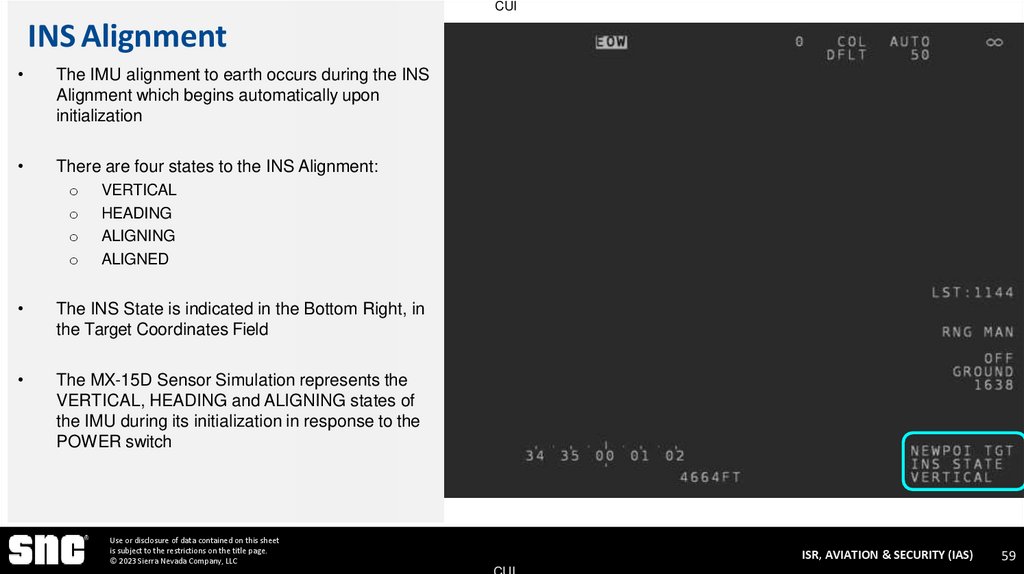
The IMU alignment to earth occurs during the INS
Alignment which begins automatically upon
initialization
There are four states to the INS Alignment:
o
o
o
o
VERTICAL
HEADING
ALIGNING
ALIGNED
The INS State is indicated in the Bottom Right, in
the Target Coordinates Field
The MX-15D Sensor Simulation represents the
VERTICAL, HEADING and ALIGNING states of
the IMU during its initialization in response to the
POWER switch
Use or disclosure of data contained on this sheet
is subject to the restrictions on the title page.
© 2023 Sierra Nevada Company, LLC
ISR, AVIATION & SECURITY (IAS)
CUI
59
60. INS Vertical Check
CUIINS Vertical Check
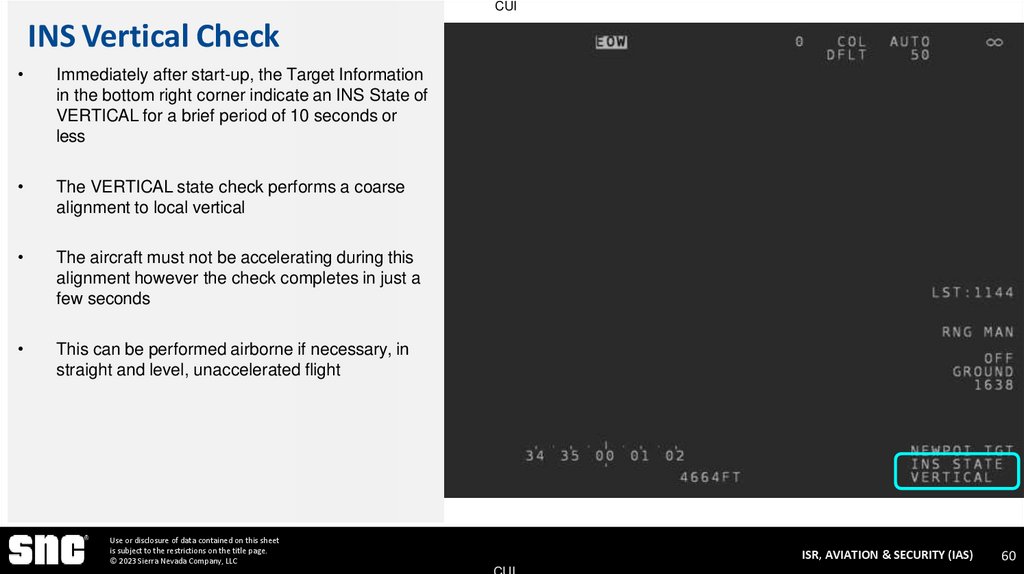
Immediately after start-up, the Target Information
in the bottom right corner indicate an INS State of
VERTICAL for a brief period of 10 seconds or
less
The VERTICAL state check performs a coarse
alignment to local vertical
The aircraft must not be accelerating during this
alignment however the check completes in just a
few seconds
This can be performed airborne if necessary, in
straight and level, unaccelerated flight
Use or disclosure of data contained on this sheet
is subject to the restrictions on the title page.
© 2023 Sierra Nevada Company, LLC
ISR, AVIATION & SECURITY (IAS)
CUI
60
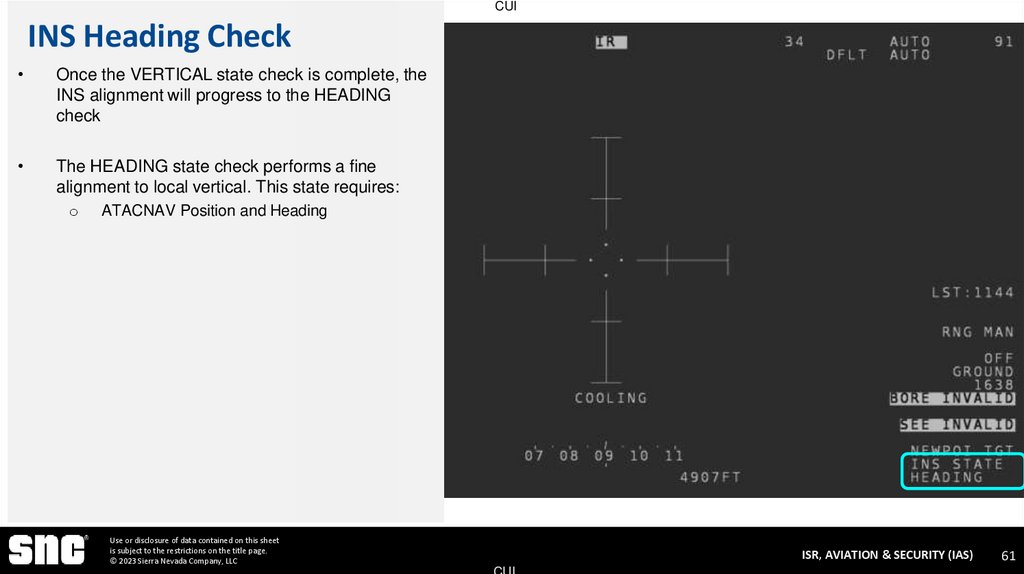
61. INS Heading Check
CUIINS Heading Check
Once the VERTICAL state check is complete, the
INS alignment will progress to the HEADING
check
The HEADING state check performs a fine
alignment to local vertical. This state requires:
o
ATACNAV Position and Heading
Use or disclosure of data contained on this sheet
is subject to the restrictions on the title page.
© 2023 Sierra Nevada Company, LLC
ISR, AVIATION & SECURITY (IAS)
CUI
61
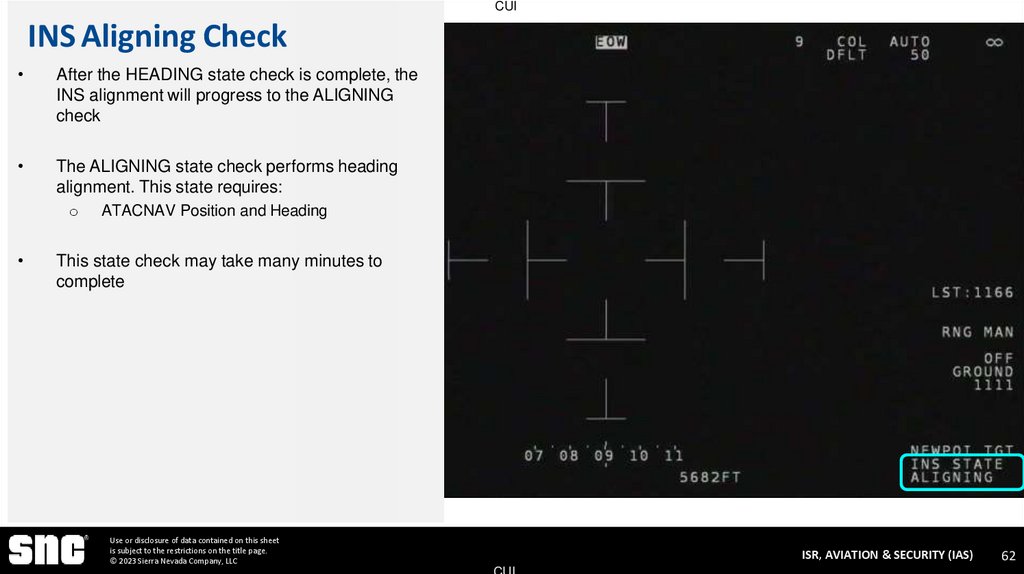
62. INS Aligning Check
CUIINS Aligning Check
After the HEADING state check is complete, the
INS alignment will progress to the ALIGNING
check
The ALIGNING state check performs heading
alignment. This state requires:
o
ATACNAV Position and Heading
This state check may take many minutes to
complete
Use or disclosure of data contained on this sheet
is subject to the restrictions on the title page.
© 2023 Sierra Nevada Company, LLC
ISR, AVIATION & SECURITY (IAS)
CUI
62
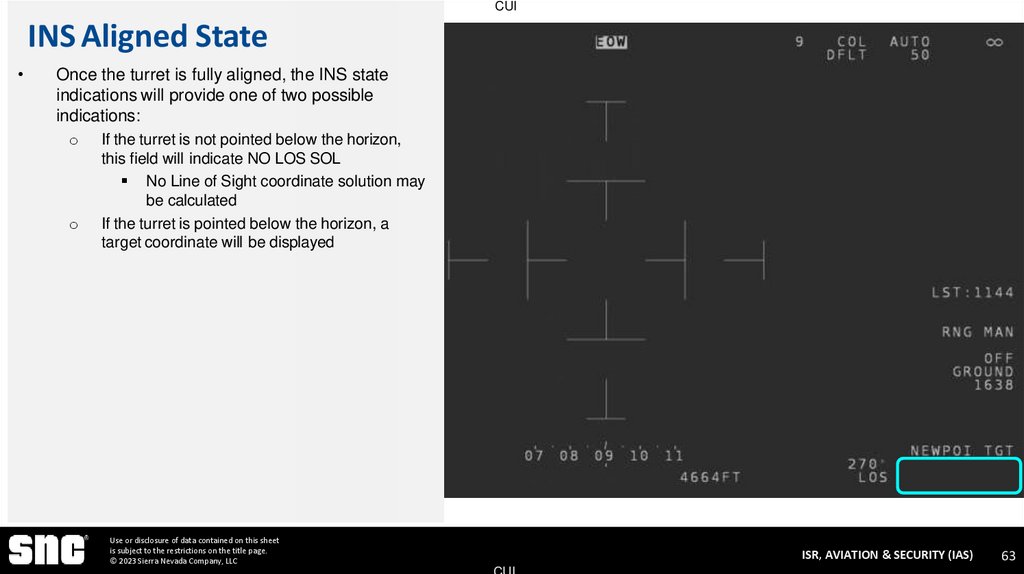
63. INS Aligned State
CUIINS Aligned State
Once the turret is fully aligned, the INS state
indications will provide one of two possible
indications:
o
o
If the turret is not pointed below the horizon,
this field will indicate NO LOS SOL
No Line of Sight coordinate solution may
be calculated
If the turret is pointed below the horizon, a
target coordinate will be displayed
Use or disclosure of data contained on this sheet
is subject to the restrictions on the title page.
© 2023 Sierra Nevada Company, LLC
ISR, AVIATION & SECURITY (IAS)
CUI
63
64. Steering Modes EO 2-6 – Recall All Steering Modes
CUISTEERING MODES
EO 2-6 – RECALL ALL STEERING MODES
Use or disclosure of data contained on this sheet
is subject to the restrictions on the title page.
© 2023 Sierra Nevada Company, LLC
ISR, AVIATION & SECURITY (IAS)
CUI
64
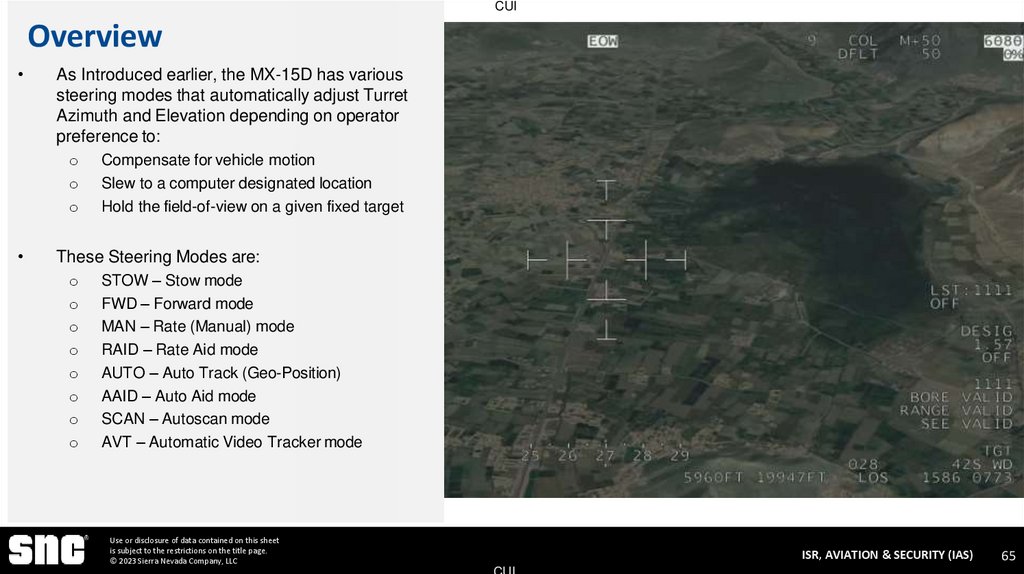
65. Overview
CUIOverview
As Introduced earlier, the MX-15D has various
steering modes that automatically adjust Turret
Azimuth and Elevation depending on operator
preference to:
o
o
o
Compensate for vehicle motion
Slew to a computer designated location
Hold the field-of-view on a given fixed target
These Steering Modes are:
o
o
o
o
o
o
o
o
STOW – Stow mode
FWD – Forward mode
MAN – Rate (Manual) mode
RAID – Rate Aid mode
AUTO – Auto Track (Geo-Position)
AAID – Auto Aid mode
SCAN – Autoscan mode
AVT – Automatic Video Tracker mode
Use or disclosure of data contained on this sheet
is subject to the restrictions on the title page.
© 2023 Sierra Nevada Company, LLC
ISR, AVIATION & SECURITY (IAS)
CUI
65
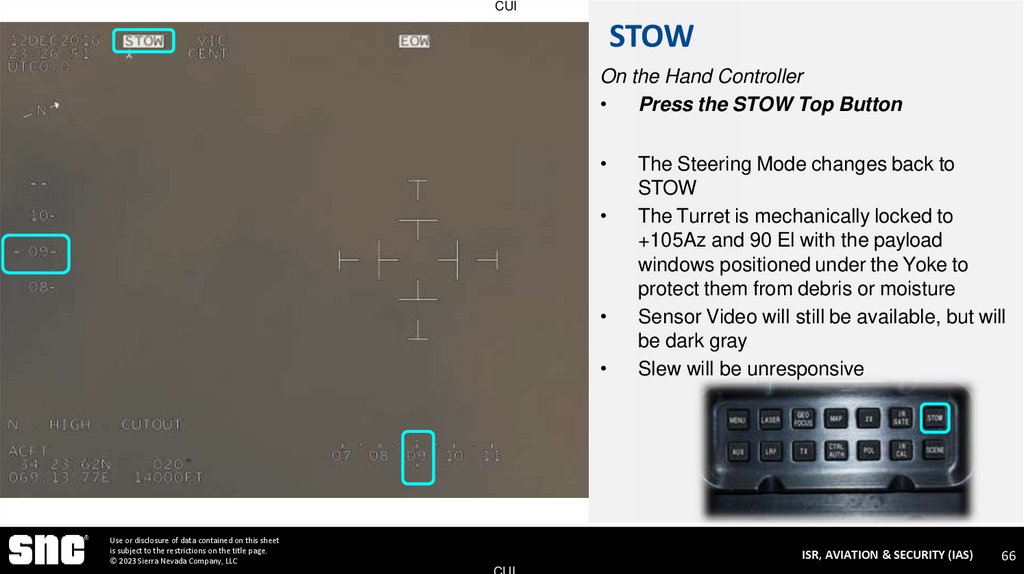
66. STOW
CUISTOW
On the Hand Controller
Press the STOW Top Button
Use or disclosure of data contained on this sheet
is subject to the restrictions on the title page.
© 2023 Sierra Nevada Company, LLC
The Steering Mode changes back to
STOW
The Turret is mechanically locked to
+105Az and 90 El with the payload
windows positioned under the Yoke to
protect them from debris or moisture
Sensor Video will still be available, but will
be dark gray
Slew will be unresponsive
ISR, AVIATION & SECURITY (IAS)
CUI
66
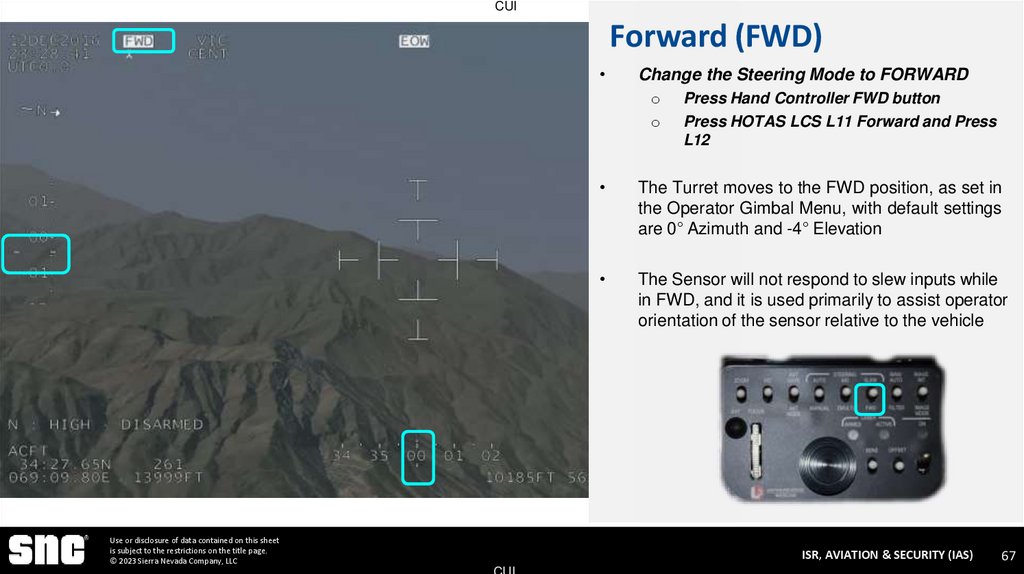
67. Forward (FWD)
CUIForward (FWD)
Change the Steering Mode to FORWARD
o
o
Use or disclosure of data contained on this sheet
is subject to the restrictions on the title page.
© 2023 Sierra Nevada Company, LLC
Press Hand Controller FWD button
Press HOTAS LCS L11 Forward and Press
L12
The Turret moves to the FWD position, as set in
the Operator Gimbal Menu, with default settings
are 0° Azimuth and -4° Elevation
The Sensor will not respond to slew inputs while
in FWD, and it is used primarily to assist operator
orientation of the sensor relative to the vehicle
ISR, AVIATION & SECURITY (IAS)
CUI
67
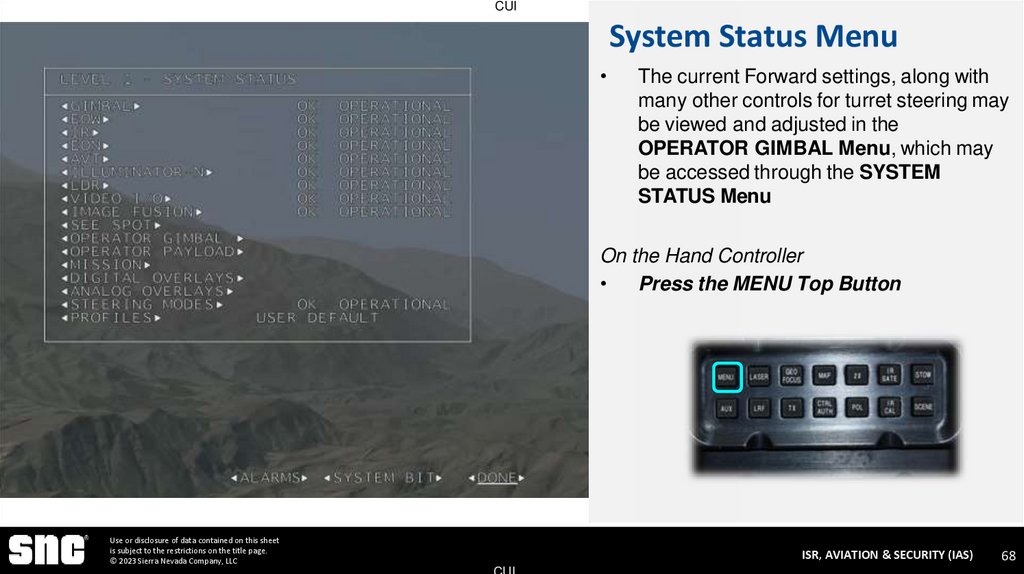
68. System Status Menu
CUISystem Status Menu
The current Forward settings, along with
many other controls for turret steering may
be viewed and adjusted in the
OPERATOR GIMBAL Menu, which may
be accessed through the SYSTEM
STATUS Menu
On the Hand Controller
Press the MENU Top Button
Use or disclosure of data contained on this sheet
is subject to the restrictions on the title page.
© 2023 Sierra Nevada Company, LLC
ISR, AVIATION & SECURITY (IAS)
CUI
68
69. Menu Navigation
CUIMenu Navigation
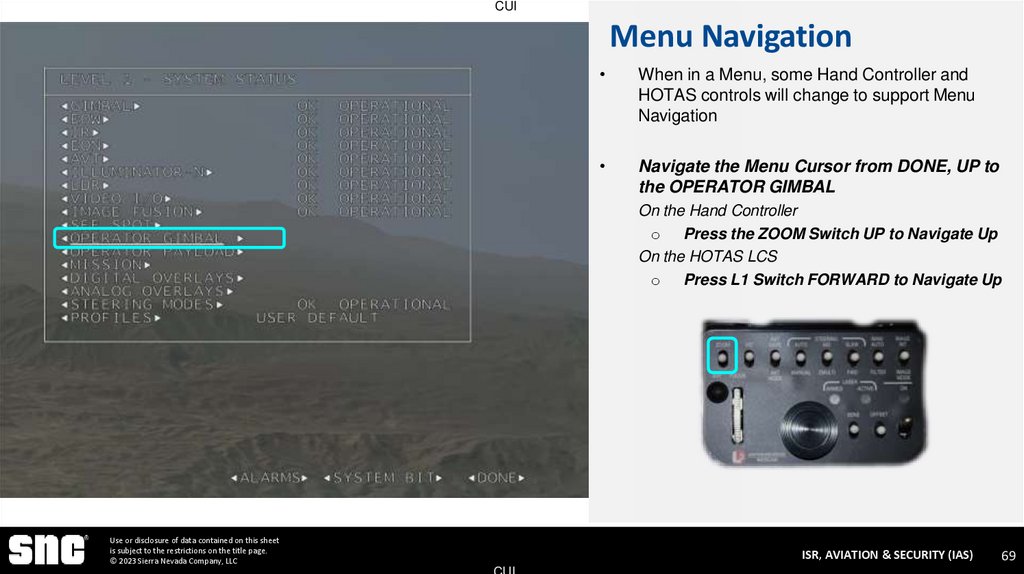
When in a Menu, some Hand Controller and
HOTAS controls will change to support Menu
Navigation
Navigate the Menu Cursor from DONE, UP to
the OPERATOR GIMBAL
On the Hand Controller
o Press the ZOOM Switch UP to Navigate Up
On the HOTAS LCS
o Press L1 Switch FORWARD to Navigate Up
Use or disclosure of data contained on this sheet
is subject to the restrictions on the title page.
© 2023 Sierra Nevada Company, LLC
ISR, AVIATION & SECURITY (IAS)
CUI
69
70. Menu Navigation
CUIMenu Navigation
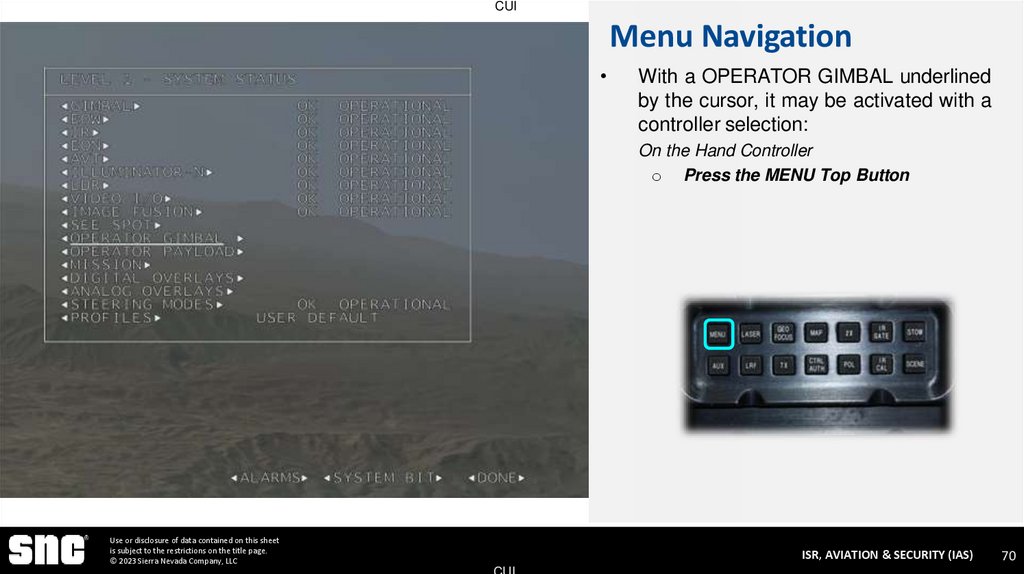
With a OPERATOR GIMBAL underlined
by the cursor, it may be activated with a
controller selection:
On the Hand Controller
o Press the MENU Top Button
Use or disclosure of data contained on this sheet
is subject to the restrictions on the title page.
© 2023 Sierra Nevada Company, LLC
ISR, AVIATION & SECURITY (IAS)
CUI
70
71. Operator Gimbal
CUIOperator Gimbal
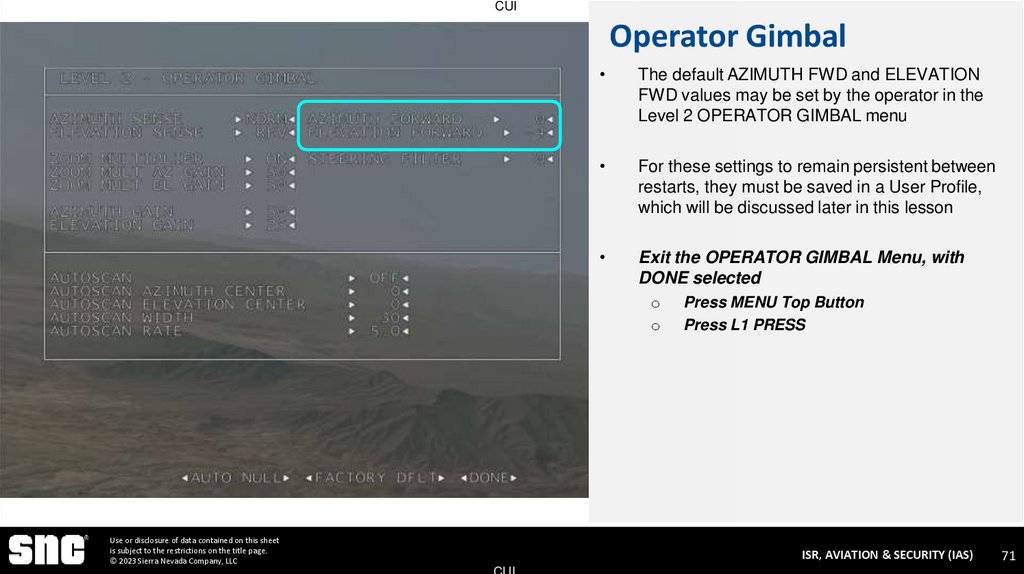
The default AZIMUTH FWD and ELEVATION
FWD values may be set by the operator in the
Level 2 OPERATOR GIMBAL menu
For these settings to remain persistent between
restarts, they must be saved in a User Profile,
which will be discussed later in this lesson
Exit the OPERATOR GIMBAL Menu, with
DONE selected
o
o
Use or disclosure of data contained on this sheet
is subject to the restrictions on the title page.
© 2023 Sierra Nevada Company, LLC
Press MENU Top Button
Press L1 PRESS
ISR, AVIATION & SECURITY (IAS)
CUI
71
72. FWD No Slew
CUIFWD No Slew
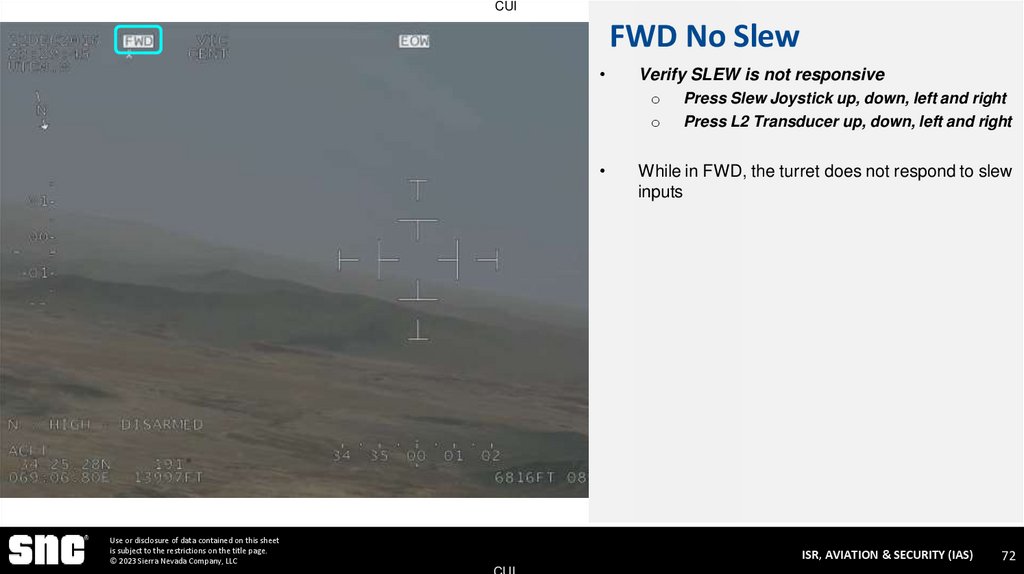
Verify SLEW is not responsive
o
o
Use or disclosure of data contained on this sheet
is subject to the restrictions on the title page.
© 2023 Sierra Nevada Company, LLC
Press Slew Joystick up, down, left and right
Press L2 Transducer up, down, left and right
While in FWD, the turret does not respond to slew
inputs
ISR, AVIATION & SECURITY (IAS)
CUI
72
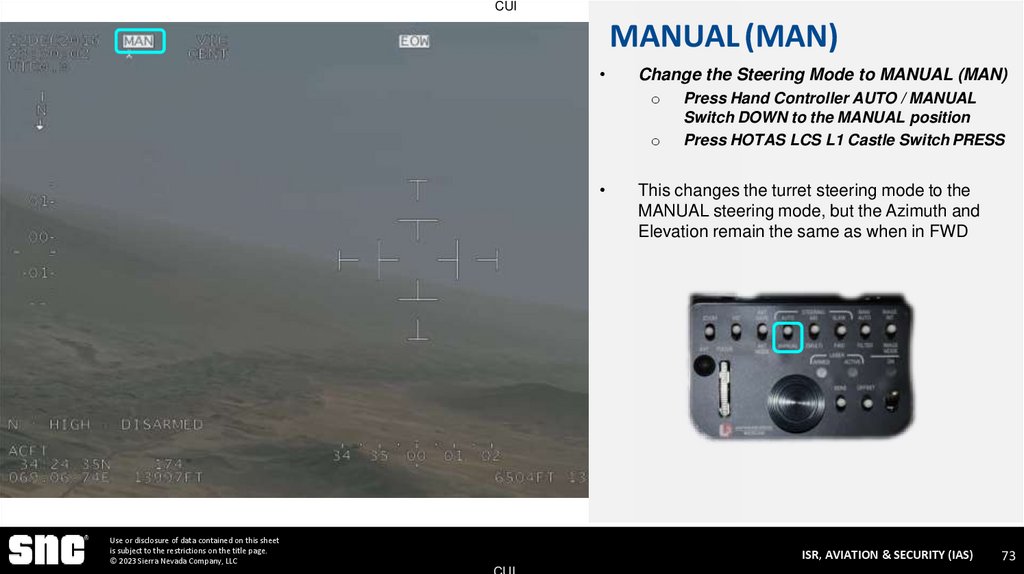
73. MANUAL (MAN)
CUIMANUAL (MAN)
Change the Steering Mode to MANUAL (MAN)
o
o
Use or disclosure of data contained on this sheet
is subject to the restrictions on the title page.
© 2023 Sierra Nevada Company, LLC
Press Hand Controller AUTO / MANUAL
Switch DOWN to the MANUAL position
Press HOTAS LCS L1 Castle Switch PRESS
This changes the turret steering mode to the
MANUAL steering mode, but the Azimuth and
Elevation remain the same as when in FWD
ISR, AVIATION & SECURITY (IAS)
CUI
73
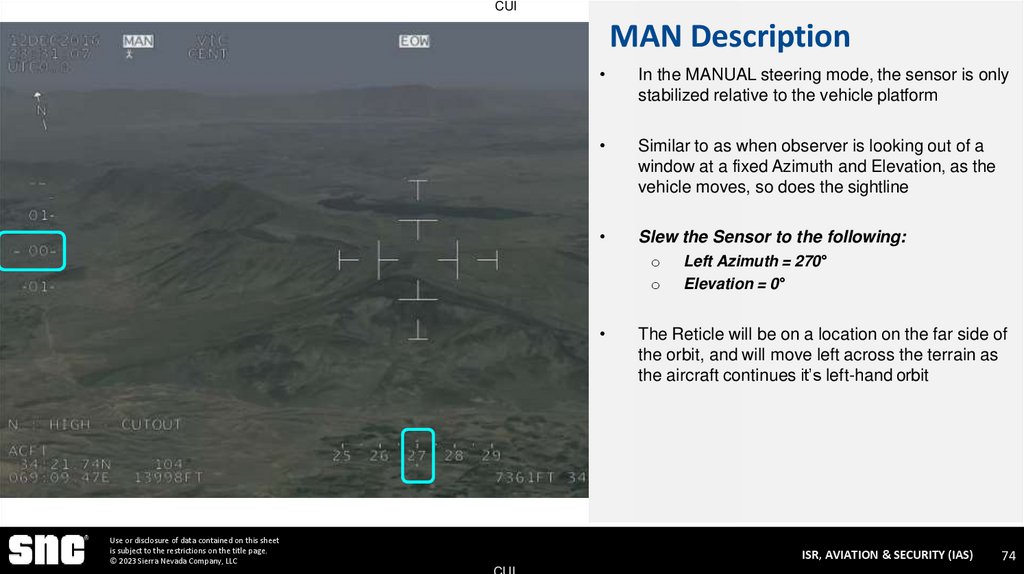
74. MAN Description
CUIMAN Description
In the MANUAL steering mode, the sensor is only
stabilized relative to the vehicle platform
Similar to as when observer is looking out of a
window at a fixed Azimuth and Elevation, as the
vehicle moves, so does the sightline
Slew the Sensor to the following:
o
o
Use or disclosure of data contained on this sheet
is subject to the restrictions on the title page.
© 2023 Sierra Nevada Company, LLC
Left Azimuth = 270°
Elevation = 0°
The Reticle will be on a location on the far side of
the orbit, and will move left across the terrain as
the aircraft continues it’s left-hand orbit
ISR, AVIATION & SECURITY (IAS)
CUI
74
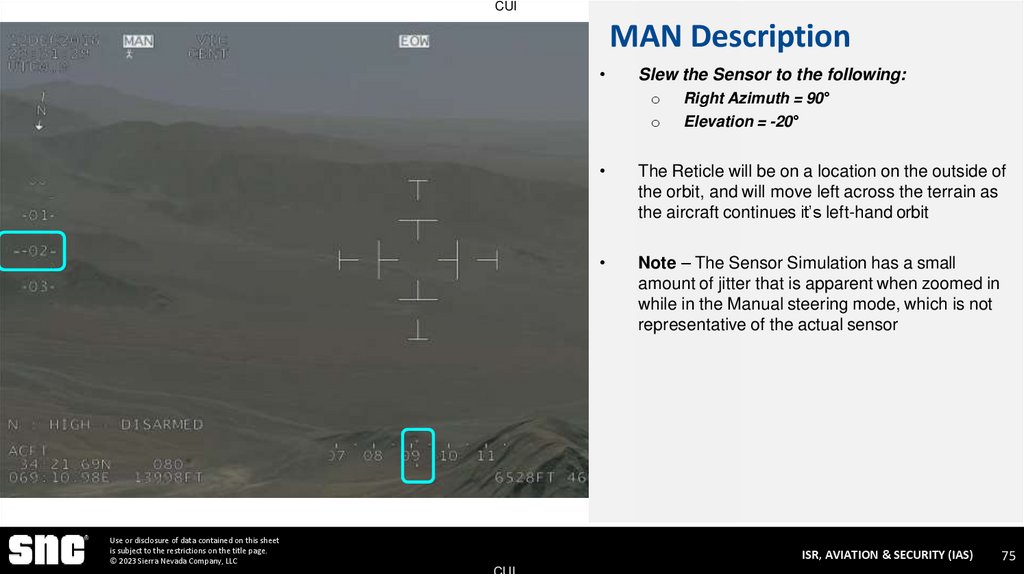
75. MAN Description
CUIMAN Description
Slew the Sensor to the following:
o
o
Use or disclosure of data contained on this sheet
is subject to the restrictions on the title page.
© 2023 Sierra Nevada Company, LLC
Right Azimuth = 90°
Elevation = -20°
The Reticle will be on a location on the outside of
the orbit, and will move left across the terrain as
the aircraft continues it’s left-hand orbit
Note – The Sensor Simulation has a small
amount of jitter that is apparent when zoomed in
while in the Manual steering mode, which is not
representative of the actual sensor
ISR, AVIATION & SECURITY (IAS)
CUI
75
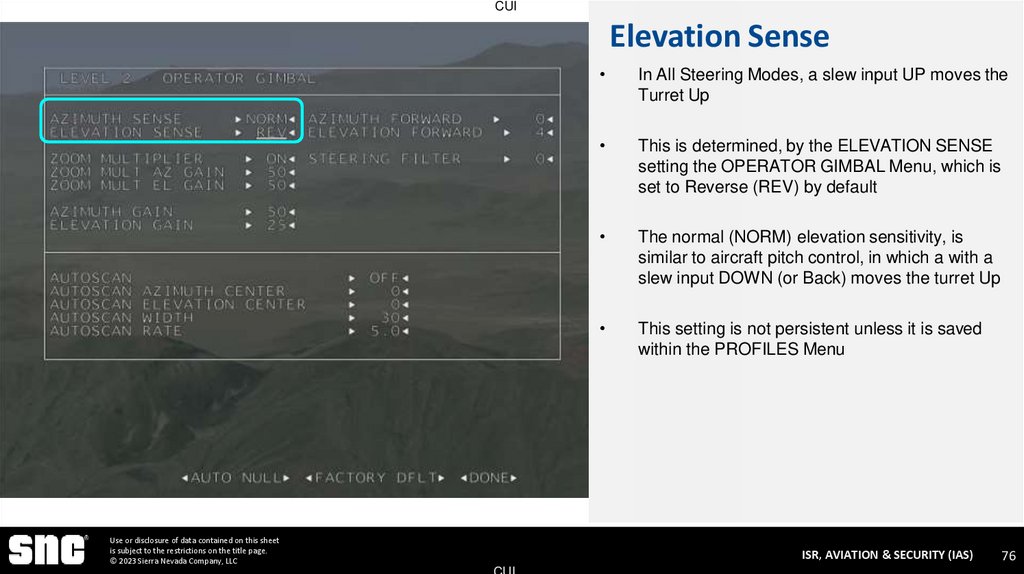
76. Elevation Sense
CUIElevation Sense
Use or disclosure of data contained on this sheet
is subject to the restrictions on the title page.
© 2023 Sierra Nevada Company, LLC
In All Steering Modes, a slew input UP moves the
Turret Up
This is determined, by the ELEVATION SENSE
setting the OPERATOR GIMBAL Menu, which is
set to Reverse (REV) by default
The normal (NORM) elevation sensitivity, is
similar to aircraft pitch control, in which a with a
slew input DOWN (or Back) moves the turret Up
This setting is not persistent unless it is saved
within the PROFILES Menu
ISR, AVIATION & SECURITY (IAS)
CUI
76
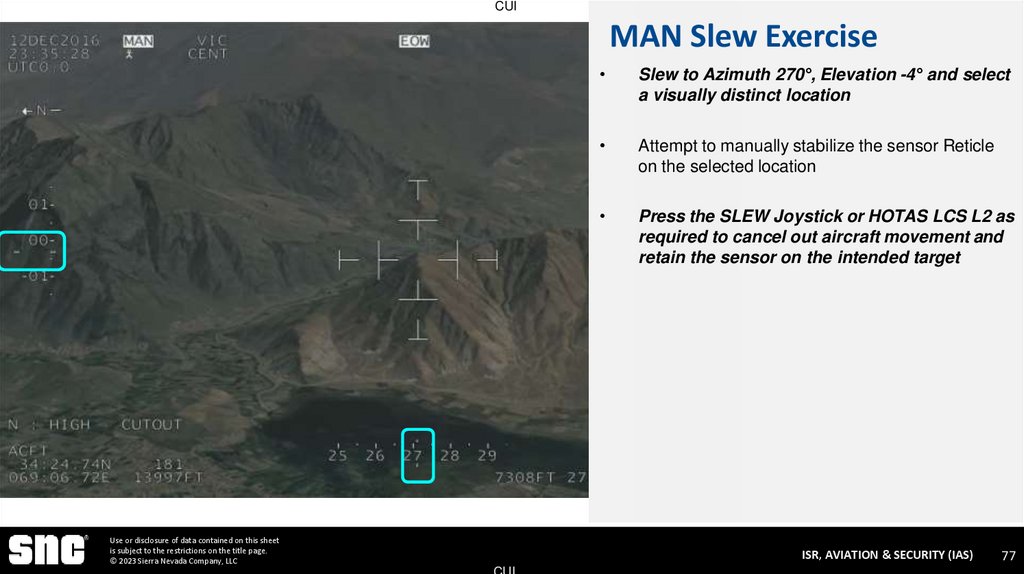
77. MAN Slew Exercise
CUIMAN Slew Exercise
Use or disclosure of data contained on this sheet
is subject to the restrictions on the title page.
© 2023 Sierra Nevada Company, LLC
Slew to Azimuth 270°, Elevation -4° and select
a visually distinct location
Attempt to manually stabilize the sensor Reticle
on the selected location
Press the SLEW Joystick or HOTAS LCS L2 as
required to cancel out aircraft movement and
retain the sensor on the intended target
ISR, AVIATION & SECURITY (IAS)
CUI
77
78. Manual Stabilization
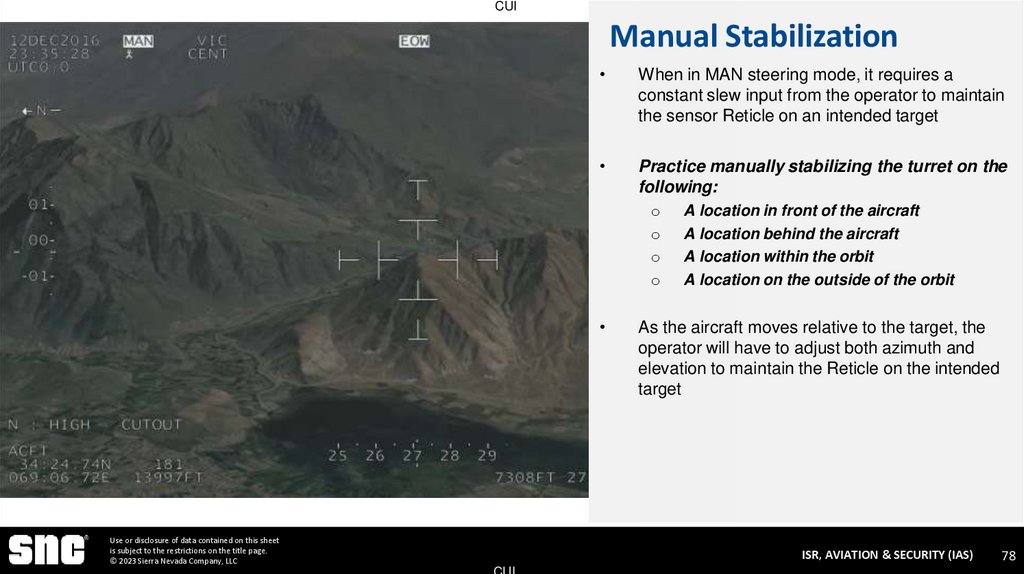
CUIManual Stabilization
When in MAN steering mode, it requires a
constant slew input from the operator to maintain
the sensor Reticle on an intended target
Practice manually stabilizing the turret on the
following:
o
o
o
o
Use or disclosure of data contained on this sheet
is subject to the restrictions on the title page.
© 2023 Sierra Nevada Company, LLC
A location in front of the aircraft
A location behind the aircraft
A location within the orbit
A location on the outside of the orbit
As the aircraft moves relative to the target, the
operator will have to adjust both azimuth and
elevation to maintain the Reticle on the intended
target
ISR, AVIATION & SECURITY (IAS)
CUI
78
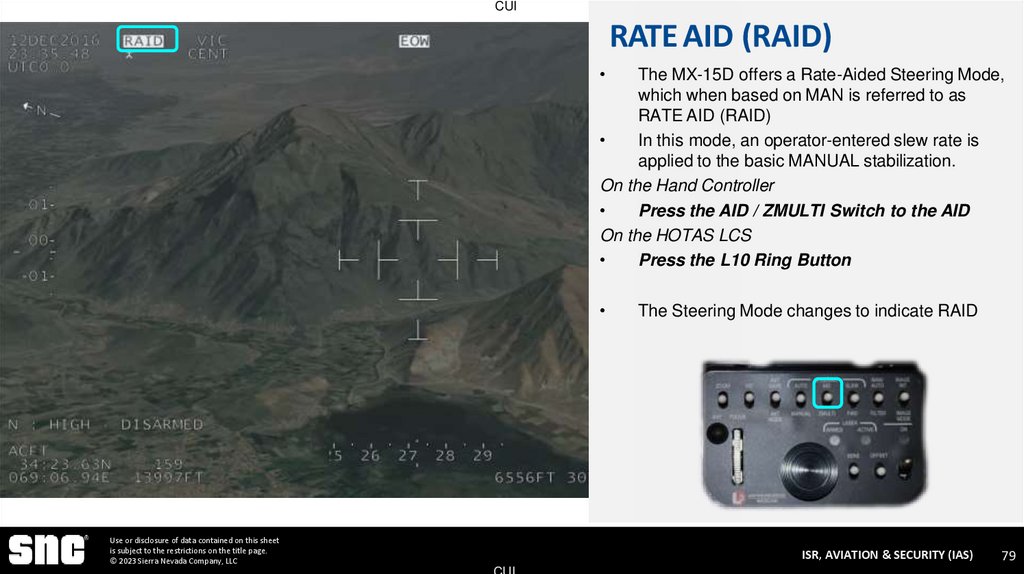
79. RATE AID (RAID)
CUIRATE AID (RAID)
The MX-15D offers a Rate-Aided Steering Mode,
which when based on MAN is referred to as
RATE AID (RAID)
In this mode, an operator-entered slew rate is
applied to the basic MANUAL stabilization.
On the Hand Controller
Press the AID / ZMULTI Switch to the AID
On the HOTAS LCS
Press the L10 Ring Button
Use or disclosure of data contained on this sheet
is subject to the restrictions on the title page.
© 2023 Sierra Nevada Company, LLC
The Steering Mode changes to indicate RAID
ISR, AVIATION & SECURITY (IAS)
CUI
79
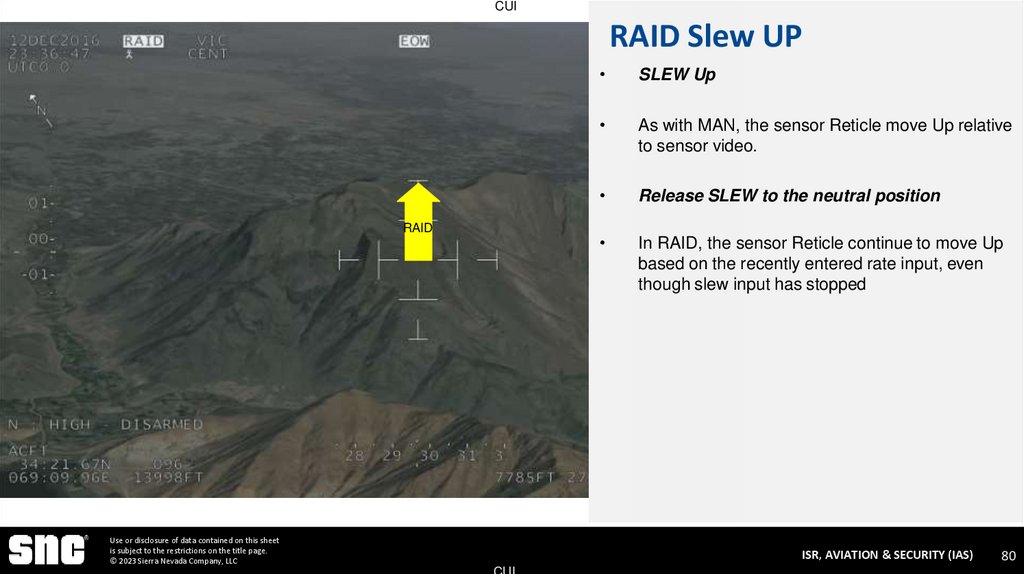
80. RAID Slew UP
CUIRAID Slew UP
Input
RAID
Use or disclosure of data contained on this sheet
is subject to the restrictions on the title page.
© 2023 Sierra Nevada Company, LLC
SLEW Up
As with MAN, the sensor Reticle move Up relative
to sensor video.
Release SLEW to the neutral position
In RAID, the sensor Reticle continue to move Up
based on the recently entered rate input, even
though slew input has stopped
ISR, AVIATION & SECURITY (IAS)
CUI
80
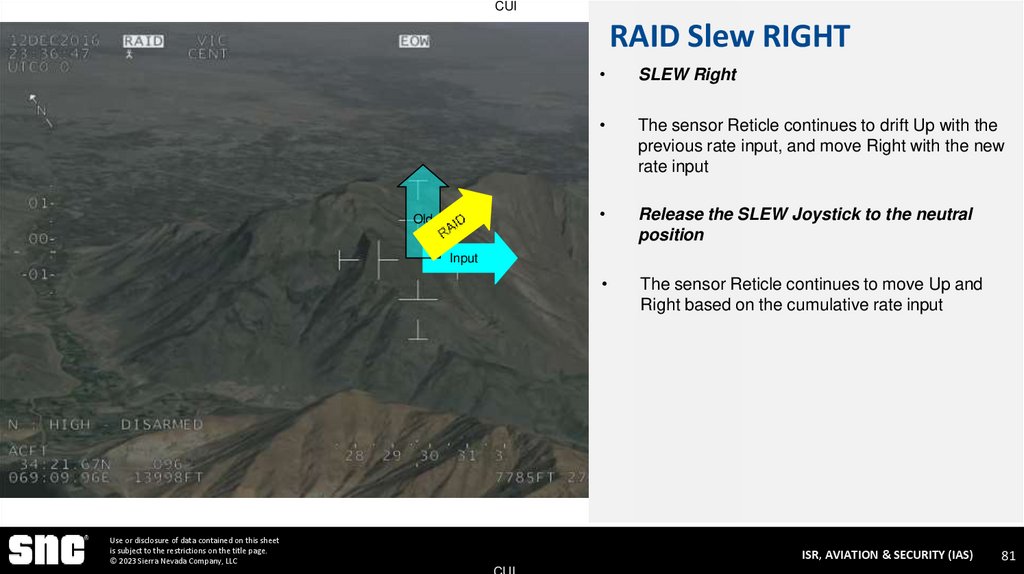
81. RAID Slew RIGHT
CUIRAID Slew RIGHT
Old
SLEW Right
The sensor Reticle continues to drift Up with the
previous rate input, and move Right with the new
rate input
Release the SLEW Joystick to the neutral
position
The sensor Reticle continues to move Up and
Right based on the cumulative rate input
Input
Use or disclosure of data contained on this sheet
is subject to the restrictions on the title page.
© 2023 Sierra Nevada Company, LLC
ISR, AVIATION & SECURITY (IAS)
CUI
81
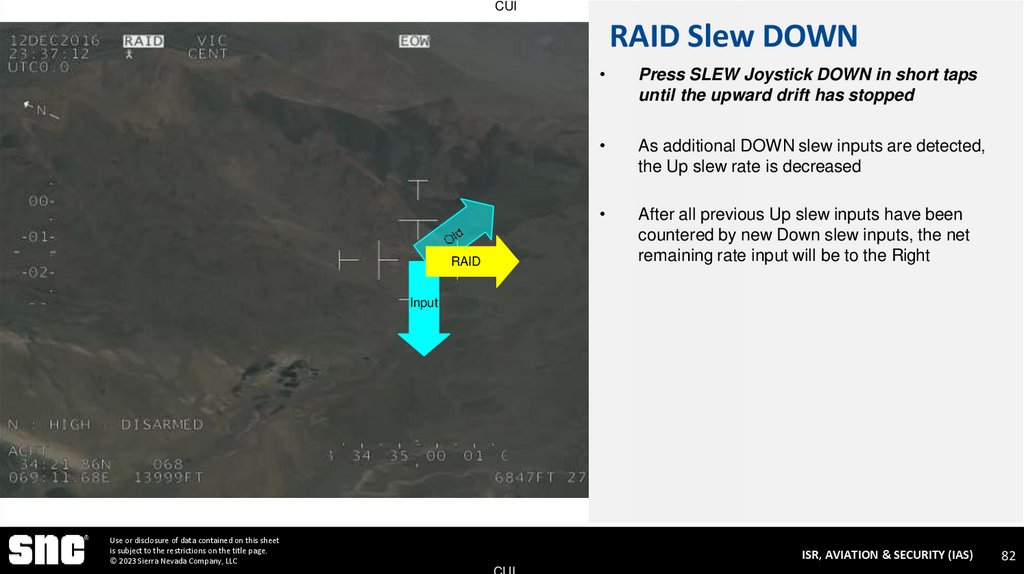
82. RAID Slew DOWN
CUIRAID Slew DOWN
RAID
Press SLEW Joystick DOWN in short taps
until the upward drift has stopped
As additional DOWN slew inputs are detected,
the Up slew rate is decreased
After all previous Up slew inputs have been
countered by new Down slew inputs, the net
remaining rate input will be to the Right
Input
Use or disclosure of data contained on this sheet
is subject to the restrictions on the title page.
© 2023 Sierra Nevada Company, LLC
ISR, AVIATION & SECURITY (IAS)
CUI
82
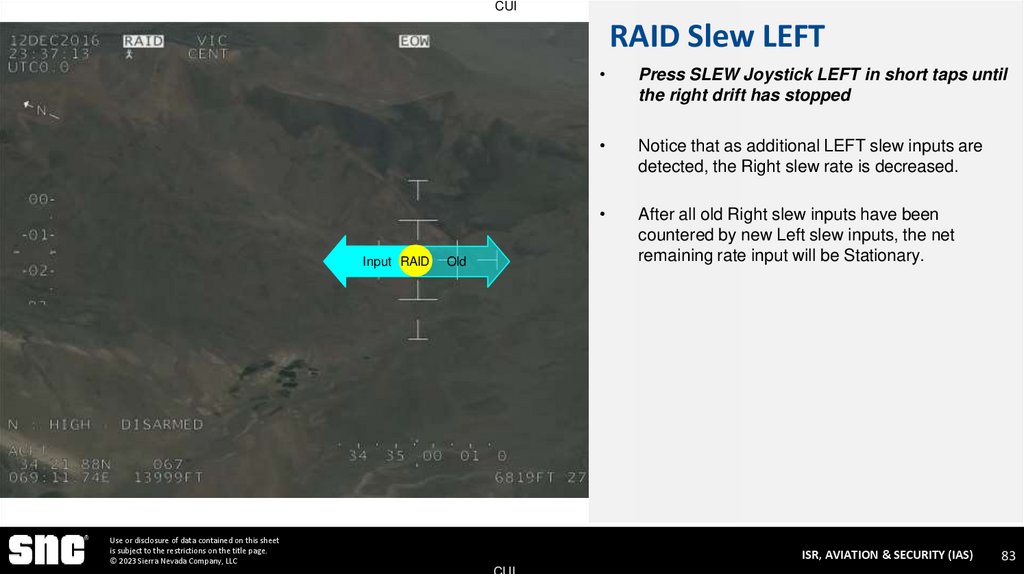
83. RAID Slew LEFT
CUIRAID Slew LEFT
Input RAID
Old
Use or disclosure of data contained on this sheet
is subject to the restrictions on the title page.
© 2023 Sierra Nevada Company, LLC
Press SLEW Joystick LEFT in short taps until
the right drift has stopped
Notice that as additional LEFT slew inputs are
detected, the Right slew rate is decreased.
After all old Right slew inputs have been
countered by new Left slew inputs, the net
remaining rate input will be Stationary.
ISR, AVIATION & SECURITY (IAS)
CUI
83
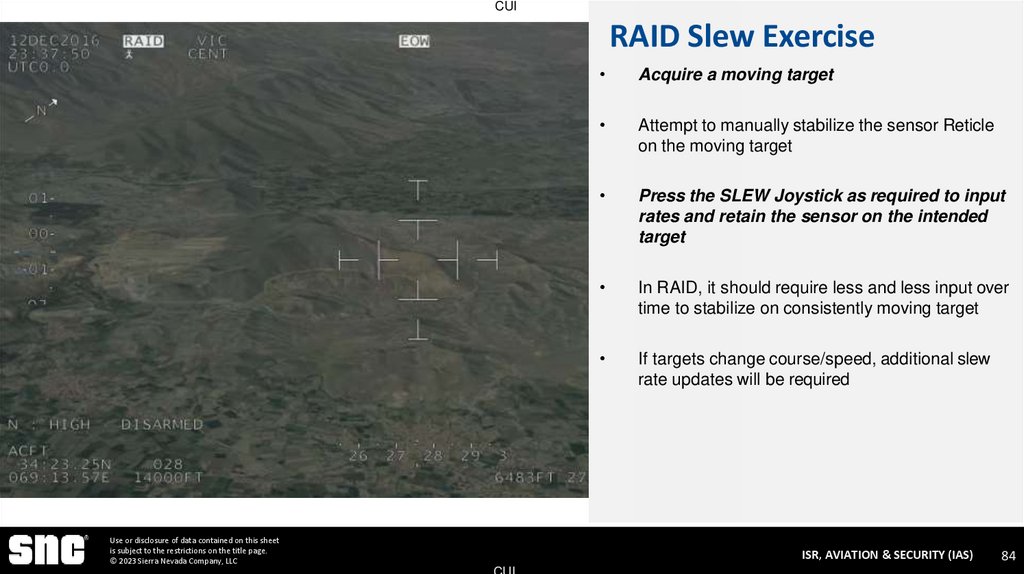
84. RAID Slew Exercise
CUIRAID Slew Exercise
Use or disclosure of data contained on this sheet
is subject to the restrictions on the title page.
© 2023 Sierra Nevada Company, LLC
Acquire a moving target
Attempt to manually stabilize the sensor Reticle
on the moving target
Press the SLEW Joystick as required to input
rates and retain the sensor on the intended
target
In RAID, it should require less and less input over
time to stabilize on consistently moving target
If targets change course/speed, additional slew
rate updates will be required
ISR, AVIATION & SECURITY (IAS)
CUI
84
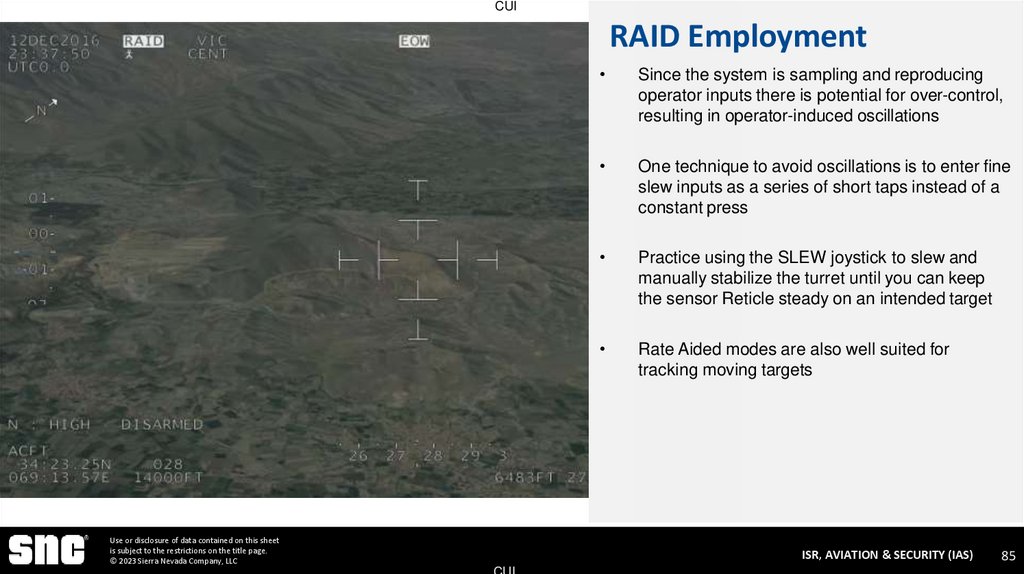
85. RAID Employment
CUIRAID Employment
Use or disclosure of data contained on this sheet
is subject to the restrictions on the title page.
© 2023 Sierra Nevada Company, LLC
Since the system is sampling and reproducing
operator inputs there is potential for over-control,
resulting in operator-induced oscillations
One technique to avoid oscillations is to enter fine
slew inputs as a series of short taps instead of a
constant press
Practice using the SLEW joystick to slew and
manually stabilize the turret until you can keep
the sensor Reticle steady on an intended target
Rate Aided modes are also well suited for
tracking moving targets
ISR, AVIATION & SECURITY (IAS)
CUI
85
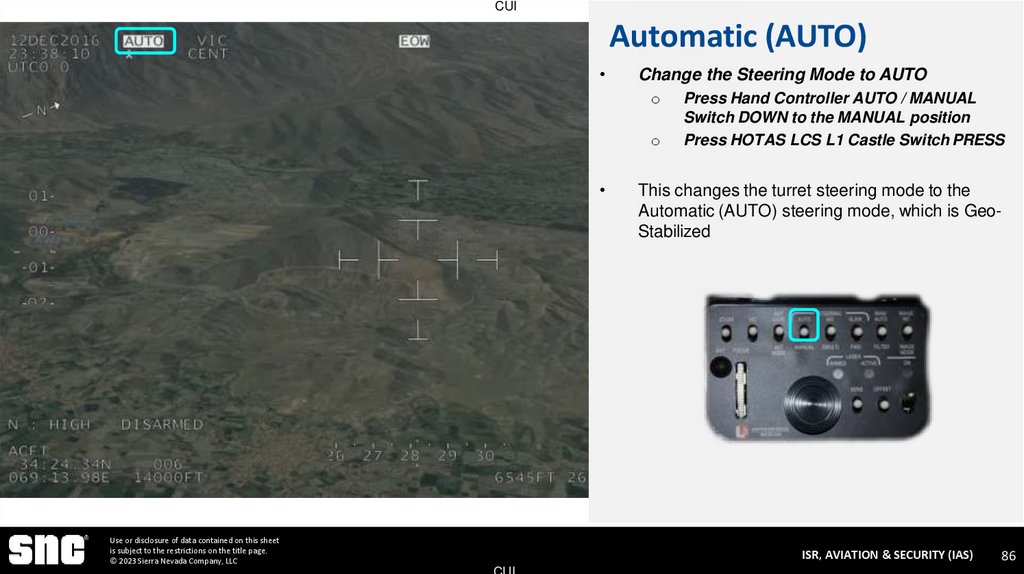
86. Automatic (AUTO)
CUIAutomatic (AUTO)
Change the Steering Mode to AUTO
o
o
Use or disclosure of data contained on this sheet
is subject to the restrictions on the title page.
© 2023 Sierra Nevada Company, LLC
Press Hand Controller AUTO / MANUAL
Switch DOWN to the MANUAL position
Press HOTAS LCS L1 Castle Switch PRESS
This changes the turret steering mode to the
Automatic (AUTO) steering mode, which is GeoStabilized
ISR, AVIATION & SECURITY (IAS)
CUI
86
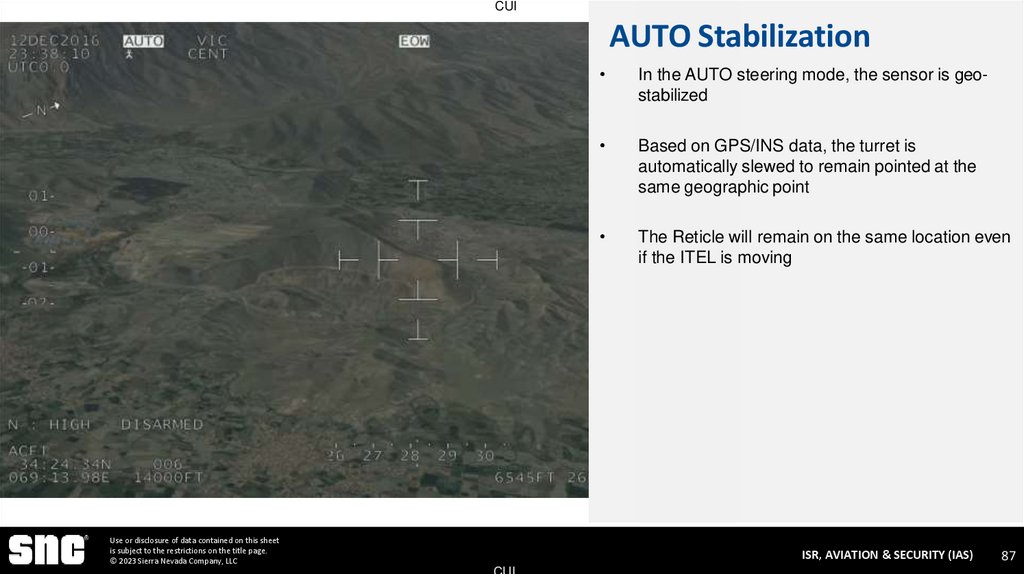
87. AUTO Stabilization
CUIAUTO Stabilization
Use or disclosure of data contained on this sheet
is subject to the restrictions on the title page.
© 2023 Sierra Nevada Company, LLC
In the AUTO steering mode, the sensor is geostabilized
Based on GPS/INS data, the turret is
automatically slewed to remain pointed at the
same geographic point
The Reticle will remain on the same location even
if the ITEL is moving
ISR, AVIATION & SECURITY (IAS)
CUI
87
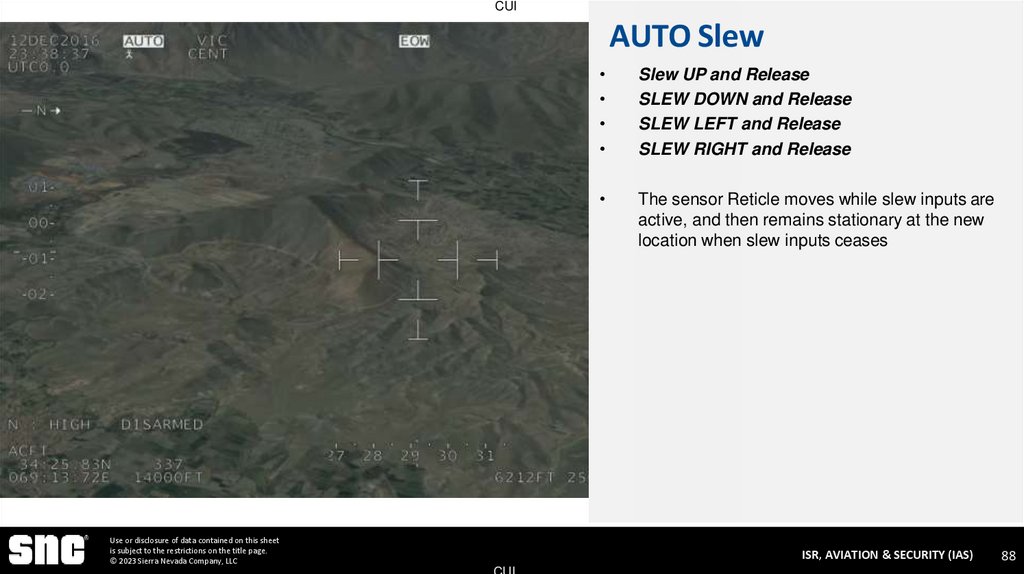
88. AUTO Slew
CUIAUTO Slew
Use or disclosure of data contained on this sheet
is subject to the restrictions on the title page.
© 2023 Sierra Nevada Company, LLC
Slew UP and Release
SLEW DOWN and Release
SLEW LEFT and Release
SLEW RIGHT and Release
The sensor Reticle moves while slew inputs are
active, and then remains stationary at the new
location when slew inputs ceases
ISR, AVIATION & SECURITY (IAS)
CUI
88
89. Sensor Zoom
CUISensor Zoom
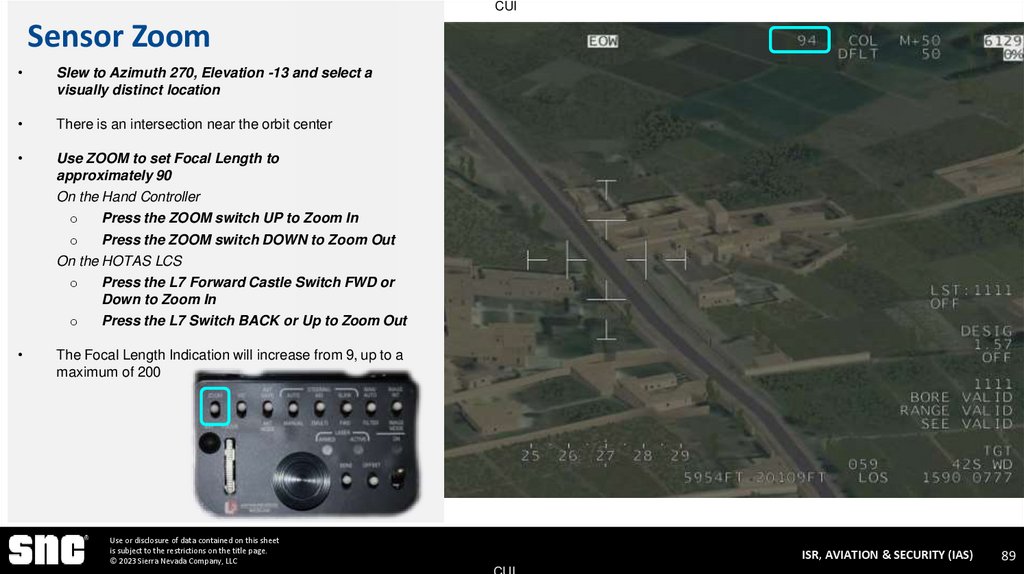
Slew to Azimuth 270, Elevation -13 and select a
visually distinct location
There is an intersection near the orbit center
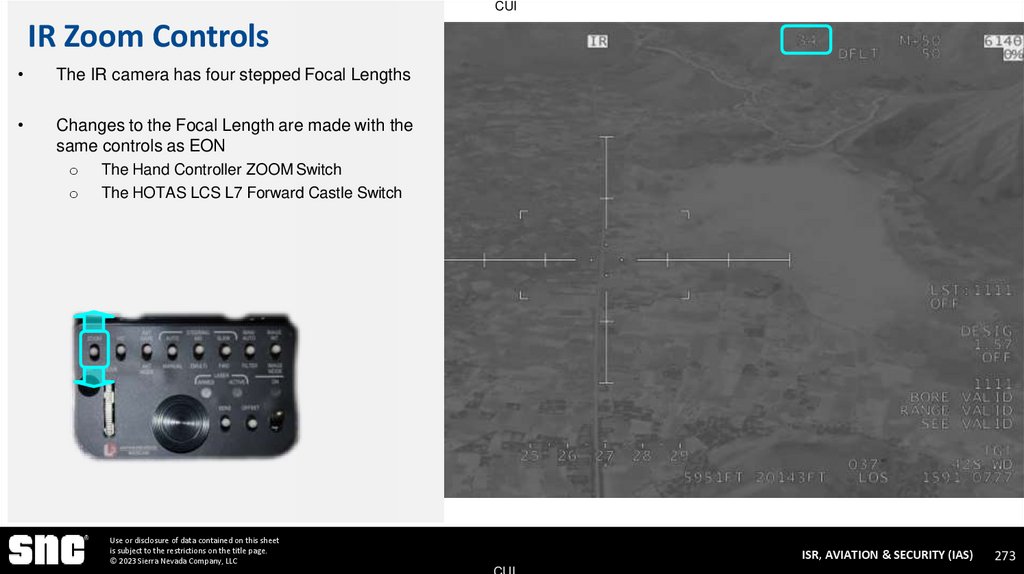
Use ZOOM to set Focal Length to
approximately 90
On the Hand Controller
o
Press the ZOOM switch UP to Zoom In
o
Press the ZOOM switch DOWN to Zoom Out
On the HOTAS LCS
o
Press the L7 Forward Castle Switch FWD or
Down to Zoom In
o
Press the L7 Switch BACK or Up to Zoom Out
The Focal Length Indication will increase from 9, up to a
maximum of 200
Use or disclosure of data contained on this sheet
is subject to the restrictions on the title page.
© 2023 Sierra Nevada Company, LLC
ISR, AVIATION & SECURITY (IAS)
CUI
89
90. Reticle Drift
CUIReticle Drift
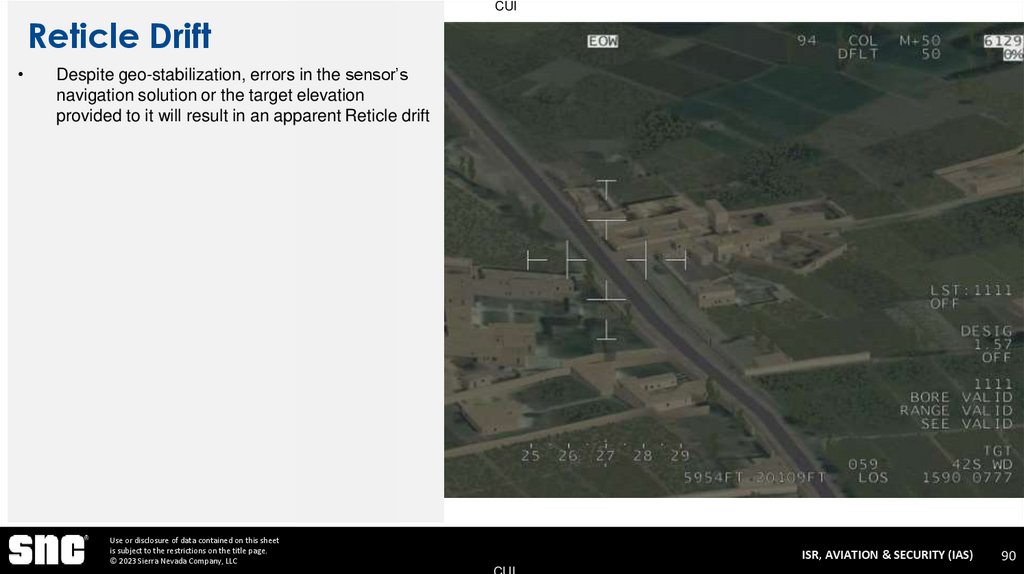
Despite geo-stabilization, errors in the sensor’s
navigation solution or the target elevation
provided to it will result in an apparent Reticle drift
Use or disclosure of data contained on this sheet
is subject to the restrictions on the title page.
© 2023 Sierra Nevada Company, LLC
ISR, AVIATION & SECURITY (IAS)
CUI
90
91. AUTO Slew Exercise
CUIAUTO Slew Exercise
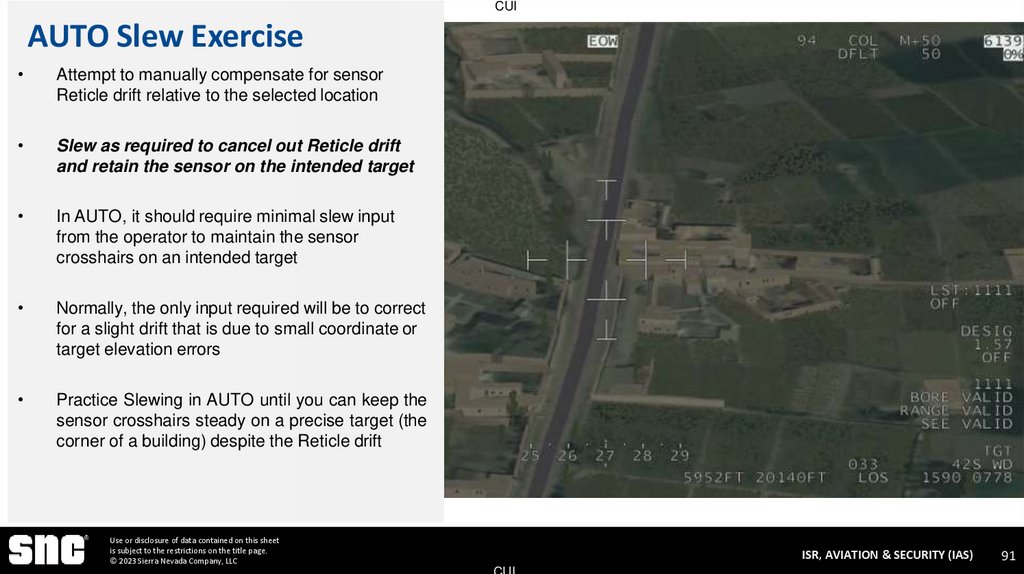
Attempt to manually compensate for sensor
Reticle drift relative to the selected location
Slew as required to cancel out Reticle drift
and retain the sensor on the intended target
In AUTO, it should require minimal slew input
from the operator to maintain the sensor
crosshairs on an intended target
Normally, the only input required will be to correct
for a slight drift that is due to small coordinate or
target elevation errors
Practice Slewing in AUTO until you can keep the
sensor crosshairs steady on a precise target (the
corner of a building) despite the Reticle drift
Use or disclosure of data contained on this sheet
is subject to the restrictions on the title page.
© 2023 Sierra Nevada Company, LLC
ISR, AVIATION & SECURITY (IAS)
CUI
91
92. ZOOM MULTI Slew
CUIZOOM MULTI Slew
Use or disclosure of data contained on this sheet
is subject to the restrictions on the title page.
© 2023 Sierra Nevada Company, LLC
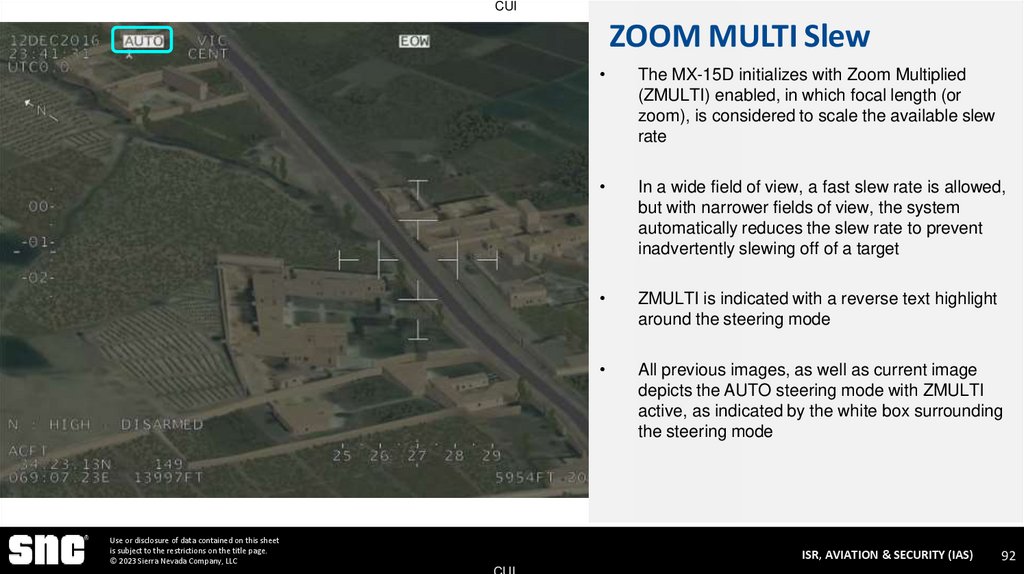
The MX-15D initializes with Zoom Multiplied
(ZMULTI) enabled, in which focal length (or
zoom), is considered to scale the available slew
rate
In a wide field of view, a fast slew rate is allowed,
but with narrower fields of view, the system
automatically reduces the slew rate to prevent
inadvertently slewing off of a target
ZMULTI is indicated with a reverse text highlight
around the steering mode
All previous images, as well as current image
depicts the AUTO steering mode with ZMULTI
active, as indicated by the white box surrounding
the steering mode
ISR, AVIATION & SECURITY (IAS)
CUI
92
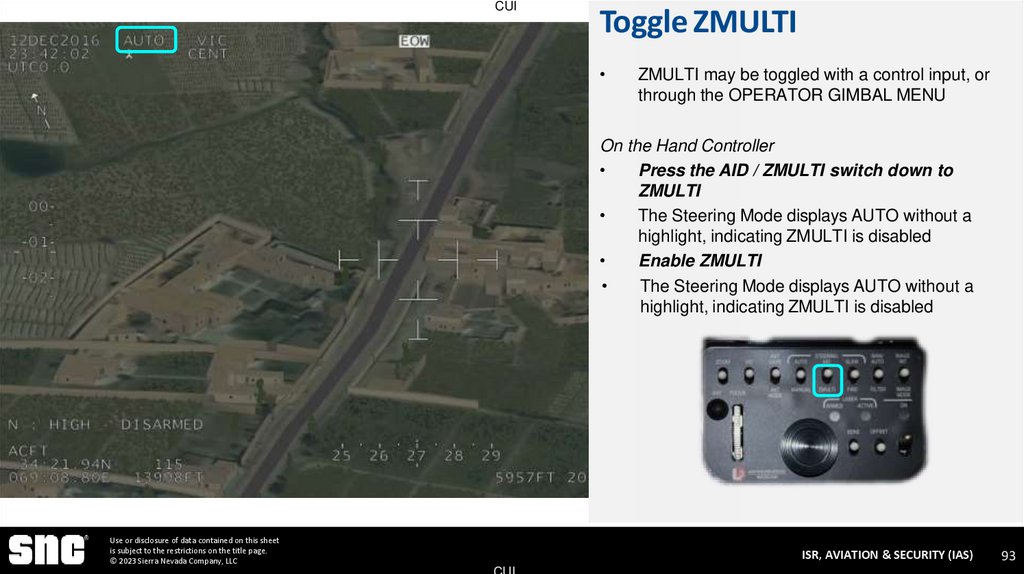
93. Toggle ZMULTI
CUIToggle ZMULTI
ZMULTI may be toggled with a control input, or
through the OPERATOR GIMBAL MENU
On the Hand Controller
Press the AID / ZMULTI switch down to
ZMULTI
The Steering Mode displays AUTO without a
highlight, indicating ZMULTI is disabled
Enable ZMULTI
The Steering Mode displays AUTO without a
highlight, indicating ZMULTI is disabled
Use or disclosure of data contained on this sheet
is subject to the restrictions on the title page.
© 2023 Sierra Nevada Company, LLC
ISR, AVIATION & SECURITY (IAS)
CUI
93
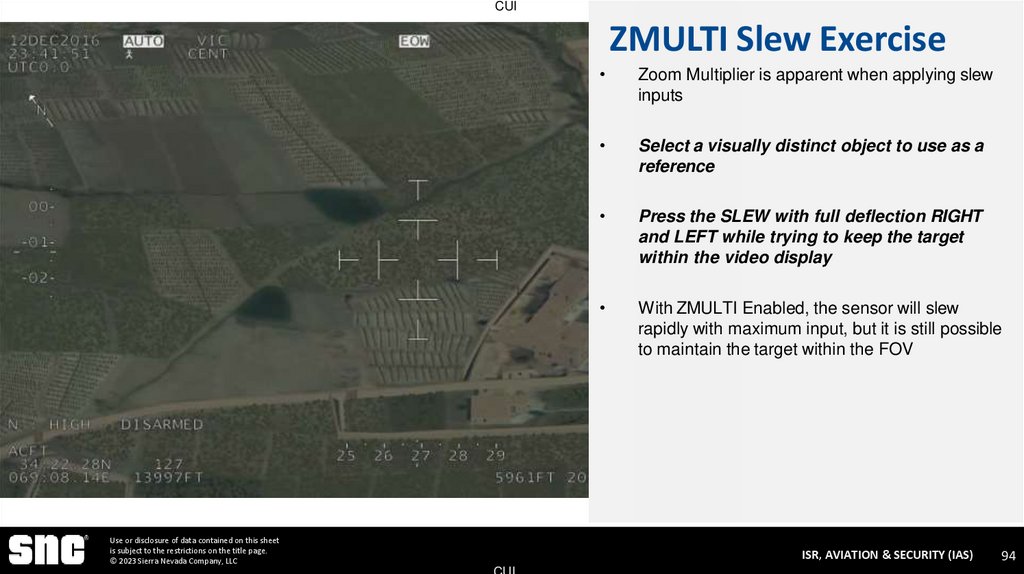
94. ZMULTI Slew Exercise
CUIZMULTI Slew Exercise
Use or disclosure of data contained on this sheet
is subject to the restrictions on the title page.
© 2023 Sierra Nevada Company, LLC
Zoom Multiplier is apparent when applying slew
inputs
Select a visually distinct object to use as a
reference
Press the SLEW with full deflection RIGHT
and LEFT while trying to keep the target
within the video display
With ZMULTI Enabled, the sensor will slew
rapidly with maximum input, but it is still possible
to maintain the target within the FOV
ISR, AVIATION & SECURITY (IAS)
CUI
94
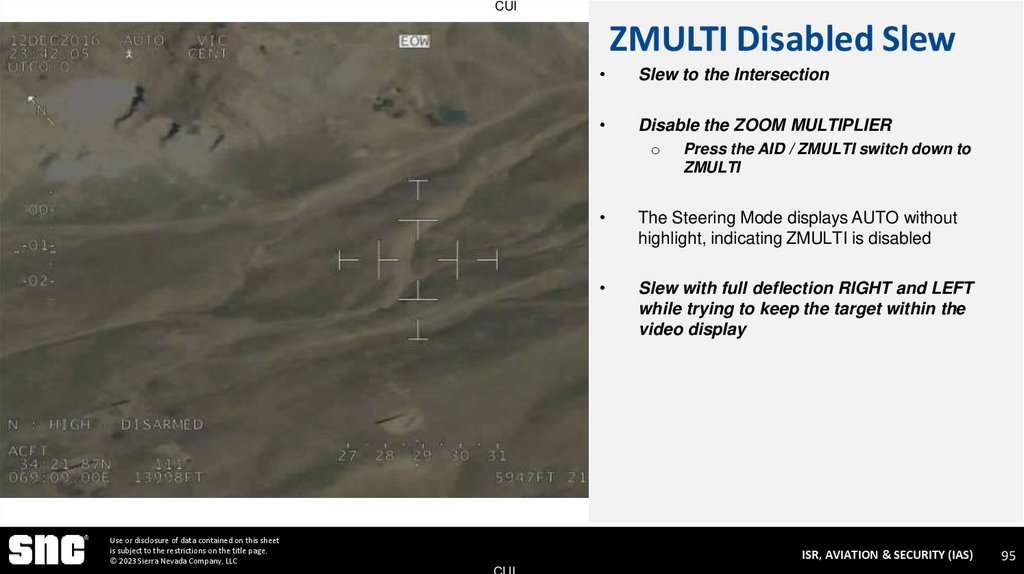
95. ZMULTI Disabled Slew
CUIZMULTI Disabled Slew
Slew to the Intersection
Disable the ZOOM MULTIPLIER
o
Use or disclosure of data contained on this sheet
is subject to the restrictions on the title page.
© 2023 Sierra Nevada Company, LLC
Press the AID / ZMULTI switch down to
ZMULTI
The Steering Mode displays AUTO without
highlight, indicating ZMULTI is disabled
Slew with full deflection RIGHT and LEFT
while trying to keep the target within the
video display
ISR, AVIATION & SECURITY (IAS)
CUI
95
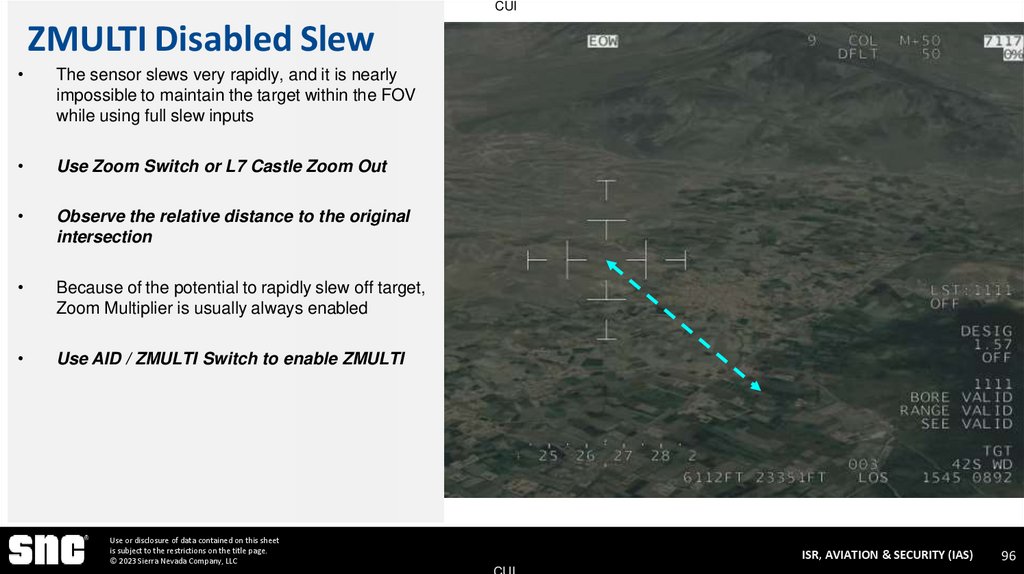
96. ZMULTI Disabled Slew
CUIZMULTI Disabled Slew
The sensor slews very rapidly, and it is nearly
impossible to maintain the target within the FOV
while using full slew inputs
Use Zoom Switch or L7 Castle Zoom Out
Observe the relative distance to the original
intersection
Because of the potential to rapidly slew off target,
Zoom Multiplier is usually always enabled
Use AID / ZMULTI Switch to enable ZMULTI
Use or disclosure of data contained on this sheet
is subject to the restrictions on the title page.
© 2023 Sierra Nevada Company, LLC
ISR, AVIATION & SECURITY (IAS)
CUI
96
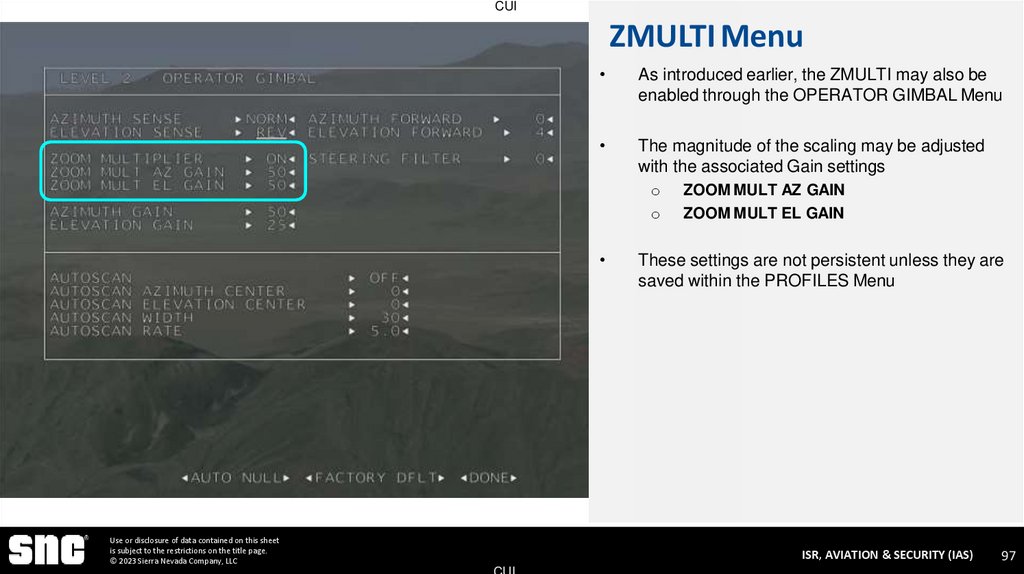
97. ZMULTI Menu
CUIZMULTI Menu
As introduced earlier, the ZMULTI may also be
enabled through the OPERATOR GIMBAL Menu
The magnitude of the scaling may be adjusted
with the associated Gain settings
o
o
Use or disclosure of data contained on this sheet
is subject to the restrictions on the title page.
© 2023 Sierra Nevada Company, LLC
ZOOM MULT AZ GAIN
ZOOM MULT EL GAIN
These settings are not persistent unless they are
saved within the PROFILES Menu
ISR, AVIATION & SECURITY (IAS)
CUI
97
98. Menu Features
CUIMenu Features
Use or disclosure of data contained on this sheet
is subject to the restrictions on the title page.
© 2023 Sierra Nevada Company, LLC
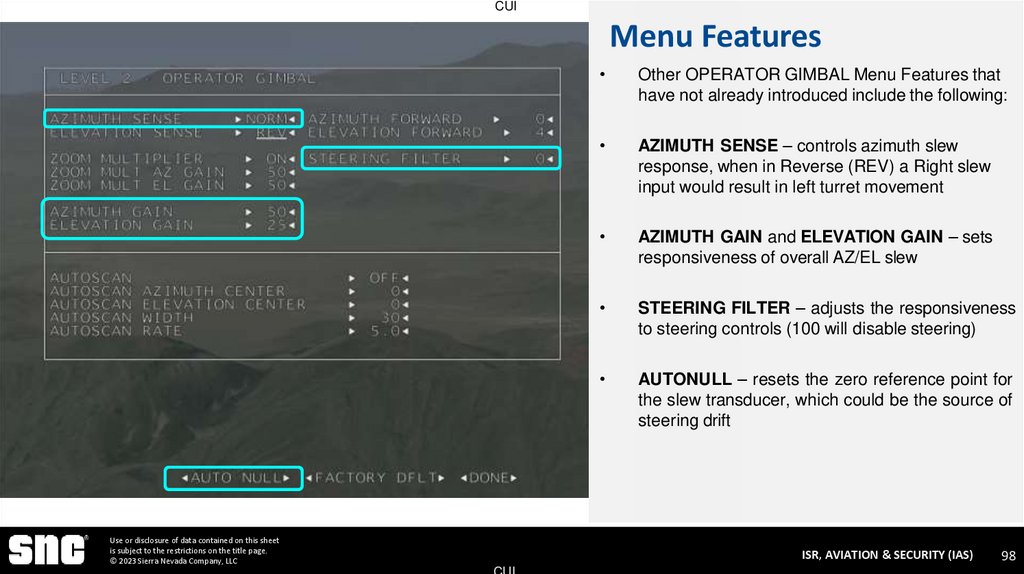
Other OPERATOR GIMBAL Menu Features that
have not already introduced include the following:
AZIMUTH SENSE – controls azimuth slew
response, when in Reverse (REV) a Right slew
input would result in left turret movement
AZIMUTH GAIN and ELEVATION GAIN – sets
responsiveness of overall AZ/EL slew
STEERING FILTER – adjusts the responsiveness
to steering controls (100 will disable steering)
AUTONULL – resets the zero reference point for
the slew transducer, which could be the source of
steering drift
ISR, AVIATION & SECURITY (IAS)
CUI
98
99. AUTOSCAN
CUIAUTOSCAN
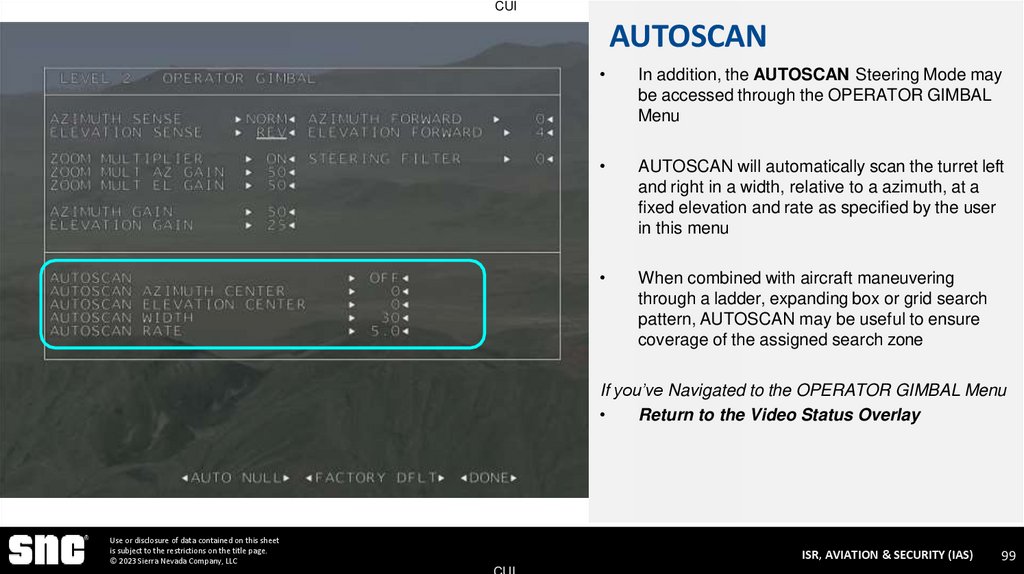
In addition, the AUTOSCAN Steering Mode may
be accessed through the OPERATOR GIMBAL
Menu
AUTOSCAN will automatically scan the turret left
and right in a width, relative to a azimuth, at a
fixed elevation and rate as specified by the user
in this menu
When combined with aircraft maneuvering
through a ladder, expanding box or grid search
pattern, AUTOSCAN may be useful to ensure
coverage of the assigned search zone
If you’ve Navigated to the OPERATOR GIMBAL Menu
Return to the Video Status Overlay
Use or disclosure of data contained on this sheet
is subject to the restrictions on the title page.
© 2023 Sierra Nevada Company, LLC
ISR, AVIATION & SECURITY (IAS)
CUI
99
100. Return to Orbit Center
CUIReturn to Orbit Center
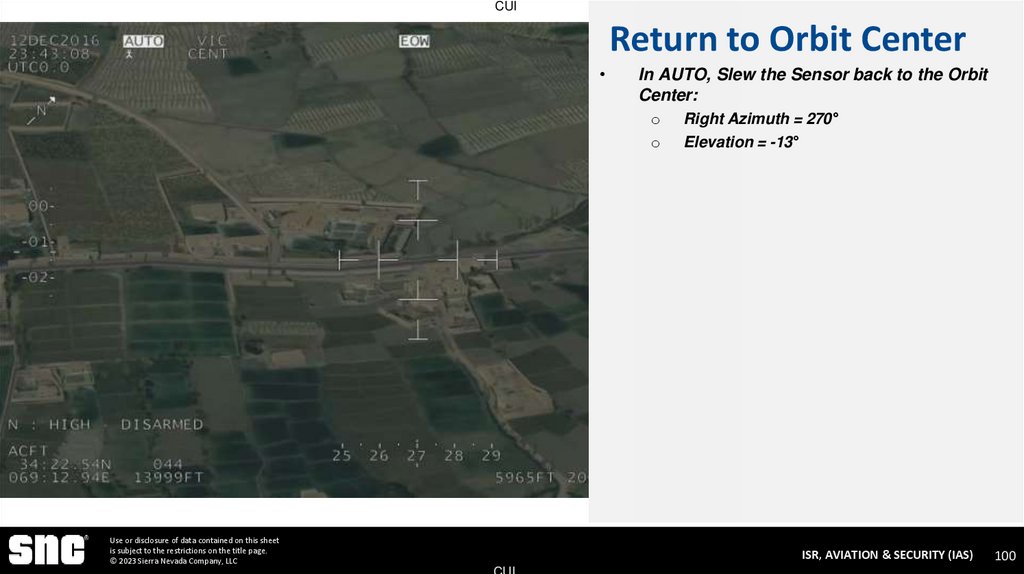
In AUTO, Slew the Sensor back to the Orbit
Center:
o
o
Use or disclosure of data contained on this sheet
is subject to the restrictions on the title page.
© 2023 Sierra Nevada Company, LLC
Right Azimuth = 270°
Elevation = -13°
ISR, AVIATION & SECURITY (IAS)
CUI
100
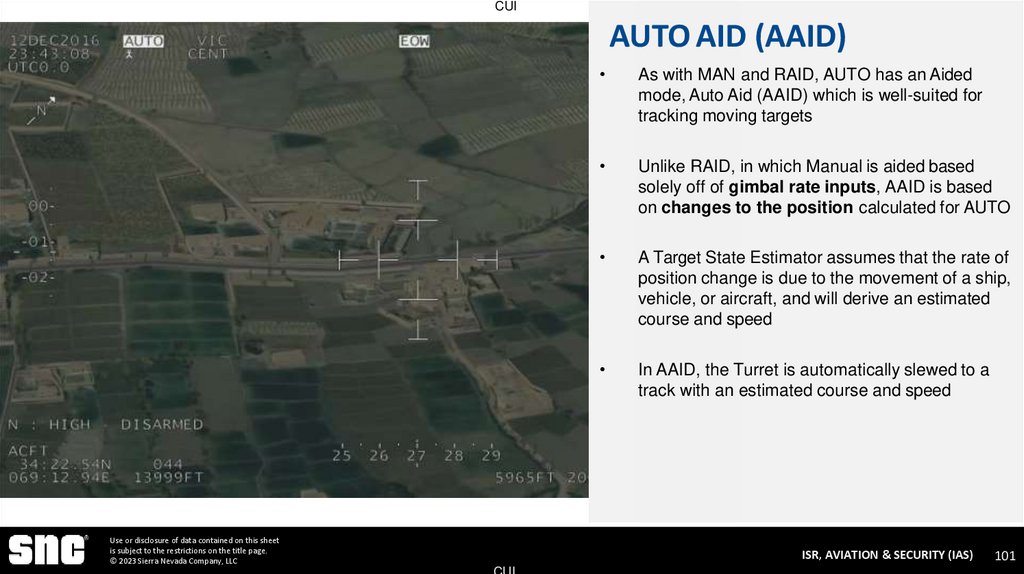
101. AUTO AID (AAID)
CUIAUTO AID (AAID)
Use or disclosure of data contained on this sheet
is subject to the restrictions on the title page.
© 2023 Sierra Nevada Company, LLC
As with MAN and RAID, AUTO has an Aided
mode, Auto Aid (AAID) which is well-suited for
tracking moving targets
Unlike RAID, in which Manual is aided based
solely off of gimbal rate inputs, AAID is based
on changes to the position calculated for AUTO
A Target State Estimator assumes that the rate of
position change is due to the movement of a ship,
vehicle, or aircraft, and will derive an estimated
course and speed
In AAID, the Turret is automatically slewed to a
track with an estimated course and speed
ISR, AVIATION & SECURITY (IAS)
CUI
101
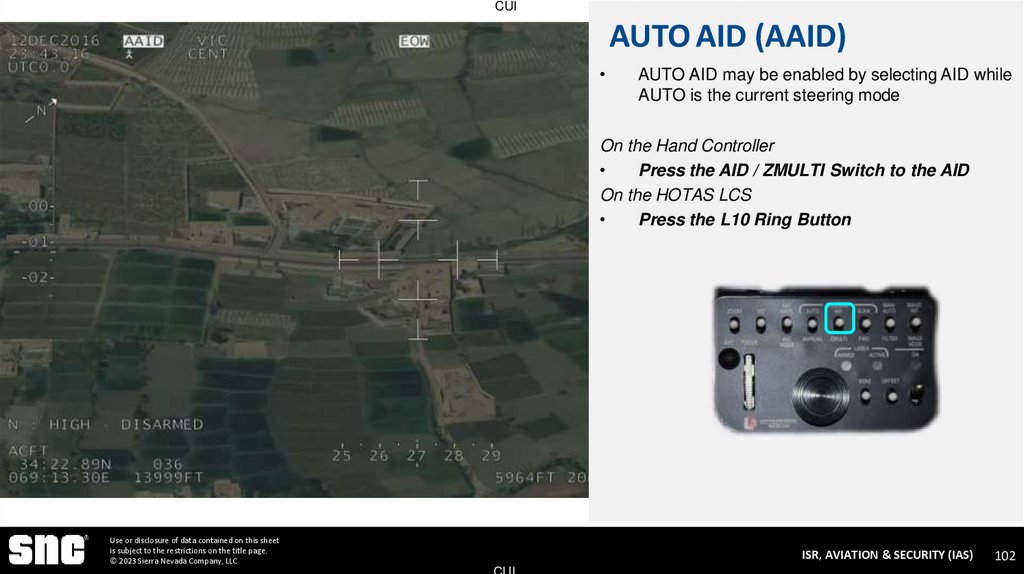
102. AUTO AID (AAID)
CUIAUTO AID (AAID)
AUTO AID may be enabled by selecting AID while
AUTO is the current steering mode
On the Hand Controller
Press the AID / ZMULTI Switch to the AID
On the HOTAS LCS
Press the L10 Ring Button
Use or disclosure of data contained on this sheet
is subject to the restrictions on the title page.
© 2023 Sierra Nevada Company, LLC
ISR, AVIATION & SECURITY (IAS)
CUI
102
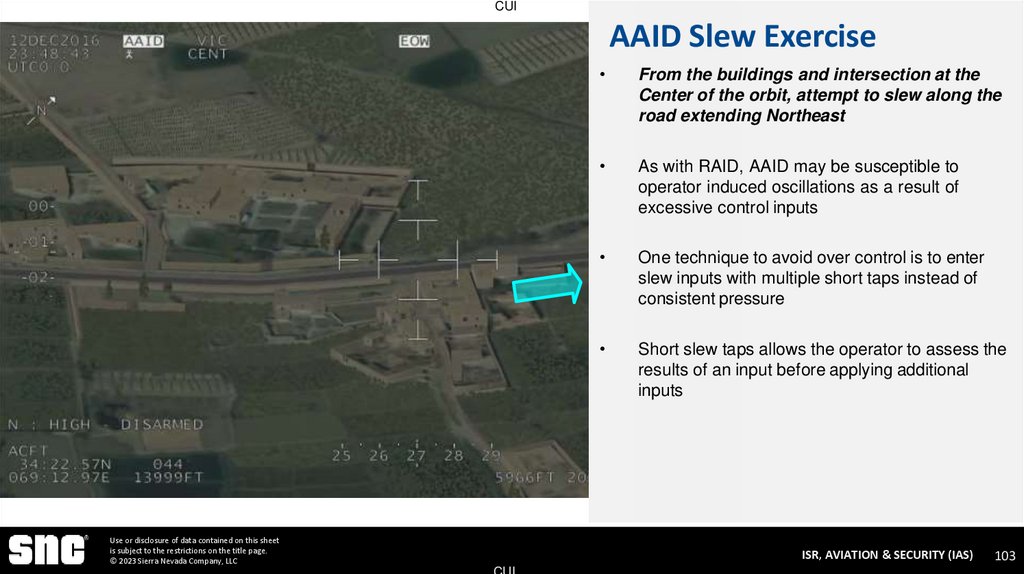
103. AAID Slew Exercise
CUIAAID Slew Exercise
Use or disclosure of data contained on this sheet
is subject to the restrictions on the title page.
© 2023 Sierra Nevada Company, LLC
From the buildings and intersection at the
Center of the orbit, attempt to slew along the
road extending Northeast
As with RAID, AAID may be susceptible to
operator induced oscillations as a result of
excessive control inputs
One technique to avoid over control is to enter
slew inputs with multiple short taps instead of
consistent pressure
Short slew taps allows the operator to assess the
results of an input before applying additional
inputs
ISR, AVIATION & SECURITY (IAS)
CUI
103
104. Later
CUILater
Use or disclosure of data contained on this sheet
is subject to the restrictions on the title page.
© 2023 Sierra Nevada Company, LLC
ISR, AVIATION & SECURITY (IAS)
CUI
104
105. Gimbal Menu
CUIGimbal Menu
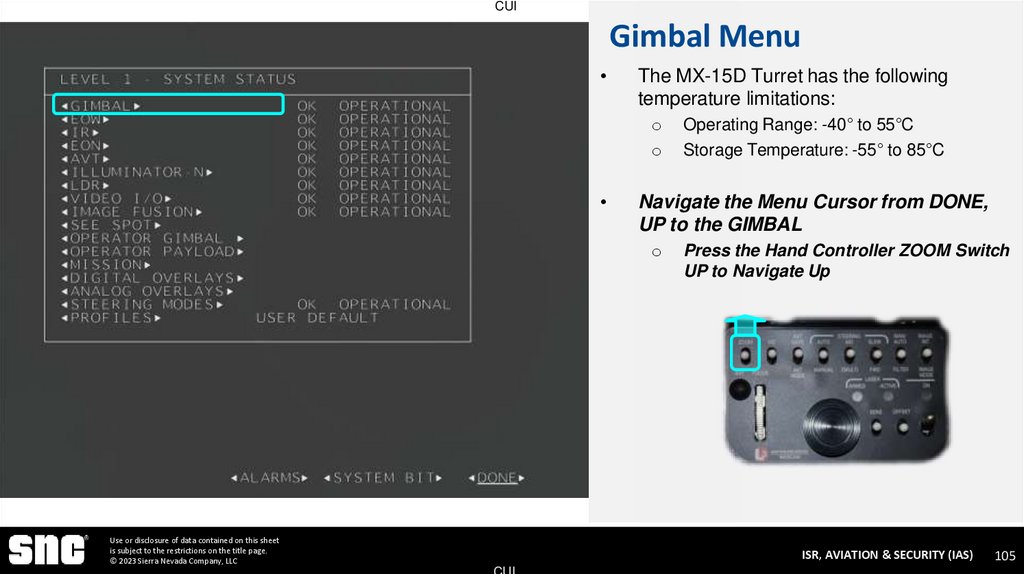
The MX-15D Turret has the following
temperature limitations:
o
o
Navigate the Menu Cursor from DONE,
UP to the GIMBAL
o
Use or disclosure of data contained on this sheet
is subject to the restrictions on the title page.
© 2023 Sierra Nevada Company, LLC
Operating Range: -40° to 55°C
Storage Temperature: -55° to 85°C
Press the Hand Controller ZOOM Switch
UP to Navigate Up
ISR, AVIATION & SECURITY (IAS)
CUI
105
106. Gimbal Menu
CUIGimbal Menu
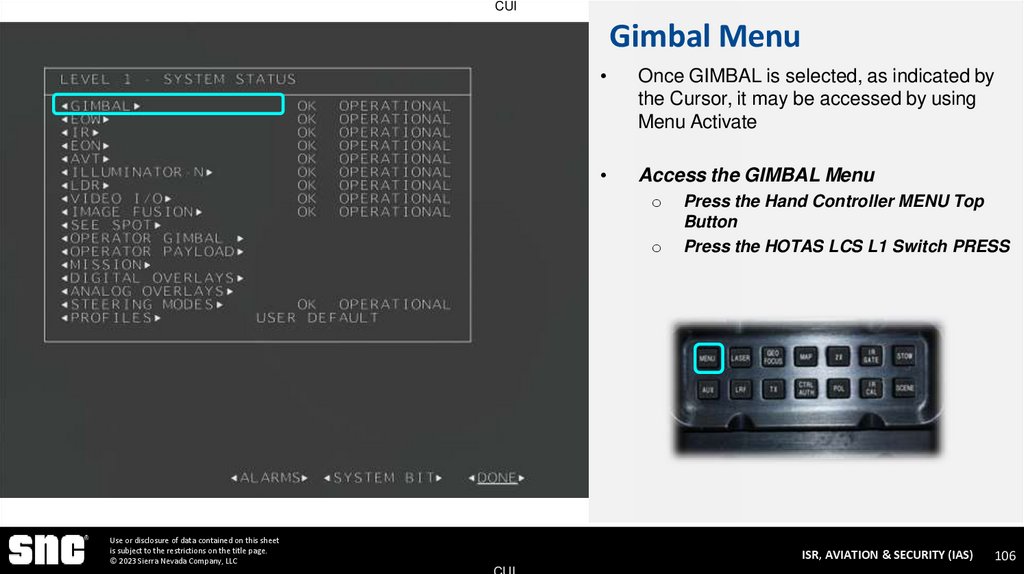
Once GIMBAL is selected, as indicated by
the Cursor, it may be accessed by using
Menu Activate
Access the GIMBAL Menu
o
o
Use or disclosure of data contained on this sheet
is subject to the restrictions on the title page.
© 2023 Sierra Nevada Company, LLC
Press the Hand Controller MENU Top
Button
Press the HOTAS LCS L1 Switch PRESS
ISR, AVIATION & SECURITY (IAS)
CUI
106
107. Gimbal Menu
CUIGimbal Menu
Use or disclosure of data contained on this sheet
is subject to the restrictions on the title page.
© 2023 Sierra Nevada Company, LLC
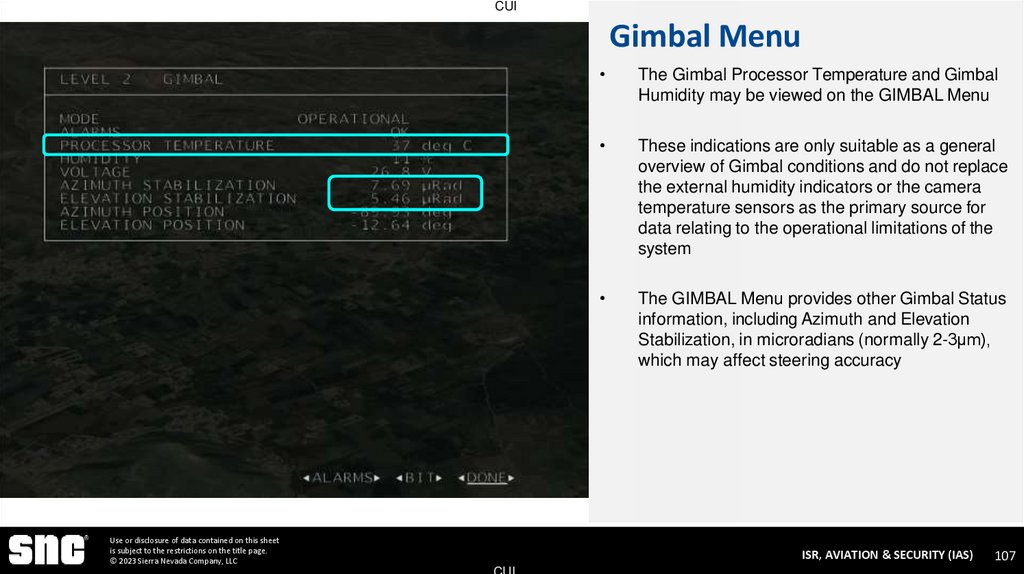
The Gimbal Processor Temperature and Gimbal
Humidity may be viewed on the GIMBAL Menu
These indications are only suitable as a general
overview of Gimbal conditions and do not replace
the external humidity indicators or the camera
temperature sensors as the primary source for
data relating to the operational limitations of the
system
The GIMBAL Menu provides other Gimbal Status
information, including Azimuth and Elevation
Stabilization, in microradians (normally 2-3µm),
which may affect steering accuracy
ISR, AVIATION & SECURITY (IAS)
CUI
107
108. Return to Video Status
CUIReturn to Video Status
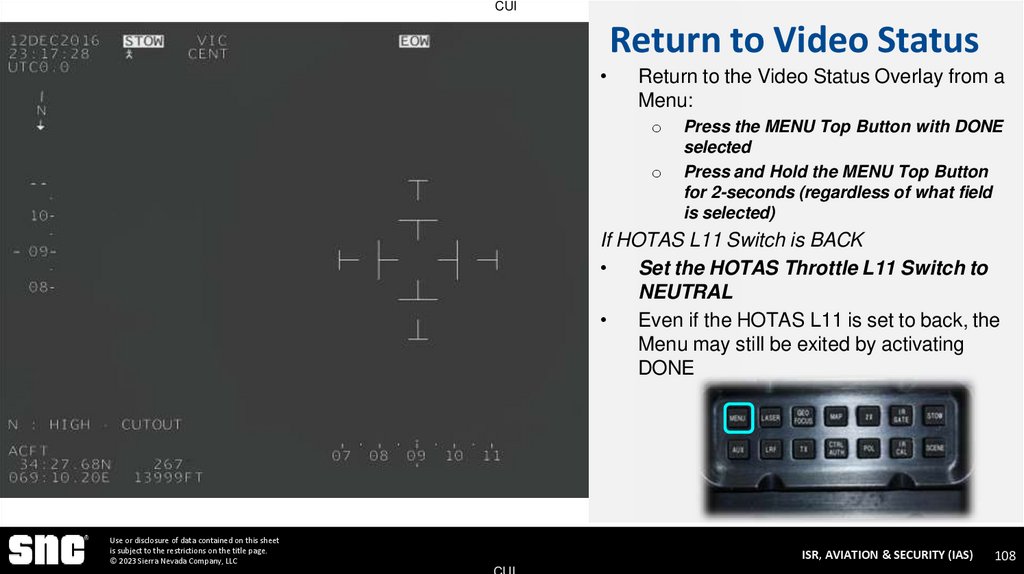
Return to the Video Status Overlay from a
Menu:
o
o
Press the MENU Top Button with DONE
selected
Press and Hold the MENU Top Button
for 2-seconds (regardless of what field
is selected)
If HOTAS L11 Switch is BACK
Set the HOTAS Throttle L11 Switch to
NEUTRAL
Even if the HOTAS L11 is set to back, the
Menu may still be exited by activating
DONE
Use or disclosure of data contained on this sheet
is subject to the restrictions on the title page.
© 2023 Sierra Nevada Company, LLC
ISR, AVIATION & SECURITY (IAS)
CUI
108
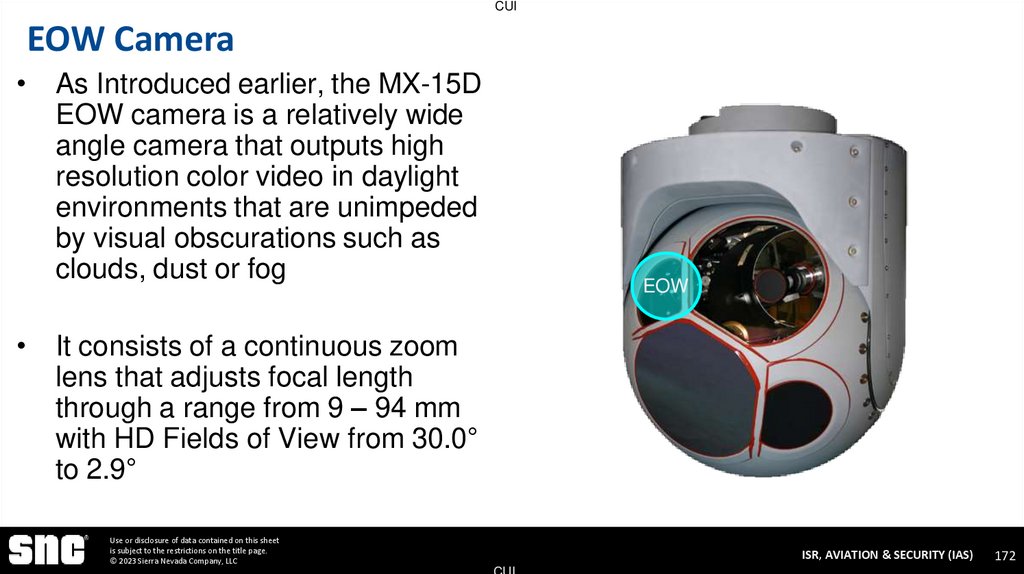
109. EOW Camera
CUIEOW Camera
Use or disclosure of data contained on this sheet
is subject to the restrictions on the title page.
© 2023 Sierra Nevada Company, LLC
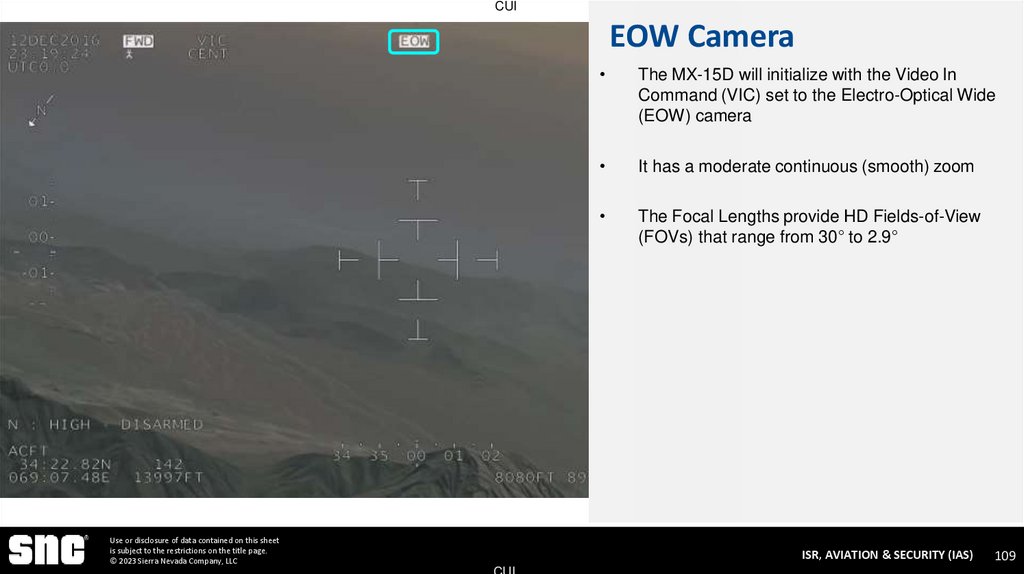
The MX-15D will initialize with the Video In
Command (VIC) set to the Electro-Optical Wide
(EOW) camera
It has a moderate continuous (smooth) zoom
The Focal Lengths provide HD Fields-of-View
(FOVs) that range from 30° to 2.9°
ISR, AVIATION & SECURITY (IAS)
CUI
109
110. System Status Menu 2-10 Recall all System Menus
CUISYSTEM STATUS MENU
2-10 RECALL ALL SYSTEM MENUS
Use or disclosure of data contained on this sheet
is subject to the restrictions on the title page.
© 2023 Sierra Nevada Company, LLC
ISR, AVIATION & SECURITY (IAS)
CUI
110
111. System Status Menu
CUISystem Status Menu
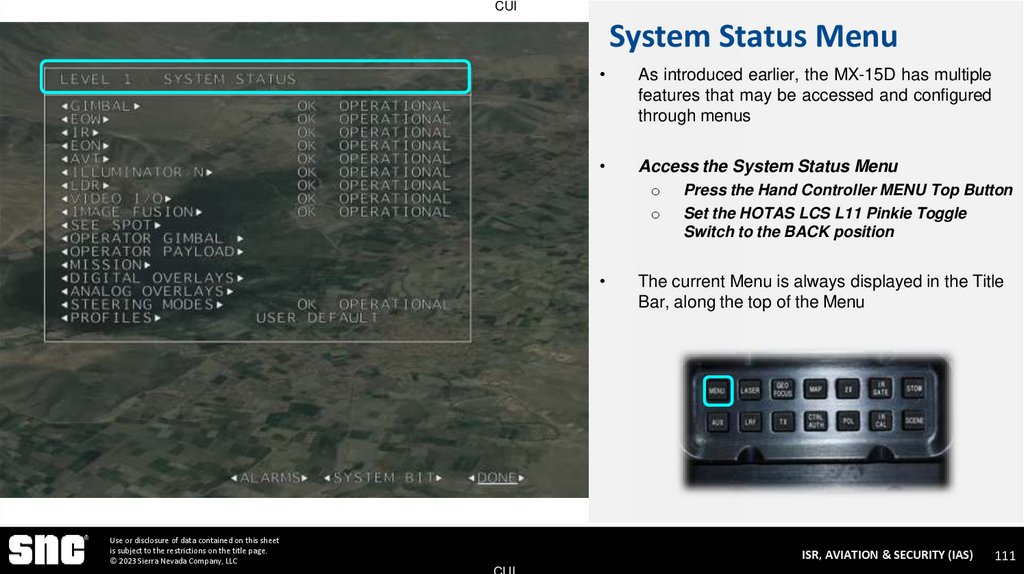
As introduced earlier, the MX-15D has multiple
features that may be accessed and configured
through menus
Access the System Status Menu
o
o
Use or disclosure of data contained on this sheet
is subject to the restrictions on the title page.
© 2023 Sierra Nevada Company, LLC
Press the Hand Controller MENU Top Button
Set the HOTAS LCS L11 Pinkie Toggle
Switch to the BACK position
The current Menu is always displayed in the Title
Bar, along the top of the Menu
ISR, AVIATION & SECURITY (IAS)
CUI
111
112. Level 2 Menus
CUILevel 2 Menus
Use or disclosure of data contained on this sheet
is subject to the restrictions on the title page.
© 2023 Sierra Nevada Company, LLC
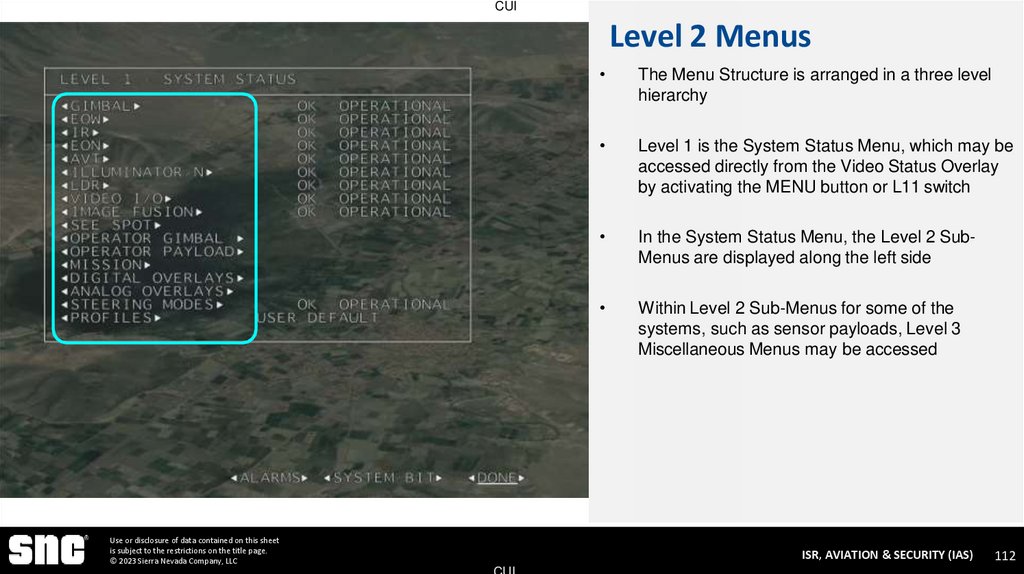
The Menu Structure is arranged in a three level
hierarchy
Level 1 is the System Status Menu, which may be
accessed directly from the Video Status Overlay
by activating the MENU button or L11 switch
In the System Status Menu, the Level 2 SubMenus are displayed along the left side
Within Level 2 Sub-Menus for some of the
systems, such as sensor payloads, Level 3
Miscellaneous Menus may be accessed
ISR, AVIATION & SECURITY (IAS)
CUI
112
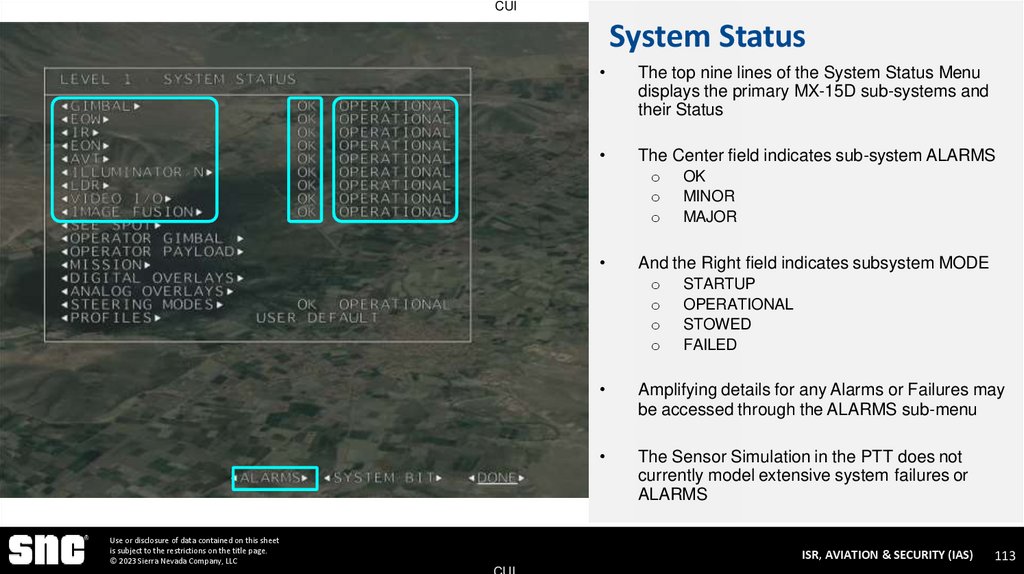
113. System Status
CUISystem Status
The top nine lines of the System Status Menu
displays the primary MX-15D sub-systems and
their Status
The Center field indicates sub-system ALARMS
o
o
o
And the Right field indicates subsystem MODE
o
o
o
o
Use or disclosure of data contained on this sheet
is subject to the restrictions on the title page.
© 2023 Sierra Nevada Company, LLC
OK
MINOR
MAJOR
STARTUP
OPERATIONAL
STOWED
FAILED
Amplifying details for any Alarms or Failures may
be accessed through the ALARMS sub-menu
The Sensor Simulation in the PTT does not
currently model extensive system failures or
ALARMS
ISR, AVIATION & SECURITY (IAS)
CUI
113
114. Exit Menu
CUIExit Menu
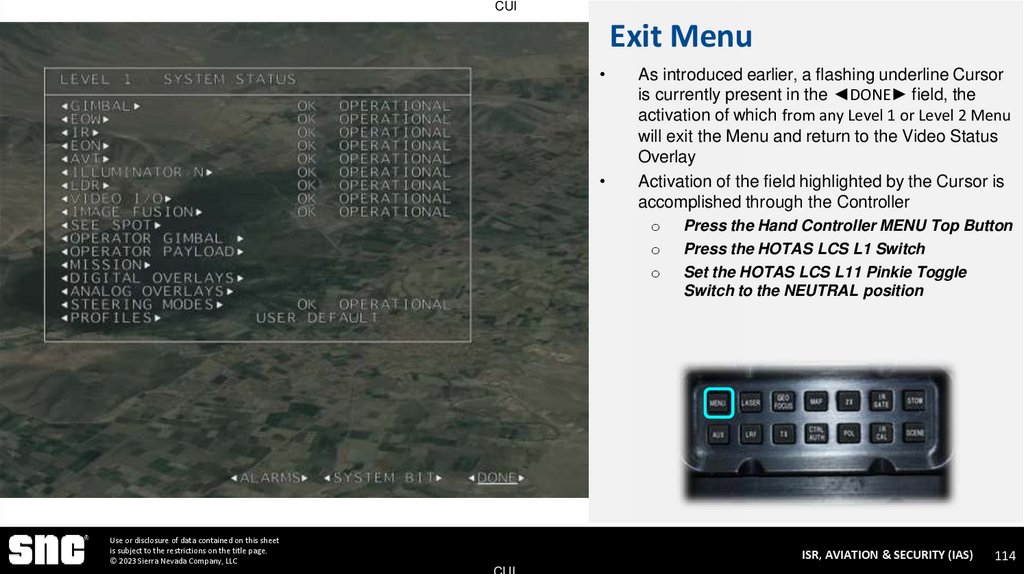
As introduced earlier, a flashing underline Cursor
is currently present in the ◄DONE► field, the
activation of which from any Level 1 or Level 2 Menu
will exit the Menu and return to the Video Status
Overlay
Activation of the field highlighted by the Cursor is
accomplished through the Controller
o
o
o
Use or disclosure of data contained on this sheet
is subject to the restrictions on the title page.
© 2023 Sierra Nevada Company, LLC
Press the Hand Controller MENU Top Button
Press the HOTAS LCS L1 Switch
Set the HOTAS LCS L11 Pinkie Toggle
Switch to the NEUTRAL position
ISR, AVIATION & SECURITY (IAS)
CUI
114
115. Menu Navigation 2-10 Recall all System Menus
CUIMENU NAVIGATION
2-10 RECALL ALL SYSTEM MENUS
Use or disclosure of data contained on this sheet
is subject to the restrictions on the title page.
© 2023 Sierra Nevada Company, LLC
ISR, AVIATION & SECURITY (IAS)
CUI
115
116. Access System Status
CUIAccess System Status
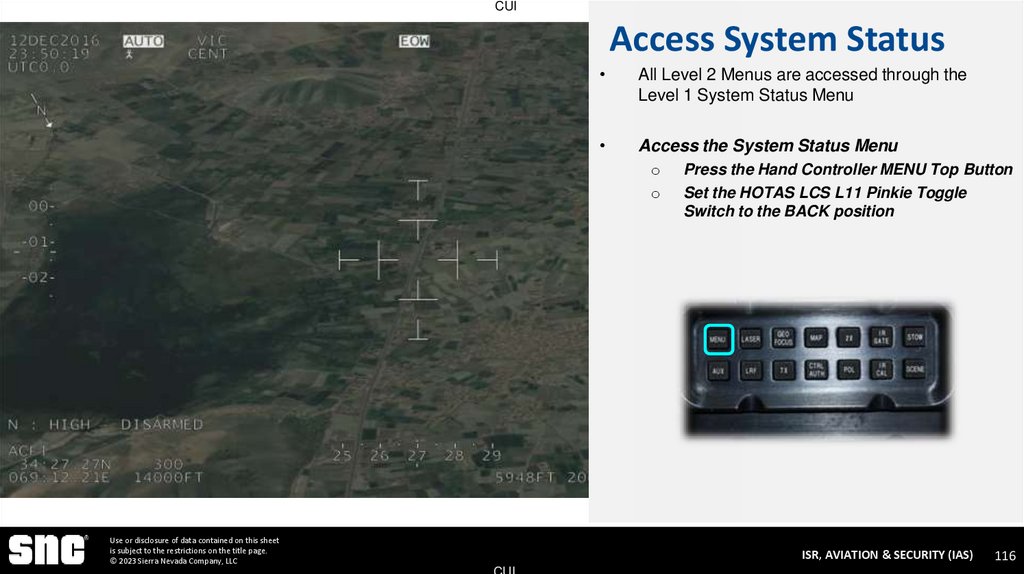
All Level 2 Menus are accessed through the
Level 1 System Status Menu
Access the System Status Menu
o
o
Use or disclosure of data contained on this sheet
is subject to the restrictions on the title page.
© 2023 Sierra Nevada Company, LLC
Press the Hand Controller MENU Top Button
Set the HOTAS LCS L11 Pinkie Toggle
Switch to the BACK position
ISR, AVIATION & SECURITY (IAS)
CUI
116
117. Navigation Switches
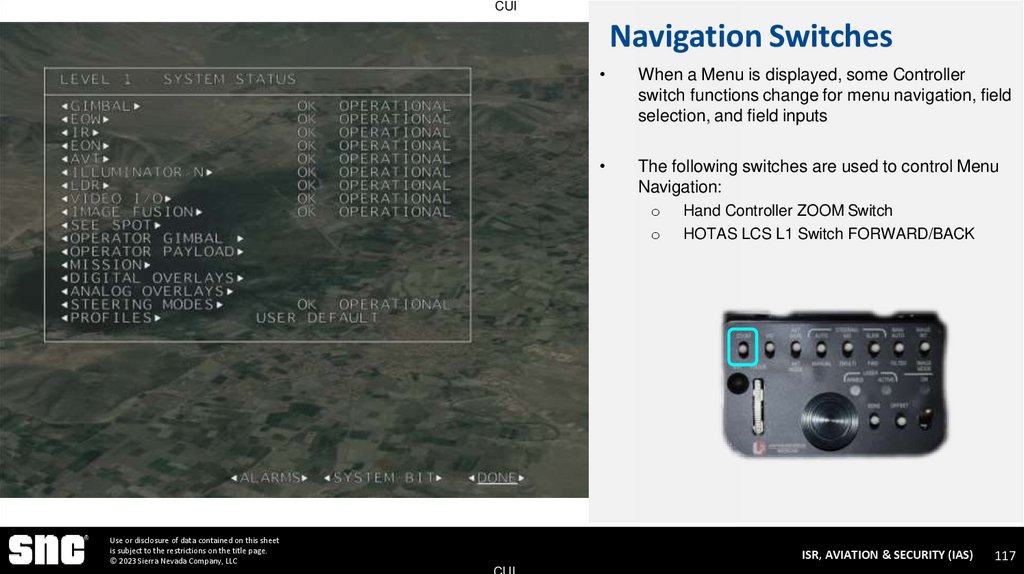
CUINavigation Switches
When a Menu is displayed, some Controller
switch functions change for menu navigation, field
selection, and field inputs
The following switches are used to control Menu
Navigation:
o
o
Use or disclosure of data contained on this sheet
is subject to the restrictions on the title page.
© 2023 Sierra Nevada Company, LLC
Hand Controller ZOOM Switch
HOTAS LCS L1 Switch FORWARD/BACK
ISR, AVIATION & SECURITY (IAS)
CUI
117
118. Navigate Up
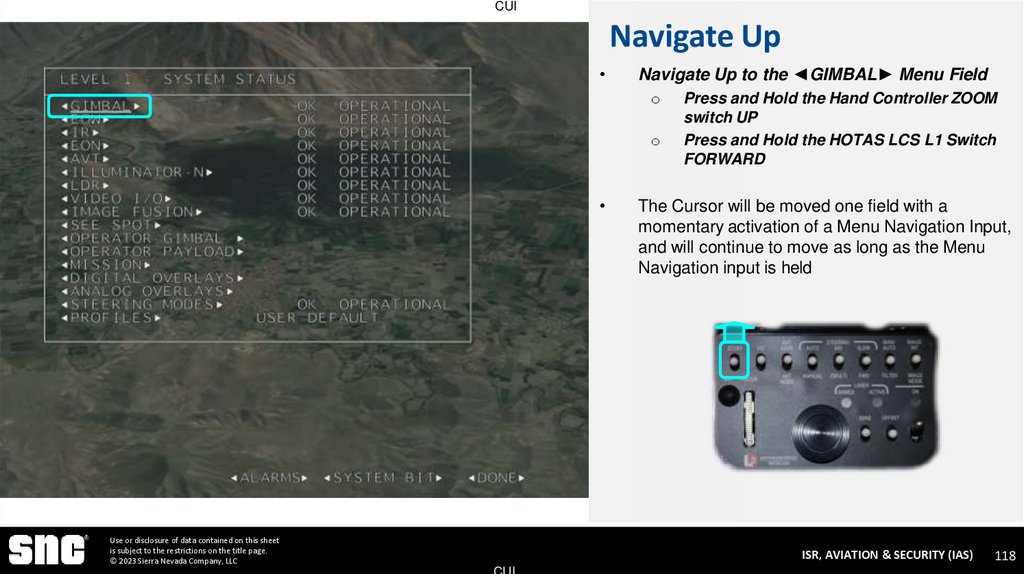
CUINavigate Up
Navigate Up to the ◄GIMBAL► Menu Field
o
o
Use or disclosure of data contained on this sheet
is subject to the restrictions on the title page.
© 2023 Sierra Nevada Company, LLC
Press and Hold the Hand Controller ZOOM
switch UP
Press and Hold the HOTAS LCS L1 Switch
FORWARD
The Cursor will be moved one field with a
momentary activation of a Menu Navigation Input,
and will continue to move as long as the Menu
Navigation input is held
ISR, AVIATION & SECURITY (IAS)
CUI
118
119. Navigate Down
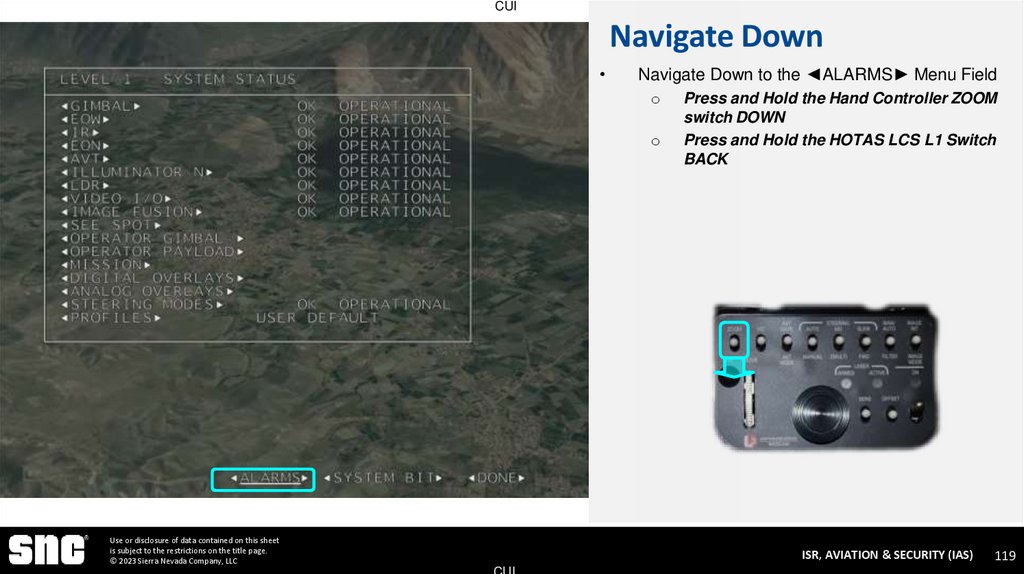
CUINavigate Down
Navigate Down to the ◄ALARMS► Menu Field
o
o
Use or disclosure of data contained on this sheet
is subject to the restrictions on the title page.
© 2023 Sierra Nevada Company, LLC
Press and Hold the Hand Controller ZOOM
switch DOWN
Press and Hold the HOTAS LCS L1 Switch
BACK
ISR, AVIATION & SECURITY (IAS)
CUI
119
120. Menu Fields
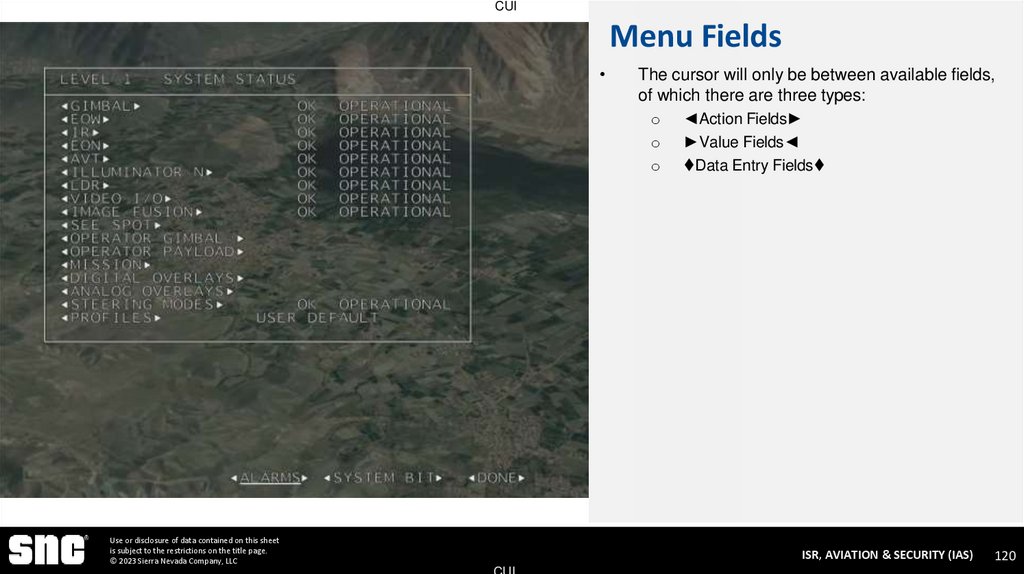
CUIMenu Fields
The cursor will only be between available fields,
of which there are three types:
o
o
o
Use or disclosure of data contained on this sheet
is subject to the restrictions on the title page.
© 2023 Sierra Nevada Company, LLC
◄Action Fields
►Value Fields◄
Data Entry Fields
ISR, AVIATION & SECURITY (IAS)
CUI
120
121. Selectable Fields
CUISelectable Fields
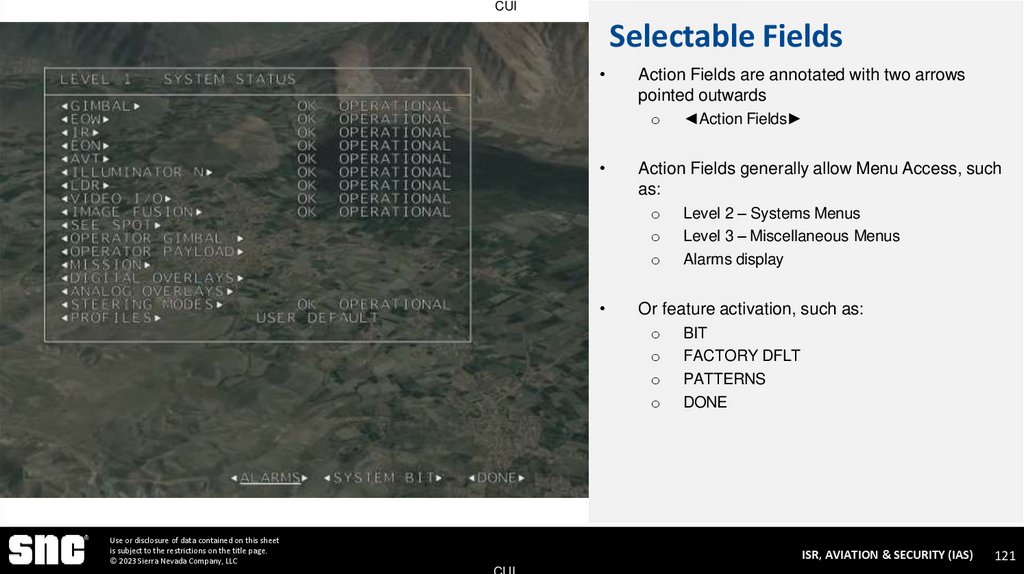
Action Fields are annotated with two arrows
pointed outwards
o
Action Fields generally allow Menu Access, such
as:
o
o
o
Level 2 – Systems Menus
Level 3 – Miscellaneous Menus
Alarms display
Or feature activation, such as:
o
o
o
o
Use or disclosure of data contained on this sheet
is subject to the restrictions on the title page.
© 2023 Sierra Nevada Company, LLC
◄Action Fields
BIT
FACTORY DFLT
PATTERNS
DONE
ISR, AVIATION & SECURITY (IAS)
CUI
121
122. MENU Selection
CUIMENU Selection
If the flashing underline cursor is on a Selectable
Field, pressing the MENU Top Button or LCS L1
PRESS will select the current field
With the ◄ALARMS► Menu Field Selected
o
o
Use or disclosure of data contained on this sheet
is subject to the restrictions on the title page.
© 2023 Sierra Nevada Company, LLC
Press the Hand Controller MENU Top Button
Press the HOTAS LCS L1 Switch PRESS
ISR, AVIATION & SECURITY (IAS)
CUI
122
123. Built In Test (BIT)
CUIBuilt In Test (BIT)
Use or disclosure of data contained on this sheet
is subject to the restrictions on the title page.
© 2023 Sierra Nevada Company, LLC
Some MX-15D Sub-systems are equipped with a
Built-In-Test (BIT)
A BIT may be initiated from the SYSTEM
STATUS Menu for the all sub-systems
In addition, a BIT may be commanded for a subsystem on it’s Level 2 Sub-Menu
BITs are not represented in the Sensor Simulation
ISR, AVIATION & SECURITY (IAS)
CUI
123
124. Navigate to Video I/O
CUINavigate to Video I/O
Use or disclosure of data contained on this sheet
is subject to the restrictions on the title page.
© 2023 Sierra Nevada Company, LLC
Navigate Up to the VIDEO I/O Menu
Select VIDEO I/O to enter the Level 2 Menu
The VIDEO I/O provides operator control for the
digital and analog video matrix switches and
overlay generators that are within the DMCU
It controls configuration of any camera to any
video output, as well as the presence of overlay
graphics on each output
ISR, AVIATION & SECURITY (IAS)
CUI
124
125. Menu Sections
CUIMenu Sections
Title Bar
Status Indications
In addition to the Title Bar, Level 2 Menus also
have the following sections:
Status Indicators – Display measured
information related to a sensor or system control
(cannot be modified)
►Value Fields◄ – Configuration parameters the
operator can modify to set new values
◄Action Fields► – Commands that operators
execute to initiate an action or display a new
menu
Value Fields
Action Fields
Use or disclosure of data contained on this sheet
is subject to the restrictions on the title page.
© 2023 Sierra Nevada Company, LLC
ISR, AVIATION & SECURITY (IAS)
CUI
125
126. Value Fields
CUIValue Fields
Value Fields are annotated with two arrows
pointed inwards:
o
Value Fields allow for a toggling of available
values, such as:
o
o
o
ON/OFF
SMALL / MEDIUM / LARGE
Or the adjustment of a numeric value.
The VIDEO I/O MENU has multiple Value Fields,
providing Operator Selection of the following:
o
o
o
Use or disclosure of data contained on this sheet
is subject to the restrictions on the title page.
© 2023 Sierra Nevada Company, LLC
►Value Fields◄
AVT INPUT – sets camera used as the AVT
Source
SOURCE – sets which camera is routed to a
given Digital or Analog Video Output
OVERLAY – sets whether a Video Output
channel Graphical Overlay is ON or OFF
ISR, AVIATION & SECURITY (IAS)
CUI
126
127. Value Field Changes
CUIValue Field Changes
The Value Field settings may be changed with
controller input:
o
o
Use or disclosure of data contained on this sheet
is subject to the restrictions on the title page.
© 2023 Sierra Nevada Company, LLC
Hand Controller SENS (IRIS/GAIN) Switch
HOTAS LCS L1 Switch LEFT/RIGHT
ISR, AVIATION & SECURITY (IAS)
CUI
127
128. Value Field Changes
CUIValue Field Changes
Navigate to the DIGITAL VIDEO 1 SOURCE
Input Field
Toggle the Value Field setting between the
available VIC, EOW, EON, FSD, SEE and IR
o
o
Use or disclosure of data contained on this sheet
is subject to the restrictions on the title page.
© 2023 Sierra Nevada Company, LLC
Hand Controller SENS (IRIS/GAIN) Switch
HOTAS LCS L1 Switch LEFT/RIGHT
Because the PTT is representing Digital Output 1,
the video displayed will change
ISR, AVIATION & SECURITY (IAS)
CUI
128
129. Set DigVid1 to VIC
CUISet DigVid1 to VIC
Set the DIGITAL VIDEO 1 SOURCE back to
VIC
Any MENU may be exited at any time, regardless
of field selection by performing any of the
following:
o
o
o
Use or disclosure of data contained on this sheet
is subject to the restrictions on the title page.
© 2023 Sierra Nevada Company, LLC
Pressing and Holding the Hand Controller
MENU Top Button
Pressing and Holding the LCS L1 Switch
PRESS
Setting the LCS L11 Switch to NEUTRAL
Exit the VIDEO I/O MENU and return to the
Video Status Overlay
ISR, AVIATION & SECURITY (IAS)
CUI
129
130. Mission Menu EO 2-10 – Recall all System Menus
CUIMISSION MENU
EO 2-10 – RECALL ALL SYSTEM MENUS
Use or disclosure of data contained on this sheet
is subject to the restrictions on the title page.
© 2023 Sierra Nevada Company, LLC
ISR, AVIATION & SECURITY (IAS)
CUI
130
131. Mission Menu Exercise
CUIMission Menu Exercise
As Introduced earlier, the Status Graphics may be
adjusted in the MISSION Level 2 Menu, which
may be accessed through the System Status
Menu
Access the System Status Menu
o
o
Use or disclosure of data contained on this sheet
is subject to the restrictions on the title page.
© 2023 Sierra Nevada Company, LLC
Press the Hand Controller MENU Top Button
Set the HOTAS LCS L11 Pinkie Toggle
Switch to the BACK position
ISR, AVIATION & SECURITY (IAS)
CUI
131
132. Menu Switches
CUIMenu Switches
Navigate to the MISSION Field:
o
o
Use or disclosure of data contained on this sheet
is subject to the restrictions on the title page.
© 2023 Sierra Nevada Company, LLC
Hand Controller ZOOM Switch
HOTAS LCS L1 Switch FORWARD/BACK
ISR, AVIATION & SECURITY (IAS)
CUI
132
133. Mission Menu
CUIMission Menu
The MISSION Menu allows for the Operator to
configure the Status Graphics formats displayed
on the Video Status Overlay
DATE, LOCAL TIME, UTC OFFSET – may be
set here for display in case a valid GPS signal is
absent
AIRCRAFT and TARGET LOCATION – sets the
format to one of the following:
o
o
o
o
Navigate to the following, cycle through
options and set:
o
o
Use or disclosure of data contained on this sheet
is subject to the restrictions on the title page.
© 2023 Sierra Nevada Company, LLC
DD.DDDDD (Degrees)
DD:MIN.MIN (Degrees, Minutes)
DD:MIN:SEC (Degrees, Minutes, Seconds)
MGRS (Military Grid Reference System)
AIRCRAFT LOCATION, set to DD.MIN.MIN
TARGET LOCATION, set to MGRS
ISR, AVIATION & SECURITY (IAS)
CUI
133
134. Mission Menu
CUIMission Menu
AIRCRAFT and TERRAIN ALTITUDE – sets the
format to either:
o
o
SLANT RANGE – sets the format to one of the
following:
o
o
o
o
o
Meters
Feet
Miles
Nautical Miles
Kilometers
Navigate to the following, cycle through
options and set:
o
o
o
Use or disclosure of data contained on this sheet
is subject to the restrictions on the title page.
© 2023 Sierra Nevada Company, LLC
Feet
Meters
AIRCRAFT Altitude, set to FEET
TARGET ALTITUDE, set to FEET
SLANT RANGE, set to FEET
ISR, AVIATION & SECURITY (IAS)
CUI
134
135. Mission Menu
CUIMission Menu
Use or disclosure of data contained on this sheet
is subject to the restrictions on the title page.
© 2023 Sierra Nevada Company, LLC
The MISSION MENU also includes controls for
Laser Rangefinder and Terrain Altitude
LRF TIMEOUT – sets the interval in seconds in
which the LDR will fire when the mode is set to
RANGE AUTO. The Laser Designator
Rangefinder (LDR) will be discussed later in this
lesson
TERRAIN ALTITUDE SOURCE – allows operator
to toggle between LASER and MANUAL
TERRAIN ALTITUDE – when above SOURCE
set to MANUAL, allows operator to manually
enter a target elevation (units will be those set
above)
If a target is stationary, but DTED is inaccurate,
an operator may measure the target once with
the laser and then set the elevation manually to
avoid unnecessary laser emissions
ISR, AVIATION & SECURITY (IAS)
CUI
135
136. Exit Mission Menu
CUIExit Mission Menu
Use or disclosure of data contained on this sheet
is subject to the restrictions on the title page.
© 2023 Sierra Nevada Company, LLC
Exit the MISSION Menu and return to the
Video Status Overlay
ISR, AVIATION & SECURITY (IAS)
CUI
136
137. Digital Overlays Menu EO 2-10 – Recall all System Menus
CUIDIGITAL OVERLAYS MENU
EO 2-10 – RECALL ALL SYSTEM MENUS
Use or disclosure of data contained on this sheet
is subject to the restrictions on the title page.
© 2023 Sierra Nevada Company, LLC
ISR, AVIATION & SECURITY (IAS)
CUI
137
138. Digital Overlays Menu
CUIDigital Overlays Menu
Use or disclosure of data contained on this sheet
is subject to the restrictions on the title page.
© 2023 Sierra Nevada Company, LLC
Access the Digital Overlays Menu
ISR, AVIATION & SECURITY (IAS)
CUI
138
139. Digital Overlay Menu
CUIDigital Overlay Menu
Use or disclosure of data contained on this sheet
is subject to the restrictions on the title page.
© 2023 Sierra Nevada Company, LLC
The Digital Overlay Menu allows the operator to
individually configure the Video Status Overlay
Fields that are present on each Digital Video
Output
The Video Output is selected in the top
SELECTED DIGITAL OUTPUT Input Field
The settings for the selected output are
configured in the remaining fields
While most Input Fields provide for a simple
ON/OFF Control, AZ/EL INDICATORS and
OVERLAY COLOR provide more options
ISR, AVIATION & SECURITY (IAS)
CUI
139
140. AZ/EL Indicators
CUIAZ/EL Indicators
Use or disclosure of data contained on this sheet
is subject to the restrictions on the title page.
© 2023 Sierra Nevada Company, LLC
The AZ/EL INDICATORS Input Field allows the
operator to toggle between the SCALE Azimuth
and Elevation indications introduced earlier and
PICTO
ISR, AVIATION & SECURITY (IAS)
CUI
140
141. AZ/EL Indicators
CUIAZ/EL Indicators
Use or disclosure of data contained on this sheet
is subject to the restrictions on the title page.
© 2023 Sierra Nevada Company, LLC
When PICTO is active, the AZ/EL Indications on
the Video Status Overlay will be a Pictograph of
the Turret relative to the aircraft
Toggle the AZ/EL to PICTO
o Hand Controller SENS (IRIS/GAIN)
Switch
o HOTAS LCS L1 Switch LEFT/RIGHT
Exit the DIGITAL OVERLAY Menu and return
to the Video Status Overlay
ISR, AVIATION & SECURITY (IAS)
CUI
141
142. AZ/EL Pictograph
CUIAZ/EL Pictograph
Use or disclosure of data contained on this sheet
is subject to the restrictions on the title page.
© 2023 Sierra Nevada Company, LLC
The Azimuth and Elevation Scales are no longer
present on the Middle Left and Bottom Center of
the Video Status Overlay
A Pictograph is now present displaying Turret
Elevation relative to the Yoke and Turret Azimuth
relative to the nose of the Aircraft
In addition to indicating Azimuth and Elevation,
the relative size of the Field of View is also
represented by the size of the wedge
When Zooming the cameras later in this lesson,
these Pictograph wedges will get smaller to
indicate a narrower field of view
ISR, AVIATION & SECURITY (IAS)
CUI
142
143. Overlay Color
CUIOverlay Color
Use or disclosure of data contained on this sheet
is subject to the restrictions on the title page.
© 2023 Sierra Nevada Company, LLC
Access the DIGITAL OVERLAY Menu
Select the OVERLAY COLOR Input Field
For Digital Overlays, the Overlay Color may be
changed to provide contrast for the scene
background, especially for monochrome cameras
Toggle the values between the available
Colors: WHITE, GREEN, BLUE, YELLOW,
MAGENTA and CYAN
Set OVERLAY COLOR as GREEN and exit the
Menu
ISR, AVIATION & SECURITY (IAS)
CUI
143
144. Color Video Status
CUIColor Video Status
Use or disclosure of data contained on this sheet
is subject to the restrictions on the title page.
© 2023 Sierra Nevada Company, LLC
Even on color camera video, the available
Overlay Colors still offer significant contrast with
typical scenes
ISR, AVIATION & SECURITY (IAS)
CUI
144
145. Analog Overlays
CUIAnalog Overlays
Use or disclosure of data contained on this sheet
is subject to the restrictions on the title page.
© 2023 Sierra Nevada Company, LLC
The HH+ MOP is equipped with High Definition
displays and video encoders, so that the primary
video used is Digital High Definition
Some legacy data links, decoders and displays
are only compatible with legacy Standard
Definition Analog video
These SD Analog video outputs may differ from
HD Digital outputs in size, resolution and
graphical information
If necessary, SD Analog overlays may be
configured separately through the ANALOG
OVERLAYS Level 2 Menu
ISR, AVIATION & SECURITY (IAS)
CUI
145
146. Analog Differences
CUIAnalog Differences
Use or disclosure of data contained on this sheet
is subject to the restrictions on the title page.
© 2023 Sierra Nevada Company, LLC
When the LOS Reticle is displayed on Analog
Overlays, it will only display a simple crosshair,
and never the Stadiametric Reticle
While Digital Overlays are configured by output,
Analog Overlays are configured by Camera Type
(EOW, EON, IR)
Analog Overlays are monochrome, so OVERLAY
COLOR is not available, replaced with
FOREGROUND and BACKGROUND (Highlight)
Intensity, where 100 is WHITE and 0 is BLACK
Fused (FSD) Video is not available on Analog
Displays
ISR, AVIATION & SECURITY (IAS)
CUI
146
147. Zoom EO 2-4 – Recall All Sensor Payloads and Controls
CUIZOOM
EO 2-4 – RECALL ALL SENSOR PAYLOADS AND CONTROLS
Use or disclosure of data contained on this sheet
is subject to the restrictions on the title page.
© 2023 Sierra Nevada Company, LLC
ISR, AVIATION & SECURITY (IAS)
CUI
147
148. Camera Zoom
CUICamera Zoom
The EOW, EON and IR cameras may be adjusted
through various Zoom settings to facilitate area
recognition and target observation
These Zoom settings correlate to a camera’s
Focal Length (FL) as measured in millimeters and
presented to the right of the VIC indication
The focal length is an optical measurement that
describes how strongly a system converges light
In sensor applications, a longer FL is associated
with larger magnification of distant targets (or
Zoom)
Use or disclosure of data contained on this sheet
is subject to the restrictions on the title page.
© 2023 Sierra Nevada Company, LLC
ISR, AVIATION & SECURITY (IAS)
CUI
148
149. Fields of View and Regard
CUIFields of View and Regard
• The FL directly affects the Field-of-View (FOV)
which is usually measured in degrees and
describes the width of the area covered by
camera video
FOR: 922.8 ft
• In turn, the FOV correlates to Field-of-Regard
(FOR) which takes into account the slant range
to target in order to describe the width of the
video as a linear measurement
EOW
FL: 94
FOV: 2.9°
• For example, if the EOW camera is zoomed in
to a Focal Length of 94 mm, its Field of View is
2.9° wide (for digital HD displays)
• Over a slant range of 3.0 nautical miles, this
FOV will display a Field-of-Regard that is
approximately 922.8 feet wide
Use or disclosure of data contained on this sheet
is subject to the restrictions on the title page.
© 2023 Sierra Nevada Company, LLC
ISR, AVIATION & SECURITY (IAS)
CUI
149
150. Zoom
CUIZoom
Each of the four sensors offer various Focal
Lengths or “Zoom Levels”
Zoom Controls are applied to the current Video in
Command (VIC), which is displayed in the Top
Center
The Primary Indication for Focal Length is the
numerical graphic field in the Top Right
Smaller Focal Lengths indicate less effective
Zoom and wider fields of view (FOVs)
Use or disclosure of data contained on this sheet
is subject to the restrictions on the title page.
© 2023 Sierra Nevada Company, LLC
ISR, AVIATION & SECURITY (IAS)
CUI
150
151. Zoom EOW
CUIZoom EOW
Zoom will be introduced with the VIC set to EOW,
since it has a continuous Focal Length range
available from 9-94mm
Set VIC to EOW
o
o
Press HOTAS RCS R2 Switch LEFT to set
VIC to EOW
Press the Hand Controller VIC Switch UP
repeatedly to toggle through available VICs
until EOW is displayed
Use or disclosure of data contained on this sheet
is subject to the restrictions on the title page.
© 2023 Sierra Nevada Company, LLC
ISR, AVIATION & SECURITY (IAS)
CUI
151
152. Zoom Controls
CUIZoom Controls
Focal Length / Zoom may be set through the
hand controls:
o
The Hand Controller ZOOM Switch
UP to Zoom IN
DOWN to Zoom OUT
o
On the HOTAS LCS L7 Forward Castle Switch
FORWARD (or Down) to Zoom In
BACK (or Up) to Zoom Out
Use or disclosure of data contained on this sheet
is subject to the restrictions on the title page.
© 2023 Sierra Nevada Company, LLC
ISR, AVIATION & SECURITY (IAS)
CUI
152
153. Zoom Out
CUIZoom Out
Zoom out to the minimum Focal Length
o
o
Press and hold the Hand Controller ZOOM
switch DOWN to Zoom Out
Press and hold the HOTAS L7 Switch BACK
(or Up) to Zoom Out
The Focal Length Indication will decrease to
minimum value of 9mm
Use or disclosure of data contained on this sheet
is subject to the restrictions on the title page.
© 2023 Sierra Nevada Company, LLC
ISR, AVIATION & SECURITY (IAS)
CUI
153
154. Zoom In
CUIZoom In
Zoom In to the maximum Focal Length
o
o
Press and Hold the Hand Controller ZOOM
switch UP to Zoom In
Press and Hold the HOTAS L7 Switch
FORWARD (or DOWN) to Zoom In
The Focal Length Indication will increase steadily
to a maximum value of 94mm
The Zoom is also apparent in the video display,
as small objects gradually become larger within
the display
Use or disclosure of data contained on this sheet
is subject to the restrictions on the title page.
© 2023 Sierra Nevada Company, LLC
ISR, AVIATION & SECURITY (IAS)
CUI
154
155. Pictograph Indications
CUIPictograph Indications
Use or disclosure of data contained on this sheet
is subject to the restrictions on the title page.
© 2023 Sierra Nevada Company, LLC
In addition to the Focal Length numerical values,
the Pictograph indications will change
As Focal Length and zoom increase steadily to a
maximum value of 94mm, the FOV wedges will
get smaller
As Focal Length and zoom decrease, the FOV
wedges will get larger
ISR, AVIATION & SECURITY (IAS)
CUI
155
156. Digital Zoom
CUIDigital Zoom
In addition to the Optical Zoom that Focal Length
adjustment provides, the MX-15D also offers
Digital Zooms for all cameras
Digital Zoom, Electronic Zoom or E-Zoom, takes
the center of the current image and digitally
enlarges it within the display
Digital Zoom is a stepped zoom for all cameras
For EOW digital zooms of 1.5x (pictured), 2.0x
and 4.0x are available
Use or disclosure of data contained on this sheet
is subject to the restrictions on the title page.
© 2023 Sierra Nevada Company, LLC
ISR, AVIATION & SECURITY (IAS)
CUI
156
157. Digital Zoom In
CUIDigital Zoom In
Digital Zoom is activated through the controllers
by one of two methods:
o
o
o
Zoom In after maximum Focal Length has
been reached
o
o
Zoom Commands
Hand Controller 2X Top Button
HOTAS L3 PRESS
Press the Hand Controller ZOOM switch Up
Press the HOTAS L7 Switch FORWARD
With each Zoom In command, the Digital Zoom
value will increase
Use or disclosure of data contained on this sheet
is subject to the restrictions on the title page.
© 2023 Sierra Nevada Company, LLC
ISR, AVIATION & SECURITY (IAS)
CUI
157
158. Digital Zoom Out
CUIDigital Zoom Out
Zoom Out until no Digital Zoom is applied
o
o
Press the Hand Controller ZOOM switch
Down
Press the HOTAS L7 Switch BACK
With each Zoom Out command, the Digital Zoom
value will decrease
When the Digital Zoom indication disappears,
only Optical Zoom is being applied
Use or disclosure of data contained on this sheet
is subject to the restrictions on the title page.
© 2023 Sierra Nevada Company, LLC
ISR, AVIATION & SECURITY (IAS)
CUI
158
159. Direct Digital Zoom
CUIDirect Digital Zoom
Digital Zoom may also be applied to any focal
length with a direct control input
Activate Digital Zoom
o
o
Press the Hand Controller 2X Top Button
Press the HOTAS LCS L3 PRESS
For the EOW camera, a Digital Zoom value
changes to 1.5X regardless of Focal Length
Each subsequent activation of 2X will increase
Digital Zoom to 2.0X, 4.0X and then back to none
Use or disclosure of data contained on this sheet
is subject to the restrictions on the title page.
© 2023 Sierra Nevada Company, LLC
ISR, AVIATION & SECURITY (IAS)
CUI
159
160. Reset Overlay
CUIReset Overlay
Use or disclosure of data contained on this sheet
is subject to the restrictions on the title page.
© 2023 Sierra Nevada Company, LLC
Access the DIGITAL OVERLAY Menu
Change AZ/EL INDICATIONS back to SCALE
Change COLOR back to WHITE
Return to the Video Status Overlay
Zoom Out to a Focal Length of 9mm
ISR, AVIATION & SECURITY (IAS)
CUI
160
161. Focus EO 2-4 – Recall All Sensor Payloads and Controls EO 2-8 – Recall All Focus Modes and Controls
CUIFOCUS
EO 2-4 – RECALL ALL SENSOR PAYLOADS AND CONTROLS EO 2-8
– RECALL ALL FOCUS MODES AND CONTROLS
Use or disclosure of data contained on this sheet
is subject to the restrictions on the title page.
© 2023 Sierra Nevada Company, LLC
ISR, AVIATION & SECURITY (IAS)
CUI
161
162. Focus Modes
CUIFocus Modes
The cameras on the MX-15D have three Focus
Modes available:
o
o
o
Manual
Geo Focus
Geo Focus with Trim
Assuming Geo Focus is still active from earlier in this
lesson (indicated by highlighted Focus Distance)
Disable GEO FOCUS
o
o
Press the Hand Controller GEO FOCUS Top
Button
Press the HOTAS L8 Dial PRESS
Use or disclosure of data contained on this sheet
is subject to the restrictions on the title page.
© 2023 Sierra Nevada Company, LLC
ISR, AVIATION & SECURITY (IAS)
CUI
162
163. Manual Focus
CUIManual Focus
The MX-15D initializes in the Manual Focus
mode, where the Focus Distance (FD) indicated
in the Top Right responds directly to adjustments
of the FOCUS Dial
The Focus Distance is displayed in meters and is
indicative of the center distance for the depth-offield in which objects should be in focus
Manual Focus is indicated by a non-highlighted
Focus Distance
Use or disclosure of data contained on this sheet
is subject to the restrictions on the title page.
© 2023 Sierra Nevada Company, LLC
ISR, AVIATION & SECURITY (IAS)
CUI
163
164. Focus Closer
CUIFocus Closer
Manually adjust the Focus closer
o
o
Adjust the Hand Controller FOCUS Dial
DOWN
Adjust the HOTAS LCS L8 Dial BACK (or
UP)
The Focus Distance decreases in response to
manual FOCUS dial inputs
Focus response in the Sensor Simulation is
slower than on the actual sensor, in which the
rate of FOCUS Dial adjustment will rapidly
increase changes to Focus Distance
Use or disclosure of data contained on this sheet
is subject to the restrictions on the title page.
© 2023 Sierra Nevada Company, LLC
ISR, AVIATION & SECURITY (IAS)
CUI
164
165. Focus Farther
CUIFocus Farther
Manually adjust the Focus further
o
o
Adjust the Hand Controller FOCUS Dial UP
Adjust the HOTAS LCS L8 Dial FORWARD
(or DOWN)
The Focus Distance increases in response to
manual FOCUS dial inputs
The Sensor Simulation does not accurately depict
Focus affects, in which objects appear either in or
out of focus based on their proximity to the focus
distance and the focus depth of field
Use or disclosure of data contained on this sheet
is subject to the restrictions on the title page.
© 2023 Sierra Nevada Company, LLC
ISR, AVIATION & SECURITY (IAS)
CUI
165
166. Geo Focus
CUIGeo Focus
Unlike Manual Focus, Geo Focus automatically
adjusts Focus Distance based on the calculated
slant range to Target
Activate GEO FOCUS
o
o
Press the Hand Controller GEO FOCUS Top
Button
Press the HOTAS LCS L8 Dial PRESS
When GEO FOCUS is active, the Focus Distance
will be displayed with a highlight and will change
based on Slant Range
Use or disclosure of data contained on this sheet
is subject to the restrictions on the title page.
© 2023 Sierra Nevada Company, LLC
ISR, AVIATION & SECURITY (IAS)
CUI
166
167. Geo Focus Response
CUIGeo Focus Response
Slew the Sensor
The scene automatically maintains focus, with the
Focus Distance constantly adjusted by the
system based on the computed slant range
As with other MX-15D geographic location
functions, Geo Focus requires that the INS be in
an aligned state for it function
Position, angular, elevation and navigational
errors may adversely affect Geo Focus
Use or disclosure of data contained on this sheet
is subject to the restrictions on the title page.
© 2023 Sierra Nevada Company, LLC
ISR, AVIATION & SECURITY (IAS)
CUI
167
168. Geo Focus Trim
CUI
When the Geo-Focus is enabled, the operator
can set a trim offset percentage between 0 and
±99% by using the same inputs as manual focus:
o
o
Hand Controller FOCUS Dial
HOTAS LCS L8 Dial
The Trim Percentage is displayed directly below
Focus Distance and is also highlighted
Trim is a fine focus adjustment that compensates
for geographic errors or variations in atmospheric
conditions
Use or disclosure of data contained on this sheet
is subject to the restrictions on the title page.
© 2023 Sierra Nevada Company, LLC
ISR, AVIATION & SECURITY (IAS)
CUI
168
169. Decrease Trim
CUIDecrease Trim
Decrease GEO FOCUS Trim
o
o
Adjust the Hand Controller FOCUS Dial
DOWN
Adjust the HOTAS LCS L8 Dial BACK (or
UP)
The Trim Percentage value decreases
The Sensor Simulation has a large depth of field
such that Geo Focus Trim settings are unlikely to
have a visible effect
On the actual sensor, Geo Focus Trim is most
likely to be used in the EON with very large Focal
Lengths due to their narrower depths of field
Use or disclosure of data contained on this sheet
is subject to the restrictions on the title page.
© 2023 Sierra Nevada Company, LLC
ISR, AVIATION & SECURITY (IAS)
CUI
169
170. Increase Trim
CUI
Increase GEO FOCUS Trim
o
o
Adjust the Hand Controller FOCUS Dial UP
Adjust the HOTAS LCS L8 Dial FORWARD
(or DOWN)
The Trim Percentage value increases
The Trim Percentage value will persist as long as
Geo Focus is active
If Trim is no longer desired, the Trim Percentage
should be adjusted to 0%
Use or disclosure of data contained on this sheet
is subject to the restrictions on the title page.
© 2023 Sierra Nevada Company, LLC
ISR, AVIATION & SECURITY (IAS)
CUI
170
171. EOW Camera Features EO 2-4 – Recall All Sensor Payloads and Controls
CUIEOW CAMERA FEATURES
EO 2-4 – RECALL ALL SENSOR PAYLOADS AND CONTROLS
Use or disclosure of data contained on this sheet
is subject to the restrictions on the title page.
© 2023 Sierra Nevada Company, LLC
ISR, AVIATION & SECURITY (IAS)
CUI
171
172. EOW Camera
CUIEOW Camera
• As Introduced earlier, the MX-15D
EOW camera is a relatively wide
angle camera that outputs high
resolution color video in daylight
environments that are unimpeded
by visual obscurations such as
clouds, dust or fog
EOW
• It consists of a continuous zoom
lens that adjusts focal length
through a range from 9 – 94 mm
with HD Fields of View from 30.0°
to 2.9°
Use or disclosure of data contained on this sheet
is subject to the restrictions on the title page.
© 2023 Sierra Nevada Company, LLC
ISR, AVIATION & SECURITY (IAS)
CUI
172
173. EOW Employment
CUIEOW Employment
Operators would use the EOW sensor to
locate an area of interest within a scene
and then center the LOS reticle over a
subject
They might zoom into the maximum
capabilities of the EOW lens
For a more detailed observation,
operators would switch to the higher
magnification capabilities of the EON
sensor to examine the subject
If the subject moves out of the EON
sensor’s view, the operator would switch
back to the EOW sensor to re-acquire
the subject
EOW
Use or disclosure of data contained on this sheet
is subject to the restrictions on the title page.
© 2023 Sierra Nevada Company, LLC
ISR, AVIATION & SECURITY (IAS)
CUI
173
174. EOW Specifications
CUIEOW Specifications
Detectable wavelengths: 400 – 1000 nm
Focal Lengths: 9 – 94 mm
Fields of View: 30.0° – 2.9°
Digital Zoom: 1.5X, 2X, 4X
Automatic Shutdown: -20° C or 70° C
Start after Automatic Shutdown: -10° C
(14° F) or 60° C (140° F)
Pixel Resolution: 1920 x 1080
Available video processing modes:
o Scene Contrast: High, Low, Default
o Sensitivity: Auto, Auto with offsets,
Manual
o Black Level Offset: Manual
Focus range: 3m to infinity (∞)
Filters: Color (COL), Near Infrared (NIR)
EOW
Use or disclosure of data contained on this sheet
is subject to the restrictions on the title page.
© 2023 Sierra Nevada Company, LLC
ISR, AVIATION & SECURITY (IAS)
CUI
174
175. EOW Reticle
CUIEOW Reticle
Use or disclosure of data contained on this sheet
is subject to the restrictions on the title page.
© 2023 Sierra Nevada Company, LLC
The EOW Reticle for Digital HD displays is a fixed
size regardless of Focal Length
The PTT does not accommodate Analog video,
so the Sensor Simulation will not display a
Standard Reticle
ISR, AVIATION & SECURITY (IAS)
CUI
175
176. Access EOW Menu
CUIAccess EOW Menu
Use or disclosure of data contained on this sheet
is subject to the restrictions on the title page.
© 2023 Sierra Nevada Company, LLC
Access the EOW Menu
ISR, AVIATION & SECURITY (IAS)
CUI
176
177. EOW Menu
CUIEOW Menu
The EOW Status Indicators are self-explanatory
indications for controls and settings entered
through the Hand Controller or HOTAS
The Value Fields also provide redundant controls
for some Hand Controller inputs:
o
o
o
o
Use or disclosure of data contained on this sheet
is subject to the restrictions on the title page.
© 2023 Sierra Nevada Company, LLC
EZOOM
Black Level (Offset)
Scene
Gate
Additionally, the Value Fields include the only
controls for enabling and disabling Temporal and
Spatial processing
Navigate to and Select ◄MISC► to view the
EOW MISCELLANEOUS Menu
ISR, AVIATION & SECURITY (IAS)
CUI
177
178. EOW MISC Menu
CUIEOW MISC Menu
Use or disclosure of data contained on this sheet
is subject to the restrictions on the title page.
© 2023 Sierra Nevada Company, LLC
The Miscellaneous Menu displays temperatures
of the EOW components
The EOW will automatically shutdown at +70° C
or -20°
Once one of these limits has been reached, the
system will not restart until it is cooler than +60°
C or warmer than -10°
Select ◄DONE► to return to the Level 2 EOW
Menu
ISR, AVIATION & SECURITY (IAS)
CUI
178
179. Temporal and Spatial EO 2-4 – Recall All Sensor Payloads and Controls
CUITEMPORAL AND SPATIAL
EO 2-4 – RECALL ALL SENSOR PAYLOADS AND CONTROLS
Use or disclosure of data contained on this sheet
is subject to the restrictions on the title page.
© 2023 Sierra Nevada Company, LLC
ISR, AVIATION & SECURITY (IAS)
CUI
179
180. Temporal Processing
CUITemporal Processing
Use or disclosure of data contained on this sheet
is subject to the restrictions on the title page.
© 2023 Sierra Nevada Company, LLC
Navigate the Cursor to the TEMPORAL PROC
Value Field
Temporal Processing applies a temporal filter to
the video in order to reduce temporal (timevarying) noise
Activation of Temporal Processing may help
remove pixel flicker or momentary variations from
the image
ISR, AVIATION & SECURITY (IAS)
CUI
180
181. Temporal Processing
CUITemporal Processing
Use or disclosure of data contained on this sheet
is subject to the restrictions on the title page.
© 2023 Sierra Nevada Company, LLC
Activate Temporal Processing
o Hand Controller SENS (IRIS/GAIN)
Switch
o HOTAS LCS L1 Switch LEFT/RIGHT
ISR, AVIATION & SECURITY (IAS)
CUI
181
182. Spatial Processing
CUISpatial Processing
Use or disclosure of data contained on this sheet
is subject to the restrictions on the title page.
© 2023 Sierra Nevada Company, LLC
Navigate the Cursor to the SPATIAL PROC
Value Field
Spatial processing activates Local Area
Processing (LAP) resulting in edge and contrast
enhancement of the image
SPA is applied to the large area of interest only
Spatial Processing may help sharpen low
contrast images viewed through haze
ISR, AVIATION & SECURITY (IAS)
CUI
182
183. Spatial Processing
CUISpatial Processing
Use or disclosure of data contained on this sheet
is subject to the restrictions on the title page.
© 2023 Sierra Nevada Company, LLC
Activate Spatial Processing
o Hand Controller SENS (IRIS/GAIN)
Switch
o HOTAS LCS L1 Switch LEFT/RIGHT
In the Sensor Simulation, the effects of
Spatial Processing are exaggerated and
when combined with AUTO Sensitivity
(which will be introduced later) will result in
an image that is not representative of the
actual sensor
Return to the Video Status Overlay
ISR, AVIATION & SECURITY (IAS)
CUI
183
184. TEM and SPA
CUIUse or disclosure of data contained on this sheet
is subject to the restrictions on the title page.
© 2023 Sierra Nevada Company, LLC
TEM and SPA
When Temporal and Spatial
Processing are active, indications
will appear in the Top Center of
the Video Status Overlay, left of
the VIC
SPA indicates that Spatial
Processing is active
TEM indicates that Temporal
Processing is active
ISR, AVIATION & SECURITY (IAS)
CUI
184
185. EOW Filters EO 2-4 – Recall All Sensor Payloads and Controls
CUIEOW FILTERS
EO 2-4 – RECALL ALL SENSOR PAYLOADS AND CONTROLS
Use or disclosure of data contained on this sheet
is subject to the restrictions on the title page.
© 2023 Sierra Nevada Company, LLC
ISR, AVIATION & SECURITY (IAS)
CUI
185
186. EOW Filters
CUIEOW Filters
The EOW Camera has two filters available, which
divides the spectral response of the EOW camera
into two bands
The Color (COL) Filter passes energy in the
visible spectrum from 400-700 nm
The Near Infrared (NIR) Filter passes energy
from 700 – 1000 nm, allowing for detection of
non-overt beacon and lasers, including the MX15D LI-N
The active Filter is displayed in the Top Right,
next to Focal Length
Use or disclosure of data contained on this sheet
is subject to the restrictions on the title page.
© 2023 Sierra Nevada Company, LLC
ISR, AVIATION & SECURITY (IAS)
CUI
186
187. Filter Controls
CUIFilter Controls
The Filter may be toggled with control inputs:
o
o
The Hand Controller MAN/AUTO / FILTER
Switch
The HOTAS LCS L9 Forward Rocker
The EOW initializes with the COL Filter selected
The EOW Level 2 Menu displays the current
FILTER, but does not provide selection controls
Use or disclosure of data contained on this sheet
is subject to the restrictions on the title page.
© 2023 Sierra Nevada Company, LLC
ISR, AVIATION & SECURITY (IAS)
CUI
187
188. EOW NIR Filter
CUIEOW NIR Filter
Toggle the EOW Filter to NIR
o
o
Press the Hand Controller MAN/AUTO /
FILTER Switch DOWN to FILTER
Press the HOTAS LCS L9 Forward Rocker
FORWARD or BACK
The Filter indication changes from COL to NIR
and the EOW video changes to monochrome
Non-overt beacons and visualization of the LI-N
laser are not represented in the Sensor
Simulation
Use or disclosure of data contained on this sheet
is subject to the restrictions on the title page.
© 2023 Sierra Nevada Company, LLC
ISR, AVIATION & SECURITY (IAS)
CUI
188
189. EOW COL Filter
CUIEOW COL Filter
Toggle the EOW Filter back to COL
o
o
Press the Hand Controller MAN/AUTO /
FILTER Switch DOWN to FILTER
Press the HOTAS LCS L9 Forward Rocker
FORWARD or BACK
The Filter indication changes from NIR back to
COL and the EOW video changes to color
Use or disclosure of data contained on this sheet
is subject to the restrictions on the title page.
© 2023 Sierra Nevada Company, LLC
ISR, AVIATION & SECURITY (IAS)
CUI
189
190. Exposure Gates EO 2-4 – Recall All Sensor Payloads and Controls
CUIEXPOSURE GATES
EO 2-4 – RECALL ALL SENSOR PAYLOADS AND CONTROLS
Use or disclosure of data contained on this sheet
is subject to the restrictions on the title page.
© 2023 Sierra Nevada Company, LLC
ISR, AVIATION & SECURITY (IAS)
CUI
190
191. EOW Exposure Gates
CUIEOW Exposure Gates
Camera exposure may be optimized to an
operator defined area of interest
This area of interest is defined by a Gate Size
relative to the LOS Reticle
The EOW initializes with the LARGE Exposure
Gate active, but there are four Gate sizes
available:
o
o
o
o
Use or disclosure of data contained on this sheet
is subject to the restrictions on the title page.
© 2023 Sierra Nevada Company, LLC
SMALL (Pictured)
MEDIUM
LARGE
X-LARGE
The Exposure Gate should not be confused with
the AVT Gate, which will be discussed later in this
lesson
ISR, AVIATION & SECURITY (IAS)
CUI
191
192. Gate Hand Controls
CUIGate Hand Controls
Use or disclosure of data contained on this sheet
is subject to the restrictions on the title page.
© 2023 Sierra Nevada Company, LLC
The size of the EOW Exposure Gate may be
controlled from the Hand Controller when the
EOW is VIC by selecting the IR GATE Top Button
When the Gate Size is adjusted, Gate graphics
will momentarily appear on the video to indicate
the currently active Exposure Gate
ISR, AVIATION & SECURITY (IAS)
CUI
192
193. Gate Menu Controls
CUIGate Menu Controls
Use or disclosure of data contained on this sheet
is subject to the restrictions on the title page.
© 2023 Sierra Nevada Company, LLC
The GATE Size is also displayed and may be
adjusted within the EOW Level 2 Menu
ISR, AVIATION & SECURITY (IAS)
CUI
193
194. EOW X-LARGE Gate
CUIEOW X-LARGE Gate
Toggle the GATE Size
o
Use or disclosure of data contained on this sheet
is subject to the restrictions on the title page.
© 2023 Sierra Nevada Company, LLC
Press the Hand Controller IR GATE Top
Button
The X-LARGE Gate Graphic appears for
approximately 3 seconds
Note – In the Sensor Simulation, the Exposure
Gate provides graphical indications only and does
not have an effect on video appearance
ISR, AVIATION & SECURITY (IAS)
CUI
194
195. EOW Gate Toggle
CUIUse or disclosure of data contained on this sheet
is subject to the restrictions on the title page.
© 2023 Sierra Nevada Company, LLC
EOW Gate Toggle
Toggle the GATE Size
The SMALL Gate Graphic appears for
approximately 3 seconds
Toggle the GATE Size
The MEDIUM Gate Graphic appears
Toggle the GATE Size
The LARGE Gate Graphic appears (Pictured)
ISR, AVIATION & SECURITY (IAS)
CUI
195
196. Disable SPA & TEM
CUIDisable SPA & TEM
Use or disclosure of data contained on this sheet
is subject to the restrictions on the title page.
© 2023 Sierra Nevada Company, LLC
Before moving on to the next lesson segment,
complete the following:
Disable Temporal (TEM) Processing
Disable Spatial (SPA) Processing
ISR, AVIATION & SECURITY (IAS)
CUI
196
197. EO Sensitivity
CUIEO Sensitivity
Use or disclosure of data contained on this sheet
is subject to the restrictions on the title page.
© 2023 Sierra Nevada Company, LLC
ISR, AVIATION & SECURITY (IAS)
CUI
197
198. EO Sensitivity
CUIEO Sensitivity
The MX-15D EO cameras have two Sensitivity
modes, which control the overall contrast of the
EO sensor image:
o
o
MANUAL
AUTO
In addition, the AUTO Mode may be modified with
Operator Entered Offsets
The Sensitivity Mode and Setting is displayed in
the Top Right of the Video Status Overlay
The Sensitivity values are retained for each
camera and are displayed, but not adjusted, in
the EOW and EON Level 2 Menus
Use or disclosure of data contained on this sheet
is subject to the restrictions on the title page.
© 2023 Sierra Nevada Company, LLC
ISR, AVIATION & SECURITY (IAS)
CUI
198
199. EO Sensitivity Controls
CUIEO Sensitivity Controls
The Sensitivity may be adjusted with control
inputs:
o
o
o
o
The Hand Controller MAN/AUTO / FILTER
Switch for Mode Selection
The Hand Controller SENS (IRIS/GAIN)
Switch to Adjust Settings
The HOTAS LCS L1 Castle 5-way Switch
PRESS for Mod Selection
The HOTAS LCS L1 Castle 5-way Switch
LEFT/RIGHT to Adjust
In the PTT, the Hand Controller SENS
Switch may be labelled as IRIS/GAIN
Use or disclosure of data contained on this sheet
is subject to the restrictions on the title page.
© 2023 Sierra Nevada Company, LLC
ISR, AVIATION & SECURITY (IAS)
CUI
199
200. AUTO Sensitivity
CUIAUTO Sensitivity
The MX-15D should initialize in AUTO
Sensitivity mode, with AUTO in the Top
Right of the Video Status Overlay
In this mode, the system is automatically
controlling sensitivity of the image to
maintain overall contrast of the Scene
If AUTO Mode is not selected
o
o
Press the Hand Controller AUTO/MAN /
FILTER Switch UP to AUTO/MAN
Press the HOTAS LCS L1 Castle PRESS
Use or disclosure of data contained on this sheet
is subject to the restrictions on the title page.
© 2023 Sierra Nevada Company, LLC
ISR, AVIATION & SECURITY (IAS)
CUI
200
201. Simulated AUTO
CUISimulated AUTO
The AUTO Sensitivity Mode of the Sensor
Simulation is prone to runaway to the maximum
value, resulting in a washed-out display
Additionally, the Simulator’s AUTO with Offsets
result in a much more significant adjustment than
on the actual sensor
To avoid degraded video, a Manual Sensitivity
Setting of M+50 may be used in most simulated
conditions
Use or disclosure of data contained on this sheet
is subject to the restrictions on the title page.
© 2023 Sierra Nevada Company, LLC
ISR, AVIATION & SECURITY (IAS)
CUI
201
202. AUTO with Offsets Up
CUIAUTO with Offsets Up
If Sensitivity adjustments are made while in
AUTO, the indications will change to AUTO
with Offsets
Adjust Sensitivity UP
o
o
Press and hold the SENS (IRIS/GAIN)
Switch UP
Press and hold the HOTAS LCS L1
Castle Switch RIGHT
The AUTO indication is replaced with A+##,
where ## equals the sensitivity offset up to
A+99
Use or disclosure of data contained on this sheet
is subject to the restrictions on the title page.
© 2023 Sierra Nevada Company, LLC
ISR, AVIATION & SECURITY (IAS)
CUI
202
203. AUTO with Offsets
DownAdjust Sensitivity DOWN
o
o
CUI
Press and hold the SENS (IRIS/GAIN)
Switch DOWN
Press and hold the HOTAS LCS L1
Castle Switch LEFT
The A+## indication will momentarily
change back to AUTO when the Offset
reaches zero, before changing to A-##,
where ## equals the sensitivity offset down
to A-99
Use or disclosure of data contained on this sheet
is subject to the restrictions on the title page.
© 2023 Sierra Nevada Company, LLC
ISR, AVIATION & SECURITY (IAS)
CUI
203
204. MANUAL Sensitivity
CUIMANUAL Sensitivity
Change the Sensitivity Mode to MANUAL
mode
o
o
Press the Hand Controller AUTO/MAN /
FILTER Switch UP to AUTO/MAN
Press the HOTAS LCS L1 Castle PRESS
The Sensitivity indication has changed from A-##
to M+##, where ## is the manual sensitivity
setting equivalent to the most recent value set by
AUTO
In Manual Mode, the operator has direct control
over Sensitivity (Contrast) settings with an
available range of M+0 to M+121
Use or disclosure of data contained on this sheet
is subject to the restrictions on the title page.
© 2023 Sierra Nevada Company, LLC
ISR, AVIATION & SECURITY (IAS)
CUI
204
205. MANUAL Adjustments
CUIMANUAL Adjustments
Adjust the Manual Sensitivity to M+50
o
o
Press the Hand Controller SENS (IRIS/GAIN)
Switch UP or DOWN
Press the HOTAS LCS L1 Castle LEFT or
RIGHT
Use or disclosure of data contained on this sheet
is subject to the restrictions on the title page.
© 2023 Sierra Nevada Company, LLC
ISR, AVIATION & SECURITY (IAS)
CUI
205
206. Black Level Offset EO 2-4 – Recall All Sensor Payloads and Controls
CUIBLACK LEVEL OFFSET
EO 2-4 – RECALL ALL SENSOR PAYLOADS AND CONTROLS
Use or disclosure of data contained on this sheet
is subject to the restrictions on the title page.
© 2023 Sierra Nevada Company, LLC
ISR, AVIATION & SECURITY (IAS)
CUI
206
207. Black Level Offset
CUIBlack Level Offset
All MX-15D cameras have Black Level Offset
controls, which control the overall brightness of
the sensor image
o
o
EO Cameras always provide this as a manual
control
The mid-wave Infrared (IR) detector provides
both an AUTO and Manual control
The Offset Setting is displayed in the Top Right of
the Video Status Overlay, immediately below
Sensitivity
As with Sensitivity, the Offset values are retained
for each camera
Offset values are also displayed and may be
adjusted in the Level 2 Menus
Use or disclosure of data contained on this sheet
is subject to the restrictions on the title page.
© 2023 Sierra Nevada Company, LLC
ISR, AVIATION & SECURITY (IAS)
CUI
207
208. Offset Controls
CUIOffset Controls
The Offset may be adjusted with control
inputs:
o
o
The Hand Controller OFFSET Switch
The HOTAS LCS L1 Castle 5-way Switch
FORWARD/BACK
Changing of the Offset Mode in IR is
accomplished with the same MAN/AUTO
Toggle as EO Sensitivity, which will be
discussed in detail later in this lesson
Use or disclosure of data contained on this sheet
is subject to the restrictions on the title page.
© 2023 Sierra Nevada Company, LLC
ISR, AVIATION & SECURITY (IAS)
CUI
208
209. Offset Down
CUIOffset Down
Momentarily press the OFFSET switch DOWN
As with Sensitivity, the Offset values will continue
to change as long as the control input is active
Press and hold the OFFSET switch DOWN
As the value decreases, the scene will become
darker
Use or disclosure of data contained on this sheet
is subject to the restrictions on the title page.
© 2023 Sierra Nevada Company, LLC
ISR, AVIATION & SECURITY (IAS)
CUI
209
210. Offset Up
CUIOffset Up
Press and hold the OFFSET switch UP
As the value increases, the scene will become
brighter
As with monitor Contrast and Brightness controls,
the current Sensitivity and Offset controls will
affect each other
An Offset value that looks best with Sensitivity of
M+50 may be too bright with Sensitivity of M+60
Use or disclosure of data contained on this sheet
is subject to the restrictions on the title page.
© 2023 Sierra Nevada Company, LLC
ISR, AVIATION & SECURITY (IAS)
CUI
210
211. Offset 50
CUIOffset 50
Set Offset to 50
Use or disclosure of data contained on this sheet
is subject to the restrictions on the title page.
© 2023 Sierra Nevada Company, LLC
ISR, AVIATION & SECURITY (IAS)
CUI
211
212. Scene Contrast EO 2-4 – Recall All Sensor Payloads and Controls
CUISCENE CONTRAST
EO 2-4 – RECALL ALL SENSOR PAYLOADS AND CONTROLS
Use or disclosure of data contained on this sheet
is subject to the restrictions on the title page.
© 2023 Sierra Nevada Company, LLC
ISR, AVIATION & SECURITY (IAS)
CUI
212
213. Scene Contrast
CUIScene Contrast
The last video processing mode that is common
between all three cameras is Scene Contrast
Possible indications are:
o
o
o
DFLT – for normal scene contrasts
HIGH – adjusts for scenes with high contrast
LOW – adjusts for scenes with low contrast
Use or disclosure of data contained on this sheet
is subject to the restrictions on the title page.
© 2023 Sierra Nevada Company, LLC
ISR, AVIATION & SECURITY (IAS)
CUI
213
214. Scene Controls
CUIScene Controls
Scene contrast settings are toggled with the
SCENE Top Button
Use or disclosure of data contained on this sheet
is subject to the restrictions on the title page.
© 2023 Sierra Nevada Company, LLC
ISR, AVIATION & SECURITY (IAS)
CUI
214
215. Scene HIGH
CUIScene HIGH
Press the SCENE Top Button
The indication has changed from DFLT to HIGH
Note – The Sensor Simulation does not provide
accurate video representations of SCENE
contrast settings
Use or disclosure of data contained on this sheet
is subject to the restrictions on the title page.
© 2023 Sierra Nevada Company, LLC
ISR, AVIATION & SECURITY (IAS)
CUI
215
216. Scene LOW
CUIScene LOW
Toggle the Scene mode to LOW
The indication has changed from HIGH to LOW
Use or disclosure of data contained on this sheet
is subject to the restrictions on the title page.
© 2023 Sierra Nevada Company, LLC
ISR, AVIATION & SECURITY (IAS)
CUI
216
217. Scene DFLT
Toggle the Scene mode back to DFLT
The indication has changed back to DFLT
CUI
Use or disclosure of data contained on this sheet
is subject to the restrictions on the title page.
© 2023 Sierra Nevada Company, LLC
ISR, AVIATION & SECURITY (IAS)
CUI
217
218. Video In Control (VIC)and Sub-VIC EO 2-4 – Recall All Sensor Payloads and Controls
CUIVIDEO IN CONTROL (VIC)AND
SUB-VIC
EO 2-4 – RECALL ALL SENSOR PAYLOADS AND CONTROLS
Use or disclosure of data contained on this sheet
is subject to the restrictions on the title page.
© 2023 Sierra Nevada Company, LLC
ISR, AVIATION & SECURITY (IAS)
CUI
218
219. Video in Control (VIC)
CUIVideo in Control (VIC)
The Video In Control designates which camera
will be adjusted by Operator Controls
While all cameras may be viewed at any time via
the MX-15D and the Aircraft Video Matrix
Switches, only the camera selected as VIC will be
adjusted with Operator Controls
These camera-specific controls include:
o
o
o
o
o
o
Zoom
Focus
Sensitivity
Offset
Scene
Filter
Use or disclosure of data contained on this sheet
is subject to the restrictions on the title page.
© 2023 Sierra Nevada Company, LLC
ISR, AVIATION & SECURITY (IAS)
CUI
219
220. VIC Indications
CUIVIC Indications
The current camera (EOW, IR, EON, FSD) is
displayed in the Top Center
When the current camera is the Video-in-Control
(VIC) sensor , it will be displayed with a highlight
The Harvest HAWK MOP has multiple displays
that can display video from all cameras full-time
When a camera is not the VIC sensor, the
camera graphic in the Top Center displayed in
normal text.
Use or disclosure of data contained on this sheet
is subject to the restrictions on the title page.
© 2023 Sierra Nevada Company, LLC
ISR, AVIATION & SECURITY (IAS)
CUI
220
221. VIC Controls
CUIVIC Controls
The VIC sensor may be changed with control
inputs:
o
o
The Hand Controller VIC Switch UP
The HOTAS RCS R2 Center 4-way Switch
The Hand Controller VIC will cycle through EOW,
EON, IR and FSD
Use or disclosure of data contained on this sheet
is subject to the restrictions on the title page.
© 2023 Sierra Nevada Company, LLC
ISR, AVIATION & SECURITY (IAS)
CUI
221
222. VIC Controls
CUIVIC Controls
The HOTAS R2 allows the Operator to directly
select a sensor as VIC without cycling
o
o
o
o
UP – VIC to Fused (FSD)
DOWN – VIC to IR
LEFT – VIC to EOW
RIGHT – VIC to EON
Use or disclosure of data contained on this sheet
is subject to the restrictions on the title page.
© 2023 Sierra Nevada Company, LLC
ISR, AVIATION & SECURITY (IAS)
CUI
222
223. VIC to EON
CUIVIC to EON
Change the VIC to Electro-Optical Narrow
(EON)
o
o
Press the Hand Controller VIC switch UP
Press the HOTAS RCS R2 Switch RIGHT
The VIC indication changes to EON
Use or disclosure of data contained on this sheet
is subject to the restrictions on the title page.
© 2023 Sierra Nevada Company, LLC
ISR, AVIATION & SECURITY (IAS)
CUI
223
224. Sub-VIC
CUISub-VIC
Because the EON actually comprises of two
camera payloads, the Daylight (DL) and ShortWave Infrared (SWIR), two Sub-VIC Modes
appear under EON
As with the VIC indication, the Highlight indicates
which Sub-VIC is currently active
Sub-VIC is also available for FSD VIC Modes to
toggle between EO and IR Sub-VICs
Use or disclosure of data contained on this sheet
is subject to the restrictions on the title page.
© 2023 Sierra Nevada Company, LLC
ISR, AVIATION & SECURITY (IAS)
CUI
224
225. Sub-VIC Controls
CUISub-VIC Controls
The Sub-VIC sensor may be changed with control
inputs:
o
o
The Hand Controller VIC Switch DOWN
The HOTAS LCS L7 Forward Castle 5-way
Switch PRESS
Both controls will cycle Sub-VIC through the two
available options DL:SW
Use or disclosure of data contained on this sheet
is subject to the restrictions on the title page.
© 2023 Sierra Nevada Company, LLC
ISR, AVIATION & SECURITY (IAS)
CUI
225
226. Sub-VIC EON-SW
CUISub-VIC EON-SW
Change the Sub-VIC mode to EON-SW
o
o
Press the Hand Controller VIC Switch
DOWN
Press the HOTAS LCS L7 Forward Castle 5way Switch PRESS
The Sub-VIC indications change to SW, and the
video changes to display the Standard Definition
monochrome SWIR detector
The Sensor graphics in the Top Right now
indicate the current EON-SWIR settings
Use or disclosure of data contained on this sheet
is subject to the restrictions on the title page.
© 2023 Sierra Nevada Company, LLC
ISR, AVIATION & SECURITY (IAS)
CUI
226
227. Sub-VIC EON-DL
CUISub-VIC EON-DL
Change the Sub-VIC mode to EON-DL
The Sub-VIC indications change to DL, and the
video changes to display the color High Definition
EON-DL Camera
The Sensor graphics in the Top Right now return
to the current EON-DL settings, which are not
affected by changes made to EON-SW
Use or disclosure of data contained on this sheet
is subject to the restrictions on the title page.
© 2023 Sierra Nevada Company, LLC
ISR, AVIATION & SECURITY (IAS)
CUI
227
228. VIC to IR
CUIVIC to IR
Change the VIC to Infrared (IR)
o
o
Press the Hand Controller VIC switch UP
Press the HOTAS RCS R2 Switch RIGHT
The VIC indication changes to IR
Use or disclosure of data contained on this sheet
is subject to the restrictions on the title page.
© 2023 Sierra Nevada Company, LLC
ISR, AVIATION & SECURITY (IAS)
CUI
228
229. VIC to EOW
CUIVIC to EOW
Change the VIC to Electro-Optical Wide (EOW)
o
o
Press VIC switch UP
Press the HOTAS R2 Switch LEFT
The VIC indication changes to EOW
Regardless of the settings in FSD, the EOW
Camera will return to its previous VIC settings
Use or disclosure of data contained on this sheet
is subject to the restrictions on the title page.
© 2023 Sierra Nevada Company, LLC
ISR, AVIATION & SECURITY (IAS)
CUI
229
230. EON-DL Camera Features EO 2-4 – Recall All Sensor Payloads and Controls
CUIEON-DL CAMERA FEATURES
EO 2-4 – RECALL ALL SENSOR PAYLOADS AND CONTROLS
Use or disclosure of data contained on this sheet
is subject to the restrictions on the title page.
© 2023 Sierra Nevada Company, LLC
ISR, AVIATION & SECURITY (IAS)
CUI
230
231. Set VIC to EON-DL
CUISet VIC to EON-DL
Change the VIC to Electro-Optical Narrow
(EON)
o
o
Press the Hand Controller VIC switch UP
Press the HOTAS RCS R2 Switch RIGHT
The VIC indication changes to EON, with a SubVIC indication of DL
The EON-DL initializes at it’s shortest Focal
Length, 600mm
Use or disclosure of data contained on this sheet
is subject to the restrictions on the title page.
© 2023 Sierra Nevada Company, LLC
ISR, AVIATION & SECURITY (IAS)
CUI
231
232. EON-DL Camera
CUIEON-DL Camera
The MX-15D EON-DL camera is a High
Definition two megapixel camera with very
narrow fields of view that outputs high
quality color video in daylight environments
that are unimpeded by visual obscurations
such as clouds, dust or fog
The EON-DL offers a four stepped focal
lengths of 600mm, 1200mm, 1900mm and
3200mm, which provide HD Fields of View
of 0.92°, 0.46°, 0.29° and 0.17°
EON
The EON-DL camera provides the largest
Focal Lengths, narrowest Fields of View and
largest aperture for the highest available
resolution image at stand-off ranges of all
MX-15D sensors
Use or disclosure of data contained on this sheet
is subject to the restrictions on the title page.
© 2023 Sierra Nevada Company, LLC
ISR, AVIATION & SECURITY (IAS)
CUI
232
233. EON-DL Specifications
CUIDetectable wavelengths: 400 – 650 nm
Focal Lengths: 600, 1200, 1900, 3200mm
HD Fields of View: 0.92°, 0.46°, 0.29° and 0.17°
Digital Zoom: 2X, 4X
Automatic Shutdown: -20° C or 70° C
Start after Automatic Shutdown: - 10° C (14° F) or 60°
C (140° F)
Pixel Resolution: 1920 x 1080
Available video processing modes:
o Scene Contrast: High, Low, Default
o Black Level Offset: Manual
o Sensitivity: Auto, Auto with offsets, Manual
Focus range: 200m to infinity (∞)
Filters: None
Use or disclosure of data contained on this sheet
is subject to the restrictions on the title page.
© 2023 Sierra Nevada Company, LLC
EON
ISR, AVIATION & SECURITY (IAS)
CUI
233
234. EON Reticle
CUIEON Reticle
The EON and IR Cameras feature a Stadiametric
reticle with marks at fixed intervals that is
displayed in HD digital video outputs to provide
assistance while aiming
The position of the reticle in the IR Narrow FOV
(NFOV) video overlay remains at the center of the
video
The position of the reticle in all other IR/EON
FOV’s is offset to match the IR NFOV line of sight
The reticle will resize to compensate for FOV
changes, taking up 1/4 of most FOVs and 1/3 of
Very Narrow FOVs (VNFOV)
Use or disclosure of data contained on this sheet
is subject to the restrictions on the title page.
© 2023 Sierra Nevada Company, LLC
ISR, AVIATION & SECURITY (IAS)
CUI
234
235. EON FOV Marks
CUIEON FOV Marks
All stepped zoom cameras provide Next FOV
graphics that identify the area of the current
display that will be visible within the next
narrowest FOV
Use or disclosure of data contained on this sheet
is subject to the restrictions on the title page.
© 2023 Sierra Nevada Company, LLC
ISR, AVIATION & SECURITY (IAS)
CUI
235
236. EON Zoom Controls
CUIEON Zoom Controls
Unlike the EOW, the EON-DL camera has four
stepped Focal Lengths rather than a continuous
Zoom
Changes to the Focal Length are made with the
same controls as EOW, but are changed one step
per Zoom input
o
o
The Hand Controller ZOOM Switch
The HOTAS LCS L7 Forward Castle Switch
To command a subsequent step, Zoom input
must be released and then reapplied
Use or disclosure of data contained on this sheet
is subject to the restrictions on the title page.
© 2023 Sierra Nevada Company, LLC
ISR, AVIATION & SECURITY (IAS)
CUI
236
237. FL 1200
CUIFL 1200
Zoom In one step of the Focal Length
o
o
Press the Hand Controller ZOOM switch UP
Press the HOTAS L7 Switch FORWARD (or
Down)
The Focal Length Indication will increase to
1200mm, with the Reticle roughly 1/3 of the
display
The Zoom is also apparent in the video display,
as small objects gradually become larger within
the display
Use or disclosure of data contained on this sheet
is subject to the restrictions on the title page.
© 2023 Sierra Nevada Company, LLC
ISR, AVIATION & SECURITY (IAS)
CUI
237
238. FL 1900
CUIFL 1900
Zoom In one step of the Focal Length
The Focal Length Indication will increase to
1900mm
Use or disclosure of data contained on this sheet
is subject to the restrictions on the title page.
© 2023 Sierra Nevada Company, LLC
ISR, AVIATION & SECURITY (IAS)
CUI
238
239. FL 3200
CUIFL 3200
Zoom In one step of the Focal Length
The Focal Length Indication will increase to
3200mm
Use or disclosure of data contained on this sheet
is subject to the restrictions on the title page.
© 2023 Sierra Nevada Company, LLC
ISR, AVIATION & SECURITY (IAS)
CUI
239
240. Digital Zoom In
CUIDigital Zoom In
Zoom In one additional step past the
maximum Focal Length
A 2X Digital Zoom is now applied to the 3200mm
Focal Length and indicated in the Video Status
Overlay
As introduced earlier, MX-15D also offers Digital
Zooms for all cameras, with digital zooms of 2.0x
(pictured) and 4.0x available for the EON-DL
As with the EOW, digital zoom may be activated
with a Zoom command from the maximum Focal
Length, by activation of the 2X Top Button or
through the EON-DL Level 2 Menu
Use or disclosure of data contained on this sheet
is subject to the restrictions on the title page.
© 2023 Sierra Nevada Company, LLC
ISR, AVIATION & SECURITY (IAS)
CUI
240
241. Digital Zoom In
CUIDigital Zoom In
Zoom In one additional step digital step
A 4X Digital Zoom is now applied to the 3200mm
Focal Length and indicated in the Video Status
Overlay
In 4X, the video will appear blocky, as a single
pixel within the camera is now being presented at
four-times its original size
Use or disclosure of data contained on this sheet
is subject to the restrictions on the title page.
© 2023 Sierra Nevada Company, LLC
ISR, AVIATION & SECURITY (IAS)
CUI
241
242. Exit Digital Zoom
CUIExit Digital Zoom
Digital Zoom may be exited by either Zooming out
while it is applied, or activating the 2X Top Button
while the maximum value is active
Press Hand Controller 2X Top Button to
disable Digital Zoom
Set Focal Length to 1900mm
Use or disclosure of data contained on this sheet
is subject to the restrictions on the title page.
© 2023 Sierra Nevada Company, LLC
ISR, AVIATION & SECURITY (IAS)
CUI
242
243. Access EON Menu
CUIAccess EON Menu
Use or disclosure of data contained on this sheet
is subject to the restrictions on the title page.
© 2023 Sierra Nevada Company, LLC
Access the EON Menu
ISR, AVIATION & SECURITY (IAS)
CUI
243
244. EON-DL Menu
CUIEON-DL Menu
When the EON-DL Camera is active, activation of
the EON Menu will display the EON-DL Level 2
Menu, which is the same as the EOW Menu
The Status Indicators are self-explanatory
indications for controls and settings entered
through the Hand Controller or HOTAS
The Value Fields indications and controls:
o
o
o
o
o
o
Use or disclosure of data contained on this sheet
is subject to the restrictions on the title page.
© 2023 Sierra Nevada Company, LLC
TEMPORAL PROC
SPATIAL PROC
EZOOM
LEVEL (Black Level Offset)
SCENE SETUP
GATE
Navigate to and Select ◄MISC► to view the
EON-DL MISCELLANEOUS Menu
ISR, AVIATION & SECURITY (IAS)
CUI
244
245. EON-DL MISC Menu
CUIEON-DL MISC Menu
Use or disclosure of data contained on this sheet
is subject to the restrictions on the title page.
© 2023 Sierra Nevada Company, LLC
The Miscellaneous Menu displays temperatures
of the EON-DL components
The EON will automatically shutdown at +70° C
or -55°
Once one of these limits has been reached, the
system will not restart until it is cooler than +60°
C or warmer than -45°
Select ◄DONE► to return to the Level 2 EONDL Menu
Return to the Video Status Overlay
ISR, AVIATION & SECURITY (IAS)
CUI
245
246. Video Processing
CUIVideo Processing
The EON-DL Camera has the same video
processing modes as the EOW Camera,
including:
o
o
o
o
o
o
Sensitivity: AUTO, AUTO with Offsets, Manual
Offset
SCENE: DFLT, HIGH, LOW
Exposure Gate: SMALL, MEDIUM, LARGE, XLARGE
Spatial (SPA)
Temporal (TEM)
Practice activating each of these controls
now, and then return them to their current
settings
Use or disclosure of data contained on this sheet
is subject to the restrictions on the title page.
© 2023 Sierra Nevada Company, LLC
ISR, AVIATION & SECURITY (IAS)
CUI
246
247. EON-SW Camera Features EO 2-4 – Recall All Sensor Payloads and Controls
CUIEON-SW CAMERA FEATURES
EO 2-4 – RECALL ALL SENSOR PAYLOADS AND CONTROLS
Use or disclosure of data contained on this sheet
is subject to the restrictions on the title page.
© 2023 Sierra Nevada Company, LLC
ISR, AVIATION & SECURITY (IAS)
CUI
247
248. Sub-VIC to EON-SW
CUISub-VIC to EON-SW
Change the Sub-VIC to Electro-Optical Narrow
(EON-SW)
o
o
Press the Hand Controller VIC switch DOWN
Press the HOTAS LCS L2 Switch PRESS
The Sub-VIC indication changes to SW
Because EON-DL was set to 1900mm Focal
Length, the EON-SW will start at the same Focal
Length
Use or disclosure of data contained on this sheet
is subject to the restrictions on the title page.
© 2023 Sierra Nevada Company, LLC
ISR, AVIATION & SECURITY (IAS)
CUI
248
249. EON-SW Camera
CUIEON-SW Camera
The MX-15D EON-SW camera is a
Standard Definition Short-Wave
Infrared detector with narrow fields of
view that outputs high quality
monochrome video in environments
that have low light or obscurations such
as haze, thin clouds, or fog
It offers the same four stepped Focal
Lengths 600mm, 1200mm, 1900mm
and 3200mm with SD Fields of View of
0.92°, 0.46°, 0.29° and 0.17°
The EON-SW camera provides detection
of all laser payloads, as well as
penetration of haze
EON
Use or disclosure of data contained on this sheet
is subject to the restrictions on the title page.
© 2023 Sierra Nevada Company, LLC
ISR, AVIATION & SECURITY (IAS)
CUI
249
250. EON-SW Specifications
CUIEON-SW Specifications
Detectable wavelengths: 950 – 1650 nm
Focal Lengths: 600, 1200, 1900,
3200mm
HD Fields of View: 0.92°, 0.46°, 0.29° and
0.17°
Digital Zoom: 2X, 3X
Automatic Shutdown: -20° C or 70° C
Start after Automatic Shutdown: -10° C
(14° F) or 60° C (140° F)
Pixel Resolution: 640 x 480
Available video processing modes:
EON
o Scene Contrast: High, Low, Default
o Black Level Offset: Manual
o Sensitivity: Auto, Auto with offsets,
Manual
Focus range: 200m to infinity (∞)
Filters: All Pass (AP), 1064nm (DES),
1570nm (LRF)
Use or disclosure of data contained on this sheet
is subject to the restrictions on the title page.
© 2023 Sierra Nevada Company, LLC
ISR, AVIATION & SECURITY (IAS)
CUI
250
251. Zoom Controls
CUIZoom Controls
As with EON-DL, the EOW-SW camera has four
stepped Focal Lengths
Changes to the Focal Length are made with the
same controls as EON
o
o
The Hand Controller ZOOM Switch
The HOTAS LCS L7 Forward Castle Switch
Because the EON-SW is a Standard Definition
sensor, it’s video will appear with a 4:3 aspect
ratio within the 16:9 aspect ratio HD display
Use or disclosure of data contained on this sheet
is subject to the restrictions on the title page.
© 2023 Sierra Nevada Company, LLC
ISR, AVIATION & SECURITY (IAS)
CUI
251
252. FL 600
CUIFL 600
Zoom out to Focal Length 600
Use or disclosure of data contained on this sheet
is subject to the restrictions on the title page.
© 2023 Sierra Nevada Company, LLC
ISR, AVIATION & SECURITY (IAS)
CUI
252
253. FL 1200
CUIFL 1200
Zoom In one step of the Focal Length
The Focal Length Indication will increase to
1200mm
Use or disclosure of data contained on this sheet
is subject to the restrictions on the title page.
© 2023 Sierra Nevada Company, LLC
ISR, AVIATION & SECURITY (IAS)
CUI
253
254. FL 1900
CUIFL 1900
Zoom In one step of the Focal Length
The Focal Length Indication will increase to
1900mm
Use or disclosure of data contained on this sheet
is subject to the restrictions on the title page.
© 2023 Sierra Nevada Company, LLC
ISR, AVIATION & SECURITY (IAS)
CUI
254
255. FL 3200
CUIFL 3200
Zoom In one step of the Focal Length
The Focal Length Indication will increase to
3200mm
Use or disclosure of data contained on this sheet
is subject to the restrictions on the title page.
© 2023 Sierra Nevada Company, LLC
ISR, AVIATION & SECURITY (IAS)
CUI
255
256. Digital Zoom In
CUIDigital Zoom In
Zoom In one additional step past the
maximum Focal Length
A 2X Digital Zoom is now applied to the 3200mm
Focal Length and indicated in the Video Status
Overlay
Digital zooms of 2.0x (pictured) and 3.0x are
available for the EON-SW
As with the EOW, digital zoom may be activated
with a Zoom command from the maximum Focal
Length, by activation of the 2X Top Button or
through the EON-SW Level 2 Menu
Use or disclosure of data contained on this sheet
is subject to the restrictions on the title page.
© 2023 Sierra Nevada Company, LLC
ISR, AVIATION & SECURITY (IAS)
CUI
256
257. Digital Zoom In
CUIDigital Zoom In
Zoom In one additional digital step
A 3X Digital Zoom is now applied to the 3200mm
Focal Length and indicated in the Video Status
Overlay
In 3X, the video will appear blocky, as a single
pixel within the camera is now being presented at
three times its original size
Use or disclosure of data contained on this sheet
is subject to the restrictions on the title page.
© 2023 Sierra Nevada Company, LLC
ISR, AVIATION & SECURITY (IAS)
CUI
257
258. Exit Digital Zoom
CUIExit Digital Zoom
Digital Zoom may be exited by either Zooming out
while it is applied, or activating the 2X Top Button
while the maximum value is active
Disable Digital Zoom
Set Focal Length to 600mm
Use or disclosure of data contained on this sheet
is subject to the restrictions on the title page.
© 2023 Sierra Nevada Company, LLC
ISR, AVIATION & SECURITY (IAS)
CUI
258
259. AP Filter
CUIAP Filter
The EON-SW has three filters available
o
All Pass (AP) – Passes all
wavelengths to the SWIR detector for
imaging
o
Laser Rangefinder (LRF) – passes
1570nm wavelength to SWIR detector
for imaging of the Rangefinder laser
spot
o
Designator (DES) – passes 1064nm
wavelength to the SWIR detector for
imaging of the Designator laser spot
The Sensor Simulation will represent
the graphics for filter selection, but not
the scene appearance or laser
visualization
Use or disclosure of data contained on this sheet
is subject to the restrictions on the title page.
© 2023 Sierra Nevada Company, LLC
ISR, AVIATION & SECURITY (IAS)
CUI
259
260. DES Filter
CUIDES Filter
Toggle the EON-SW Filter to DES
o
o
Press the Hand Controller MAN/AUTO /
FILTER Switch DOWN to FILTER
Press the HOTAS LCS L9 Forward Rocker
FORWARD or BACK
The Filter indication changes from AP to DES,
and on the actual sensor, video detail would be
drastically reduced except for the location of the
laser designator spot
Visualization of the LDR Designator laser spot is
not represented in the Sensor Simulation
Use or disclosure of data contained on this sheet
is subject to the restrictions on the title page.
© 2023 Sierra Nevada Company, LLC
ISR, AVIATION & SECURITY (IAS)
CUI
260
261. EON-SW LRF Filter
CUIEON-SW LRF Filter
Toggle the EON-SW Filter to LRF
The Filter indication changes from DES to LRF,
and on the actual sensor, video detail would be
drastically reduced except for the location of the
laser rangefinder spot
Visualization of the LDR Rangefinder laser spot is
not represented in the Sensor Simulation
Toggle the EON-SW Filter back to AP
Use or disclosure of data contained on this sheet
is subject to the restrictions on the title page.
© 2023 Sierra Nevada Company, LLC
ISR, AVIATION & SECURITY (IAS)
CUI
261
262. Access EON Menu
CUIAccess EON Menu
Use or disclosure of data contained on this sheet
is subject to the restrictions on the title page.
© 2023 Sierra Nevada Company, LLC
Access the EON Menu
ISR, AVIATION & SECURITY (IAS)
CUI
262
263. EON-SW Menu
CUIEON-SW Menu
When the EON-SW Camera is active, activation
of the EON Menu will display the EON-SW Level
2 Menu
The Status Indicators are the same as for EOW
and EON-DL
The Value Fields indications and controls:
o
o
o
o
o
o
o
Use or disclosure of data contained on this sheet
is subject to the restrictions on the title page.
© 2023 Sierra Nevada Company, LLC
TEMPORAL PROC
SPATIAL PROC
EZOOM
LEVEL (Black Level Offset)
SCENE SETUP
GATE
POLARITY
ISR, AVIATION & SECURITY (IAS)
CUI
263
264. EON-SW POLARITY
CUIEON-SW POLARITY
The EON-SW also has a POLARITY control, that
may be activated with the:
o
o
o
Use or disclosure of data contained on this sheet
is subject to the restrictions on the title page.
© 2023 Sierra Nevada Company, LLC
EON-SW Level 2 Menu
Hand Controller POL Top Button
HOTAS LCS L5 Thumb Button
While the settings are labelled as BLACK HOT,
WHITE HOT, it is a simple inversion of the
imagery
SWIR detection is not affected by heat
ISR, AVIATION & SECURITY (IAS)
CUI
264
265. Video Processing
CUIVideo Processing
The EON-SW Camera has the same video
processing modes as the EOW and EON-DL
Cameras, including:
o
o
o
o
o
o
Sensitivity: AUTO, AUTO with Offsets, Manual
Offset
SCENE: DFLT, HIGH, LOW
Exposure Gate: SMALL, MEDIUM, LARGE, XLARGE
Spatial (SPA)
Temporal (TEM)
Practice activating each of these controls as
desired, and then return them to their current
settings
Use or disclosure of data contained on this sheet
is subject to the restrictions on the title page.
© 2023 Sierra Nevada Company, LLC
ISR, AVIATION & SECURITY (IAS)
CUI
265
266. IR Camera Features EO 2-4 – Recall All Sensor Payloads and Controls
CUIIR CAMERA FEATURES
EO 2-4 – RECALL ALL SENSOR PAYLOADS AND CONTROLS
Use or disclosure of data contained on this sheet
is subject to the restrictions on the title page.
© 2023 Sierra Nevada Company, LLC
ISR, AVIATION & SECURITY (IAS)
CUI
266
267. Set VIC to IR
CUISet VIC to IR
Change the VIC to Infrared (IR)
o
o
Press the Hand Controller VIC switch UP
Press the HOTAS RCS R2 Switch DOWN
The VIC indication changes to IR
The IR initializes at it’s shortest Focal Length, 34
mm
It is normal during startup for COOLING To
appear in the Sensor Status Graphics of IR video
Use or disclosure of data contained on this sheet
is subject to the restrictions on the title page.
© 2023 Sierra Nevada Company, LLC
ISR, AVIATION & SECURITY (IAS)
CUI
267
268. Infrared (IR) Camera
CUIInfrared (IR) Camera
The mid-wave infrared (IR) sensor is a
thermographic imaging camera that outputs
monochromatic (grayscale) video
Mid-Wave Infrared (MWIR) energy is emitted
from all bodies that are warmer than absolute
zero, and is detectable in any lighting condition,
including absolute darkness
IR can easily detect targets which are otherwise
concealed from daylight cameras due to visual
camouflage or shadowing
Since mid-wave IR waves have longer
wavelengths and lower frequencies than visible
light waves, they penetrate many obscurations
and may be observed through thin clouds, fog or
dust
Use or disclosure of data contained on this sheet
is subject to the restrictions on the title page.
© 2023 Sierra Nevada Company, LLC
ISR, AVIATION & SECURITY (IAS)
CUI
268
269. IR Specifications
CUIIR Specifications
• Detectable wavelengths: 3400 – 5200 nm
• Focal Lengths: 34, 170, 850, 1275 mm
• HD Fields of View: 31.54°, 6.46°, 1.29°, 0.86°
• Digital Zoom: 2X, 4X
• Automatic Shutdown: -55°C or 75°C
Start after Automatic Shutdown: - 38°C to +58°C
• Pixel Resolution: 1280 x 1024
• Available video processing modes
o Scene Contrast: High, Low, Default
o Sensitivity: Auto, Manual
o Black Level Offset: Auto, Manual
• Focus range: 2m to infinity (∞)
• Filters: None
Use or disclosure of data contained on this sheet
is subject to the restrictions on the title page.
© 2023 Sierra Nevada Company, LLC
IR
ISR, AVIATION & SECURITY (IAS)
CUI
269
270. IR Cooling
CUIIR Cooling
The IR detector is temperature sensitive, and
when first initialized, the IR sensor Focal Plane
Array (FPA) must be cooled down to 77° K
This is indicated by the presence of a flashing IR
COOLING message in the Sensor Status
messages
Use or disclosure of data contained on this sheet
is subject to the restrictions on the title page.
© 2023 Sierra Nevada Company, LLC
ISR, AVIATION & SECURITY (IAS)
CUI
270
271. IR Reticle
CUIIR Reticle
The EON and IR Cameras feature a Stadiametric
reticle with fixed marks that are displayed in HD
digital video outputs to provide assistance while
aiming
The position of the reticle in the IR Narrow FOV
(NFOV) video overlay remains at the center of the
video
The position of the reticle in all other IR/EON
FOV’s is offset to match the IR NFOV line of sight
The reticle will resize to compensate for FOV
changes, taking up 1/4 of most FOVs and 1/3 of
Very Narrow FOVs (VNFOV)
Use or disclosure of data contained on this sheet
is subject to the restrictions on the title page.
© 2023 Sierra Nevada Company, LLC
ISR, AVIATION & SECURITY (IAS)
CUI
271
272. IR FOV Graphics
CUIIR FOV Graphics
As with EON, the IR display includes Next FOV
graphics that identify the area of the current
display that will be visible within the next
narrowest FOV
Use or disclosure of data contained on this sheet
is subject to the restrictions on the title page.
© 2023 Sierra Nevada Company, LLC
ISR, AVIATION & SECURITY (IAS)
CUI
272
273. IR Zoom Controls
CUIIR Zoom Controls
The IR camera has four stepped Focal Lengths
Changes to the Focal Length are made with the
same controls as EON
o
o
The Hand Controller ZOOM Switch
The HOTAS LCS L7 Forward Castle Switch
Use or disclosure of data contained on this sheet
is subject to the restrictions on the title page.
© 2023 Sierra Nevada Company, LLC
ISR, AVIATION & SECURITY (IAS)
CUI
273
274. FL 170
CUIFL 170
Zoom In one step of the Focal Length
The Focal Length Indication will increase to
170mm
Use or disclosure of data contained on this sheet
is subject to the restrictions on the title page.
© 2023 Sierra Nevada Company, LLC
ISR, AVIATION & SECURITY (IAS)
CUI
274
275. FL 850
CUIFL 850
Zoom In one step of the Focal Length
The Focal Length Indication will increase to
850mm
Use or disclosure of data contained on this sheet
is subject to the restrictions on the title page.
© 2023 Sierra Nevada Company, LLC
ISR, AVIATION & SECURITY (IAS)
CUI
275
276. FL 1275
CUIFL 1275
Zoom In one step of the Focal Length
The Focal Length Indication will increase to 1275
mm
Use or disclosure of data contained on this sheet
is subject to the restrictions on the title page.
© 2023 Sierra Nevada Company, LLC
ISR, AVIATION & SECURITY (IAS)
CUI
276
277. Digital Zoom In
CUIDigital Zoom In
Zoom In one additional step past the
maximum Focal Length
A 2X Digital Zoom is now applied to the 1275 mm
Focal Length
Digital zooms of 2.0x (pictured) and 4.0x are
available for the IR
Digital zooms may be activated with a Zoom
command from the maximum Focal Length, by
activation of the 2X Top Button or through the IR
Level 2 Menu
Use or disclosure of data contained on this sheet
is subject to the restrictions on the title page.
© 2023 Sierra Nevada Company, LLC
ISR, AVIATION & SECURITY (IAS)
CUI
277
278. Digital Zoom In
CUIDigital Zoom In
Zoom In one additional digital step
A 4X Digital Zoom is now applied to the 1275mm
Focal Length and indicated in the Video Status
Overlay
In 4X, the video will appear blocky, as a single
pixel within the camera is now being presented at
three times its original size
Disable Digital Zoom
Set Focal Length to 34mm
Use or disclosure of data contained on this sheet
is subject to the restrictions on the title page.
© 2023 Sierra Nevada Company, LLC
ISR, AVIATION & SECURITY (IAS)
CUI
278
279. Access IR Menu
CUIAccess IR Menu
Use or disclosure of data contained on this sheet
is subject to the restrictions on the title page.
© 2023 Sierra Nevada Company, LLC
Access the IR Menu
ISR, AVIATION & SECURITY (IAS)
CUI
279
280. EON-SW Menu
CUIEON-SW Menu
The Status Indicators are the same as for the
other sensor payloads
The Value Fields indications and controls:
o
o
o
o
o
o
o
Use or disclosure of data contained on this sheet
is subject to the restrictions on the title page.
© 2023 Sierra Nevada Company, LLC
TEMPORAL PROC
SPATIAL PROC
EZOOM
LEVEL (Black Level Offset)
SCENE SETUP
GATE
POLARITY
A CALIBRATE Activity Field is also available
Navigate to and Select ◄MISC► to view the
IR MISCELLANEOUS Menu
ISR, AVIATION & SECURITY (IAS)
CUI
280
281. IR Temperature Limits
CUIIR Temperature Limits
Use or disclosure of data contained on this sheet
is subject to the restrictions on the title page.
© 2023 Sierra Nevada Company, LLC
The Miscellaneous Menu displays temperatures
of the IR components
The IR will automatically shutdown at +70° C or 55°
Once one of these limits has been reached, the
system will not restart until it is cooler than +60°
C or warmer than -45°
Select ◄DONE► to return to the Level 2 IR
Menu
ISR, AVIATION & SECURITY (IAS)
CUI
281
282. IR Polarity
CUIIR Polarity
The IR Camera has a POLARITY control,
that may be activated with the:
o
o
o
Use or disclosure of data contained on this sheet
is subject to the restrictions on the title page.
© 2023 Sierra Nevada Company, LLC
IR Level 2 Menu
Hand Controller POL Top Button
HOTAS LCS L5 Thumb Button
Unlike the SWIR Settings, IR BLACK HOT
will depict hot objects as black while WHITE
HOT will depict hot objects as white
The Sensor Simulation does not depict
physics-based appearance of objects in the
IR camera, but will represent “hot-spots” on
active vehicles
ISR, AVIATION & SECURITY (IAS)
CUI
282
283. IR Polarity
CUIIR Polarity
Use or disclosure of data contained on this sheet
is subject to the restrictions on the title page.
© 2023 Sierra Nevada Company, LLC
Toggle the POLARITY Setting to WHITE HOT
The appearance of the video display inverts, such
that formerly black objects are now presented as
white
Toggle the POLARITY Setting back to BLACK
HOT
Return to the Video Status Overlay
ISR, AVIATION & SECURITY (IAS)
CUI
283
284. Video Processing
CUIVideo Processing
The IR Camera has many of the same video
processing modes as the EOW and EON
Cameras, including:
o
o
o
o
o
o
o
Sensitivity: AUTO, Manual
Offset: AUTO, Manual
SCENE: DFLT, HIGH, LOW
Exposure Gate: SMALL, MEDIUM, LARGE, XLARGE
Spatial (SPA)
Temporal (TEM)
POLARITY
Practice activating each of these controls as
desired, and then return them to their current
settings
Use or disclosure of data contained on this sheet
is subject to the restrictions on the title page.
© 2023 Sierra Nevada Company, LLC
ISR, AVIATION & SECURITY (IAS)
CUI
284
285. IR Calibration EO 2-4 – Recall All Sensor Payloads and Controls
CUIIR CALIBRATION
EO 2-4 – RECALL ALL SENSOR PAYLOADS AND CONTROLS
Use or disclosure of data contained on this sheet
is subject to the restrictions on the title page.
© 2023 Sierra Nevada Company, LLC
ISR, AVIATION & SECURITY (IAS)
CUI
285
286. IR Calibration
CUIIR Calibration
The IR image quality will be affected by with
changing temperatures within both the sensor
hardware and the observed scene
Sensor changes are common as the sensor may
start on the ground in high temperatures and then
cool as the aircraft climbs to altitude and
accelerates
Scene changes are caused by changing sun
angles, weather or other sources (engines, fires,
HVAC)
The illustration to the right is of an uncalibrated IR
image with static vertical artifacts and poor
contrast
Use or disclosure of data contained on this sheet
is subject to the restrictions on the title page.
© 2023 Sierra Nevada Company, LLC
ISR, AVIATION & SECURITY (IAS)
CUI
286
287. IR Calibration
CUIIR Calibration
As variations occur, IR video will become
increasingly washed out or “noisy”
Additionally, over it’s lifespan, the IR detector will
also develop non-responsive pixels
To restore image quality, operators can recalibrate the IR sensor to compensate for dead
pixels and reset the dynamic range of thermal
energy for the current scene that is assigned to a
grayscale representation
The illustration to the right is of the same scene
after an IR calibration has been performed
Use or disclosure of data contained on this sheet
is subject to the restrictions on the title page.
© 2023 Sierra Nevada Company, LLC
ISR, AVIATION & SECURITY (IAS)
CUI
287
288. IR Calibration Controls
CUIIR Calibration Controls
An IR Calibration can be performed from either
the:
o
o
IR Level 2 Menu
Hand Controller IR CAL Top Button
The IR CAL Top Button will activate a 1-POINT IR
CAL
The Sensor Simulation will initialize with some IR
noise that may be removed with a CALIBRATION
Use or disclosure of data contained on this sheet
is subject to the restrictions on the title page.
© 2023 Sierra Nevada Company, LLC
ISR, AVIATION & SECURITY (IAS)
CUI
288
289. IR CAL 1-POINT
CUIIR CAL 1-POINT
Press the Hand Controller IR CAL Top Button
IR video will grey out and a flashing
CALIBRATING message will appear
A 1 POINT IR CAL should take less than 20
seconds, and is used most commonly in normal
operations
It utilizes a single thermal signature profile to
remove the most common artifacts
A 1 POINT calibration should be performed as
needed for equipment temperature changes or
every time the scene setup is changed
Use or disclosure of data contained on this sheet
is subject to the restrictions on the title page.
© 2023 Sierra Nevada Company, LLC
ISR, AVIATION & SECURITY (IAS)
CUI
289
290. IR CAL 2-POINT
CUIIR CAL 2-POINT
Use or disclosure of data contained on this sheet
is subject to the restrictions on the title page.
© 2023 Sierra Nevada Company, LLC
A 2 POINT IR CAL takes approximately 100
seconds and should only be used if several 1
Point calibrations have failed to improve the
image
It utilizes two thermal signature profiles for
calibration, an internal IR-blackened heat diode
that is used as a controlled, variable, known
temperature source followed by a scene-based 1
Point calibration
By measuring known temperatures of the control
source, the system recalculates the pixel NonUniformity Correction (NUC) tables, temporarily
overriding the factory calibrated tables loaded in
the system memory, until the turret is powered
down
ISR, AVIATION & SECURITY (IAS)
CUI
290
291. Operator Payload Menu EO 2-4 – Recall All Sensor Payloads and Controls
CUIOPERATOR PAYLOAD MENU
EO 2-4 – RECALL ALL SENSOR PAYLOADS AND CONTROLS
Use or disclosure of data contained on this sheet
is subject to the restrictions on the title page.
© 2023 Sierra Nevada Company, LLC
ISR, AVIATION & SECURITY (IAS)
CUI
291
292. OPERATOR PAYLOAD Menu
CUIOPERATOR PAYLOAD Menu
Use or disclosure of data contained on this sheet
is subject to the restrictions on the title page.
© 2023 Sierra Nevada Company, LLC
Access the OPERATOR PAYLOAD Menu
Some settings for the EOW, EON and IR
cameras are set in the OPERATOR PAYLOAD
Menu instead of in each Camera’s Menu
ISR, AVIATION & SECURITY (IAS)
CUI
292
293. OPERATOR PAYLOAD Menu
CUIOPERATOR PAYLOAD Menu
The Operator Payload Menu allows the operator to set
the initial parameters of each camera payload:
ZOOM SENSE – adjusts ZOOM Response to control
inputs, in Reverse (REV) a Zoom input of UP/FWD
would result in ZOOM OUT
EOW ZOOM GAIN – Sets responsiveness to ZOOM
inputs
IR / EON INIT ZOOM – Sets startup focal length for
each camera
FOCUS GAIN – Sets responsiveness to FOCUS
inputs
NEAR FOCUS – Sets degree of focus adjustment to
have greater precision at one end of focal range:
o
o
Use or disclosure of data contained on this sheet
is subject to the restrictions on the title page.
© 2023 Sierra Nevada Company, LLC
Small value – more focus adjustments for close
subjects
Large value – more focus adjustment for far subjects
ISR, AVIATION & SECURITY (IAS)
CUI
293
294. Test Patterns
CUITest Patterns
Use or disclosure of data contained on this sheet
is subject to the restrictions on the title page.
© 2023 Sierra Nevada Company, LLC
The PATTERNS Field at the bottom of
OPERATOR PAYLOAD Menu will activate a test
pattern for the EON-DL, EON-SW and IR which
may be useful for configuring video displays or
encoders
The Sensor Simulation does not represent test
patterns (MX-15D EON-DL Test Pattern Pictured)
Exit the Menu and return to Video Status
Overlay
ISR, AVIATION & SECURITY (IAS)
CUI
294
295. Automatic Video Tracking (AVT)
CUIAutomatic Video Tracking (AVT)
Use or disclosure of data contained on this sheet
is subject to the restrictions on the title page.
© 2023 Sierra Nevada Company, LLC
ISR, AVIATION & SECURITY (IAS)
CUI
295
296. Automated Video Tracking
CUIAutomated Video Tracking
Use or disclosure of data contained on this sheet
is subject to the restrictions on the title page.
© 2023 Sierra Nevada Company, LLC
The MX-15D has four Automatic Video Tracking
(AVT) modes that command turret steering mode
in order to track visually distinct objects within the
video
The Sensor Simulation provides basic graphical
AVT indications and simple centroid and area
tracking based on pixel contrast within the scene
ISR, AVIATION & SECURITY (IAS)
CUI
296
297. AVT Indications
CUIAVT Indications
All AVT Status Graphics are presented in the Top
Left
AVT Input displays the source sensor that is
being utilized for automatic video tracking
o
AVT Algorithm (Mode) displays the current AVT
tracking algorithm that is being applied for
automatic video tracking
o
o
o
o
Use or disclosure of data contained on this sheet
is subject to the restrictions on the title page.
© 2023 Sierra Nevada Company, LLC
The AVT input is typically VIC, but may be
selected within the VIDEO I/O menu between
VIC, EOW, EON, IR or FSD
CENT (Centroid)
COR-A (Correlation-Auto)
COR-M (Correlation-Manual)
SCENE (Scenelock)
When AVT is active and steering the turret, the
Steering Mode indication will change to AVT
ISR, AVIATION & SECURITY (IAS)
CUI
297
298. AVT Operating States
CUIAVT Operating States
Use or disclosure of data contained on this sheet
is subject to the restrictions on the title page.
© 2023 Sierra Nevada Company, LLC
The AVT has four operating states:
o
Disabled – AVT is not active (steering mode
will NOT indicate AVT)
o
Acquisition – AVT Gate is displayed, allowing
the user to size and position it over the desired
target
o
Locked (pictured) – AVT is actively steering
the turret to track a target selected by the user
during the Acquisition state (steering mode will
indicate AVT). User may enter secondary
steering inputs to offset the crosshairs from the
tracked target
o
Coast – AVT has lost the target but continues to
maintain steering control along the last path of
movement while the AVT attempts to reacquire the target. If the target is not reacquired within 10 seconds, the AVT state will
revert to Disabled and Steering Mode will revert
to AAID (INS) or RAID (without INS)
ISR, AVIATION & SECURITY (IAS)
CUI
298
299. Acquisition Window
CUIAcquisition Window
The Acquisition Track Window is present during
the Acquisition state and identifying the area
within which the AVT will search for a target
The Acquisition Track Window may be sized by
the operator using the either the
o
o
Three sizes are available and should be based on
target size to assist with acquisition
o
o
o
Use or disclosure of data contained on this sheet
is subject to the restrictions on the title page.
© 2023 Sierra Nevada Company, LLC
Hand Controller AVT GATE / AVT MODE
Switch UP to AVT GATE
HOTAS LCS L3 Thumb Rocker DOWN
SMALL (Pictured)
MEDIUM
LARGE
ISR, AVIATION & SECURITY (IAS)
CUI
299
300. Target Detection
CUITarget Detection
Use or disclosure of data contained on this sheet
is subject to the restrictions on the title page.
© 2023 Sierra Nevada Company, LLC
Target Detection graphics are present during the
Acquisition state, indicating areas within the Track
Window with contrast that is suitable to establish
an AVT track
The Target Detection is indicated as a rectangle
with the corners pointed in for CENT and corners
pointed out for COR-A and COR-M
Targets closest to the center of the reticle will
have priority to track
ISR, AVIATION & SECURITY (IAS)
CUI
300
301. Tracking Gate
CUITracking Gate
Use or disclosure of data contained on this sheet
is subject to the restrictions on the title page.
© 2023 Sierra Nevada Company, LLC
The Tracking Gate is present during a locked
state indicating the area that is currently being
tracked
The Tracking Gate is a rectangle with the corners
pointed out
During Coast Mode, the Tracking Gate will flash
as it attempts to reacquire a track, during which
time the operator may slew the turret to attempt
to manually place the intended target within the
flashing Tracking Gate
The Sensor Simulation does not allow for slew
inputs during Coast
ISR, AVIATION & SECURITY (IAS)
CUI
301
302. AVT Hand Controller
CUIAVT Hand Controller
On the Hand Controller, AVT is configured and
controlled through the following inputs:
o
o
Use or disclosure of data contained on this sheet
is subject to the restrictions on the title page.
© 2023 Sierra Nevada Company, LLC
AVT MODE / AVT GATE switch
UP to AVT GATE – cycles the AVT
Acquisition Window through three
available sizes
DOWN to AVT MODE – cycles the AVT
Algorithm through the four available
states
AVT Button
Pressing and holding – activates AVT
Acquisition State
Releasing activates AVT Locked State
AVT will terminate when another steering mode is
commanded
ISR, AVIATION & SECURITY (IAS)
CUI
302
303. Center on Target
CUICenter on Target
Center Reticle on Intended Target
o
o
o
o
Toggle AVT Mode through SCENE, COR-A,
COR-M back to CENT
o
o
Use or disclosure of data contained on this sheet
is subject to the restrictions on the title page.
© 2023 Sierra Nevada Company, LLC
Set the VIC to IR
Slew the Turret to AZ 270, EL -13
Zoom into Focal Length of 850mm
Center the Reticle on a black object on top of
one of the structures
Press Hand Controller AVT GATE / AVT MODE
Switch DOWN to AVT MODE
Press HOTAS LCS L3 Rocker UP
The AVT Algorithm indication will change
indicating mode
ISR, AVIATION & SECURITY (IAS)
CUI
303
304. AVT Acquisition
CUIAVT Acquisition
Activate AVT Acquisition
o
o
AVT will remain in the Acquisition state while the
AVT input is held, during which:
o
o
o
Use or disclosure of data contained on this sheet
is subject to the restrictions on the title page.
© 2023 Sierra Nevada Company, LLC
Press and Hold the AVT Button
Press and Hold the HOTAS LCS L6 Forward
Button
Steering Mode will still indicate last steering
mode (MAN, RAID, AUTO, AAID)
In the Sensor Simulation, the steering mode
instantly indicates AVT
AVT Graphics will are displayed:
Track Acquisition Window
Target Detection
ISR, AVIATION & SECURITY (IAS)
CUI
304
305. AVT GATE Size
CUIAVT GATE Size
While AVT is in Acquisition, the Operator
may adjust the size of the Track Acquisition
Window to assist the algorithm in acquiring
the desired target
With the AVT Button still pressed:
Toggle size of AVT Acquisition Track
Window through SMALL, MEDIUM and
LARGE
o
o
Use or disclosure of data contained on this sheet
is subject to the restrictions on the title page.
© 2023 Sierra Nevada Company, LLC
Press the AVT GATE / AVT MODE Switch
UP to AVT GATE
Press the HOTAS LCS L3 3-way Rocker
DOWN
The Acquisition Track Window will change
size from SMALL to MEDIUM to LARGE
ISR, AVIATION & SECURITY (IAS)
CUI
305
306. Activate AVT Track
CUIActivate AVT Track
Activate AVT Acquisition
o
o
Use or disclosure of data contained on this sheet
is subject to the restrictions on the title page.
© 2023 Sierra Nevada Company, LLC
Release the AVT Button
Release the HOTAS LCS L6 Button
The Steering Mode will change to AVT and
the Target Detection graphic changes to a
Tracking Gate (Track Box)
On the actual sensor, the operator is able to
input a Slew Offset relative to the AVT Gate
and AVT may be returned to the Acquisition
state by pressing the AVT button
The Sensor Simulation does not represent
Slew Offset or a return to the Acquisition
State
ISR, AVIATION & SECURITY (IAS)
CUI
306
307. Terminate AVT
CUITerminate AVT
If an AVT loses track on the image due to
contrast change or obscuration, the system
will enter COAST mode for 10 seconds
during which
o
o
o
The Operator may terminate AVT at any
time by commanding another Steering
Mode
Select AUTO Steering Mode
o
Use or disclosure of data contained on this sheet
is subject to the restrictions on the title page.
© 2023 Sierra Nevada Company, LLC
AVT Gate will flash
Steering will continue to be commanded by
AVT with the same AZ/EL rate inputs
If the target is no re-acquired within 10
seconds, the steering mode will change to
RAID or AAID
LCS L10
ISR, AVIATION & SECURITY (IAS)
CUI
307
308. Centroid Tracker
CUIUse or disclosure of data contained on this sheet
is subject to the restrictions on the title page.
© 2023 Sierra Nevada Company, LLC
Centroid Tracker
In Centroid (CENT), AVT will track a single
relatively small and discrete point of high contrast
(or centroid)
Examples of suitable CENT targets may include
EON detection of a black vehicle on a light gray
road or IR detection of an open flame on a cold
night
CENT, COR-A and COR-M AVT Modes in the
Sensor Simulation behave as Centroid Trackers
ISR, AVIATION & SECURITY (IAS)
CUI
308
309. Correlational Trackers
CUICorrelational Trackers
Three of the available trackers are correlational
trackers:
o
o
o
Use or disclosure of data contained on this sheet
is subject to the restrictions on the title page.
© 2023 Sierra Nevada Company, LLC
Correlation-Auto (COR-A)
Correlation-Manual (COR-M)
Scenelock (SCENE)
This tracker correlates multiple areas of contrast
past, comparing past signatures with current
video, allowing for slight changes in pattern
orientation due to platform or target movement.
Examples of suitable Correlational targets may
include EON detection of the edge of a lightcolored house on a dark green background, or a
light gray road intersection surrounded by a
background of dark brown soil.
The SCENE AVT Mode in the Sensor Simulation
uses a basic area tracking algorithm
ISR, AVIATION & SECURITY (IAS)
CUI
309
310. Correlation Auto
CUICorrelation Auto
Use or disclosure of data contained on this sheet
is subject to the restrictions on the title page.
© 2023 Sierra Nevada Company, LLC
Correlation-Auto (COR-A) – the tracker
automatically selects a correlation target that is
located within the Acquisition Track Window
placed by the operator
This is not currently represented in the Sensor
Simulation, the depicted graphics are for
illustration only
During the Acquisition state, the Acquisition Track
Window (green) will remain fixed, indicating the
area being sampled by the COR-A tracker
A Target Detection graphic (yellow) will
dynamically size within the Acquisition Track
Window, indicating the area selected by the CORA tracker
In the Locked state, the Track Gate will remain
present around the target indicated in the
Acquisition state. It will not shrink as it does with
Centroid.
ISR, AVIATION & SECURITY (IAS)
CUI
310
311. Correlation Manual
CUICorrelation Manual
Use or disclosure of data contained on this sheet
is subject to the restrictions on the title page.
© 2023 Sierra Nevada Company, LLC
Correlation-Manual (COR-M) – the tracker will
track the precise area within the Acquisition Track
Window placed by the operator
This is not currently represented in the Sensor
Simulation, the depicted graphics are for
illustration only
During the Acquisition state, the AVT Gate will
indicate the area being sampled by the COR-M
tracker
No automatic target acquisition is performed, and
no separate Target Detection graphics are
displayed
In the Locked state, the Track Gate will remain
present around the exact same area as was
indicated by the Acquisition Track Window in the
Acquisition state.
ISR, AVIATION & SECURITY (IAS)
CUI
311
312. Scenelock
CUIScenelock
Scenelock (SCENE) – the tracker will track
contrast correlation within the entire scene
The plus symbol is not represented in the Sensor
Simulation, the depicted graphics are for
illustration only
During the Acquisition state, no AVT Gate is used,
and no Track Box is displayed.
During the Locked state, the indication of a
Scenelock track is a single cross indicating the
center of the tracked scene.
+
Use or disclosure of data contained on this sheet
is subject to the restrictions on the title page.
© 2023 Sierra Nevada Company, LLC
ISR, AVIATION & SECURITY (IAS)
CUI
312
313. AVT Menu
CUIAVT Menu
Use or disclosure of data contained on this sheet
is subject to the restrictions on the title page.
© 2023 Sierra Nevada Company, LLC
Access the AVT Menu
ISR, AVIATION & SECURITY (IAS)
CUI
313
314. AVT Menu
CUIAVT Menu
Use or disclosure of data contained on this sheet
is subject to the restrictions on the title page.
© 2023 Sierra Nevada Company, LLC
The AVT Menu provides AVT Status Graphics,
including whether AVT is currently active
The Value Fields allow for menu selection of
Algorithm and Acquisition Track Window Size
Return to the Video Status Overlay
ISR, AVIATION & SECURITY (IAS)
CUI
314
315. Laser Designator Rangefinder (LDR) EO 2-9 – Recall all Laser Payloads and Controls
CUILaser Designator Rangefinder
(LDR)
EO 2-9 – Recall all Laser Payloads and Controls
Use or disclosure of data contained on this sheet
is subject to the restrictions on the title page.
© 2023 Sierra Nevada Company, LLC
ISR, AVIATION & SECURITY (IAS)
CUI
315
316. LRF Description
CUILRF Description
• The MX-15D is equipped with a a
Eyesafe Laser Rangefinder (LRF)
• The LFR emits a pulsed laser
beam at 1540nm to measure
range along the LOS
• The LRF is a Class I nonhazardous laser
LDR
LST
Use or disclosure of data contained on this sheet
is subject to the restrictions on the title page.
© 2023 Sierra Nevada Company, LLC
ISR, AVIATION & SECURITY (IAS)
CUI
316
317. LDR Firing Modes
CUILDR Firing Modes
The Firing Modes will indicate one of three
options:
o
RANGE AUTO – when activated by the
HOTAS Trigger, the LDR will fire momentarily
to measure Slant Range along the LOS, and
then automatically continue to fire at the end of
each LRF timeout period, as set on the
MISSION MENU
o
RANGE MAN – when activated by the HOTAS
Trigger, the LDR will fire while the HOTAS
Trigger is depressed to measure Slant Range
along the LOS and then return to the ARMED
State
Use or disclosure of data contained on this sheet
is subject to the restrictions on the title page.
© 2023 Sierra Nevada Company, LLC
ISR, AVIATION & SECURITY (IAS)
CUI
317
318. Range Manual
CUIRange Manual
While the DESIG Firing Mode is available in 1.57,
it poses a potential human factors risk for
confusion during weapons employment
As such, it is recommended to exercise
procedures in which the 1.57 wavelength is only
fired in Rangefinding Modes
Change the Firing Mode to RANGE MAN
o
Press the HOTAS RCS R6 Switch DOWN
The Firing Mode indication changes from DESIG
to RANGE MAN
Use or disclosure of data contained on this sheet
is subject to the restrictions on the title page.
© 2023 Sierra Nevada Company, LLC
ISR, AVIATION & SECURITY (IAS)
CUI
318
319. Range Manual Firing
CUIRange Manual Firing
Release the HOTAS RCS Trigger Switch
The LDR Mode Indication changes back to ARMED
The LDR Status indication changes back to blank
On the actual sensor, the RANGE VALID and LDR
Range Mode may persist until the end of the LRF
Timeout Period set in the MISSION MENU
Use or disclosure of data contained on this sheet
is subject to the restrictions on the title page.
© 2023 Sierra Nevada Company, LLC
ISR, AVIATION & SECURITY (IAS)
CUI
319
320. Range Manual Firing
CUIRange Manual Firing
Release the HOTAS RCS Trigger Switch
The LDR Mode Indication changes back to
ARMED
The LDR Status indication changes back to blank
On the actual sensor, the RANGE VALID and
LDR Range Mode may persist until the end of the
LRF Timeout Period set in the MISSION MENU
Use or disclosure of data contained on this sheet
is subject to the restrictions on the title page.
© 2023 Sierra Nevada Company, LLC
ISR, AVIATION & SECURITY (IAS)
CUI
320
321. Range Auto
CUIRange Auto
After the LRF Timeout period has passed since
the last LDR FIRE, the LOS measurement mode
will change back to LOS and the RANGE VALID
graphic will disappear
Change the Firing Mode to RANGE AUTO
o
Press the HOTAS RCS R6 Switch DOWN
The Firing Mode indication changes from RANGE
MAN to RANGE AUTO
When activated by the HOTAS Trigger, the LDR
will fire momentarily to measure Slant Range
along the LOS
If the Trigger is still held, the LDR will
automatically continue to fire at the end of each
LRF timeout period, as set on the MISSION
MENU
Use or disclosure of data contained on this sheet
is subject to the restrictions on the title page.
© 2023 Sierra Nevada Company, LLC
ISR, AVIATION & SECURITY (IAS)
CUI
321
322. Range Auto Firing
CUIRange Auto Firing
Fire the LDR
o
Press the HOTAS RCS Trigger Switch
The LDR Mode Indication changes from ARMED
to FIRE
The LDR Status indication changes from blank to
ACTIVE
The Sensor Simulation does not depict Range
Auto Mode
The LOS measurement mode next to Target
Coordinates will indicate LDR
Use or disclosure of data contained on this sheet
is subject to the restrictions on the title page.
© 2023 Sierra Nevada Company, LLC
ISR, AVIATION & SECURITY (IAS)
CUI
322
323. Range Auto Firing
CUIRange Auto Firing
Cease firing the LDR
o
Release the HOTAS RCS Trigger Switch
The LDR Mode Indication changes back to
ARMED
The LDR Status indication changes back to blank
The LOS measurement mode next to Target
Coordinates will indicate LDR until LRF Timeout,
at which point it will change back to LOS
Use or disclosure of data contained on this sheet
is subject to the restrictions on the title page.
© 2023 Sierra Nevada Company, LLC
ISR, AVIATION & SECURITY (IAS)
CUI
323
324. Access LDR Menu
CUIAccess LDR Menu
Use or disclosure of data contained on this sheet
is subject to the restrictions on the title page.
© 2023 Sierra Nevada Company, LLC
Access the LDR Menu
ISR, AVIATION & SECURITY (IAS)
CUI
324
325. LDR Menu
CUILDR Menu
Use or disclosure of data contained on this sheet
is subject to the restrictions on the title page.
© 2023 Sierra Nevada Company, LLC
The PRF Code ENTRY and Selection will be
discussed later in this lesson
Other controls available from the LDR Menu are:
TARGET – Set FIRST, LAST, which is typically
set based on conditions for Underspill or Overspill
MIN RANGE – sets minimum range, below which
LDR returns will be rejected, and is typically set to
ignore Underspill returns
MAX RANGE – sets maximum range, below
which LDR returns will be rejected, and is
typically set to ignore Overspill returns
BATTLE OVERRIDE – may be set to ENABLED
to avoid automatic shutdown of the LDR due to
duty cycle or temperature limitations
ISR, AVIATION & SECURITY (IAS)
CUI
325
326. LDR Employment
CUILDR Employment
Use or disclosure of data contained on this sheet
is subject to the restrictions on the title page.
© 2023 Sierra Nevada Company, LLC
Lasers are susceptible to a number of potential errors
Beam divergence results in a larger spot over longer
slant ranges, leading to ambiguity in laser
measurements
Despite being collimated, laser energy may still exit
the aperture in regions outside of the main beam and
can be the source of false returns
Atmospheric conditions can result in the attenuation or
scattering of laser energy
Orientation of the laser with the target and the
environment can result in underspill or overspill
Beam divergence and attenuation may only be
compensated by traveling closer to the target or
maneuvering around visual obscurations
False returns may be mitigated by adjusting the LDR’s
settings for FIRST/LAST return and MIN/MAX range
ISR, AVIATION & SECURITY (IAS)
CUI
326
327. Laser Underspill
CUILaser Underspill
In an Underspill condition, laser energy reflects
back from a target that is closer to the sensor
than the intended target
This may be caused by hills, trees, buildings,
telephone poles, power lines or even the ground
(in situations with low lookdown and laser grazing
angles)
In the image, a ridgeline (highlighted in green) is
located closer to the sensor than the intended
target
In this case, the operator may command the LDR
to make its range computations based on the
LAST pulse received.
Use or disclosure of data contained on this sheet
is subject to the restrictions on the title page.
© 2023 Sierra Nevada Company, LLC
ISR, AVIATION & SECURITY (IAS)
CUI
327
328. Laser Overspill
CUILaser Overspill
In an Overspill condition, laser energy travels
past the target and is reflected by objects further
away
This may be the case if the target is located in
front of target building, or if the target is on a hill,
cliff or building and is significantly higher than the
background.
In the image, the intended target’s ridgeline
(highlighted in green) is located closer to the
sensor than the intended target
In this case, the operator may command the LDR
to make its range computations based on the
FIRST pulse received.
Use or disclosure of data contained on this sheet
is subject to the restrictions on the title page.
© 2023 Sierra Nevada Company, LLC
ISR, AVIATION & SECURITY (IAS)
CUI
328
329. Points of Interest EO 2-6 – Recall All Steering Modes
CUIPOINTS OF INTEREST
EO 2-6 – RECALL ALL STEERING MODES
Use or disclosure of data contained on this sheet
is subject to the restrictions on the title page.
© 2023 Sierra Nevada Company, LLC
ISR, AVIATION & SECURITY (IAS)
CUI
329
330. Points of Interest
CUIPoints of Interest
The MX-15D features a steering mode for cueing
between multiple entered Points of Interest (POI)
This mode is primarily intended for applications in
which the sensor is not integrated with external
moving map or mission software
Because Harvest HAWK Plus integrates the MX15D with Burma mission software, the Points Of
Interest function is not likely to be used
The Sensor Simulation does not represent POI
Mode
MAP
Use or disclosure of data contained on this sheet
is subject to the restrictions on the title page.
© 2023 Sierra Nevada Company, LLC
ISR, AVIATION & SECURITY (IAS)
CUI
330
331. POI Indications
CUIPOI Indications
The POI Mode is indicated above Target
Coordinates, and will indicate one of the
following:
o
o
o
MAP – MX-15D is operating in MAP (Normal)
mode
NEWPOI – MX-15D is in POI Mode without a
POI selected
#1 (through#10)
MAP
Use or disclosure of data contained on this sheet
is subject to the restrictions on the title page.
© 2023 Sierra Nevada Company, LLC
ISR, AVIATION & SECURITY (IAS)
CUI
331
332. POI Controls
CUIPOI Controls
The Points of Interest Mode is controlled with a
combination of Hand Controller and Menu
controls
MAP Top Button
o
o
Press and hold for 2 seconds to toggle between
POI and Map (Normal) Modes
In POI Mode, momentary press to toggle
between available
SLEW Switch UP
o
o
Press and hold for 2 seconds to define a new
POI
Press to slew to defined POI coordinates
MAP
Use or disclosure of data contained on this sheet
is subject to the restrictions on the title page.
© 2023 Sierra Nevada Company, LLC
ISR, AVIATION & SECURITY (IAS)
CUI
332
333. POI Indications
CUIPOI Indications
On the actual sensor, POI mode is enabled by
pressing and holding the Hand Controller MAP
Top Button for 2 seconds
When POI is enabled, the Video Status Overlay
POI Graphics will change to NEWPOI
This prompt indicates that the MX-15D is in POI
Mode and that a POI may now be set with the
SLEW Switch
NEWPOI
Use or disclosure of data contained on this sheet
is subject to the restrictions on the title page.
© 2023 Sierra Nevada Company, LLC
ISR, AVIATION & SECURITY (IAS)
CUI
333
334. POI Indications
CUIPOI Indications
To Set a new Point of Interest, an operator would:
o
o
Slew the turret to a point of interest
Press and hold the SLEW switch UP for 2
seconds
NEWPOI will be replaced with a backlit number
#1, denoting the creation of the current Point of
Interest
Every subsequent press of the SLEW switch UP
for 2 seconds while in POI Mode will mark a new
POI
Once all 10 POIs have been defined, the new
POI Option will not be available until a POI is
deleted or the entire list is cleared
#1
Use or disclosure of data contained on this sheet
is subject to the restrictions on the title page.
© 2023 Sierra Nevada Company, LLC
ISR, AVIATION & SECURITY (IAS)
CUI
334
335. POI Indications
CUIPOI Indications
To set a new Point of Interest, an operator would
repeat the same steps
o
o
Slew the turret to a different point of interest
Press and hold the SLEW switch UP for 2
seconds
NEWPOI will be replaced with a backlit number
#2
#2
Use or disclosure of data contained on this sheet
is subject to the restrictions on the title page.
© 2023 Sierra Nevada Company, LLC
ISR, AVIATION & SECURITY (IAS)
CUI
335
336. POI Indications
CUIPOI Indications
While the sensor is in POI Mode, the available
POIs may be selected by pressing the MAP Top
Button
The first press of the MAP Top Button cycles the
POI displayed
With a desired POI displayed, a press of the
SLEW Switch will slew the turret to recorded POI
coordinates entered earlier
#1
Use or disclosure of data contained on this sheet
is subject to the restrictions on the title page.
© 2023 Sierra Nevada Company, LLC
ISR, AVIATION & SECURITY (IAS)
CUI
336
337. Points of Interest
CUIPoints of Interest
Use or disclosure of data contained on this sheet
is subject to the restrictions on the title page.
© 2023 Sierra Nevada Company, LLC
The POI List may be viewed and edited in the
POINTS OF INTEREST Menu
As with the LST, the POINTS OF INTEREST
(POI) Menu is accessed through the STEERING
MODES Menu
Access the STEERING MODES Menu
ISR, AVIATION & SECURITY (IAS)
CUI
337
338. Access POI Menu
CUIAccess POI Menu
Use or disclosure of data contained on this sheet
is subject to the restrictions on the title page.
© 2023 Sierra Nevada Company, LLC
Access the POINTS OF INTEREST Menu
ISR, AVIATION & SECURITY (IAS)
CUI
338
339. POI Menu
CUIPOI Menu
Use or disclosure of data contained on this sheet
is subject to the restrictions on the title page.
© 2023 Sierra Nevada Company, LLC
In the POINTS OF INTEREST Menu, the
Operator may view, modify or enter the ID and
coordinate for up to 10 points
The Upper Area of the menu displays the current
POI List
The Lower Area of the menu is used to edit a
selected POI
Action Fields at the bottom of the menu allow the
Operator to SAVE, CLEAR ALL or CLEAR
selected POI
Return to the Video Status Overlay
ISR, AVIATION & SECURITY (IAS)
CUI
339
340. Profiles Menu EO 2-10 – Recall all System Menus
CUIPROFILES MENU
EO 2-10 – RECALL ALL SYSTEM MENUS
Use or disclosure of data contained on this sheet
is subject to the restrictions on the title page.
© 2023 Sierra Nevada Company, LLC
ISR, AVIATION & SECURITY (IAS)
CUI
340
341. User Profiles
CUIUser Profiles
Use or disclosure of data contained on this sheet
is subject to the restrictions on the title page.
© 2023 Sierra Nevada Company, LLC
As noted throughout this lesson, multiple MX-15D
settings and features are not permanent and are
reset with each restart of the system
It is possible to save standard settings as a User
Profile which may be loaded by default at Start
This is accomplished through the PROFILES
Menu
Saving and Loading PROFILES is not supported
within the PTT
Access the PROFILES Menu
ISR, AVIATION & SECURITY (IAS)
CUI
341
342. Profiles Menu
CUIProfiles Menu
Use or disclosure of data contained on this sheet
is subject to the restrictions on the title page.
© 2023 Sierra Nevada Company, LLC
As with the LDR, LST and POI Menus, the
PROFILES Menu features data entry fields,
allowing up to eight different profiles to be
named and saved
The CURRENT PROFILE field allows an
Operator to select between any of the Profiles
in the list above
ISR, AVIATION & SECURITY (IAS)
CUI
342
343. Modifying a Profile
CUIModifying a Profile
To Modify a Profile with the current system
settings,
o
USER DEFAULT
o
o
o
To Load a previously saved profile,
o
o
Select the desired profile name in the
CURRENT PROFILE field
Select LOAD
To restore a Profile to the Factory Default
o
o
Use or disclosure of data contained on this sheet
is subject to the restrictions on the title page.
© 2023 Sierra Nevada Company, LLC
Select a new Profile slot and enter the desired
name
Select the new profile name in the CURRENT
PROFILE field
Select SAVE
When Prompted with “PROFILE SAVE
SELECTED,” Select CONFIRM
Select the desired profile name in the
CURRENT PROFILE field
Select FACTORY DFLT
ISR, AVIATION & SECURITY (IAS)
CUI
343