

 Интернет
Похожие презентации:









Computing. Online Searchers and Surfers
1.
ComputingOnline Searchers and Surfers
Computing | Online Searchers and Surfers | Ready, Set, Search! | Lesson 3
2.
3.
Question MarksThis is Quizby.
He is a question mark who
loves to ask questions.
When you see a question mark icon like this in the
Lesson Presentation, it can be clicked on to reveal
one of Quizby’s questions.
The questions that appear next to these question marks will help
you to think about the key learning throughout the lesson.
4.
AimTo understand how to use a search engine to make safe searches
online.
Success Criteria
I can explain what a search engine is.
I can explain the difference between a web browser and a search
engine.
I can use a search engine to find information.
I can explain how to make a search age-appropriate.
I can identify if I need to tell an adult if something I see online makes
me feel uncomfortable.
5.
Remember ItLet’s see what you remember from the last lesson.
What is the Submarine Cable Map and what does it show?
Can you explain what happens when you search for something online?
Hint: Think about packets of data and the routes they take.
40
60
50
20
30
45
10
55
25
35
15
0
5
6.
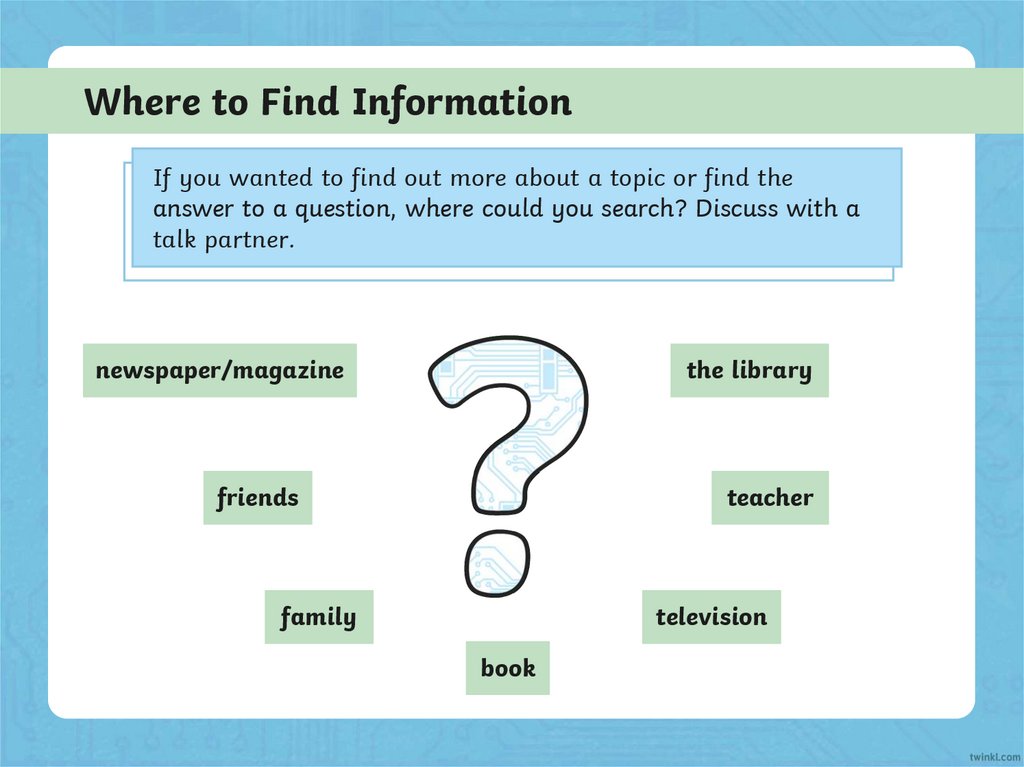
Where to Find InformationIf you wanted to find out more about a topic or find the
answer to a question, where could you search? Discuss with a
talk partner.
newspaper/magazine
the library
friends
teacher
family
television
book
7.
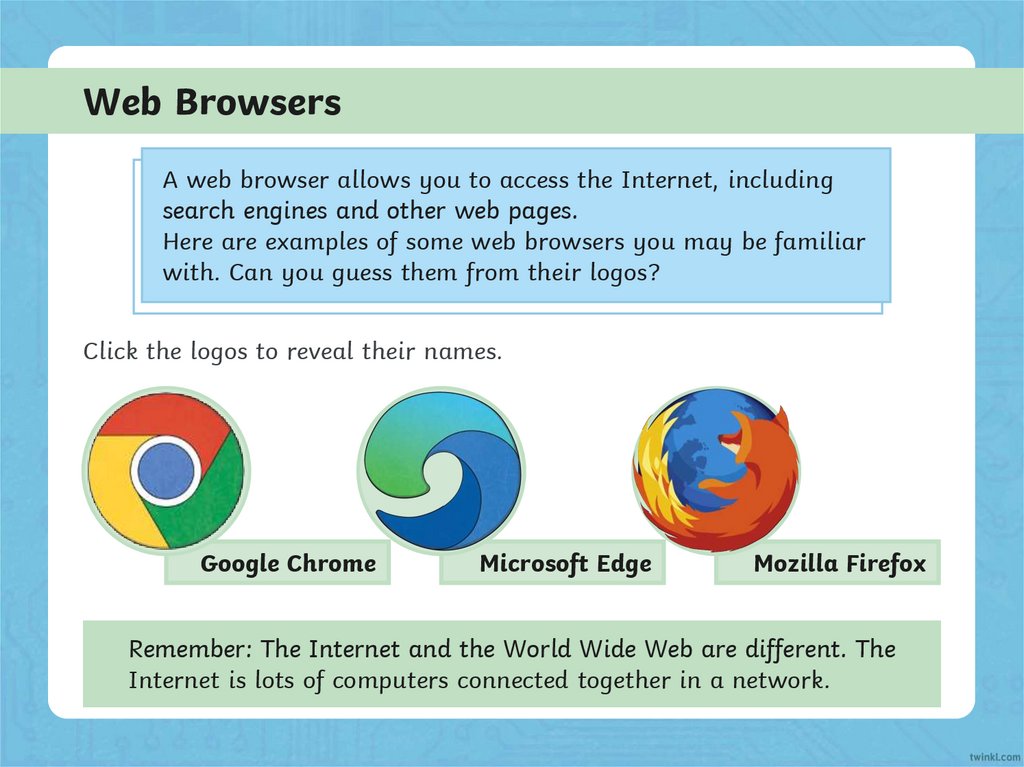
Web BrowsersA web browser allows you to access the Internet, including
search engines and other web pages.
Here are examples of some web browsers you may be familiar
with. Can you guess them from their logos?
Click the logos to reveal their names.
Google Chrome
Microsoft Edge
Mozilla Firefox
Remember: The Internet and the World Wide Web are different. The
Internet is lots of computers connected together in a network.
8.
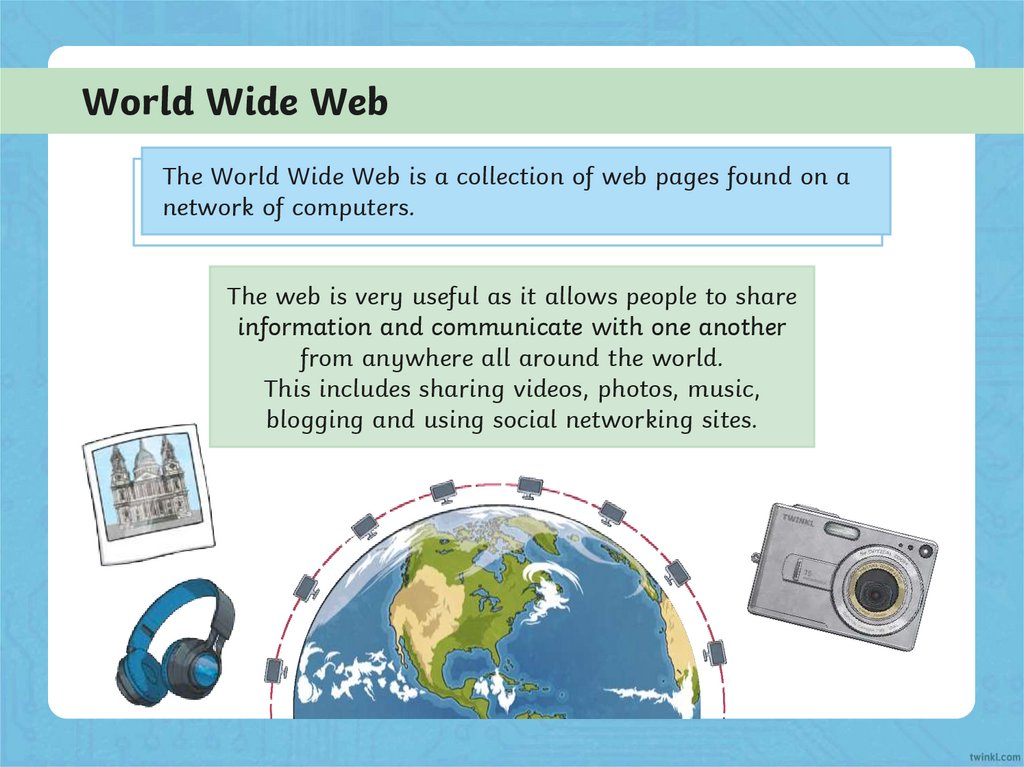
World Wide WebThe World Wide Web is a collection of web pages found on a
network of computers.
The web is very useful as it allows people to share
information and communicate with one another
from anywhere all around the world.
This includes sharing videos, photos, music,
blogging and using social networking sites.
9.
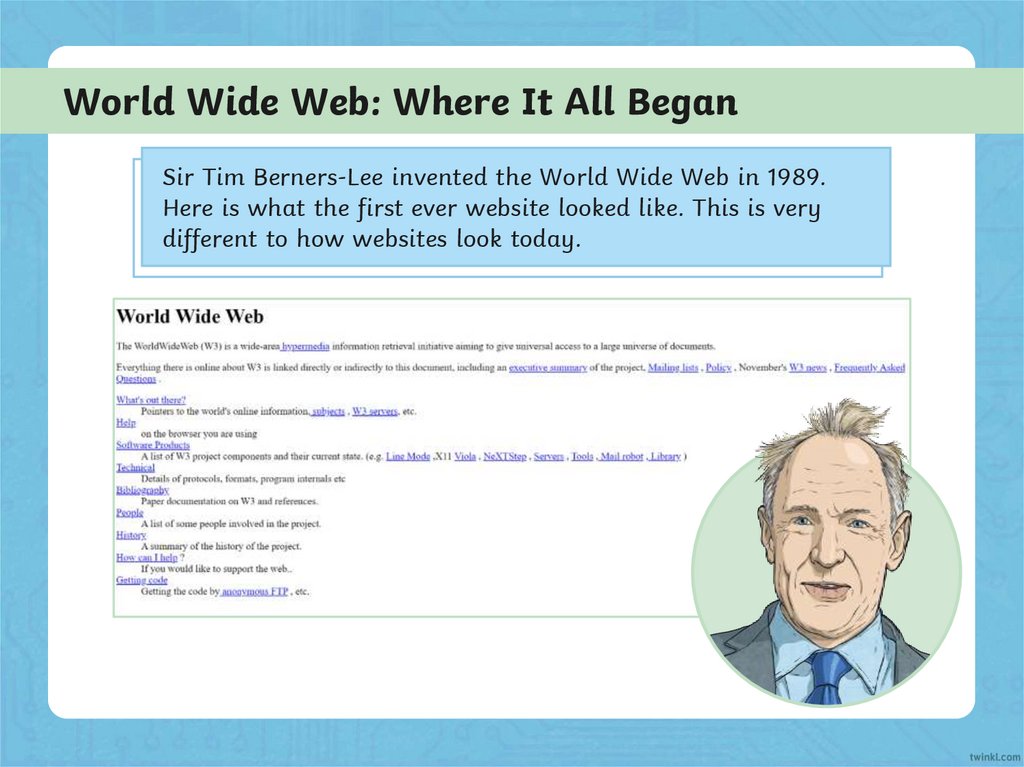
World Wide Web: Where It All BeganSir Tim Berners-Lee invented the World Wide Web in 1989.
Here is what the first ever website looked like. This is very
different to how websites look today.
10.
What Is a Search Engine?Discuss this question with a talk partner.
A search engine is a service you use on
the Internet to help you find information
via the World Wide Web.
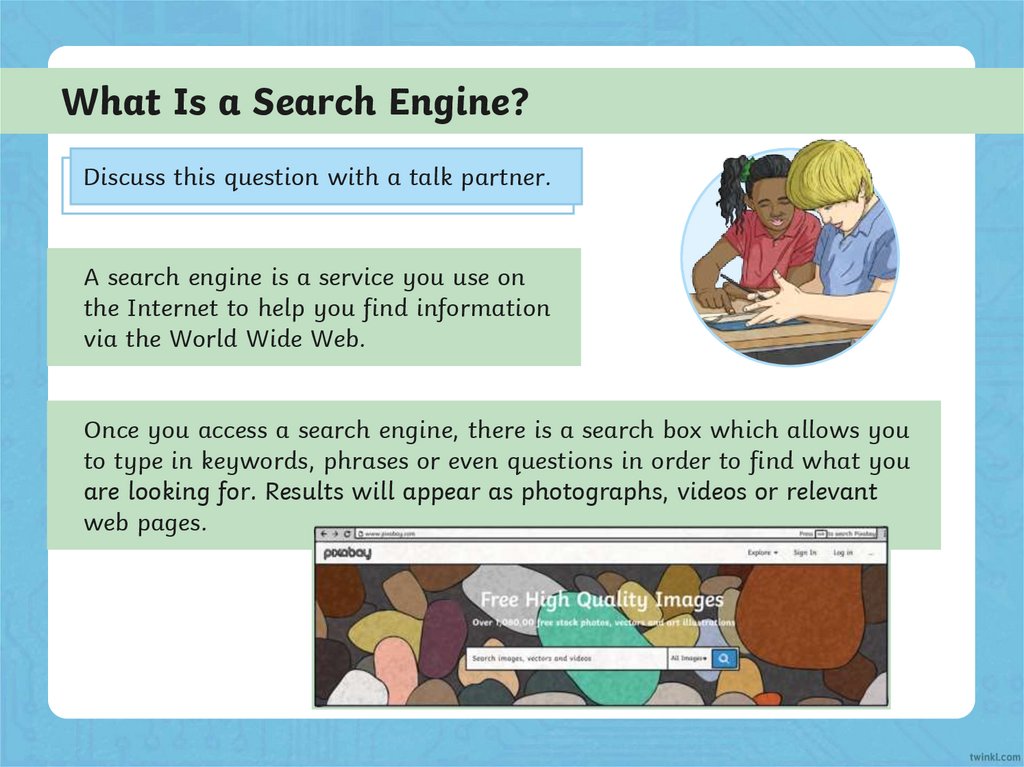
Once you access a search engine, there is a search box which allows you
to type in keywords, phrases or even questions in order to find what you
are looking for. Results will appear as photographs, videos or relevant
web pages.
11.
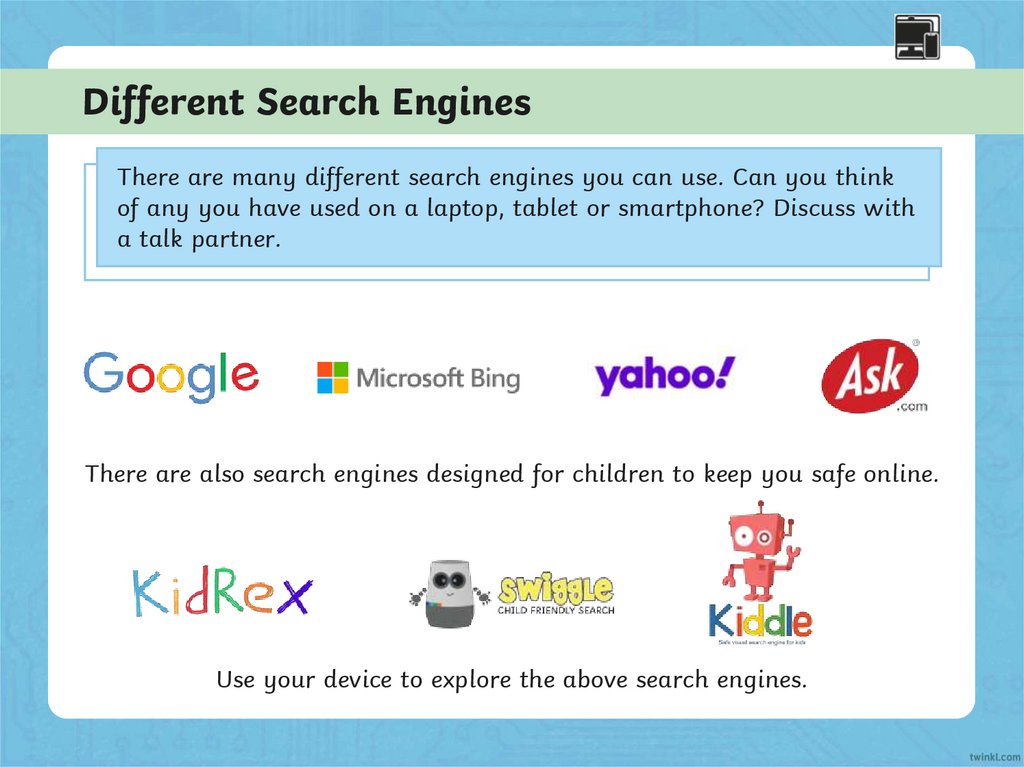
Different Search EnginesThere are many different search engines you can use. Can you think
of any you have used on a laptop, tablet or smartphone? Discuss with
a talk partner.
There are also search engines designed for children to keep you safe online.
Use your device to explore the above search engines.
12.
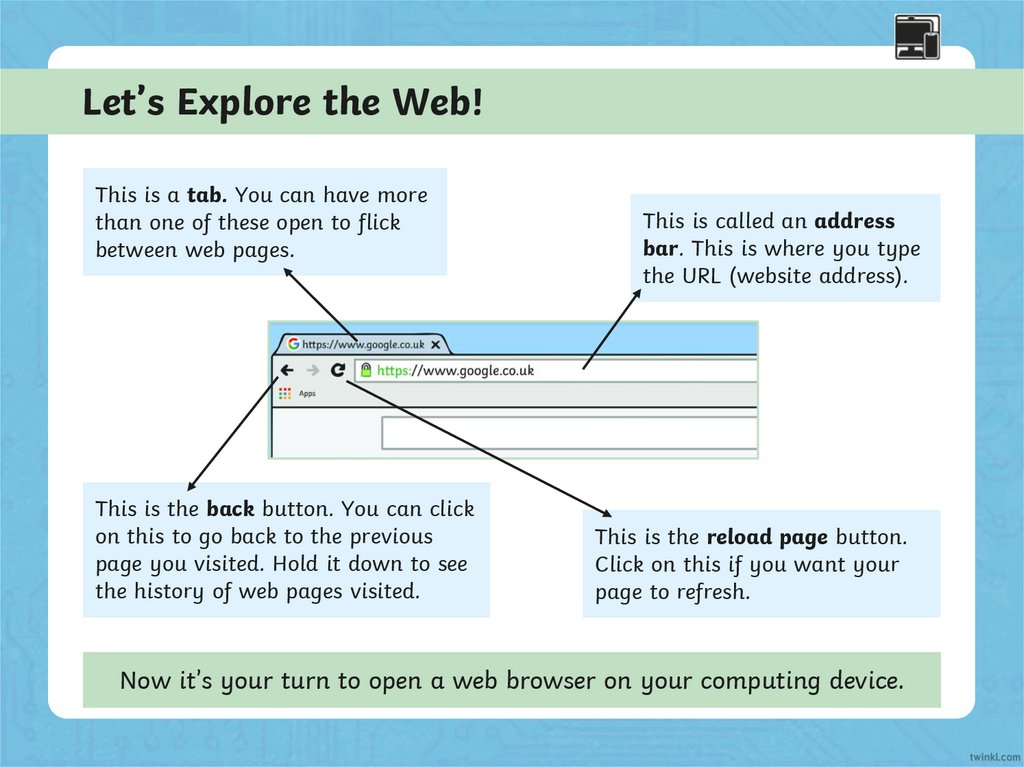
Let’s Explore the Web!This is a tab. You can have more
than one of these open to flick
between web pages.
This is the back button. You can click
on this to go back to the previous
page you visited. Hold it down to see
the history of web pages visited.
This is called an address
bar. This is where you type
the URL (website address).
This is the reload page button.
Click on this if you want your
page to refresh.
Now it’s your turn to open a web browser on your computing device.
13.
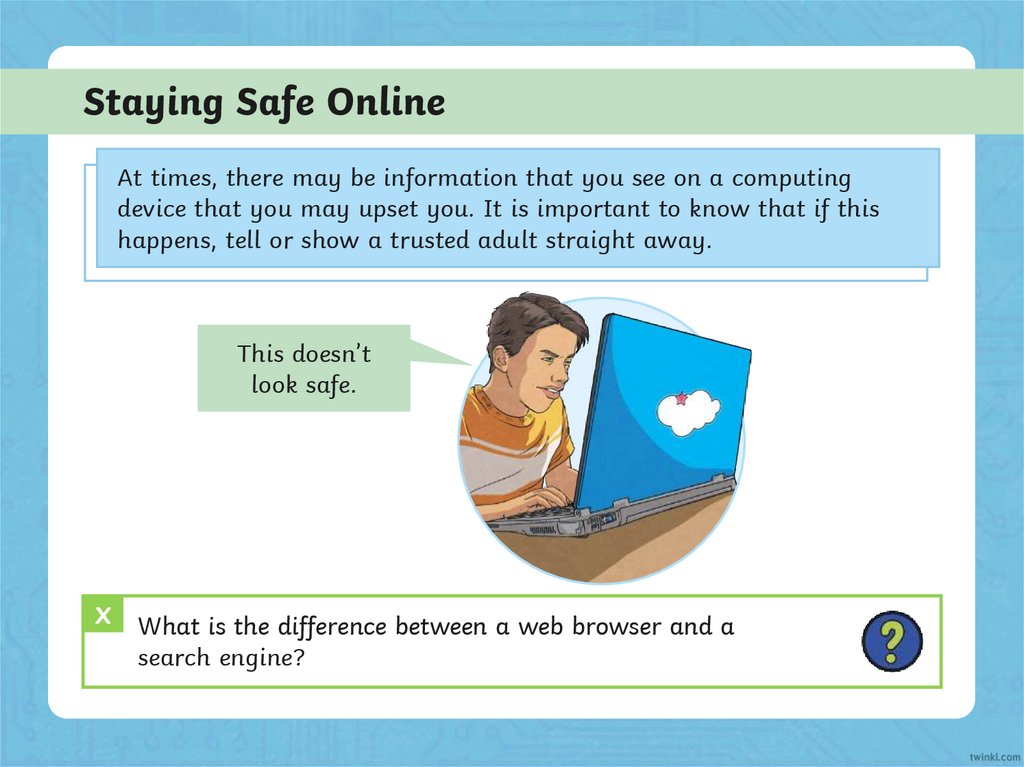
Staying Safe OnlineAt times, there may be information that you see on a computing
device that you may upset you. It is important to know that if this
happens, tell or show a trusted adult straight away.
This doesn’t
look safe.
X
What is the difference between a web browser and a
search engine?
14.
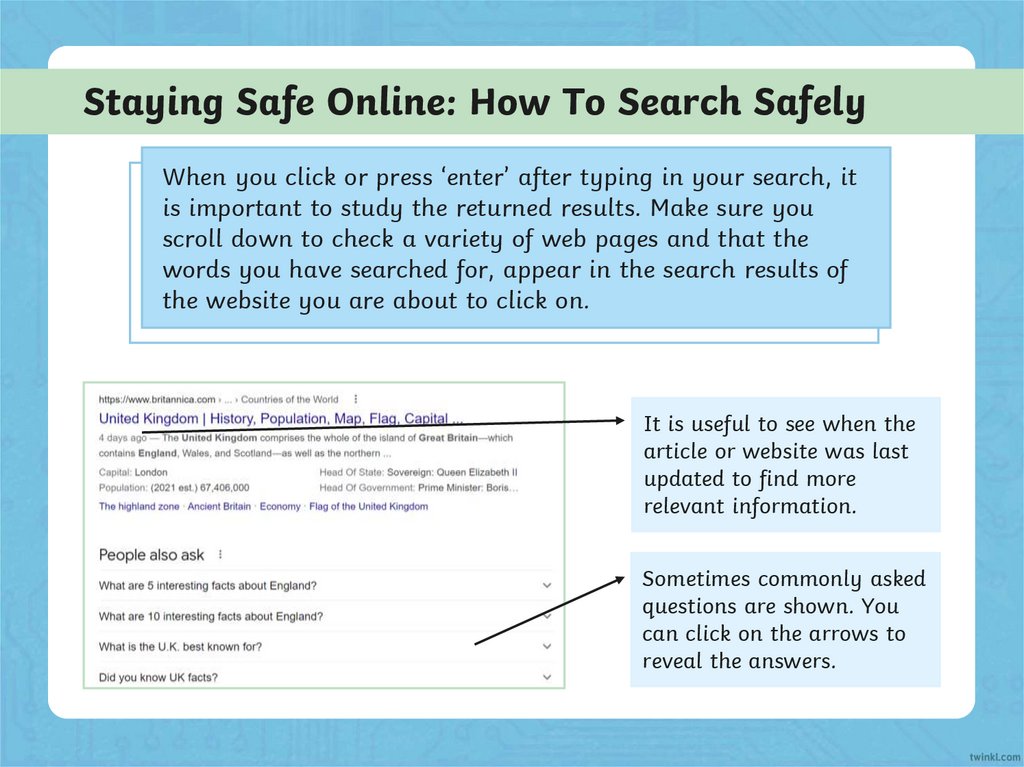
Staying Safe Online: How To Search SafelyWhen you click or press ‘enter’ after typing in your search, it
is important to study the returned results. Make sure you
scroll down to check a variety of web pages and that the
words you have searched for, appear in the search results of
the website you are about to click on.
It is useful to see when the
article or website was last
updated to find more
relevant information.
Sometimes commonly asked
questions are shown. You
can click on the arrows to
reveal the answers.
15.
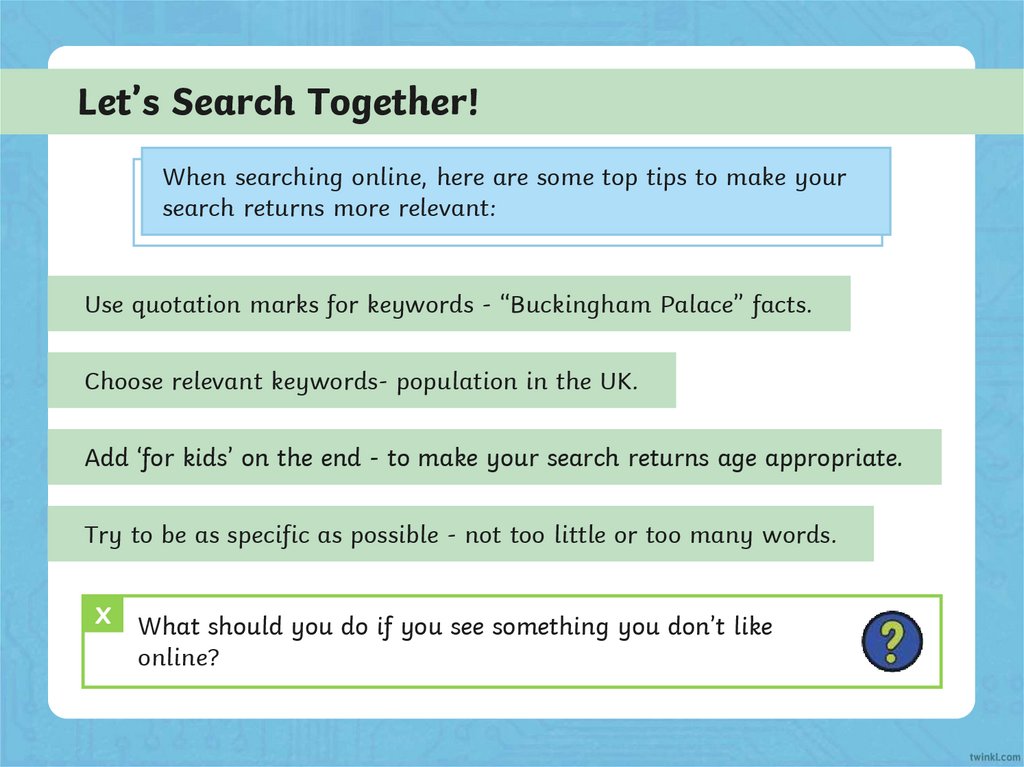
Let’s Search Together!When searching online, here are some top tips to make your
search returns more relevant:
Use quotation marks for keywords - “Buckingham Palace” facts.
Choose relevant keywords- population in the UK.
Add ‘for kids’ on the end - to make your search returns age appropriate.
Try to be as specific as possible - not too little or too many words.
X
What should you do if you see something you don’t like
online?
16.
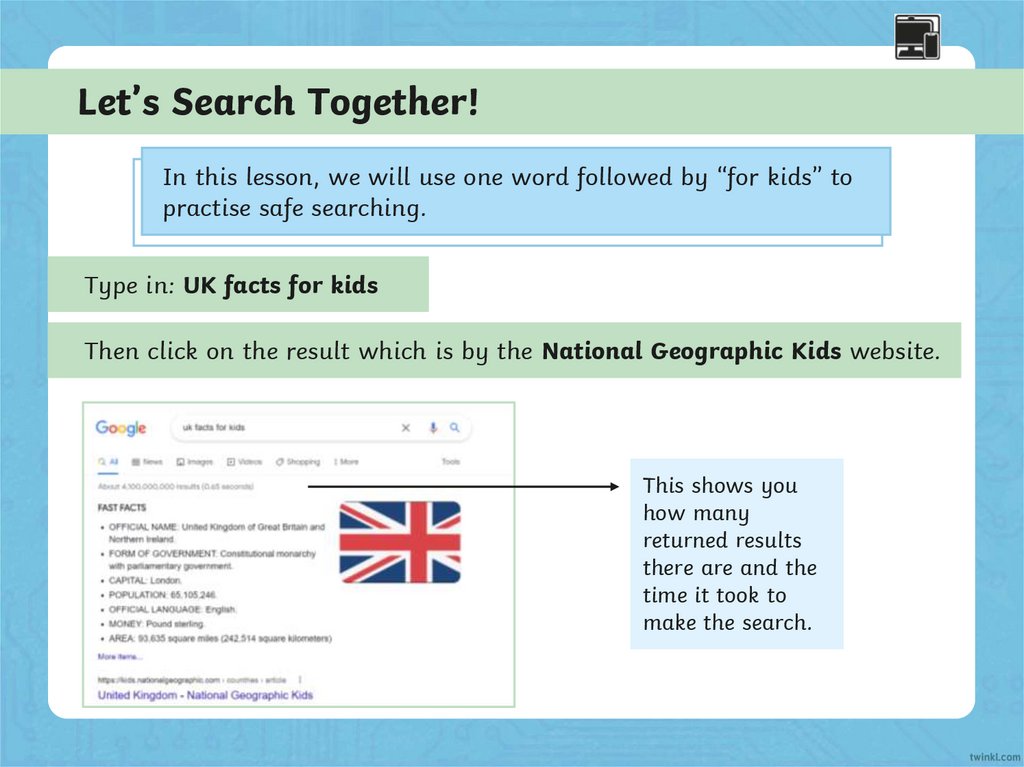
Let’s Search Together!In this lesson, we will use one word followed by “for kids” to
practise safe searching.
Type in: UK facts for kids
Then click on the result which is by the National Geographic Kids website.
This shows you
how many
returned results
there are and the
time it took to
make the search.
17.
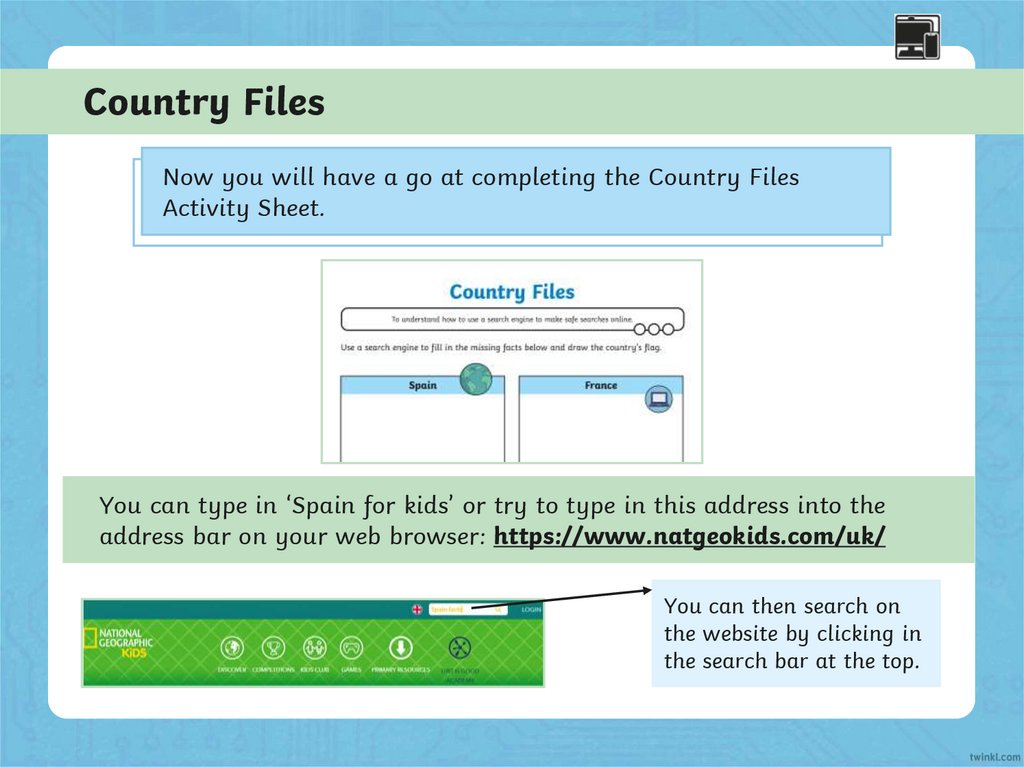
Country FilesNow you will have a go at completing the Country Files
Activity Sheet.
You can type in ‘Spain for kids’ or try to type in this address into the
address bar on your web browser: https://www.natgeokids.com/uk/
You can then search on
the website by clicking in
the search bar at the top.
18.
Ready, Set, ShowNow it is time to show what you know. After the countdown, use
your fingers to reveal how confident you are in explaining what a
search engine is and how they are used.
2
31
Ready
Set
Show
19.
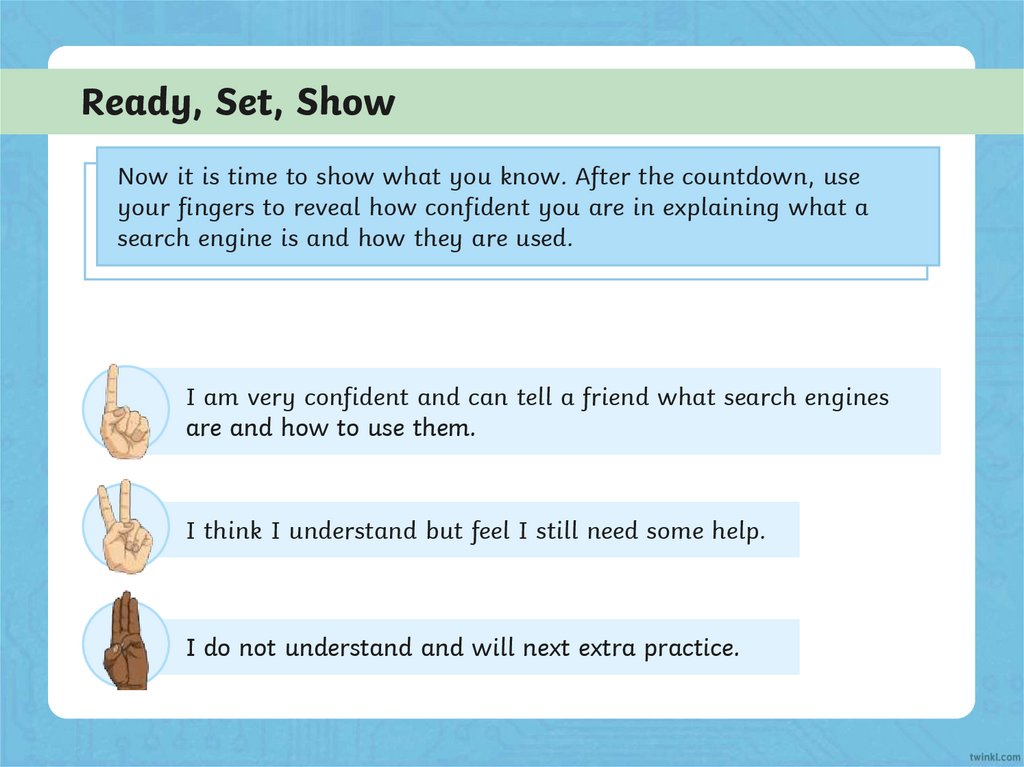
Ready, Set, ShowNow it is time to show what you know. After the countdown, use
your fingers to reveal how confident you are in explaining what a
search engine is and how they are used.
I am very confident and can tell a friend what search engines
are and how to use them.
I think I understand but feel I still need some help.
I do not understand and will next extra practice.
20.
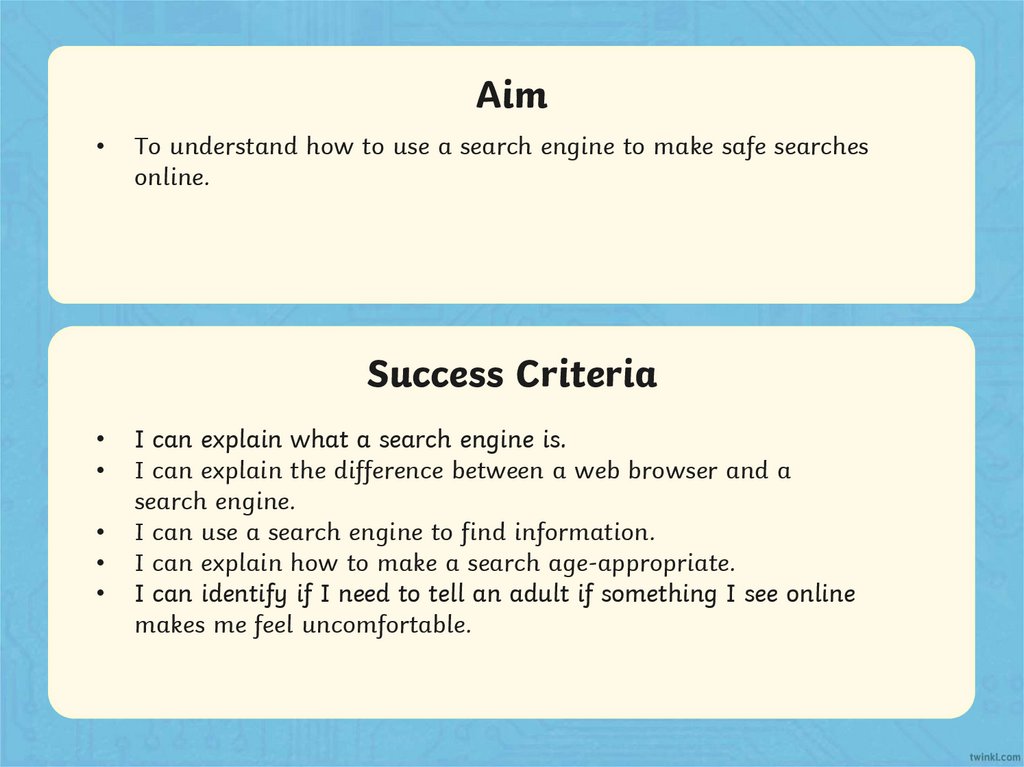
AimTo understand how to use a search engine to make safe searches
online.
Success Criteria
I can explain what a search engine is.
I can explain the difference between a web browser and a
search engine.
I can use a search engine to find information.
I can explain how to make a search age-appropriate.
I can identify if I need to tell an adult if something I see online
makes me feel uncomfortable.