
 Интернет
Похожие презентации:







Basics of UI design and form creation in HTML. Lecture 7
1.
Lecture 7Basics of UI design and form creation in HTML.
USER INTERFACE AND FORM
ELEMENTS
2.
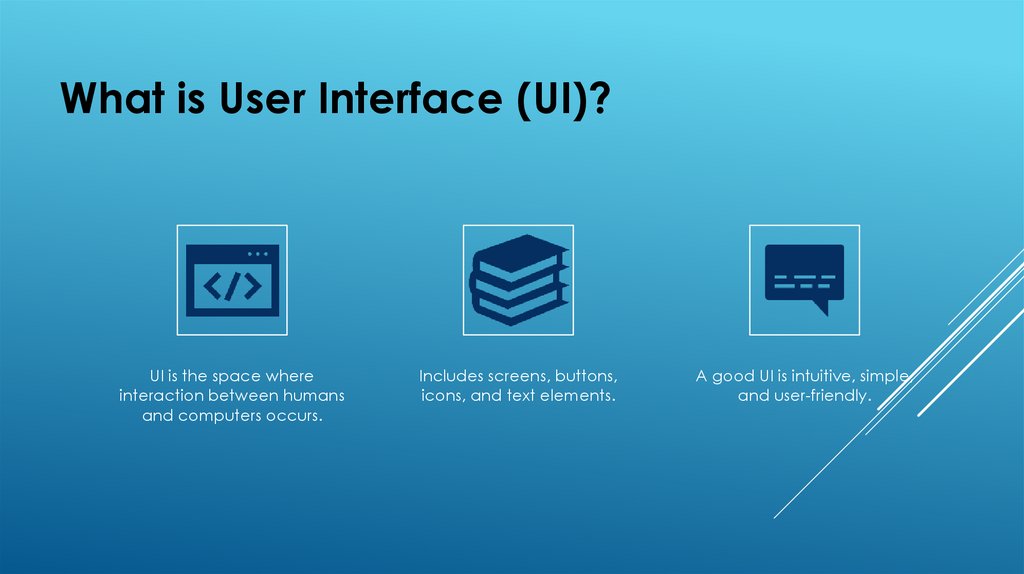
What is User Interface (UI)?UI is the space where
interaction between humans
and computers occurs.
Includes screens, buttons,
icons, and text elements.
A good UI is intuitive, simple,
and user-friendly.
3.
Defines how users interact with software or websites.Good UI = easier learning, better productivity, fewer errors.
Poor UI = frustration and confusion.
IMPORTANCE OF UI DESIGN
4.
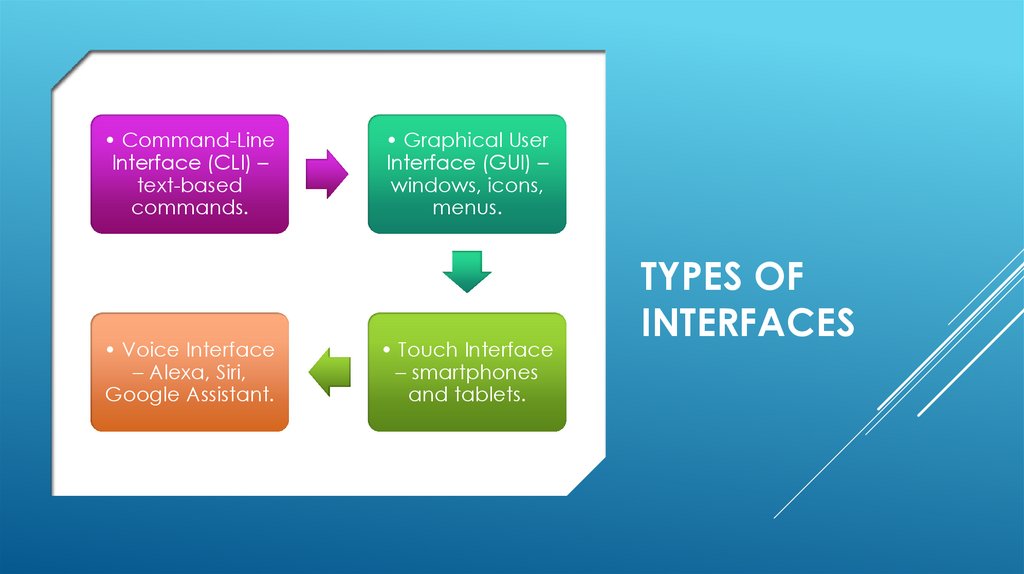
• Command-LineInterface (CLI) –
text-based
commands.
• Voice Interface
– Alexa, Siri,
Google Assistant.
• Graphical User
Interface (GUI) –
windows, icons,
menus.
• Touch Interface
– smartphones
and tablets.
TYPES OF
INTERFACES
5.
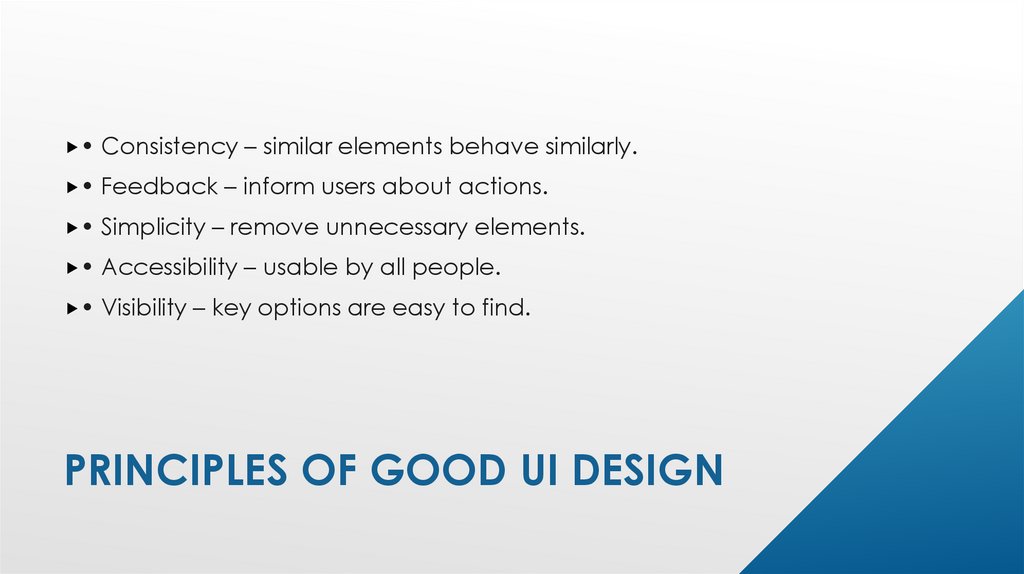
• Consistency – similar elements behave similarly.• Feedback – inform users about actions.
• Simplicity – remove unnecessary elements.
• Accessibility – usable by all people.
• Visibility – key options are easy to find.
PRINCIPLES OF GOOD UI DESIGN
6.
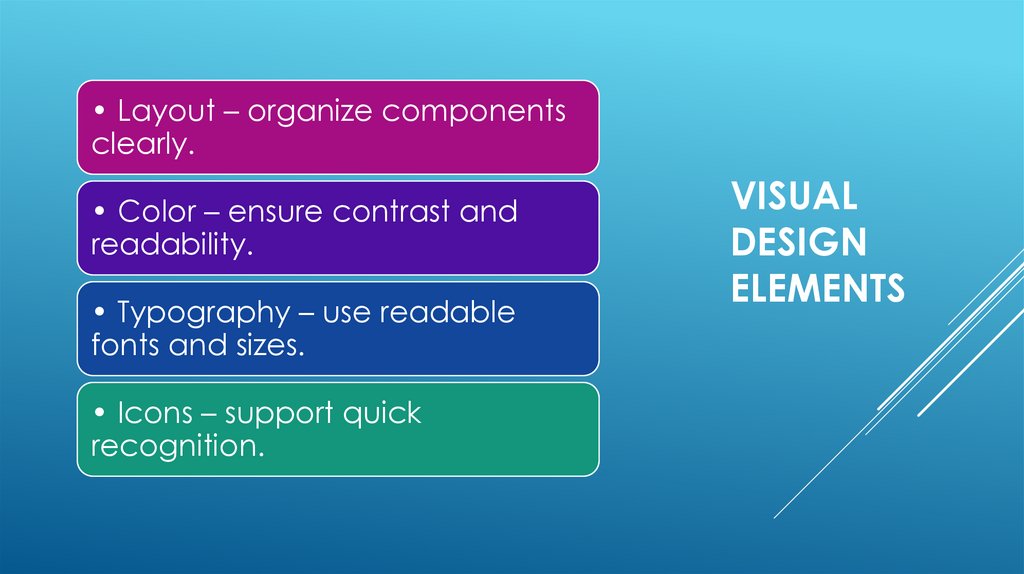
• Layout – organize componentsclearly.
• Color – ensure contrast and
readability.
• Typography – use readable
fonts and sizes.
• Icons – support quick
recognition.
VISUAL
DESIGN
ELEMENTS
7.
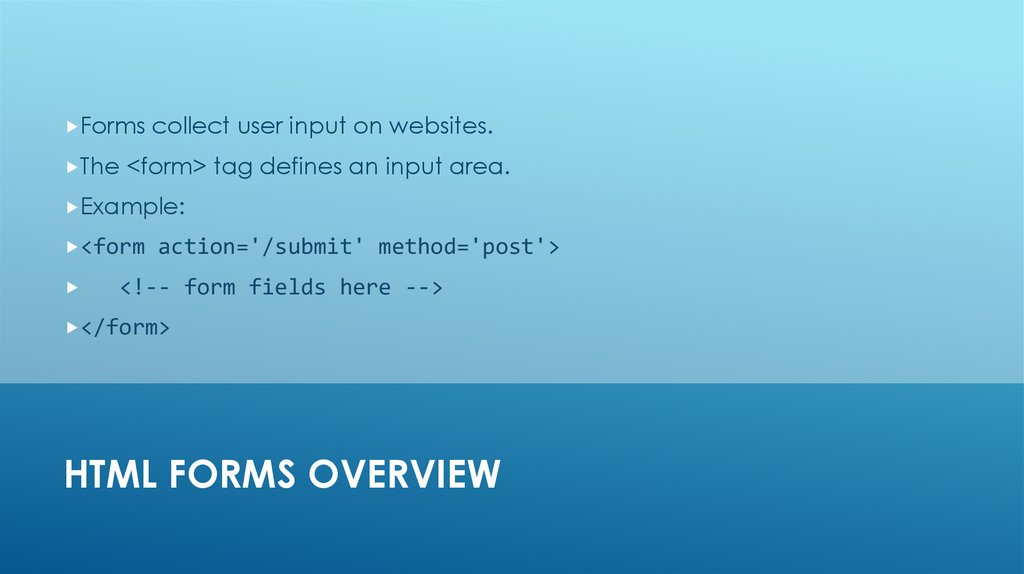
Forms collect user input on websites.The <form> tag defines an input area.
Example:
<form action='/submit' method='post'>
<!-- form fields here -->
</form>
HTML FORMS OVERVIEW
8.
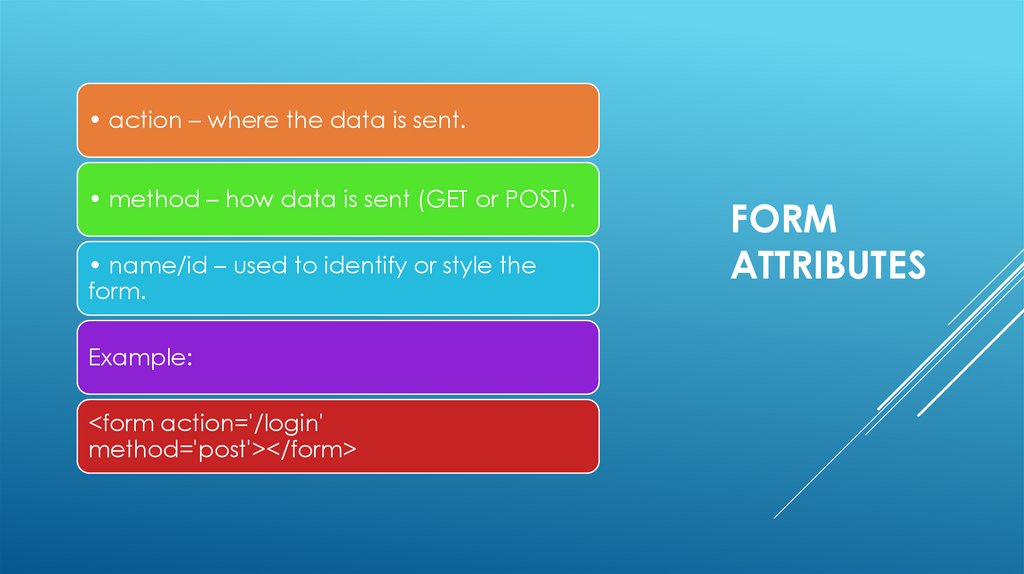
• action – where the data is sent.• method – how data is sent (GET or POST).
• name/id – used to identify or style the
form.
Example:
<form action='/login'
method='post'></form>
FORM
ATTRIBUTES
9.
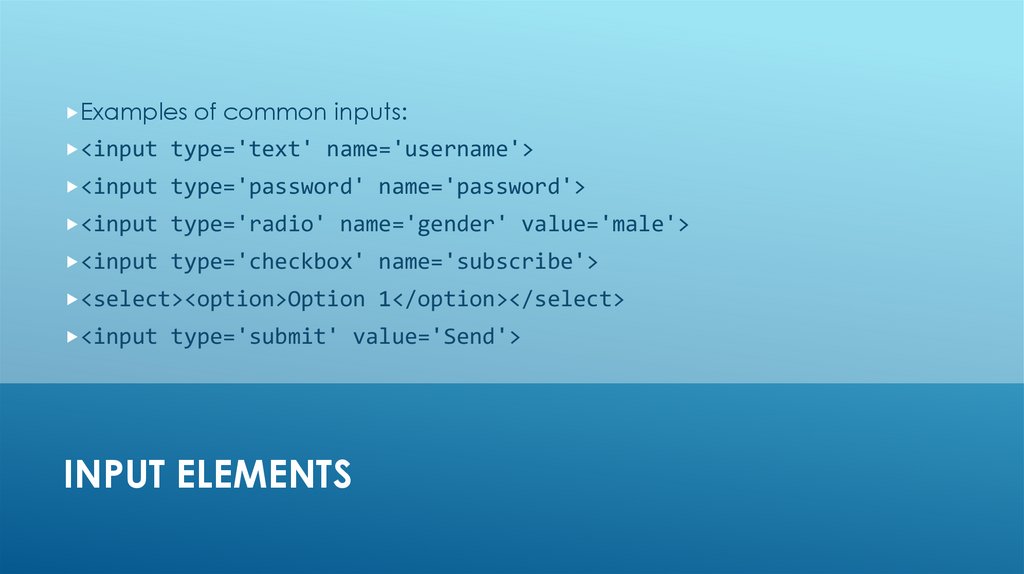
Examples of common inputs:<input type='text' name='username'>
<input type='password' name='password'>
<input type='radio' name='gender' value='male'>
<input type='checkbox' name='subscribe'>
<select><option>Option 1</option></select>
<input type='submit' value='Send'>
INPUT ELEMENTS
10.
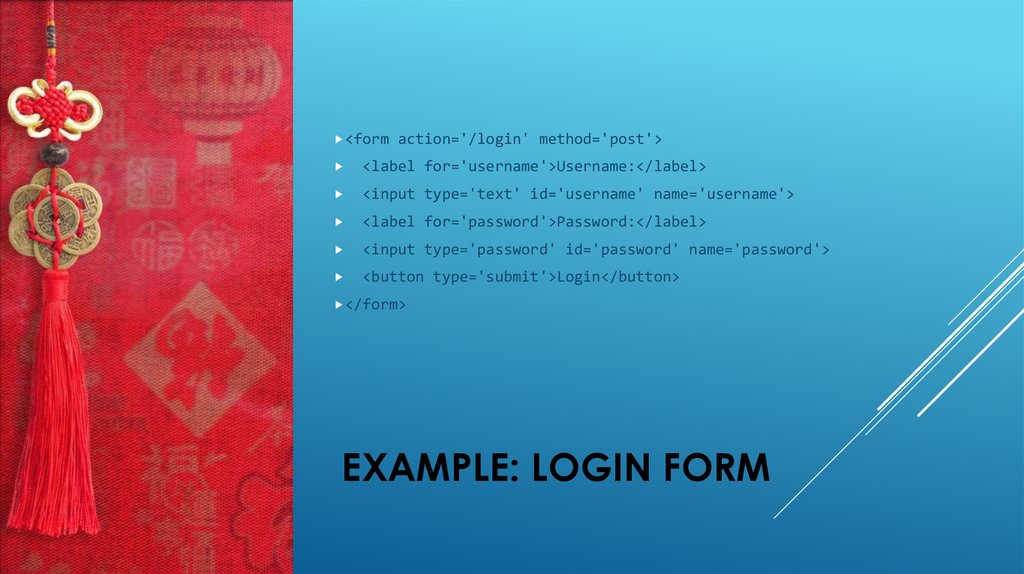
<form action='/login' method='post'><label for='username'>Username:</label>
<input type='text' id='username' name='username'>
<label for='password'>Password:</label>
<input type='password' id='password' name='password'>
<button type='submit'>Login</button>
</form>
EXAMPLE: LOGIN FORM
11.
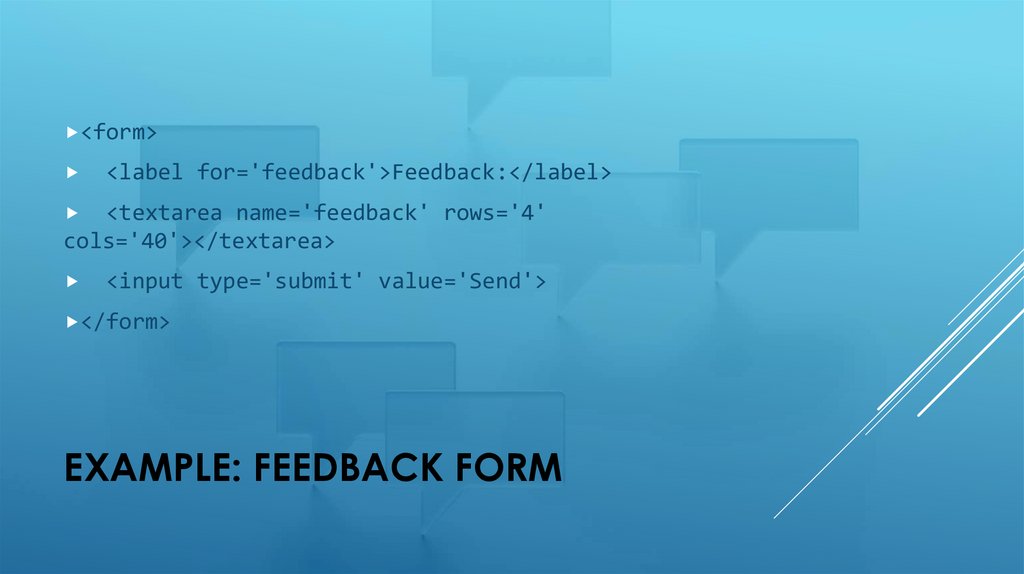
<form><label for='feedback'>Feedback:</label>
<textarea name='feedback' rows='4'
cols='40'></textarea>
<input type='submit' value='Send'>
</form>
EXAMPLE: FEEDBACK FORM
12.
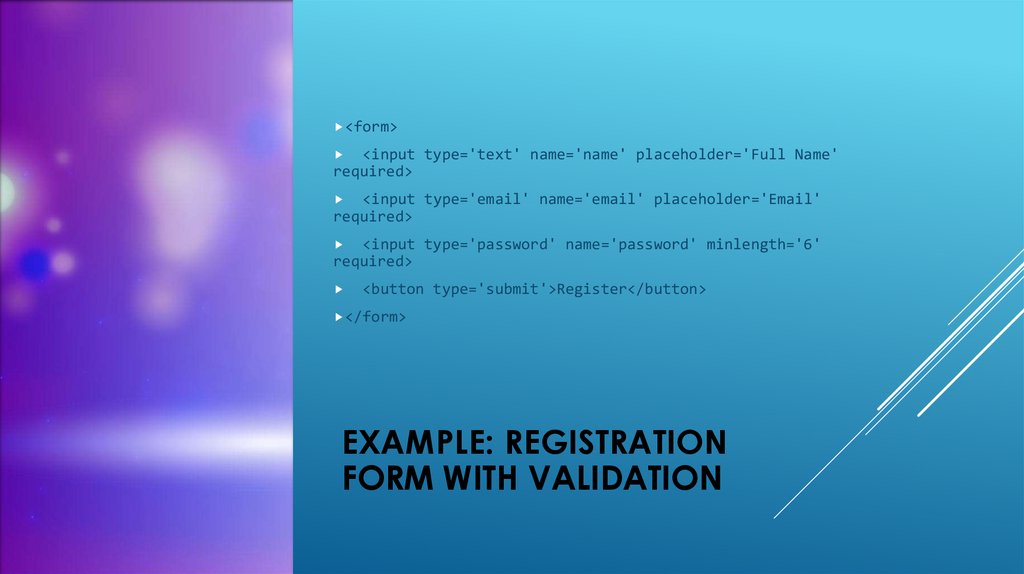
<form><input type='text' name='name' placeholder='Full Name'
required>
<input type='email' name='email' placeholder='Email'
required>
<input type='password' name='password' minlength='6'
required>
<button type='submit'>Register</button>
</form>
EXAMPLE: REGISTRATION
FORM WITH VALIDATION
13.
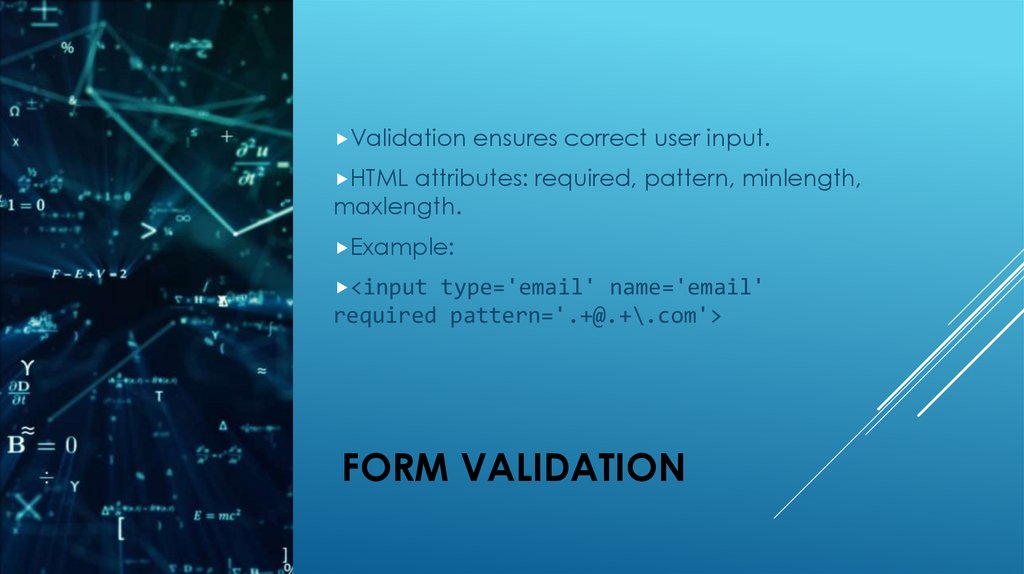
Validation ensures correct user input.HTML attributes: required, pattern, minlength,
maxlength.
Example:
<input type='email' name='email'
required pattern='.+@.+\.com'>
FORM VALIDATION
14.
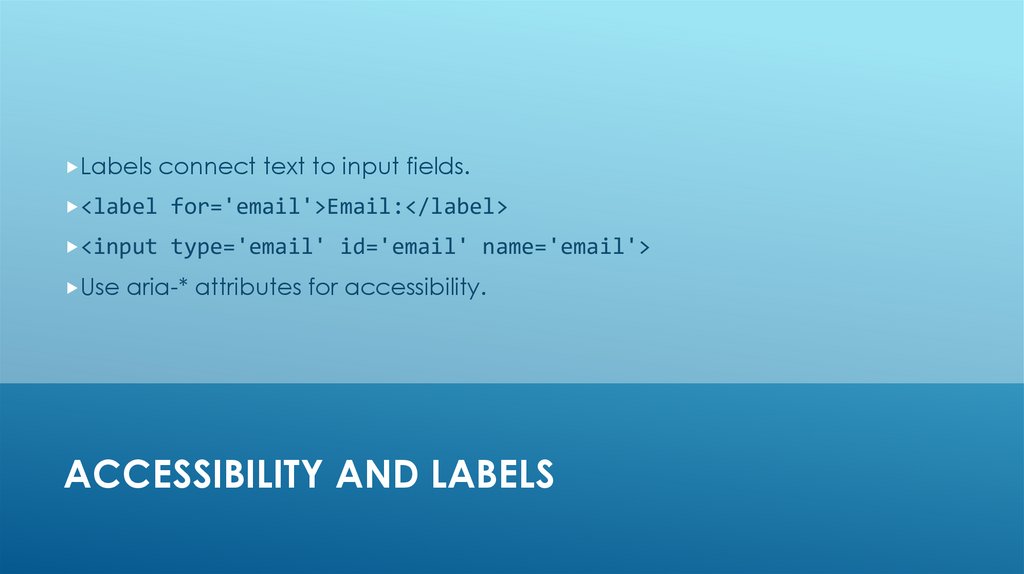
Labels connect text to input fields.<label for='email'>Email:</label>
<input type='email' id='email' name='email'>
Use aria-* attributes for accessibility.
ACCESSIBILITY AND LABELS
15.
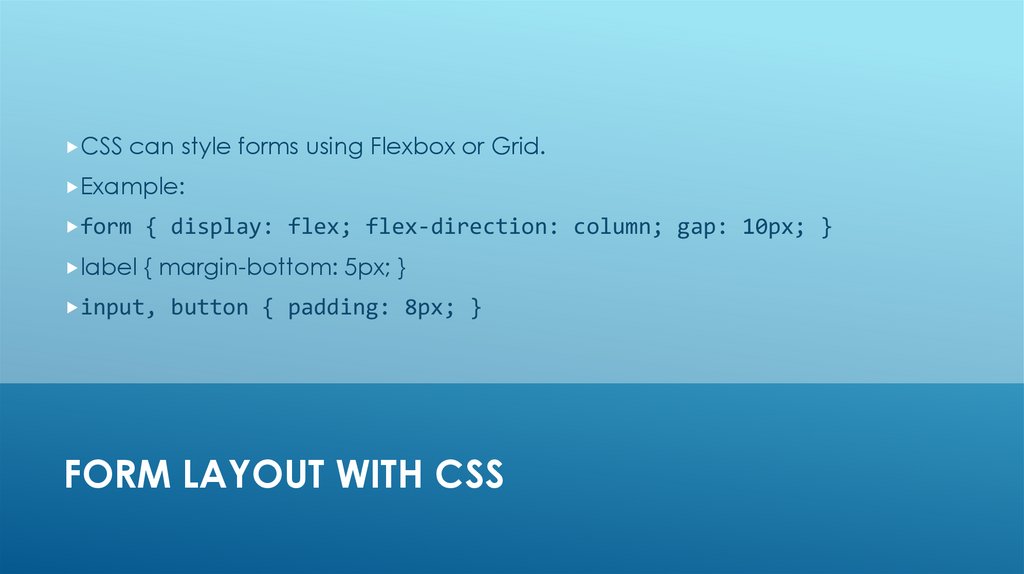
CSS can style forms using Flexbox or Grid.Example:
form { display: flex; flex-direction: column; gap: 10px; }
label { margin-bottom: 5px; }
input, button { padding: 8px; }
FORM LAYOUT WITH CSS
16.
• Keep forms short and simple.• Group related fields together.
• Use clear labels and tooltips.
• Provide real-time validation.
• Ensure mobile responsiveness.
BEST PRACTICES
17.
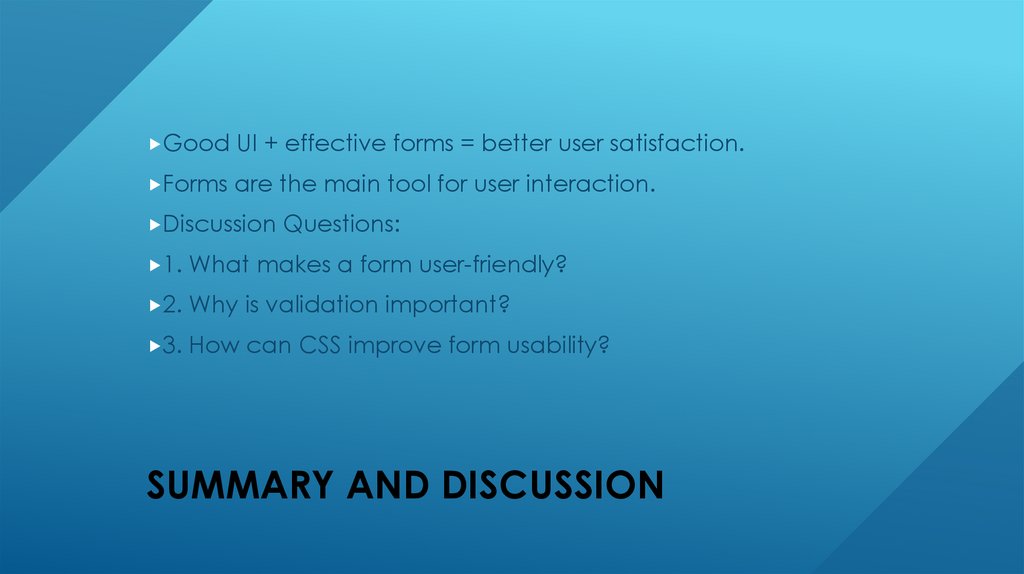
Good UI + effective forms = better user satisfaction.Forms are the main tool for user interaction.
Discussion Questions:
1. What makes a form user-friendly?
2. Why is validation important?
3. How can CSS improve form usability?
SUMMARY AND DISCUSSION