
Похожие презентации:






Lenovo erasure Google account SOP for S1La40_160530 (1)
1.
Lenovo erasure Google account SOPfor S1La40
MBG WW Service Technical Support
2016 Lenovo Confidential. All rights reserved.
2.
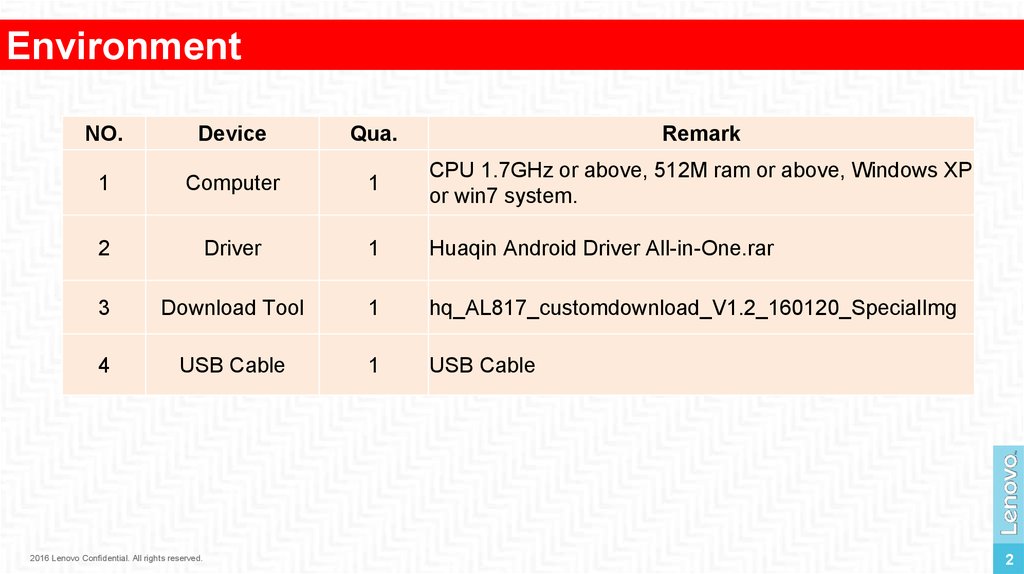
EnvironmentNO.
Device
Qua.
Remark
1
Computer
1
CPU 1.7GHz or above, 512M ram or above, Windows XP
or win7 system.
2
Driver
1
Huaqin Android Driver All-in-One.rar
3
Download Tool
1
hq_AL817_customdownload_V1.2_160120_SpecialImg
4
USB Cable
1
USB Cable
2016 Lenovo Confidential. All rights reserved.
2
3.
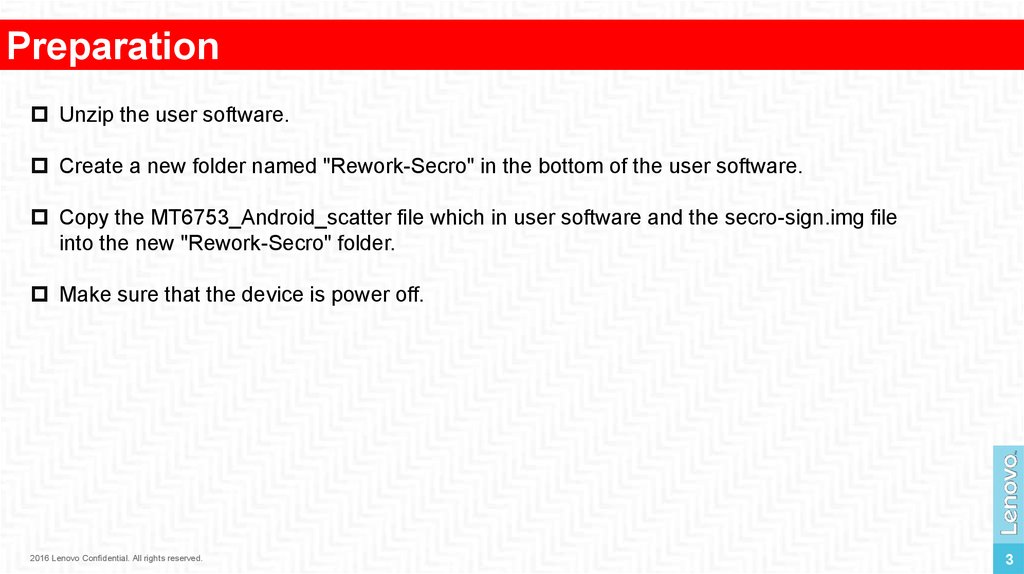
PreparationUnzip the user software.
Create a new folder named "Rework-Secro" in the bottom of the user software.
Copy the MT6753_Android_scatter file which in user software and the secro-sign.img file
into the new "Rework-Secro" folder.
Make sure that the device is power off.
2016 Lenovo Confidential. All rights reserved.
3
4.
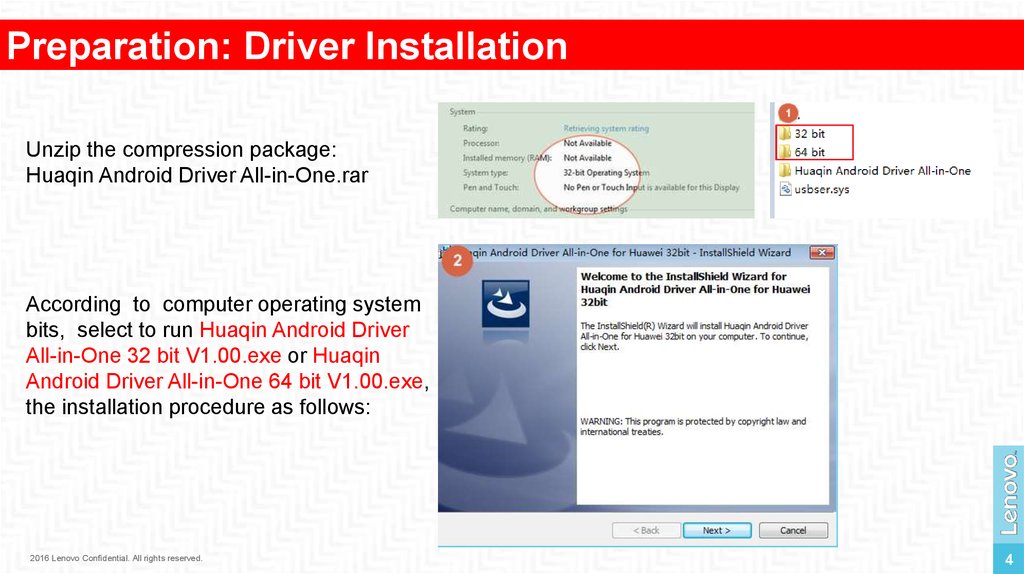
Preparation: Driver InstallationUnzip the compression package:
Huaqin Android Driver All-in-One.rar
1
According to computer operating system
bits, select to run Huaqin Android Driver
All-in-One 32 bit V1.00.exe or Huaqin
Android Driver All-in-One 64 bit V1.00.exe,
the installation procedure as follows:
2016 Lenovo Confidential. All rights reserved.
4
5.
Preparation: Driver Installation1
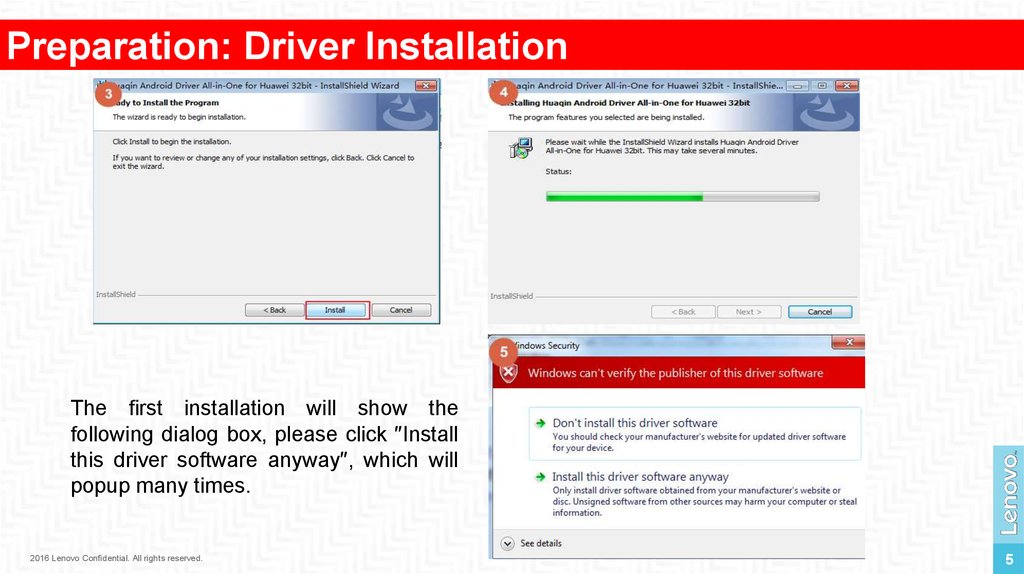
The first installation will show the
following dialog box, please click ″Install
this driver software anyway″, which will
popup many times.
2016 Lenovo Confidential. All rights reserved.
5
6.
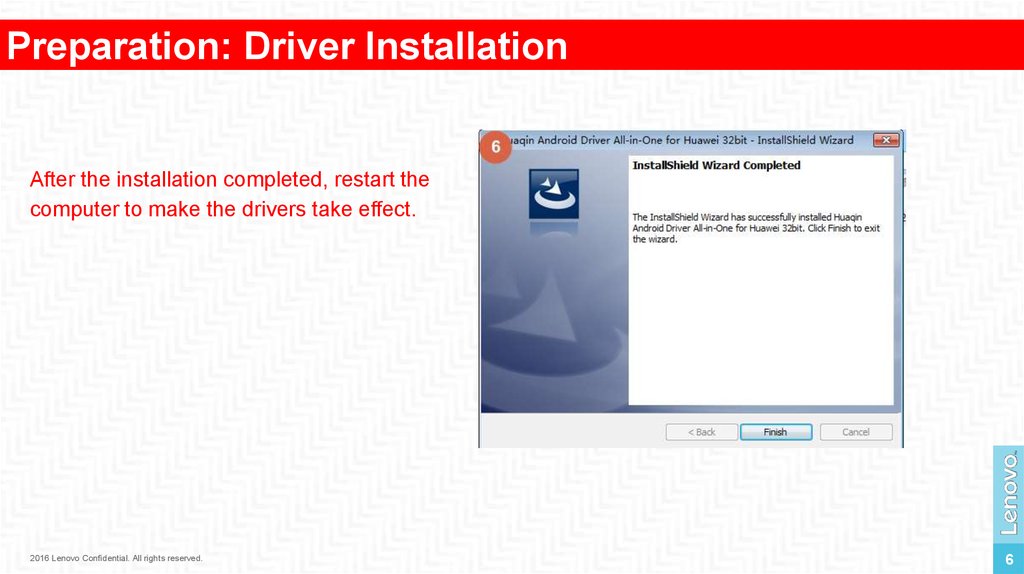
Preparation: Driver InstallationAfter the installation completed, restart the
computer to make the drivers take effect.
1
2016 Lenovo Confidential. All rights reserved.
6
7.
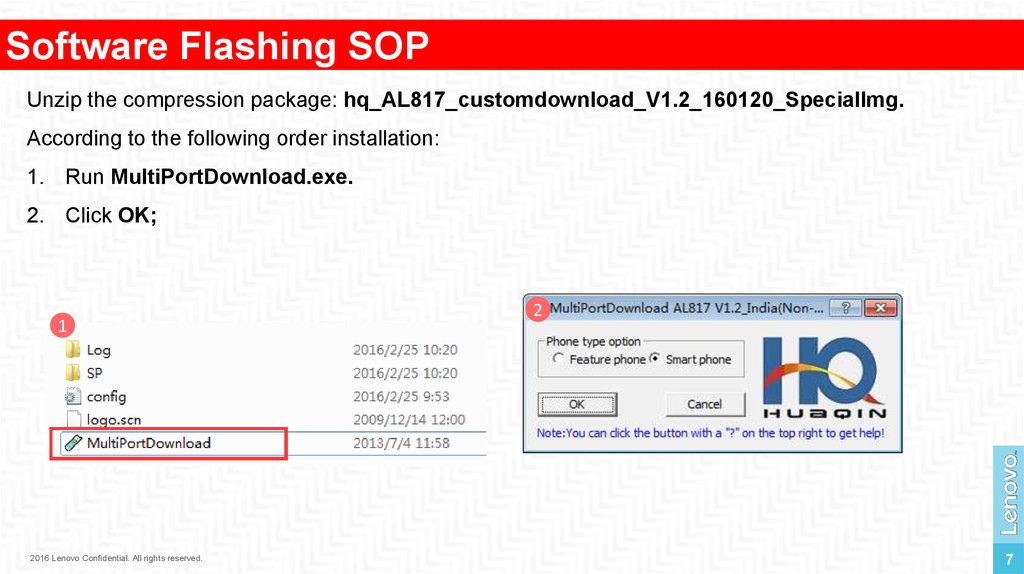
Software Flashing SOPUnzip the compression package: hq_AL817_customdownload_V1.2_160120_SpecialImg.
According to the following order installation:
1. Run MultiPortDownload.exe.
2. Click OK;
1
2016 Lenovo Confidential. All rights reserved.
2
7
8.
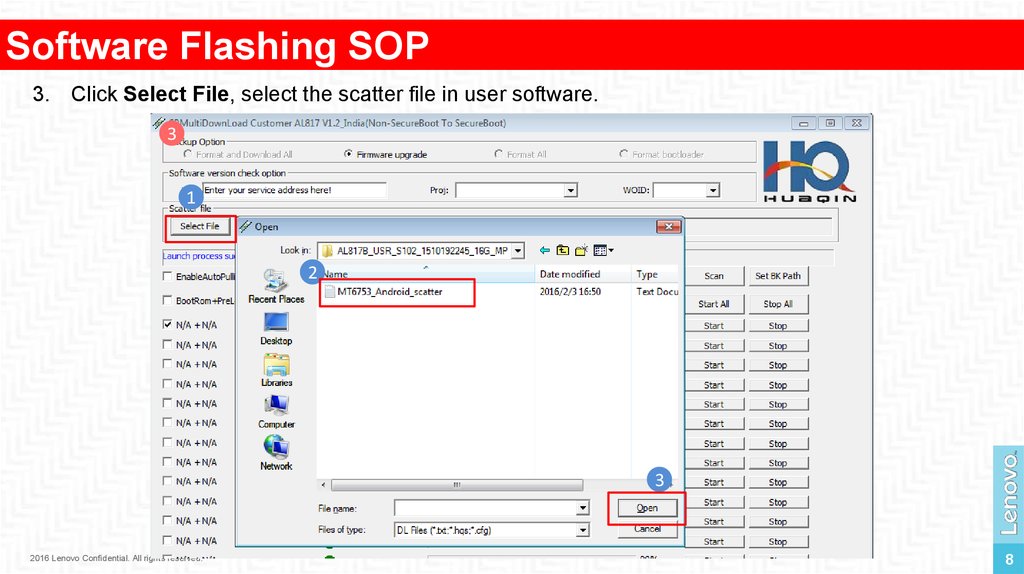
Software Flashing SOP3. Click Select File, select the scatter file in user software.
3
1
2
3
2016 Lenovo Confidential. All rights reserved.
8
9.
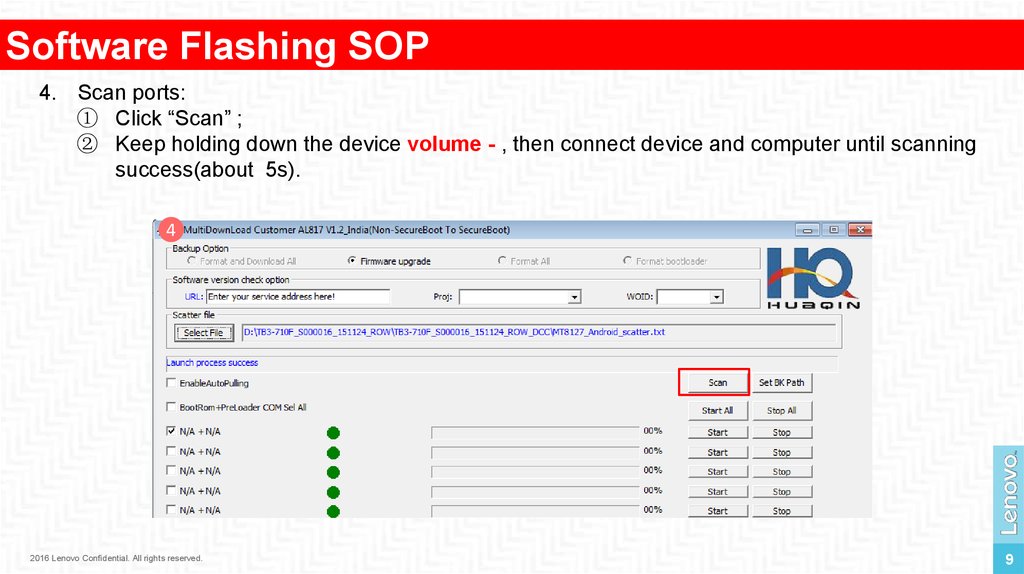
Software Flashing SOP4. Scan ports:
① Click “Scan” ;
② Keep holding down the device volume - , then connect device and computer until scanning
success(about 5s).
4
2016 Lenovo Confidential. All rights reserved.
9
10.
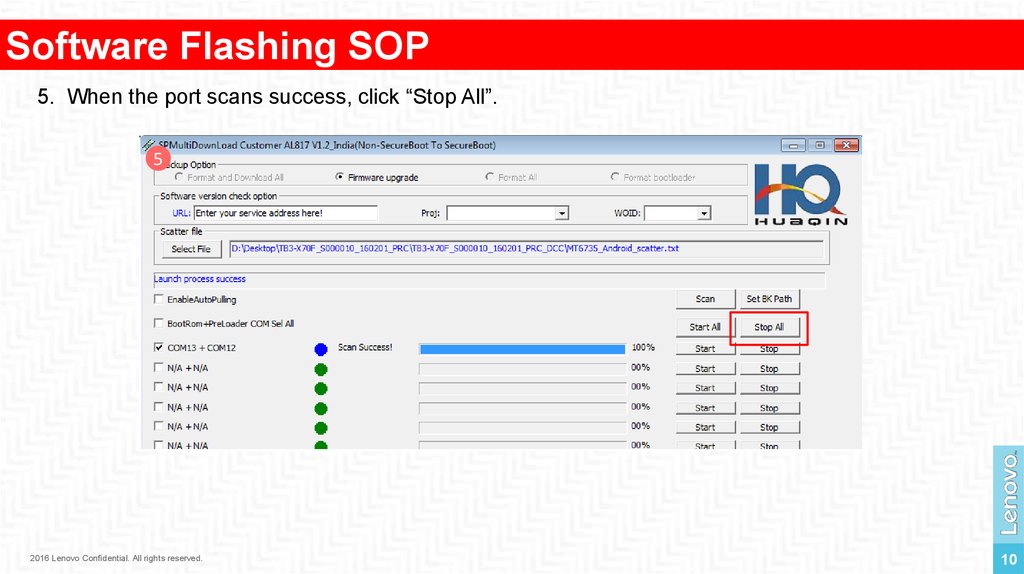
Software Flashing SOP5. When the port scans success, click “Stop All”.
5
2016 Lenovo Confidential. All rights reserved.
10
11.
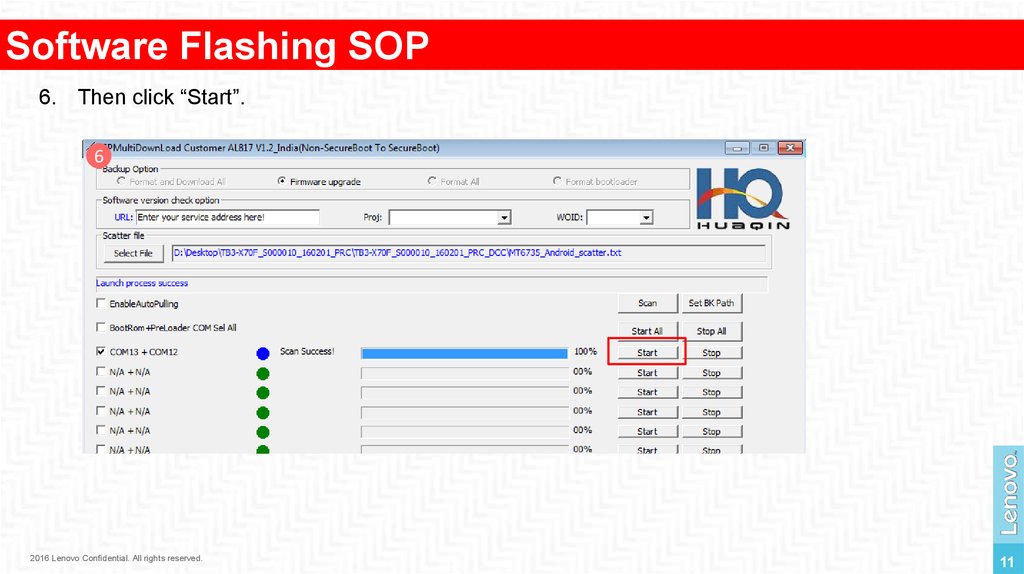
Software Flashing SOP6. Then click “Start”.
6
2016 Lenovo Confidential. All rights reserved.
11
12.
Software Flashing SOP8
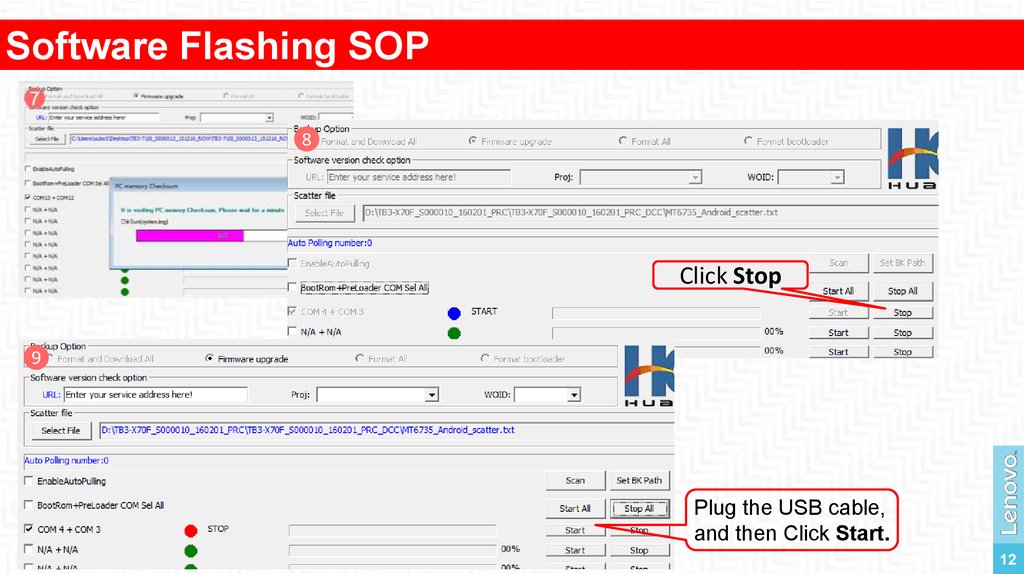
Click Stop
9
Plug the USB cable,
and then Click Start.
2016 Lenovo Confidential. All rights reserved.
12
13.
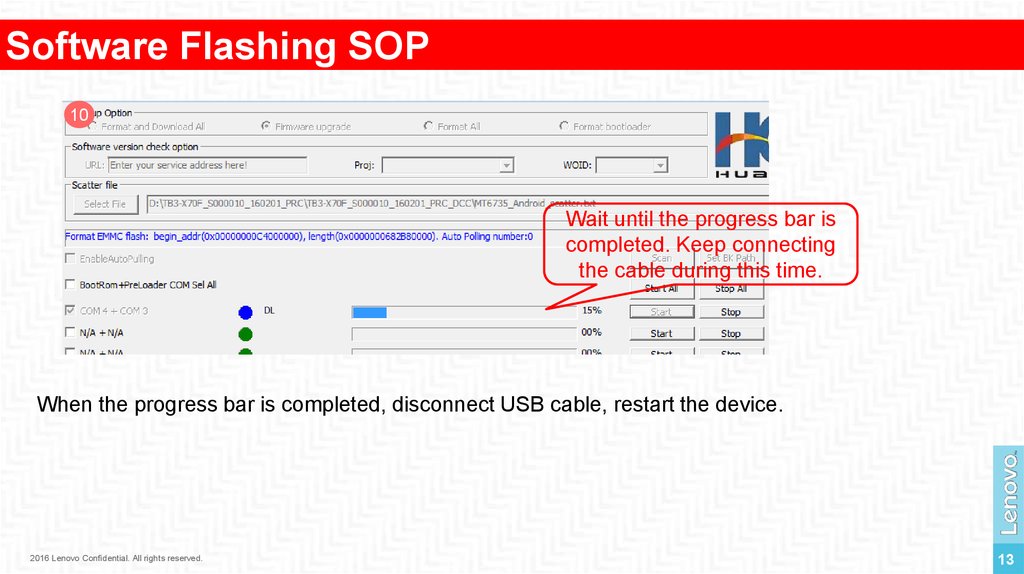
Software Flashing SOP10
Wait until the progress bar is
completed. Keep connecting
the cable during this time.
When the progress bar is completed, disconnect USB cable, restart the device.
2016 Lenovo Confidential. All rights reserved.
13