Похожие презентации:



new Practice 2 этот
1. Week 2: Assignment 2
Getting Help, Navigating the Filesystem Managing files and Directories1. PURPOSE OF THE WORK
•Use several help systems to get help for commands.
•Learn how to locate commands.
•Navigate home and system directories.
•List files and directories.
2. TASKS FOR WORK
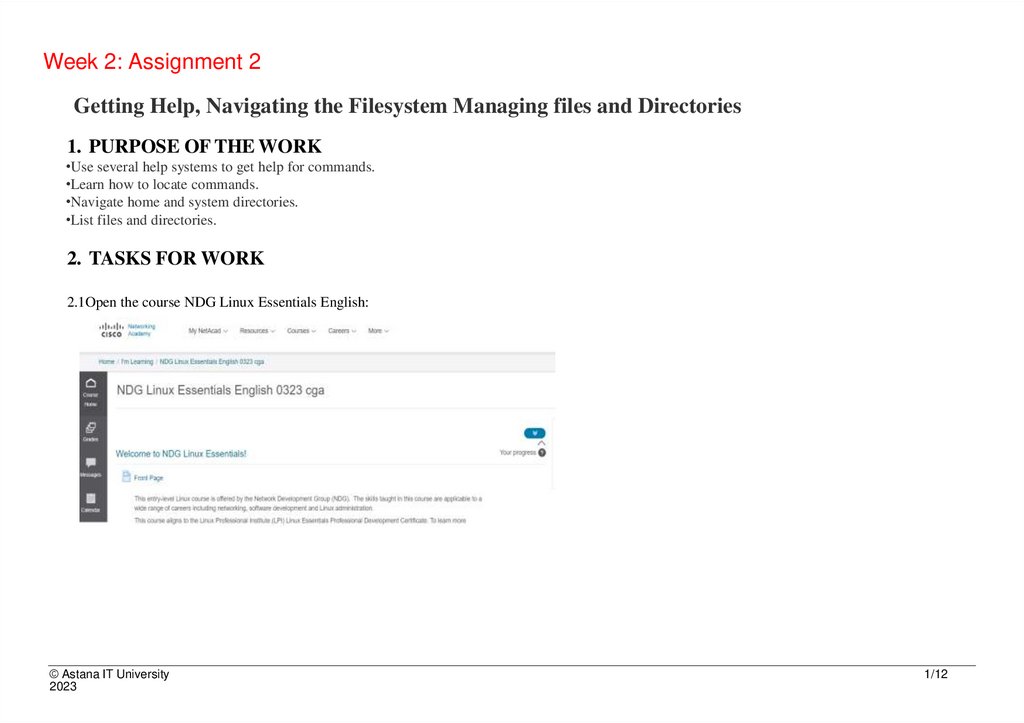
2.1Open the course NDG Linux Essentials English:
© Astana IT University
2023
1/12
2. 2.3 Do an following additional tasks Testing commands $ man man $ man 7 signal $ man passwd $ man 5 passwd Learn commands and
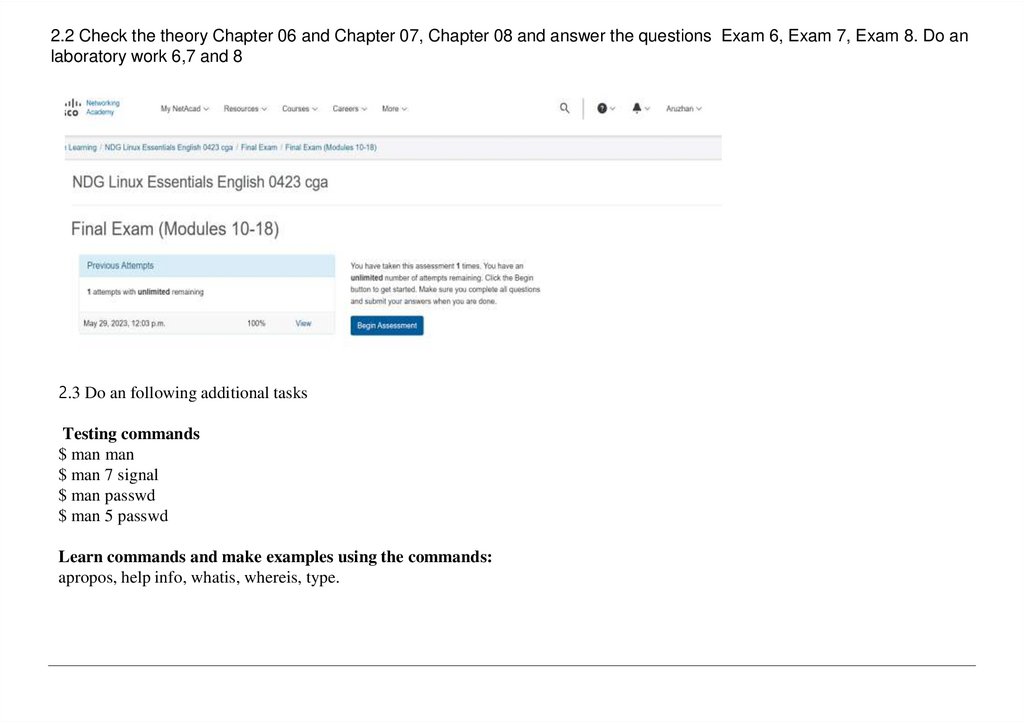
2.2 Check the theory Chapter 06 and Chapter 07, Chapter 08 and answer the questions Exam 6, Exam 7, Exam 8. Do anlaboratory work 6,7 and 8
2.3 Do an following additional tasks
Testing commands
$ man man
$ man 7 signal
$ man passwd
$ man 5 passwd
Learn commands and make examples using the commands:
apropos, help info, whatis, whereis, type.
3.
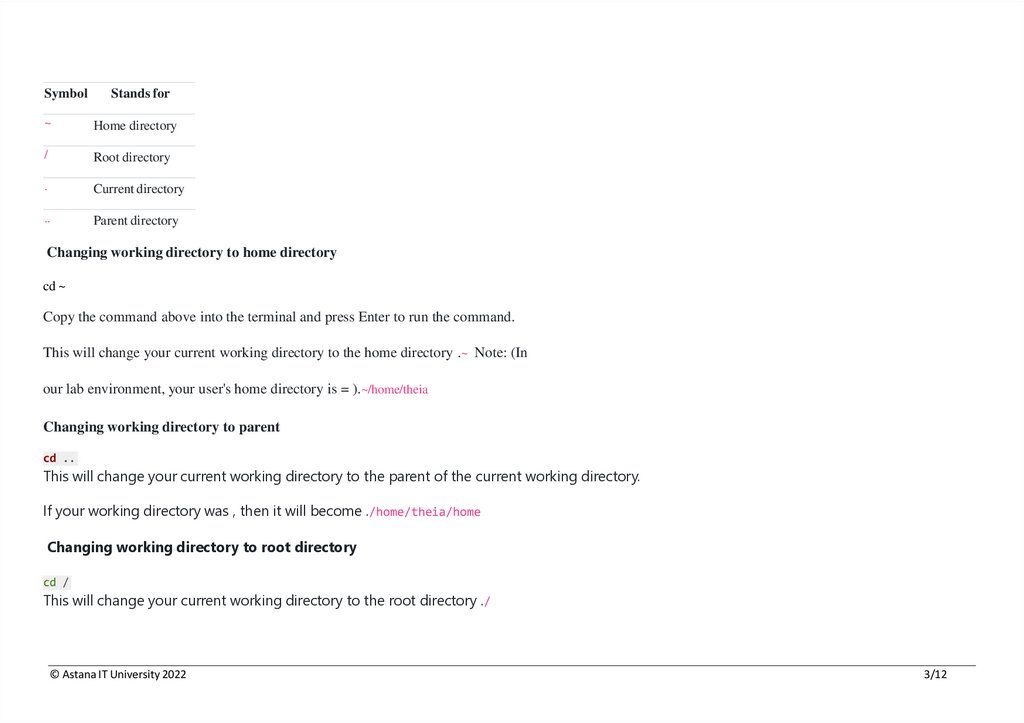
SymbolStands for
~
Home directory
/
Root directory
.
Current directory
..
Parent directory
Changing working directory to home directory
cd ~
Copy the command above into the terminal and press Enter to run the command.
This will change your current working directory to the home directory .~ Note: (In
our lab environment, your user's home directory is = ).~/home/theia
Changing working directory to parent
cd ..
This will change your current working directory to the parent of the current working directory.
If your working directory was , then it will become ./home/theia/home
Changing working directory to root directory
cd /
This will change your current working directory to the root directory ./
© Astana IT University 2022
3/12
4.
Changing working directory to childcd bin
This will change your current working directory to the directory./bin
The directory is called a child of the root directory because it's inside of it.bin/
Changing working directory back to home directory
cd ../home/theia
This will change your current working directory back to your home directory.
Of course, a simpler way to do this would be:
cd ~
Changing working directory back to project directory
cd ../project
This will change your current working directory back to your project directory.
The project directory is a special empty directory we provide for your work.
3.8 Managing Files and Directories
Create directories and files
- Create a folder project inside your home directory
- Inside project, create a text file notes.txt using touch
Use commands: Copy, move, rename
- Copy notes.txt to backup.txt
- Move backup.txt to parent directory
- Rename notes.txt to info.txt
Delete files and directories
- Delete backup.txt
- Delete the project folder and its contents using rm -r
© Astana IT University 2022
4/12
5.
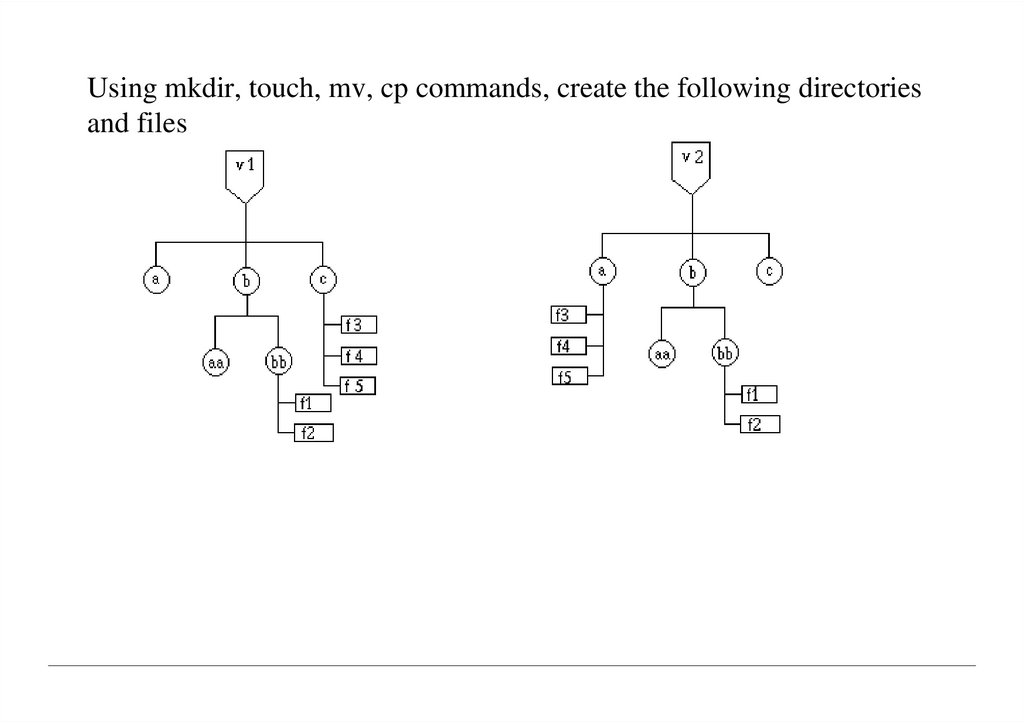
Using mkdir, touch, mv, cp commands, create the following directoriesand files